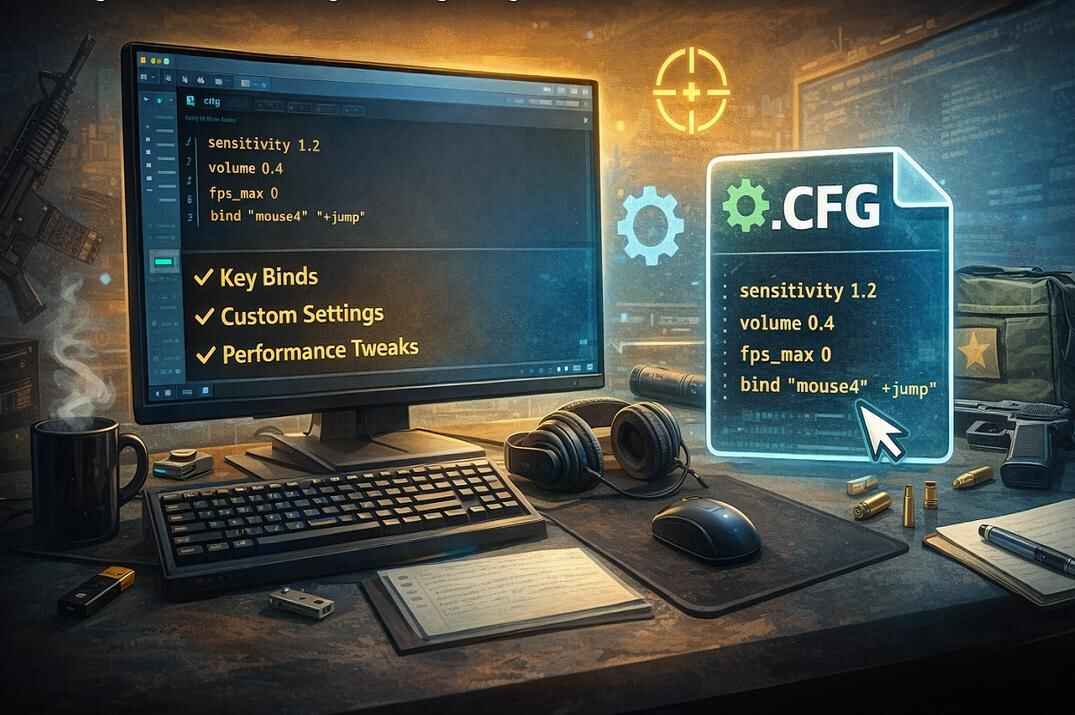
CS2 Config: How to Create, Load and Manage CFG Files
Where the cfg folder is, how to make a config, three ways to load it, autoexec.cfg, several configs at once, copying your current settings and fixing a config that won't run
Counter-Strike 2 still uses the same .cfg system players know from CS 1.6 and CS:GO. A config is a text file with console commands, binds and small scripts. You load it, and your whole setup is back in a second: after a reinstall, on another PC, or when an update resets something.
In this guide I show where CS2 keeps configs, how to create one without the classic .cfg.txt mistake, how to load it from the console, launch options or autoexec, how to split a big config into several files, and what to check when a config doesn't run. There's also a starter autoexec you can copy.
What Is a CS2 Config File (.cfg)
A .cfg file is plain text, one console command per line. When the game runs it, it does exactly what you would do by typing those lines into the console one by one. So a config can hold anything the console accepts: sensitivity, sound, FPS settings, HUD, radar, crosshair, binds and aliases.
sensitivity 1.2
volume 0.4
fps_max 400
bind "mouse4" "+jump"
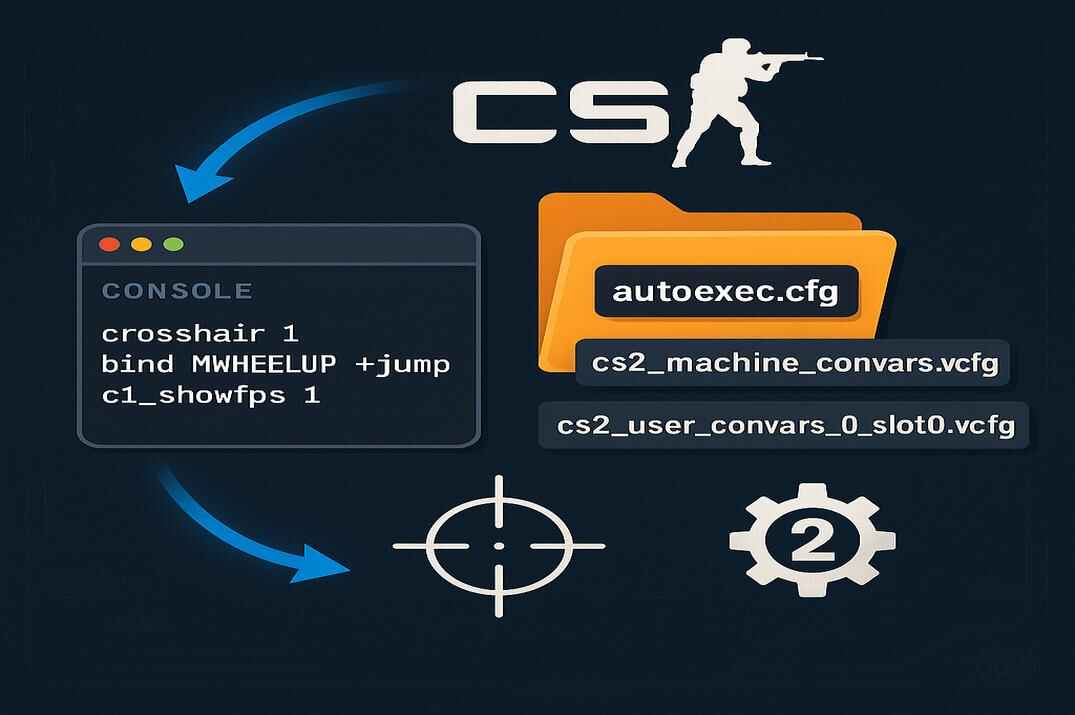
Don't mix it up with the game's own settings files. CS2 saves everything you change in the menu into .vcfg files, like cs2_user_convars_0_slot0.vcfg and cs2_user_keys_0_slot0.vcfg. The game writes them itself. Your .cfg files are yours: CS2 never changes them, it only runs them.
Settings come back after a reinstall, a new PC or a reset with one command.
Separate configs for practice, bots, grenades or recording, loaded only when you need them.
Configs only run commands the game already has. No VAC risk, that's what they are made for.
Where Is the CS2 Config Folder
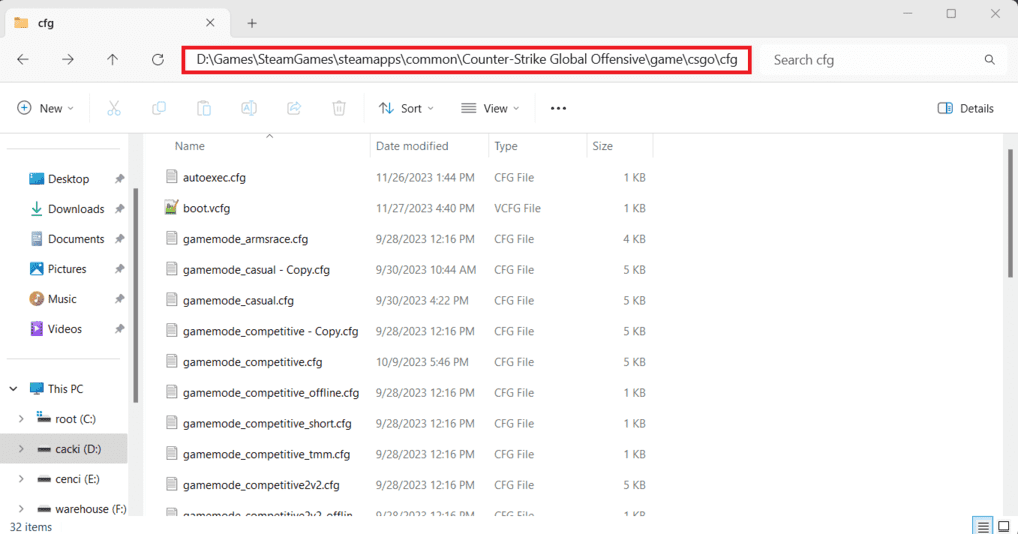
If Steam is installed in the default place, the folder for your configs is:
C:\Program Files (x86)\Steam\steamapps\common\Counter-Strike Global Offensive\game\csgo\cfg\
On Linux it's ~/.steam/steam/steamapps/common/Counter-Strike Global Offensive/game/csgo/cfg/. The game folder is still called Counter-Strike Global Offensive, that's normal.
How to Find the Folder Through Steam
If CS2 is in another Steam library or on another drive, let Steam open the folder for you:
- Steam → Library → right-click Counter-Strike 2.
- Manage → Browse local files . Or Properties → Installed Files → Browse .
- In the folder that opens go to
game→csgo→cfg.


All configs you want to run go into this cfg folder or into a subfolder inside it. Where the game keeps its .vcfg files, the userdata folder and the difference between them is covered in my CS2 config location guide.
How to Create a CS2 Config File
- Open the cfg folder.
- Right-click → New → Text Document, name it for example
config.txt. - Open it in Notepad, put your commands in, one per line, and save.
- Rename it from
config.txttoconfig.cfgand confirm the extension change.
Turn On File Extensions in Windows
The most common mistake: Windows hides extensions, you rename the file to config.cfg, and in reality it becomes config.cfg.txt. The game won't see it. To be sure, turn extensions on:
- Windows 11: in File Explorer open View → Show → File name extensions.
- Any Windows: Control Panel → File Explorer Options → View → untick Hide extensions for known file types .
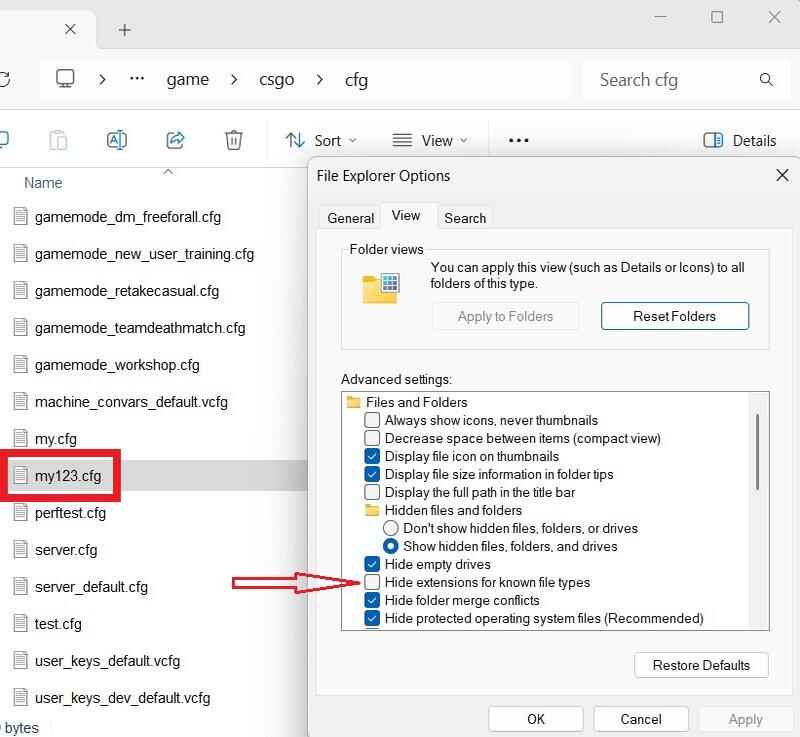
Notepad also likes to add .txt on its own. When saving, set Save as type to All files, or put the name in quotes: "config.cfg".
Comments in a Config
Everything after // on a line is a comment, the game skips it. I use comments to split a config into sections and to remember why a value is there.
// Mouse
sensitivity 1.15
// FPS and telemetry
fps_max 400
cl_hud_telemetry_frametime_show 2 // always show FPS
How to Load a Config in CS2 (exec Command)
A config can be loaded by hand from the console or automatically at start, through launch options or autoexec.cfg (next section).
From the Console
- Settings → Game → Enable Developer Console (~) → Yes.
- Press ~ to open the console.
- Type the command and press Enter:
exec config
The .cfg at the end is optional, exec config.cfg works too. This is the way for configs you switch during a session: practice, bots, grenades. More useful commands for them are in my CS2 console commands guide.
From Steam Launch Options
Launch options can run console commands at start. A command there starts with +.
- Steam → Library → right-click Counter-Strike 2 → Properties.
- On the General tab find Launch Options.
- Add at the end of the line:
+exec config
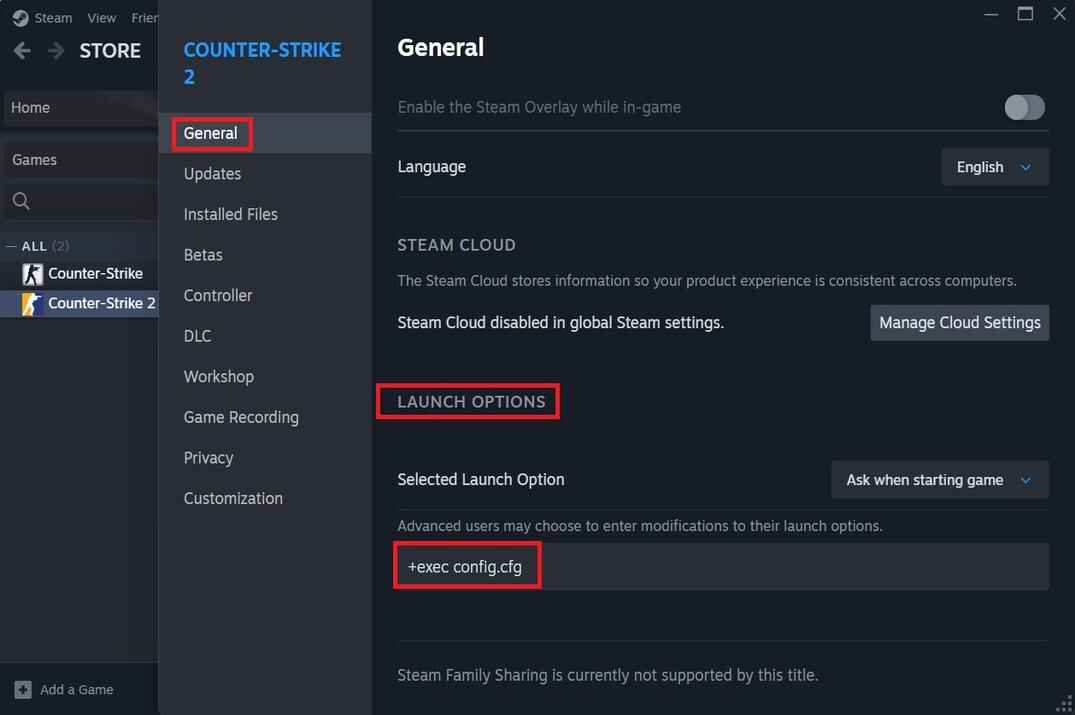
Launch options run after autoexec.cfg, so if the same command is in both, the value from the launch options wins. Which other launch options make sense in CS2 (not many) is in my CS2 launch options guide.
How to Set Up autoexec.cfg in CS2
autoexec.cfg is the one config CS2 runs by itself every time it starts. The exec autoexec.cfg call is built into the engine, you can find that line in the game files. It doesn't exist by default, you create it like any other config:
- In the cfg folder create
autoexec.txt. - Put your always-on settings inside.
- Rename it to
autoexec.cfg(notautoexec.cfg.txt).
No launch options needed. Many guides tell you to add +exec autoexec anyway. It's not needed, and when you troubleshoot later it's one more line that confuses you. I don't add it.
How to Check That Autoexec Works
Put cl_showfps 1 in it. The FPS counter shows up right in the main menu, so you know autoexec ran without loading a map. Remove the line later if you don't need the counter.

Another way is echo autoexec loaded at the end of the file, the text shows up in the console. More ways to show FPS are in how to show FPS in CS2.
What to Put in Autoexec
Only what you always want: mouse, crosshair, HUD, radar, sound, binds. Practice setups, bot commands and server rules don't belong there, load them with exec when you need them. A ready example is in the starter autoexec below.
How to Manage Multiple CS2 Config Files
A config grows fast, and a 200-line file is hard to read and fix. Split it by topic and let one file load the rest:
- autoexec.cfg
- Main settings: mouse, crosshair, HUD, radar, sound. At the end it loads the others.
- binds.cfg
- All key binds.
- scripts.cfg
- Aliases and scripts.
- practice.cfg, bots.cfg
- Loaded by hand when needed, never from autoexec.
exec binds
exec scripts

Configs run from top to bottom. If the same command appears twice, the later value wins, also across files. So the order of the exec lines matters.
Keep Your Configs in a Subfolder
The cfg folder also holds the game's own files (game mode configs, server.cfg and others). I keep mine in a subfolder, for example cfg\myfiles\. It's cleaner, you never touch Valve's files by accident, and backing up or moving to another PC is one folder.
CS2 doesn't look into subfolders by itself, so give the path in exec. All of these work the same:
exec myfiles\config
exec myfiles/config
exec \myfiles\config.cfg
The game is relaxed here: slash or backslash, with or without the leading slash and the .cfg extension.
How to Copy Your Current CS2 Settings into a Config
You don't have to write a config from zero. If you already play with settings you like, the game has all the values in its own files, linked to your Steam account:
...\Steam\userdata\YOUR_STEAM_ID\730\local\cfg\
- cs2_user_convars_0_slot0.vcfg
- Your settings: crosshair, HUD, radar, mouse and other values.
- cs2_user_keys_0_slot0.vcfg
- All your current binds.

YOUR_STEAM_ID is the short number of your account (SteamID3), if you have several folders there. My SteamID Lookup shows it for any profile.
Open the file in Notepad, find the lines you need and copy them into your .cfg as normal commands: a line like "cl_crosshairstyle" "4" becomes cl_crosshairstyle 4. Don't edit the .vcfg files themselves while the game is running, CS2 overwrites them. If you changed something in the console and want it saved right away, run host_writeconfig.
How the .vcfg files work, which one stores what and how to move them safely is in my config location guide.
Conclusion
A config in CS2 is not about copying pro settings. It's about a setup that loads the same way every time and comes back in a second after a reinstall or a reset. Put the always-on settings in autoexec.cfg, keep practice setups in separate files, use a subfolder and comments, and check with find when a command from an old config does nothing.
Start from your current settings in the .vcfg files, then change things slowly as your game changes.

CS2 Config Location
Game folder vs userdata, and what each .vcfg file stores.
open →
CS2 Console Commands
Practice, bots, HUD, radar and FPS commands that still work.
open →
CS2 Launch Options
What works in launch options and what is dead.
open →
How to Bind Keys in CS2
Bind syntax, toggles and where binds are saved.
open →
CS2 Crosshair Guide
The new pixel crosshair, styles, codes and commands.
open →
CS2 Config Generator
Build an autoexec with clicks instead of typing.
open →