
What Is FPS in CS2 and Why It Impacts Performance
FPS - or frames per second - is the number of images your computer renders each second. The higher the FPS, the smoother the animation looks and the faster your inputs appear on screen. Counter-Strike 2 runs on the Source 2 engine, which renders complex lighting, physics, and particle effects in real time - meaning your CPU and GPU are constantly working together to draw every single frame.
When FPS drops, the game doesn’t just look worse - it feels worse. Your shots register later, mouse movements feel heavier, and visual feedback becomes inconsistent. A dip from 200 to 100 FPS can completely change how recoil, timing, and aiming feel, especially in fights where milliseconds decide the outcome.
In practice, stable FPS value matters more than a high but unstable. What truly matters is frame stability - keeping your FPS consistent with minimal micro-stutter. A steady 180 FPS can feel better than a fluctuating 250. In CS2, smoother performance usually means better control.
CS2 FPS vs Refresh Rate: What Matters for Smooth Gameplay
Your monitor’s refresh rate (measured in Hz) defines how many frames it can physically display per second. For example, a 144 Hz monitor can show up to 144 FPS, while a 240 Hz monitor can display 240 FPS. Anything beyond that is still useful, but the extra frames aren’t literally shown - instead, they reduce input latency and make motion feel smoother and more responsive.
If your FPS drops below your monitor’s refresh rate, you’ll start noticing micro-stutters, tearing, or delayed input. On the other hand, when FPS consistently matches or exceeds the refresh rate, gameplay feels fluid and precise.
However, for weaker PCs, it often makes sense to cap your FPS slightly below the monitor’s maximum fps_max 239 (or about 238, not lower) on a 240 Hz monitor - for the best synchronization and smoother frame pacing. It’s much better to set fps_max 239 for stability instead of fps_max 300, where the frame rate will constantly jump.
To keep the balance right, always pair your target FPS with a monitor that can display it. Running 300 FPS on a 60 Hz monitor wastes potential; running 60 FPS on a 240 Hz monitor wastes the monitor. In game, the best result comes from pairing a high refresh rate with stable FPS.
How to Check FPS in Counter-Strike 2
There are several quick ways to check your FPS in CS2. Below are the most common and reliable methods - just the basics. For a full breakdown with every option explained in detail, see my complete guide: How to Show FPS in Counter-Strike 2 | Full 2026 Guide.
Using CS2 Console Commands
cl_showfps [0/1/2/3/4] - the classic command that displays your frame rate in the top-left corner. cl_hud_telemetry_frametime_show [0/1/2] - a newer telemetry command for FPS display (similar to the old net_graph) that shows frametime stability and performance data.
For a complete breakdown of all telemetry commands, check out my detailed guides:
- CS2 Telemetry (Net Graph): How to Enable, Read and Fix Performance Issues
- Custom Telemetry Scripts in Counter-Strike 2
Using the Steam FPS Counter

Enable the Steam Overlay, choose the on-screen position for the FPS counter, and assign a hotkey to toggle it on or off during gameplay.
Third-Party Tools
You can also monitor FPS using overlays from NVIDIA or AMD, or through external tools such as MSI Afterburner, Fraps, or RivaTuner Statistics Server.
How to Boost FPS in Counter-Strike 2
Getting smooth, consistent performance in Counter-Strike 2 isn’t about one single fix - it’s about combining dozens of small optimizations that together make a real difference. The Source 2 engine is powerful but demanding; even good PCs can stutter if they’re misconfigured. This section covers everything that actually helps: system updates, driver tuning, Windows settings, and in-game tweaks that translate directly into higher FPS and lower input delay.
Update Your System, BIOS, and GPU Drivers
One of the simplest but most overlooked ways to improve FPS is keeping every driver current. Out-of-date GPU drivers often cause performance drops, micro-stutters, or poor shader caching. Updates frequently contain specific optimizations for new Counter-Strike 2 patches.
It’s also worth updating your motherboard BIOS and chipset drivers. They refine how your CPU communicates with RAM and PCI-E devices, which can smooth out frame pacing and reduce input latency.
After all updates, restart your system and verify that Windows Update has finished installing any remaining hardware components. This ensures the OS, GPU, and CPU are all working on the same driver set.
Optimize Power and Energy Settings for Maximum FPS
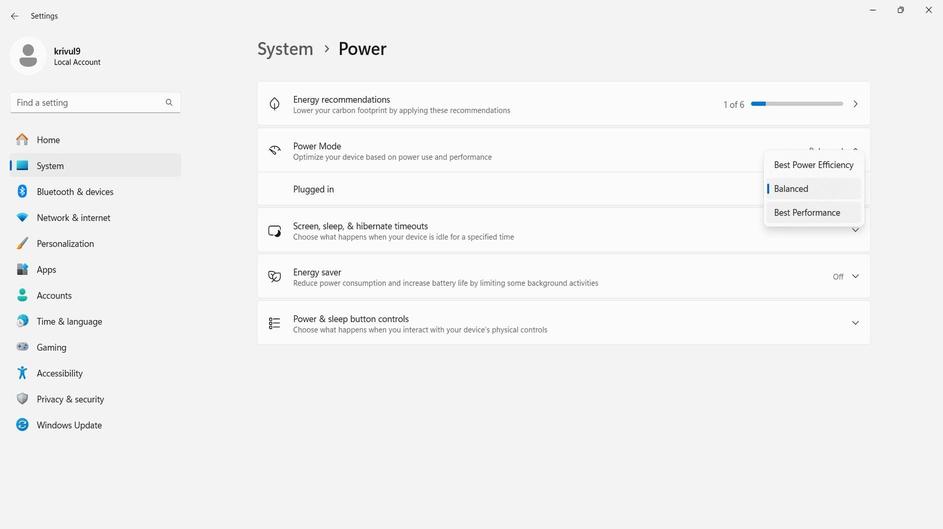
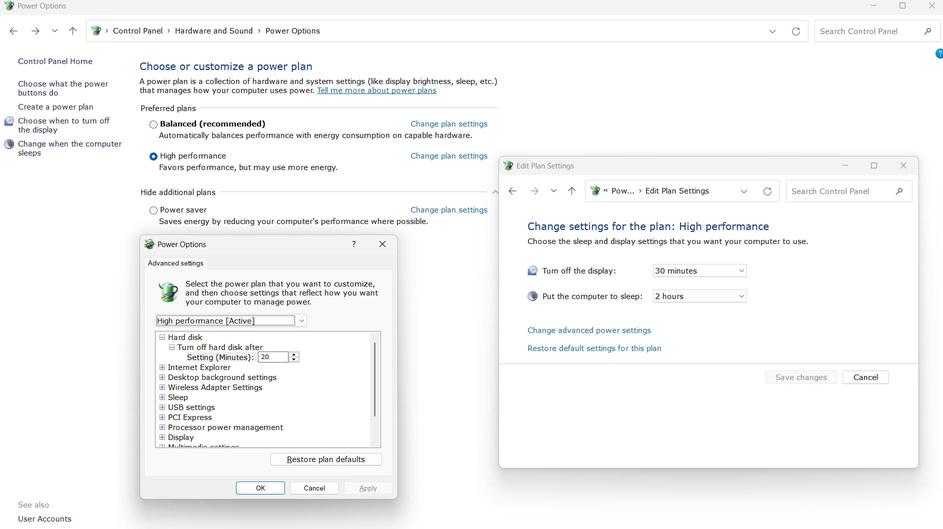
Windows often tries to save energy by lowering CPU or GPU clock speeds when it thinks you’re "idle". In a competitive shooter, that throttling can kill consistency.
- Go to Settings -> System -> Power & Battery -> Power Mode and select Best Performance.
- For desktops: Control Panel -> Hardware and Sound -> Power Options -> choose High-Performance
- Laptops: keep plugged in and disable any vendor "battery-saving" profiles.
This simple change alone often removes those mysterious FPS dips.
Activate Ultimate Performance power plan
On some systems, you can also unlock the Ultimate Performance power plan by running this command in Command Prompt as Administrator:
powercfg -duplicatescheme e9a42b02-d5df-448d-aa00-03f14749eb61
After that, open Power Options and select Ultimate Performance if it appears. This can help reduce aggressive power-saving behavior, but the gain is usually small on properly configured desktops.


Close or Terminate Background Applications
Every open program eats CPU time, RAM, or disk bandwidth - all things CS2 needs. Before launching the game, shut down browsers, streaming tools, or Discord voice channels you’re not using.

Open Task Manager -> Processes or Details and end anything heavy: cloud syncs (OneDrive, Google Drive), media players, RGB software, even aggressive antivirus scanners. On older systems this can recover 10-20 FPS and reduce hitching when loading new maps or assets.
Turn Off Unnecessary Overlays (Discord, Steam, Xbox, NVIDIA, AMD)
Overlays hook directly into your GPU pipeline to draw FPS counters, chat windows, or recording widgets - which means they compete with the game for render time. Disable them all:
- Discord: User Settings -> Game Overlay -> turn off Counter-Strike 2 (including Legacy Overlay).
- Steam: Settings -> In-Game -> disable Enable the Steam Overlay while in-game.
- NVIDIA / AMD: turn off Instant Replay or recording features unless necessary.
Disable or Remove Unnecessary Startup Software and Services
A clean startup means more memory for CS2. Press Ctrl + Shift + Esc -> Startup Apps and disable anything you don’t need at boot: game launchers, Adobe updaters, peripheral assistants, printer managers, etc.
For deeper optimization, open the Windows Registry (Win + R, type regedit) and navigate to these paths to remove unwanted entries:
HKEY_CURRENT_USER\Software\Microsoft\Windows\CurrentVersion\Run
HKEY_LOCAL_MACHINE\SOFTWARE\Microsoft\Windows\CurrentVersion\Run
HKEY_LOCAL_MACHINE\SOFTWARE\WOW6432Node\Microsoft\Windows\CurrentVersion\Run
Uninstall Unnecessary Programs

Use the Control Panel (Win + R -> control, then Programs -> Uninstall a program) to remove unneeded software. Alternatively, go to Settings -> Apps -> Installed Apps (Win + I) to uninstall unnecessary applications directly.
Advanced users can type services.msc in Run (Win + R) or in command line (CMD) and set obvious non-gaming services to Manual (like Fax, Remote Registry, or Xbox Services). Don’t go overboard - if you’re unsure what something does, leave it.
Before you change services or the registry, create a restore point and back up the registry.
Commonly Unnecessary Services in Windows (and When to Disable Them)
Disable Unnecessary Windows Services to Improve CS2 Performance.

- AJRouter - Disable if you don’t use the AllJoyn Router service.
- Fax - Disable if you don’t use a fax machine.
- Geolocation Service - Disable if you don’t use applications or features that require location data.
- Hyper-V Services - Disable if you don’t use Hyper-V virtualization or virtual machines.
- Telephony - Disable if you don’t use telephony, VoIP, modems, or related applications.
- Sensor Services - Disable if you don’t use hardware sensors or sensor-dependent apps.
- Windows Error Reporting - Disable if unnecessary; it only sends data to manufacturers.
- Connected User Experiences and Telemetry - Disable to stop data collection sent to Microsoft.
- Bluetooth Support Service - Disable if you don’t use Bluetooth devices.
- Downloaded Maps Manager - Disable if you don’t use the Bing Maps app or offline maps.
- Parental Controls - Disable if you don’t share your PC with children or use parental controls.
- Windows Image Acquisition - Disable if you don’t use scanners or similar devices.
- Windows Camera Frame Server - Disable if you don’t use a webcam.
- Windows Insider Service - Disable if you are not part of the Windows Insider Program.
- BitLocker Drive Encryption Service - Disable if you don’t use BitLocker encryption.
- Computer Browser - Disable if you don’t need network discovery on local networks.
- Distributed Link Tracking Client - Disable unless required in corporate environments.
- Internet Connection Sharing (ICS) - Disable if you don’t share your connection with other devices.
- Netlogon - Disable if your computer is not part of a domain network.
- Print Spooler - Disable if you don’t use physical printers.
- Windows Search - Disable if you don’t rely on built-in Windows search.
- Xbox Services - Disable if you don’t use Xbox or Xbox Live features.
Clean Up Windows and Temporary Files for Better FPS Performance
Over time, Windows fills drives with logs, caches, and leftover installer files that slow I/O operations. Cleaning them restores load speed and removes small stutters caused by disk access.
Clean the TEMP folders
- Press Win + R, type
temp, and delete the files inside. - Press Win + R, type
%temp%, and delete the files inside.
Run Disk Cleanup
- Press Win + R, type
cleanmgr, and press Enter. - In the Disk Cleanup window, click Clean up system files and select all unnecessary files for deletion.
Remove Traces of Uninstalled Programs
Check the following directories for leftover files from uninstalled programs:
C:\Users\Your_Account_Name\AppData\Local\
C:\Users\Your_Account_Name\AppData\Roaming\
Remove Unused Devices in Device Manager
- Open Device Manager by pressing Win + R, typing
devmgmt.msc, and pressing Enter. - Alternatively, press Win + I, type Device Manager, and open it.
- In the View menu, enable Show hidden devices.
- Uninstall any unused or greyed-out devices.
On SSDs this doesn’t directly boost FPS, but it shortens map load times and eliminates micro-hitches when new textures stream in.
Optimize Visual Effects in Windows
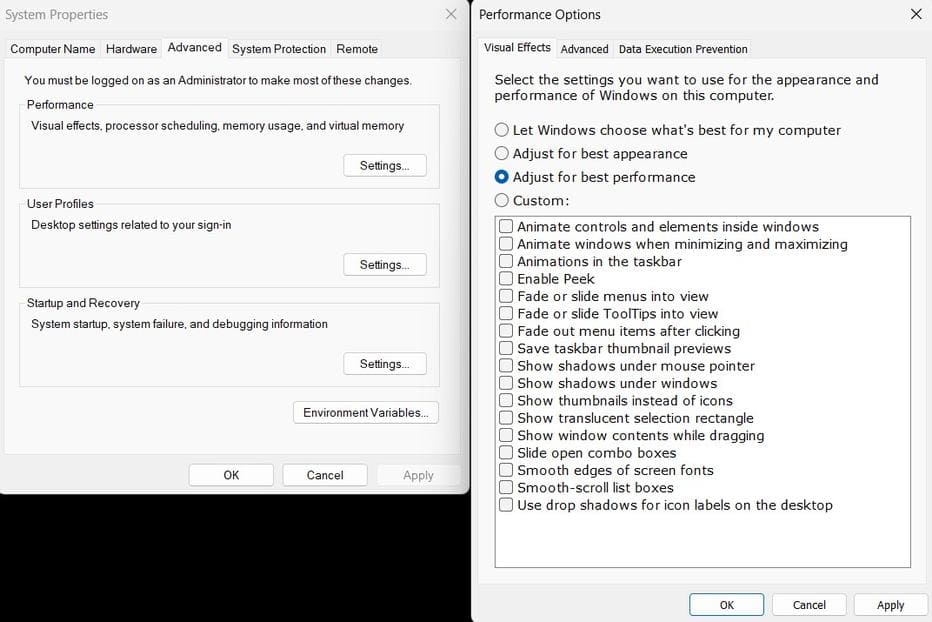
Windows transparency, shadows, and animations use GPU and CPU resources that don’t improve gameplay. Adjust them to prioritize performance over appearance.
Go to System -> Advanced System Settings -> Advanced -> Performance (Settings).
Choose "Adjust for best performance" to disable unnecessary visual effects, then re-enable "Smooth edges of screen fonts" so text remains readable and clean.
This makes Windows feel faster and prevents background effects from wasting system resources.
Enable Game Mode and GPU Scheduling (Windows Optimization)
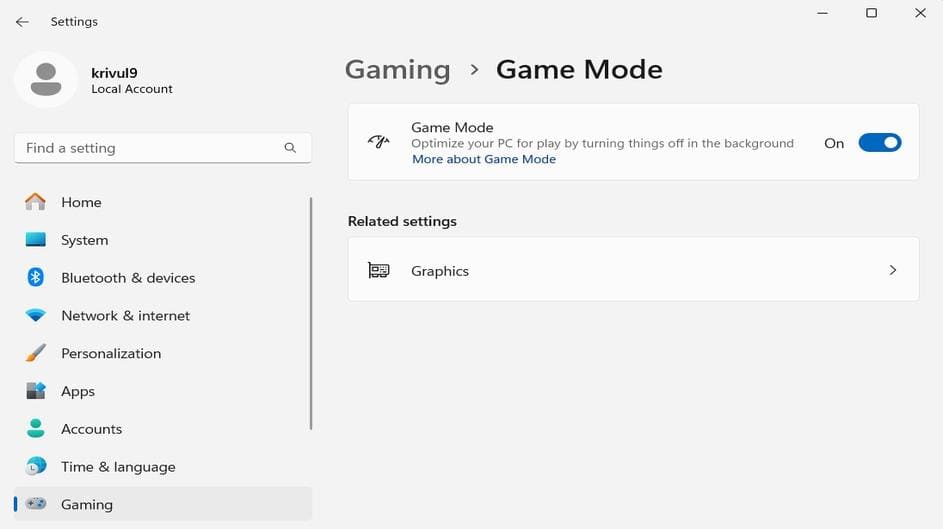
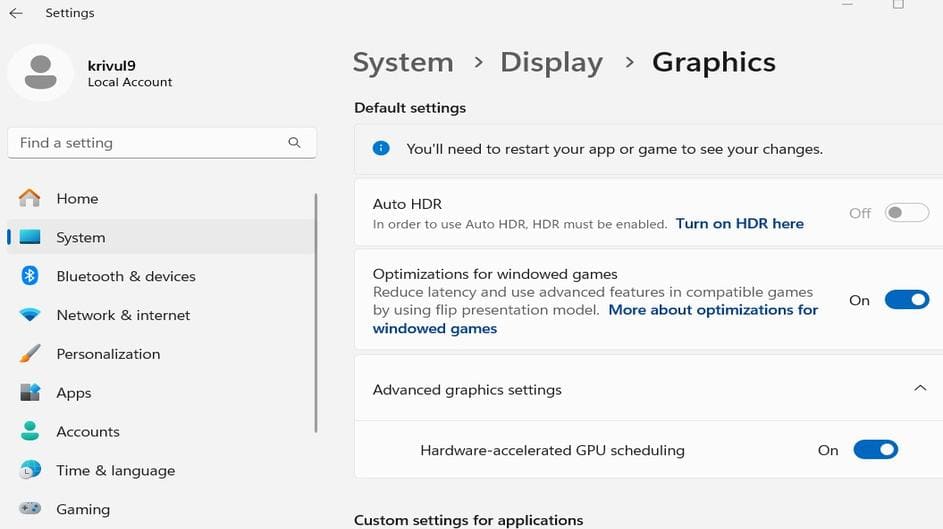
Modern Windows systems include Game Mode, which improves gaming performance by prioritizing CPU and GPU resources for games. It minimizes background activity and prevents pop-ups or updates from interrupting gameplay. Additionally, Graphics Settings allow optimization for specific applications, improving responsiveness and reducing latency.
Go to System -> Gaming -> Game Mode and toggle it on.
Then navigate to Graphics -> Advanced Graphics Settings and enable Hardware-accelerated GPU scheduling.
Add the Counter-Strike 2 executable (cs2.exe) to the Graphics Settings list:
- Click Add desktop app
- Locate and add
cs2.exe - Set GPU preference -> High Performance(video card)
Together, these features reduce CPU overhead and improve frame pacing, especially on mid-range systems.
You can verify if Windows Game Mode is active in the CS2 console using the command:
sys_info
Look for the line: Windows Game Mode: active.
Adjust NVIDIA Control Panel Settings for Best CS2 Performance
Proper configuration of the NVIDIA Control Panel can significantly boost performance and eliminate frame-time spikes in Counter-Strike 2.
Adjust Image Settings for Performance
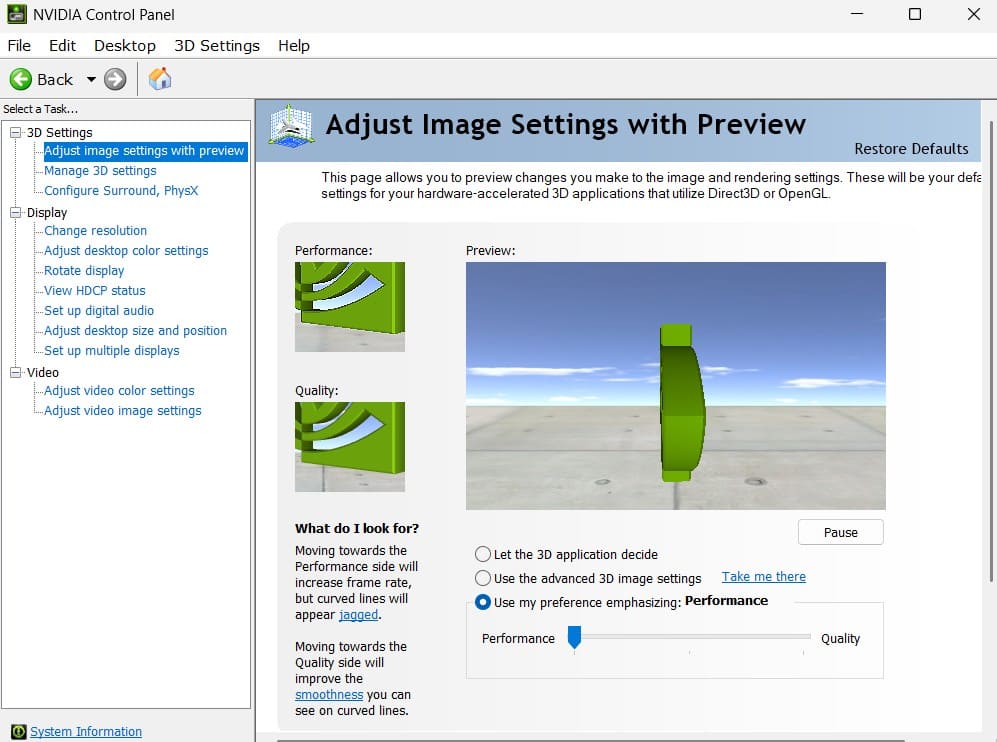
- Right-click the desktop -> NVIDIA Control Panel -> Adjust image settings with preview.
- Select Use my preference emphasizing and move the slider fully left for Performance.
Configure Program-Specific 3D Settings
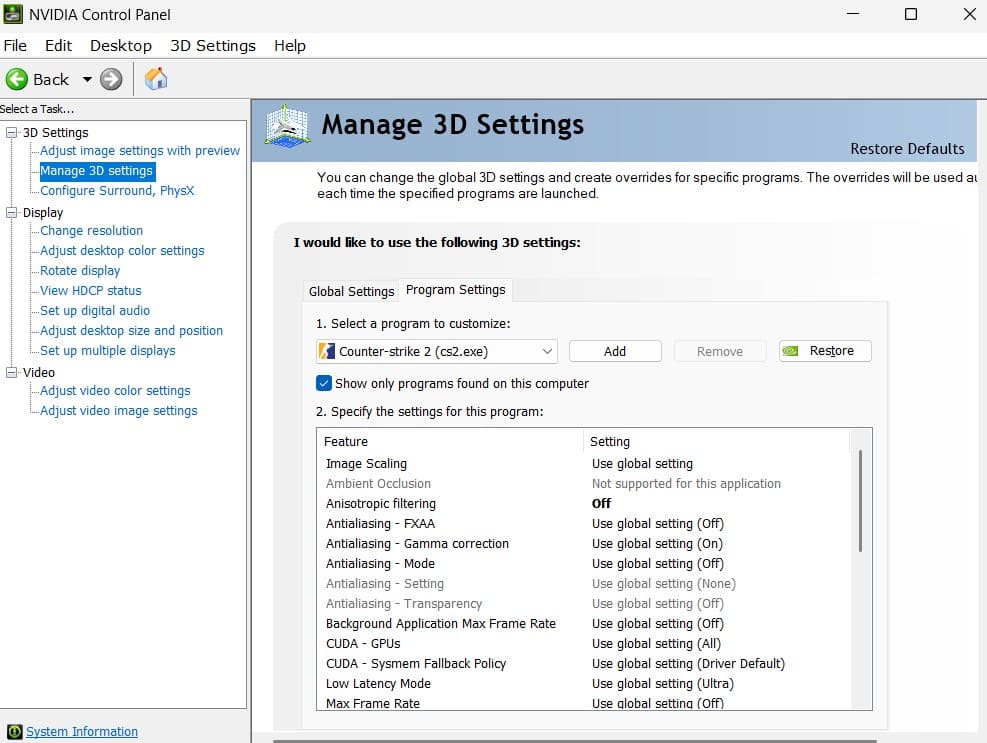
- Open NVIDIA Control Panel -> Manage 3D Settings -> Program Settings -> select cs2.exe.
- Apply the following recommended settings for competitive play:
| Setting | Recommended Value | Purpose |
|---|---|---|
| Image Scaling | Off | Play at native resolution for best clarity. |
| Anisotropic Filtering | Off | Unnecessary for CS2. |
| Antialiasing - FXAA | Off | Avoids blurring; use in-game AA if needed. |
| Antialiasing - Gamma Correction | On | Improves lighting and color quality. |
| Antialiasing - Mode | Off | Disables external anti-aliasing. |
| Antialiasing - Transparency | Off | Reduces GPU load. |
| Background App Max Frame Rate | Off | Optionally limit background FPS to 20. |
| CUDA - GPUs | All | Use all available GPUs. |
| DSR - Factors | Off | Avoid unnecessary upscaling load. |
| Low Latency Mode | Ultra | Minimizes input delay; use "On" if unstable. |
| Max Frame Rate | Off | Control FPS via in-game settings. |
| MFAA | Off | Not useful for CS2. |
| OpenGL GDI Compatibility | Performance | Improves OpenGL performance. |
| OpenGL Rendering GPU | NVIDIA | Select your main graphics card. |
| Power Management Mode | Prefer Maximum Performance | Prevents GPU downclocking. |
| Preferred Refresh Rate | Highest Available | Uses monitor’s maximum Hz. |
| Texture Filtering - Anisotropic Sample Optimization | On | Improves performance. |
| Texture Filtering - Negative LOD Bias | Allow | Manages texture detail effectively. |
| Texture Filtering - Quality | Performance | Prioritizes speed over visuals. |
| Texture Filtering - Trilinear Optimization | On | Improves filtering speed. |
| Threaded Optimization | On | Enables multithreading for smoother gameplay. |
| Triple Buffering | Off | Only needed if V-Sync is on. |
| Vertical Sync | Off | Removes frame synchronization delay. |
| Virtual Reality Pre-Rendered Frames | 1 | Default for non-VR setups. |
| Vulkan/OpenGL Method | Auto | Lets driver optimize automatically. |
These settings remove frame-time spikes and keep GPU clocks locked at full speed, ensuring smoother gameplay.
Set High Priority for cs2.exe Process (Fix FPS Drops)
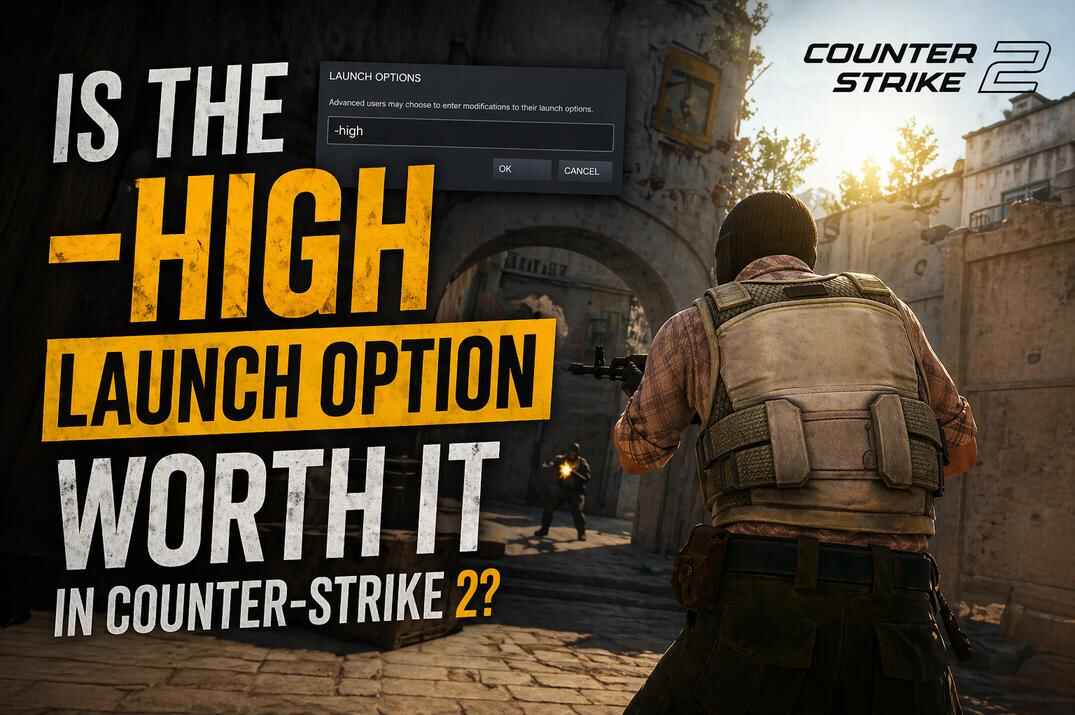
Running Counter-Strike 2 with high priority can improve performance by making the game smoother, more responsive, and stabilizing FPS. You can do this manually via Task Manager or automate it using the -high launch option in Steam’s CS2 Launch Options.
A more reliable method is to let the operating system launch CS2 with high priority from the very beginning. When Windows starts a process, it uses a function called CreateProcess(). If you configure it to start CS2 with HIGH_PRIORITY_CLASS, the game runs at high priority immediately - before any game threads or assets are initialized. This is cleaner, safer, and generally more stable.
For a step-by-step guide and a comparison of all available methods, see: Counter-Strike 2: Is the "-high" Option Worth It?
Registry Method (Permanent High Priority)
- Press Win + R, type
regedit, and press Enter. - In the Registry Editor, use the address bar to navigate to:
Computer\HKEY_LOCAL_MACHINE\SOFTWARE\Microsoft\Windows NT\CurrentVersion\Image File Execution Options - Right-click the Image File Execution Options folder -> New -> Key -> name it
cs2.exe. - Right-click the newly created
cs2.exekey -> New -> Key -> name itPerfOptions. - Inside
PerfOptions, right-click in the right panel -> New -> DWORD (32-bit) Value -> name itCpuPriorityClass. - Double-click
CpuPriorityClassand set the value to3. You can leave the base as Hexadecimal or switch to Decimal - both work the same for values 1 through 9.
That’s it! Close the Registry Editor. After that cs2.exe will start with high priority automatically - no need to use the -high launch option or manually adjust priority in Task Manager.
Best CS2 Video Settings for Maximum FPS
CS2’s visual settings have a massive impact on frame rate. Most players typically run almost everything on Low or Very Low - except for key visibility settings like Boost Player Contrast and Dynamic Shadows. These can still be adjusted based on your preference and visibility needs.
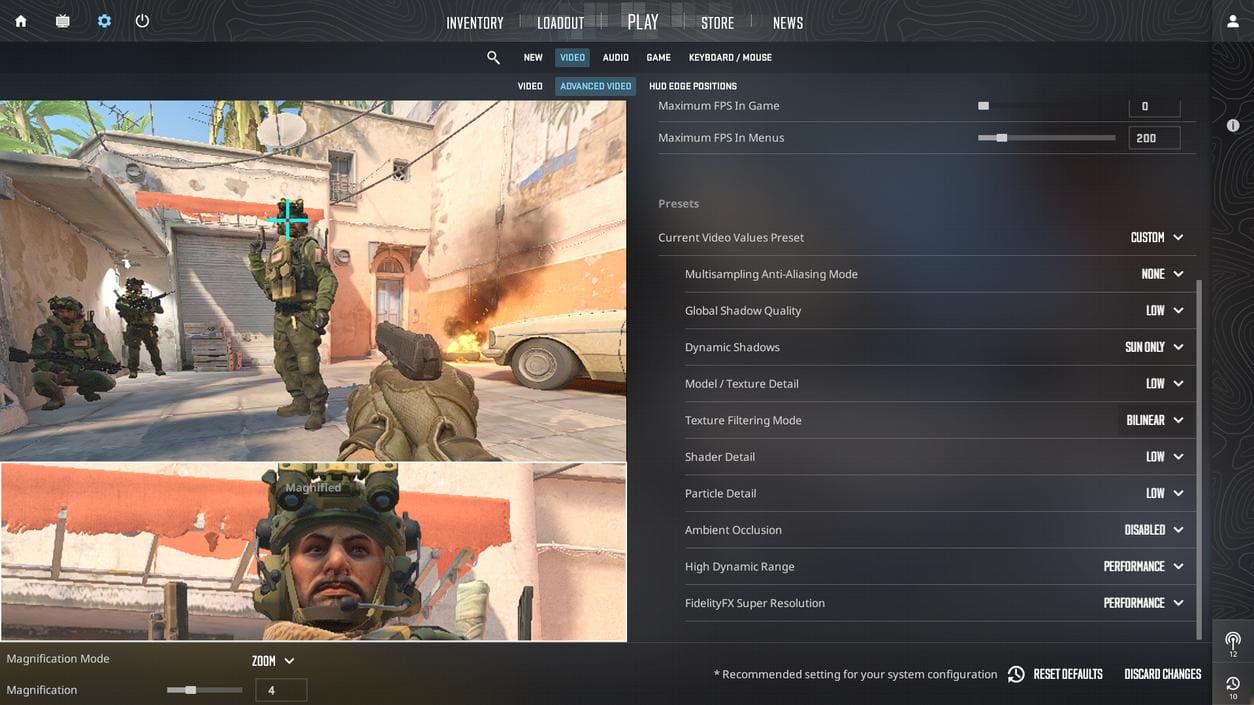
- Boost Player Contrast: Disabled
- Multisampling Anti-Aliasing Mode: None
- Global Shadow Quality: Low
- Dynamic Shadows: Sun Only
- Model/Texture Detail: Low
- Texture Filtering Mode: Bilinear
- Shader Detail: Low
- Particle Detail: Low
- Ambient Occlusion: Disabled
- High Dynamic Range (HDR): Performance
- FidelityFX Super Resolution (FSR): Performance
Set Display Mode to Fullscreen (exclusive) for the best performance.
Resolution and Aspect Ratio: Impact on FPS in CS2
The 4:3 stretched resolution remains one of the most popular among competitive players because it increases perceived player size and provides higher FPS, while 16:9 offers the widest field of view at slightly lower performance.
In 2026, most professional Counter-Strike 2 players are not using native 1080p. Around half of the pro scene prefers 1280×960 (4:3 stretched), making it the dominant choice. Another large group plays at 1024×768 (4:3 stretched) for even higher FPS and bigger character models. A smaller but consistent group sticks with 1920×1080 (16:9 native) for visual clarity and full field of view.
You’ll also find players using 1440×1080 (4:3 stretched / Black bars) or 1680×1050 (16:10), though these are less common.
Experiment to find your balance between visual comfort and frame rate, but I recommended 1280×960 (4:3 stretched). For a step-by-step guide about screen resolution and aspect ratios in CS2, check out: Best Resolution for CS2: Complete Screen Resolution Guide.
Use Correct Display Connection (DP vs HDMI)
Both cables technically work, but DisplayPort provides higher bandwidth with lower latency - which directly improves frame delivery and input responsiveness. If your monitor supports 240 Hz or higher, you should always use DisplayPort.
HDMI 2.0 and earlier standards can limit refresh rates or introduce subtle frame delay that feels like small input lag. DisplayPort 1.4 and above are optimized for high-refresh gaming and should be your default choice for CS2.
Best CS2 Commands for FPS and Stability
Counter-Strike 2 includes several console variables that can smooth gameplay and improve stability - all fully compatible with Trust Mode.
fps_max 0- removes frame limit for maximum performance.r_drawtracers_firstperson 0- disables first-person bullet tracers.cl_autohelp 0- turns off in-game hints and tutorial pop-ups.cl_hide_avatar_images 1- hides player avatars for a cleaner HUD.cl_crosshair_friendly_warning 0- disables crosshair friendly-fire warnings.
For a full list and detailed explanation of useful commands, see CS2 Console Commands 2026: Best Practice, Gameplay & FPS Settings. That guide covers practice commands, gameplay tweaks, HUD and crosshair settings, and many other console options that still work in modern Counter-Strike 2.
Best Steam Settings for CS2 Performance
The Steam client itself can use GPU power when running animated backgrounds or hardware-accelerated web content. Turning these off can reduce idle VRAM usage and prevent overlay-related stutter.

- Open Steam -> Settings -> Interface.
-
Disable the following options:
- Enable smooth scrolling in web views
- Enable GPU-accelerated rendering in web views
- Enable hardware video decoding (if supported)
- Restart Steam afterward to apply changes.
These small tweaks reduce background rendering overhead and keep CS2 frame delivery steady, even during chat or notification pop-ups.
Disable Full-Screen Optimization in Windows
Windows 10/11 applies a Full-Screen Optimization layer that blends games with the desktop compositor. It can introduce one frame of latency and small FPS dips. Disabling it forces CS2 into true exclusive fullscreen, giving it direct control over your display.

- Go to your CS2 installation folder:
..\steamapps\common\Counter-Strike Global Offensive\game\bin\win64\cs2.exe - Right-click
cs2.exe-> Properties -> Compatibility tab. - Check Disable full-screen optimizations box and click Apply.
This gives the game full control of frame output and eliminates one frame of delay - a small but noticeable improvement in aim responsiveness.
Remember, most of these tweaks stack together. Each one adds a few frames or removes tiny stutters, but combined they can increase your average FPS by 30–60 %, depending on your hardware. Always test changes individually - if a setting causes instability or new micro-lags, revert it.
Common FPS Myths in Counter-Strike 2
The internet is full of so-called FPS boost tricks that promise hidden performance gains in CS2 - but most are outdated myths carried over from the old Source engine. Some can even harm performance or cause instability and graphical glitches. Counter-Strike 2 runs on a completely new Source 2 engine with its own optimization logic, so many of the classic tweaks no longer apply. Let’s debunk the most common FPS myths still circulating on forums and YouTube in 2025.
Myth 1: -threads X Command Boosts Performance
This myth has existed since CS:GO. The -threads option specifies the number of CPU threads used by the game’s thread pool, but in the old Source engine it was hardcoded to three threads regardless of your CPU.

In Counter-Strike 2, the engine automatically detects your hardware and assigns the optimal number of threads - typically one less than the total available. Forcing your own value doesn’t improve performance and can even cause stutters or crashes.
To check your current thread allocation, open the in-game console and type: sys_info. You’ll see a line such as:
Engine thread pool: 15 thread(s)orEngine thread pool: 3 thread(s)orEngine thread pool: 7 thread(s)
The -threads launch option should only be used for testing or debugging. For regular players, it’s useless. Let Source 2 manage threads automatically.
Myth 2: Vulkan Mode Is Always Better
Vulkan isn’t a performance booster - it’s just a different rendering API. Counter-Strike 2 is heavily optimized for DirectX 11, and Valve has not made Vulkan its primary rendering path. Using the -vulkan launch option won’t improve FPS unless the engine is specifically optimized for Vulkan (and it currently isn’t).
Myth 3: +r_drawparticles 0 as a Launch Option
This is a console command, not a launch option. The command controls effects (like smoke, fire, and explosions) are rendered:
r_drawparticles = false () [cheat] [Console] SV: Convar 'r_drawparticles' is cheat protected, change ignored.

The Source 2 engine does not allow disabling gameplay-critical visual elements, so this command only works with sv_cheats 1 - making it useless for matchmaking or competitive play.
Myth 4: +mat_queue_mode 2 as a Launch Option


Another leftover from CS:GO. In that version, mat_queue_mode controlled multi-threaded rendering - but in CS2, this function is fully automated by Source 2 and no longer exists as a user command or launch option.
Myth 5: +cl_forcepreload 1 as a Launch Option
Also a console command - not a launch option - and it’s been removed from CS:GO since 2021. Yet it still appears in many "FPS guides" today.
Official Valve description: Makes level loads longer, but can reduce stuttering caused by loading information on the fly.
In CS2, the engine handles preloading automatically. Forcing it manually does nothing and can even make load times longer without improving frame stability.
Real CS2 FPS Benchmark - How Much Performance Can You Actually Gain?
To find out how much real performance improvement I could achieve through optimization and system tuning, I ran a full benchmark using the CS2 FPS Benchmark Dust2 map from the Steam Workshop.

Test System:
- Model: HP Pavilion 580-023w (2017, upgraded RAM)
- CPU: Intel Core i5-7400
- GPU: NVIDIA GeForce GTX 1060 3 GB
- RAM: 32 GB DDR4
- OS: Windows 11
I started with the default settings, right after installing the game - no tweaks, no driver updates. The benchmark showed an average of 135.1 FPS, with a minimum of 74.5 FPS.

After a full cleanup, Windows optimization, updating all GPU and chipset drivers, background cleanup, and optimized NVIDIA Control Panel options, the second run reached 148 FPS average / 82.6 FPS minimum.

Finally, I configured the in-game settings purely for performance - low graphics settings and minimal post-processing. The third test delivered 218.2 FPS average / 112.7 FPS minimum.

These aren’t perfect laboratory tests, but they show the real picture: proper system maintenance, driver updates, and balanced graphics settings can easily deliver a 60 %+ FPS gain on mid-range hardware like this.
The key takeaway: you don’t need new hardware right away. A well-tuned system can go far beyond "stock" performance - just by doing the basics right.
CS2 FPS Boost FAQ

Why is my FPS low even on a good PC?
Usually because of outdated GPU drivers, background apps, or CPU bottlenecks. Even powerful systems lose frames when Windows or the GPU isn’t configured properly. Update drivers, disable overlays, and make sure your CPU isn’t throttling.
Does lowering resolution really increase FPS in CS2?
Yes - it reduces the number of pixels your GPU has to render. At 1280×960 or
1024×768, FPS can increase by 20-40 %, depending on your system.
You’ll lose a bit of sharpness and field of view, but honestly - not much.
Should I use launch options like +mat_queue_mode 2, +r_drawparticles 0, or +cl_forcepreload 1?
No. These commands are outdated or ignored by the Source 2 engine.
What’s better - DisplayPort or HDMI for CS2?
DisplayPort. It supports higher refresh rates (240 Hz +) with lower latency and more stable signal timing. Just don’t forget about the cable version - DisplayPort 2.0 (2019) or DisplayPort 2.1 (2022) deliver the best bandwidth and the cleanest signal for modern high-refresh monitors.
Can Game Mode and GPU Scheduling actually increase FPS?
A little. They don’t add raw performance but help with smoother frame pacing and reduced latency - especially on mid-range CPUs.
Why does my FPS drop randomly during matches?
Thermal throttling, background updates, or overlays (Discord, Steam, GeForce Experience) are common causes. Check temps, close other apps, and use High Performance power mode.
How much FPS should I aim for in CS2?
Anything stable above your monitor’s refresh rate. For 144 Hz, target 144 FPS +. For 240 Hz monitors, 240 FPS + feels ideal. Stability is more important than chasing 400 FPS peaks.
Does using an SSD increase FPS?
Not directly, but it prevents micro-stutters and reduces load times when the game streams new assets.
Should I limit FPS with fps_max?
Yes and no. With fps_max 0, CS2 renders freely and performs well, but it also pushes your CPU and GPU to 100 % load. If your system isn’t powerful or runs hot, it makes sense to limit FPS. If your frame rate fluctuates a lot, setting a cap helps stabilize performance. Capping FPS slightly below your monitor’s refresh rate (for example, 239 on a 240 Hz monitor) keeps frame delivery smoother and prevents micro-tearing.
Can overclocking help?
Yes - mild GPU or CPU overclocks can raise average FPS 5-10 %, but stability and cooling are critical. Don’t overclock if your temps already exceed 80 °C (or check CPU specification).
Why does my FPS look high but the game feels laggy?
That’s frame-time inconsistency. The FPS counter only shows averages - uneven delivery between frames causes input lag and stutter. Check the monitor rate (Hz), CPU temps and background tasks.
What’s the easiest way to track FPS in CS2?
Use the in-game command cl_showfps 1 or the Steam overlay counter. For detailed frame-time graphs, try telemetry commands like cl_hud_telemetry_frametime_show 2.


2 Responses
What about Cache shaders setting in NVIDIA Control Panel? Thx for this
Turn ON (5/10/100 GB or Unlimited).
Precompiled shaders will be stored on your disk to speed up loading times and reduce stuttering during future launches of CS2.
After updating your GPU driver or the game itself, old cache files can cause longer map loading times – in that case, clear the shader cache:
NVIDIA Control Panel -> 3D Settings -> Delete Shader Cache
Manually delete the contents of:
C:\Users\YOUR_ACCOUNT\AppData\Local\NVIDIA\DXCache
C:\Users\YOUR_ACCOUNT\AppData\Local\NVIDIA\GLCache