How to Fix FPS Drops, Stuttering and Input Lag in CS2
Why CS2 stutters even at 300+ FPS, Valve's own sync recommendation, video, NVIDIA and Windows settings, shader cache, drivers and network spikes
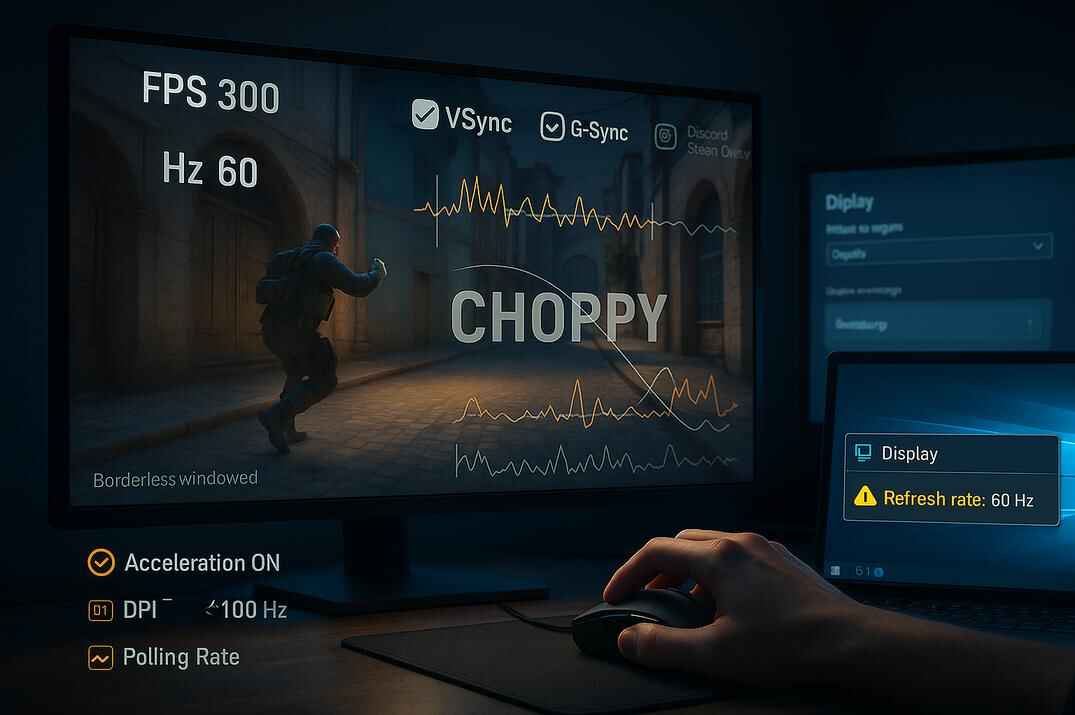
Counter-Strike 2 can show a high FPS number and still feel bad: the mouse feels late, movement is uneven, sprays don't land the way they should. In most cases the problem is not low FPS as such, but frames that arrive unevenly or wait somewhere on the way to your monitor.
In this guide I go through the causes one by one: display mode and refresh rate, V-Sync, G-Sync and Reflex (with Valve's own recommendation), video settings, launch options, shader cache, NVIDIA and Windows settings, drivers and network spikes. Start from the top, test after each step, and stop when the game feels right.
Use Fullscreen and Your Monitor's Full Refresh Rate
Set Display Mode to Fullscreen
In Settings → Video → Display Mode choose Fullscreen, not Fullscreen Windowed or Windowed. In fullscreen the game sends frames to the monitor directly, in the windowed modes Windows sits in between: more input lag, worse frame pacing, and the refresh rate is whatever Windows has set.

In the same menu check that the refresh rate next to the resolution is your monitor's maximum.
Check the Refresh Rate in Windows and the GPU Panel
- Windows: Settings → System → Display → Advanced display , set the highest refresh rate (144, 165, 240, 360 Hz...).
- NVIDIA Control Panel (Change resolution) or AMD Software: the same rate should be set there.
- Re-check after every driver update, cable change or new monitor.
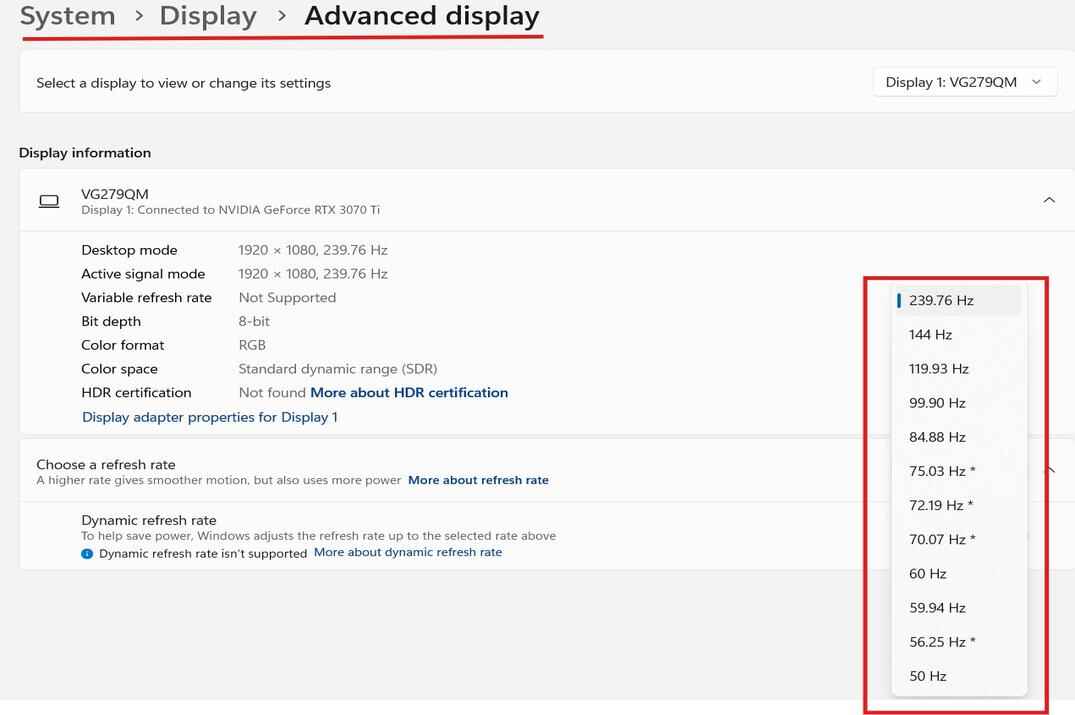
CS2 itself warns you when your display has a higher refresh mode than the one it runs at. If you saw that popup, don't ignore it.
Use DisplayPort for High Refresh Rates
If stutter stays after everything else, check the cable. On many monitors HDMI doesn't carry 240 Hz and more at full resolution, or the monitor only offers its top refresh rate over DisplayPort. Use DisplayPort and a cable rated for your refresh rate. Cheap old cables can drop the signal or flicker at 240 Hz and above.
Best CS2 Video Settings Against FPS Drops
Heavy settings don't only cost average FPS, they cause spikes in big fights, smokes and molotovs. My settings for steady frame times:

| Setting | Value |
|---|---|
| Boost Player Contrast | Disabled (costs a little FPS, turn it on if you want models to stand out more) |
| V-Sync | See the sync section |
| Multisampling Anti-Aliasing Mode | None |
| Global Shadow Quality | Low |
| Dynamic Shadows | Sun Only |
| Model / Texture Detail | Low |
| Texture Filtering Mode | Bilinear |
| Shader Detail | Low |
| Particle Detail | Low |
| Ambient Occlusion | Disabled |
| High Dynamic Range | Performance |
| FidelityFX Super Resolution | Off for the sharpest picture, Performance only on weak PCs |
| NVIDIA Reflex Low Latency | Enabled or Enabled + Boost |
fps_max: Cap or No Cap
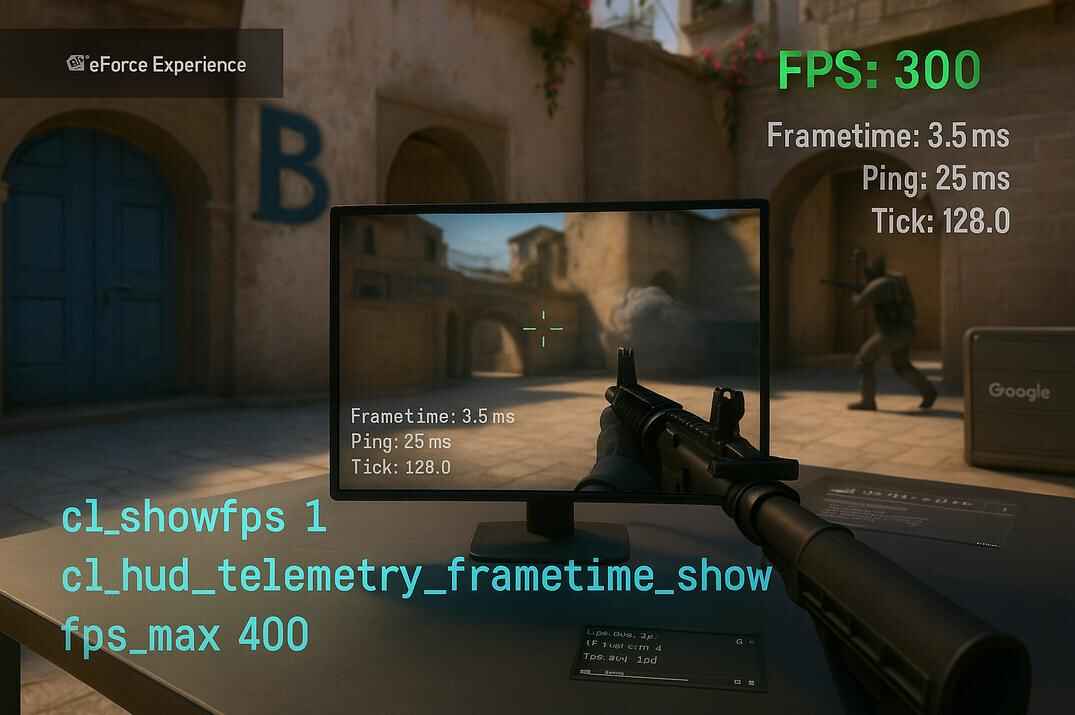
The default is fps_max 400. Without G-Sync I start with fps_max 0 (no cap): CS2 handles uncapped FPS well on most PCs. If frame times jump, set a cap a bit below what your PC holds in heavy moments, for example 300 if you usually see 330 to 450. A steady cap feels cleaner than a number jumping between 300 and 400.
fps_max 0
fps_max 300
With the G-Sync + V-Sync + Reflex setup you don't need a cap, Reflex limits FPS just below the refresh rate by itself.
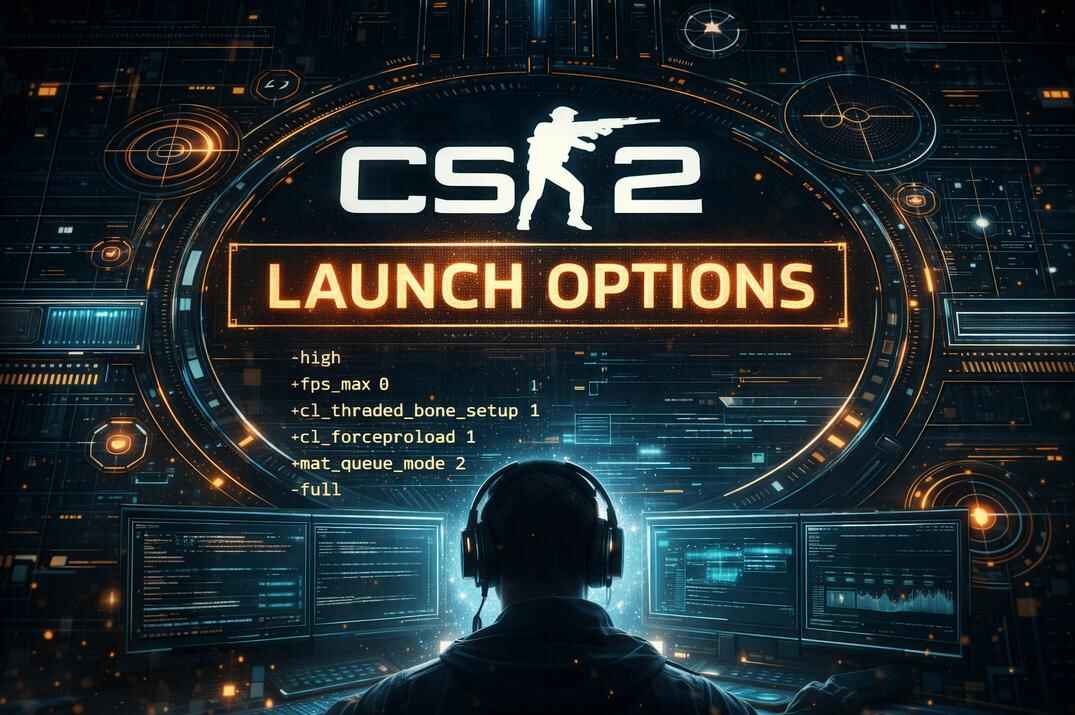
Remove Launch Options That Hurt Frame Pacing
Many launch options copied from CS:GO guides do nothing in CS2, and two of them can make things worse.

-high
Gives the CS2 process high priority in Windows. Sounds good, but it disturbs the normal scheduling between the game, the GPU driver, audio and network, and that shows up as rare hitches. If you really want high priority, set it through the registry after start, not as a launch option. Details in is -high worth it in CS2.
-threads
Forced the thread count in the old Source engine. Source 2 detects your CPU and manages threads on its own, and a forced number can make frame times uneven, especially on CPUs with SMT / Hyper-Threading.

Remove both and test again. For most players the best launch options line is an empty one.
Clear the Shader Cache to Fix Hitches
After a driver or a big game update, old compiled shaders may not match anymore. The game rebuilds them during play, and you get short freezes at map load or in the first rounds. Clearing the cache makes it rebuild once, cleanly.
NVIDIA Shader Cache
- Close CS2 and other games.
- Delete everything inside these folders:
%LOCALAPPDATA%\NVIDIA\DXCache
%LOCALAPPDATA%\NVIDIA\GLCache
Paste the path into the Explorer address bar, %LOCALAPPDATA% opens your C:\Users\YOUR_NAME\AppData\Local. Some files may be locked, skip them. You can also run Windows Disk Cleanup and tick DirectX Shader Cache.

Steam Shader Pre-Caching
Steam can compile shaders in the background. If you get random hitches, turn it off: Steam → Settings → Downloads → Enable Shader Pre-caching → off. Then delete the folder ...\Steam\steamapps\shadercache\730 if it exists.

The first match after cleaning loads a bit longer, after that it should run smoother. Load a map offline once to get the rebuild out of the way.
Best NVIDIA Control Panel Settings for CS2
Open NVIDIA Control Panel → Manage 3D Settings → Program Settings → Counter-Strike 2 (cs2.exe). If it's not in the list, click Add and pick cs2.exe.

The ones that matter most for frame pacing and input lag:
| Setting | Value | Why |
|---|---|---|
| Power management mode | Prefer maximum performance | No clock drops in the middle of a round |
| Low Latency Mode | On or Ultra | Only matters when Reflex is off in the game, Reflex replaces it |
| Vertical sync | Use the 3D application setting | Control V-Sync from CS2, see the sync section |
| Max Frame Rate | Off | Let fps_max or Reflex limit FPS |
| Preferred refresh rate | Highest available | Your monitor's maximum Hz |
| Monitor Technology | G-SYNC (if your monitor has it) | For Valve's G-Sync + V-Sync + Reflex setup |
| Image Scaling, DSR, MFAA | Off | No extra scaling or sampling work |
| Antialiasing Mode, FXAA, Transparency | Off / application-controlled | CS2 handles AA itself |
| Anisotropic filtering | Application-controlled or Off | No extra filtering on top of the game |
| Texture filtering - Quality | High performance | Small gain, no visible loss |
| Threaded optimization | On | Lets the driver use more CPU threads |
| Triple buffering | Off | Only useful with V-Sync in OpenGL |
| Background Application Max Frame Rate | Off, or 20 if you alt-tab a lot | Less load while CS2 is in the background |
Apply and restart the PC. In my tests this gave a few FPS more, but the main effect was steadier frame times. On AMD, the equivalents are in AMD Software → Gaming → Counter-Strike 2: keep Radeon Anti-Lag off there if you use Anti-Lag 2.0 in the game, Enhanced Sync off, and FreeSync on if your monitor supports it.
Windows Settings That Cause CS2 Stutter
Turn Off Overlays
Every overlay hooks into the game and can add small delays and frame time spikes. Even if FPS doesn't drop, the link between mouse and screen gets worse.
- Steam: Steam → Settings → In-Game → turn off Enable the Steam Overlay while in-game .
- Discord: User Settings → Game Overlay , turn the overlay off for Counter-Strike 2, the legacy overlay too.
- NVIDIA: NVIDIA App → Settings → Features → NVIDIA Overlay off, or at least the statistics HUD (Alt + Z → Statistics).
- Xbox Game Bar: Settings → Gaming → Game Bar, turn it off.


Some of them switch themselves back on after updates, so check again when stutter returns.
Disable Fullscreen Optimizations for cs2.exe
- Open
...\steamapps\common\Counter-Strike Global Offensive\game\bin\win64\. - Right-click
cs2.exe→ Properties → Compatibility. - Tick Disable fullscreen optimizations.
- Change high DPI settings → tick Override high DPI scaling behavior → Apply.

It doesn't add FPS, but on many systems it removes hitches on alt-tab and makes the mouse feel tighter.
Run CS2 on Your Dedicated GPU
On laptops and some multi-monitor setups Windows may start the game on the integrated GPU. Force the real one: Settings → System → Display → Graphics → add cs2.exe → Options → High performance.

Game Mode and Hardware-Accelerated GPU Scheduling
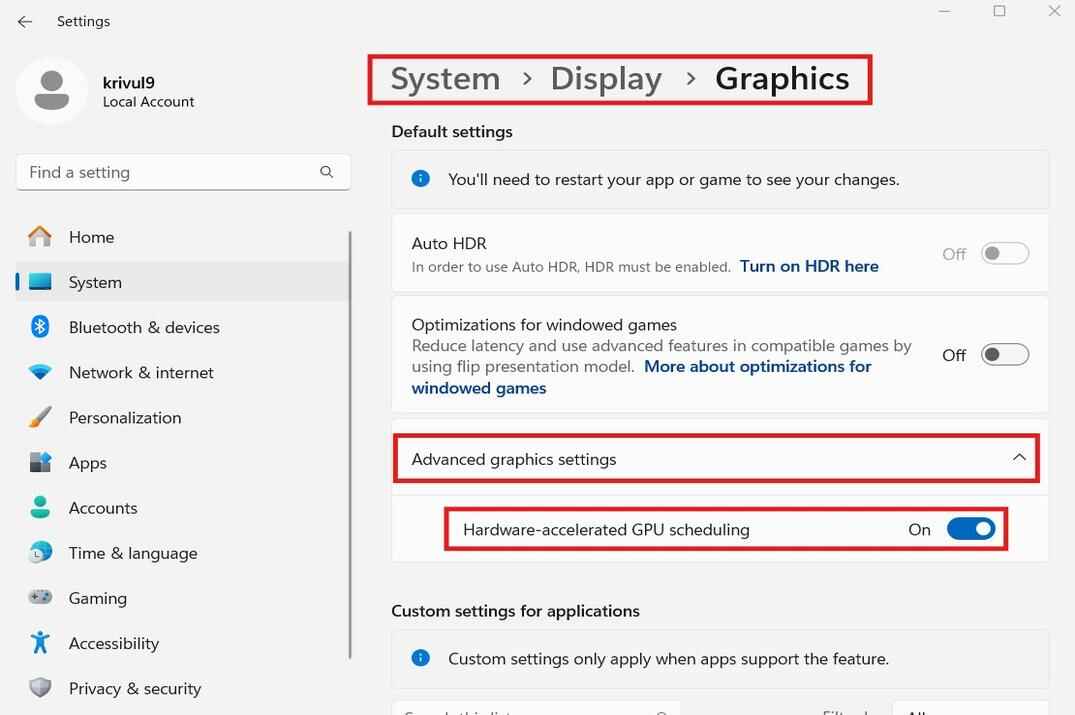
Both are meant to help games, and on most PCs they do. On some systems they cause uneven frame pacing. There's no single right answer, so test: leave them on first, and if you get odd hitches, turn them off one at a time.
- Game Mode: Settings → Gaming → Game Mode.
- HAGS: Settings → System → Display → Graphics → Advanced graphics settings → Hardware-accelerated GPU scheduling . Restart after changing it.

Use the Ultimate Performance Power Plan
The Balanced plan lets the CPU drop its clocks between frames. On a desktop PC, unlock the hidden Ultimate Performance plan in Command Prompt:
powercfg -duplicatescheme e9a42b02-d5df-448d-aa00-03f14749eb61
Then select Ultimate Performance in Control Panel → Power Options. On laptops it drains the battery and heats things up, use it only on the charger.

Turn Off Audio Enhancements
Some "micro stutters" come from the audio driver. Loudness equalization, spatial sound and virtual surround process sound in real time and can interrupt CPU timing. Windows 11: Settings → System → Sound → your output device → Audio enhancements off and Spatial sound off. If you have Realtek Audio Console or a similar tool, turn off effects and virtual surround there too.

Update or Clean Install Your GPU Driver
If stutter started right after a driver or Windows update, the driver itself is the first suspect.
- Uninstall the current driver: Control Panel → Programs and Features.
- Run Disk Cleanup (
cleanmgrin Win + R) for the system drive. - Restart the PC.
- Install the latest driver from NVIDIA, AMD or Intel.

If that doesn't help or the problem came with one specific driver version, do a full clean install with Display Driver Uninstaller (DDU). It removes every trace of the old driver, best done in Safe Mode. After that install a driver you know was stable, not necessarily the newest one. Going back one or two versions often fixes stutter that a new release brought in.
Fix Network Lag Spikes in CS2
Not every "lag" is FPS. Rubber-banding, shots that don't register and teleporting enemies are network problems. Check with telemetry: cl_hud_telemetry_ping_show 2 and cl_hud_telemetry_net_misdelivery_show 2. If ping jumps or loss shows up while FPS is fine, it's the connection.
Use a Cable Instead of Wi-Fi
Wi-Fi gets interference from walls, phones and neighbors' routers, and that means ping jumps and packet loss even when a speed test looks great. An Ethernet cable is the single biggest fix for lag spikes.
DNS: What It Does and What It Doesn't
A public DNS (Cloudflare 1.1.1.1, Google 8.8.8.8) can speed up name lookups: logging in to Steam, finding servers, loading the store. It doesn't change your ping or packet loss inside a match, because game traffic doesn't go through DNS. Worth trying if Steam connects slowly, not as a fix for in-game lag.

Also close downloads, torrents and streams on the same network while you play. How to set your max matchmaking ping and what the network graphs mean: how to adjust ping in CS2 and the CS2 telemetry guide.
Conclusion
Smooth CS2 is not about the biggest FPS number, it's about frames arriving evenly and getting to the screen without waiting. Most stutter comes from small things: 60 Hz after an update, windowed mode, sync that doesn't fit your monitor, an overlay, an old shader cache or a bad driver. Go through them in order, test after each step, and keep the settings that make the mouse feel right.