How to Report and Commend Players in CS2 and Check Both in Steam
Report reasons and what they lead to, commend categories and limits, and where Steam keeps your Reports and Commendations
Counter-Strike 2 lets you report players for abusive chat, a bad profile or suspected cheating, and commend the ones who were friendly, helpful or made good calls. Both buttons live on the scoreboard, a couple of clicks away during the match.
In this guide I'll show how to report a player in CS2, how to commend one, what actually happens after a report, and where in Steam you can see the reports and commendations tied to your account.
What CS2 Reports and Commendations Mean
A report is a complaint about a player who breaks the rules. The system collects these complaints and uses them, together with other data, to catch cheaters and toxic players. A single report doesn't punish anyone. It's a signal: depending on the kind of violation, how many complaints come in and what else Valve's systems see, an account can get extra review, a restriction or a ban. Reports are also one of the things behind Trust Factor, the hidden score CS2 uses to match players with similar behaviour.
A commend is the opposite: positive feedback. During or after a match you can commend a teammate, or even an opponent who earned it, in one or more categories:
- Friendly
- For pleasant, positive communication.
- Teacher
- For useful tips and actually helping you out.
- Leader
- For solid calls and running the team.
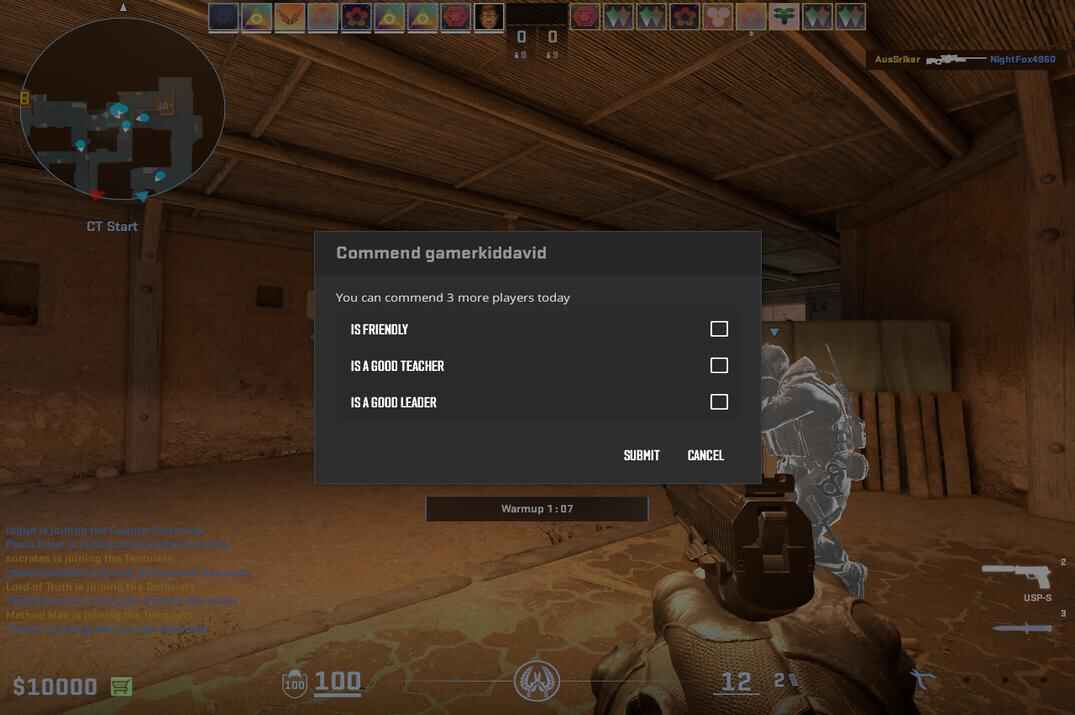
You can tick all three at once. To stop people from farming commends, there's a limit: 3 players per day, and you can commend the same player only once.
CS2 Report Types and Possible Penalties
The CS2 report menu has four reasons. The one you pick tells the system what kind of violation to look for, but the penalty doesn't come from the button you clicked. It comes from what gets confirmed.
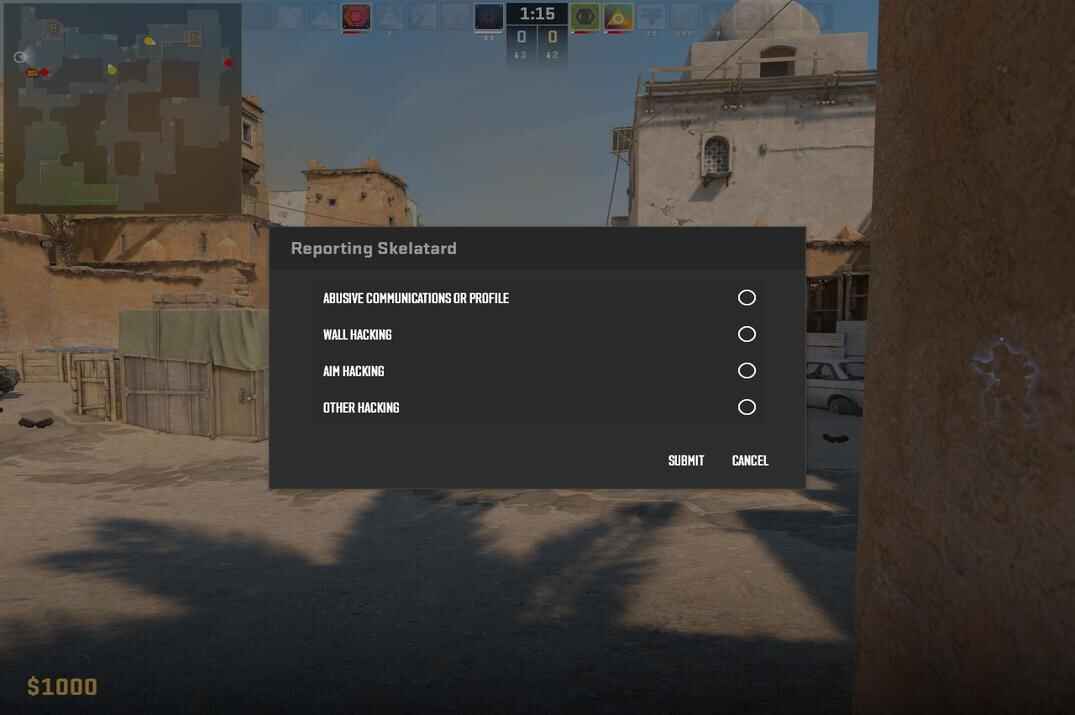
- Abusive Communications or Profile
- Insults in voice or text chat, an offensive name or avatar, voice spam and anything else tied to communication or the profile itself.
- Wall Hacking
- Suspected wallhack or any tool that shows information through walls.
- Aim Hacking
- Suspected aimbot or other automated aiming help.
- Other Hacking
- Other cheats, third-party software, automation, tampering with the game files.
Before you report someone for walls, keep in mind that some "wallhacks" are legal in CS2: offline and on your own server, debug commands can draw players through walls without any cheat. I covered them in Legal Wallhack in Counter-Strike 2. In a real match none of that works, so a player who tracks enemies through walls there is worth a report.
What a Confirmed Report Can Lead To
For confirmed or repeated chat and profile abuse. First comes a warning, then a penalty: the player's text and voice are muted by default for everyone else. Valve docs: CS2 Communication Penalties.
For confirmed cheating. Permanent, Steam Support won't remove it, and Valve doesn't explain the exact reason. Valve docs: CS2 - I've been game banned.
Issued when Valve Anti-Cheat detects a cheat. Also permanent and Steam Support won't remove it. The only exception: if a VAC ban turns out to be a mistake, Valve lifts it automatically.
I want to say it once more: one report doesn't ban anyone. Send a report when there's a real reason, not on every player who happens to be better than you.
How to Check CS2 Reports and Commendations in Steam
Steam keeps part of your CS2 data in Personal Game Data, and both Reports and Commendations are there. The quickest way in is this link, it opens the page for whatever account you're signed in with:
https://steamcommunity.com/my/gcpd/730
Where to Find Reports and Commendations in Steam
Or the long way, through the profile:
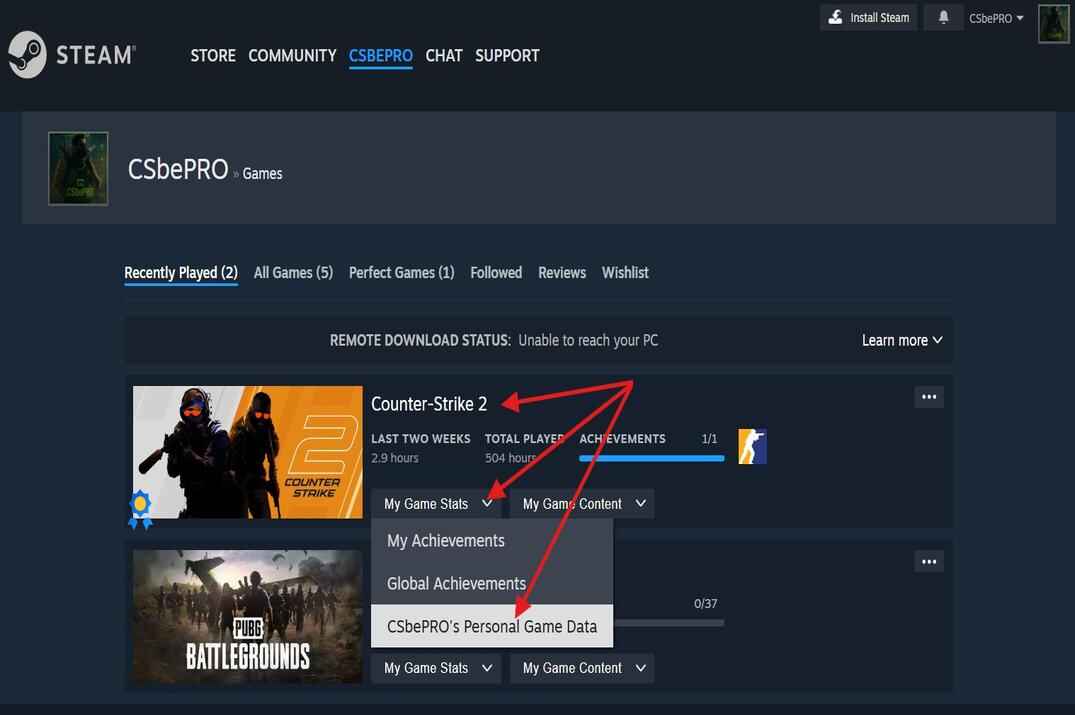
- Sign in on steamcommunity.com and go to your profile.
- Open the Games tab in the profile menu.
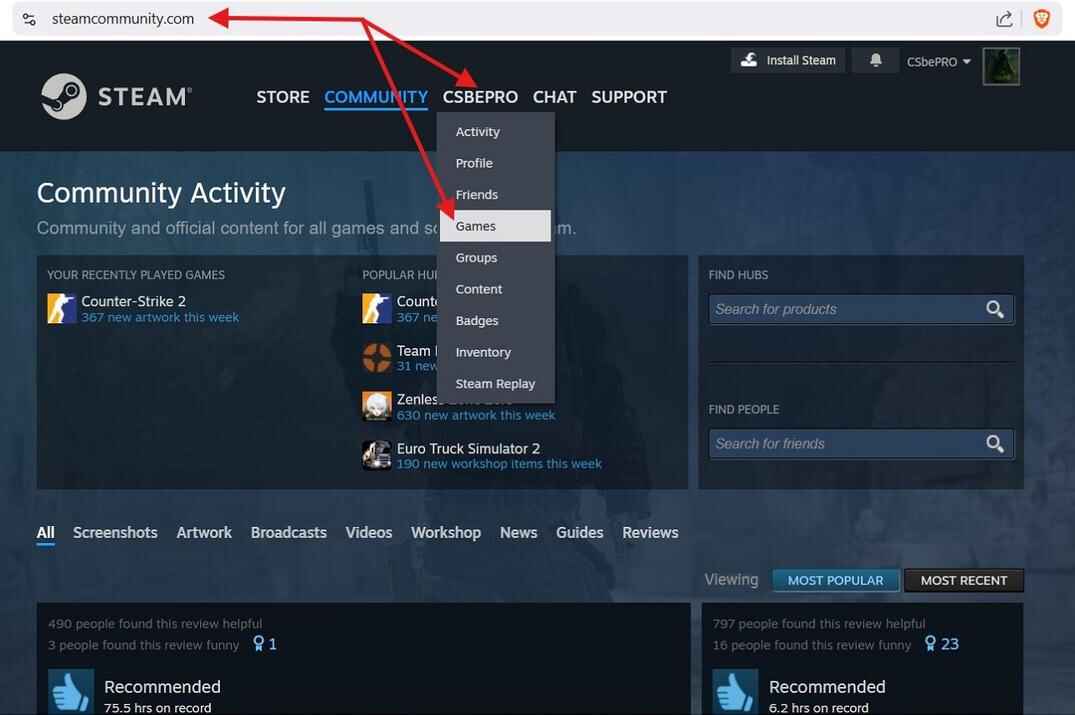
- Find Counter-Strike 2, open My Game Stats and pick Your_nick's Personal Game Data.
- In the list of sections, open Commendations or Reports.
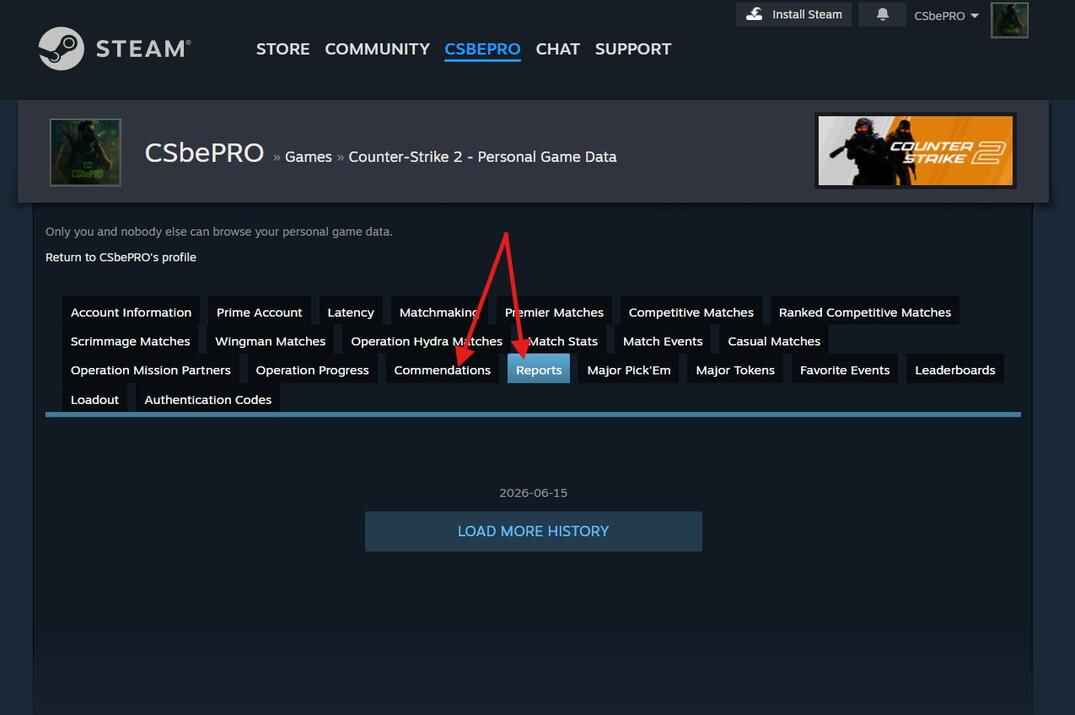
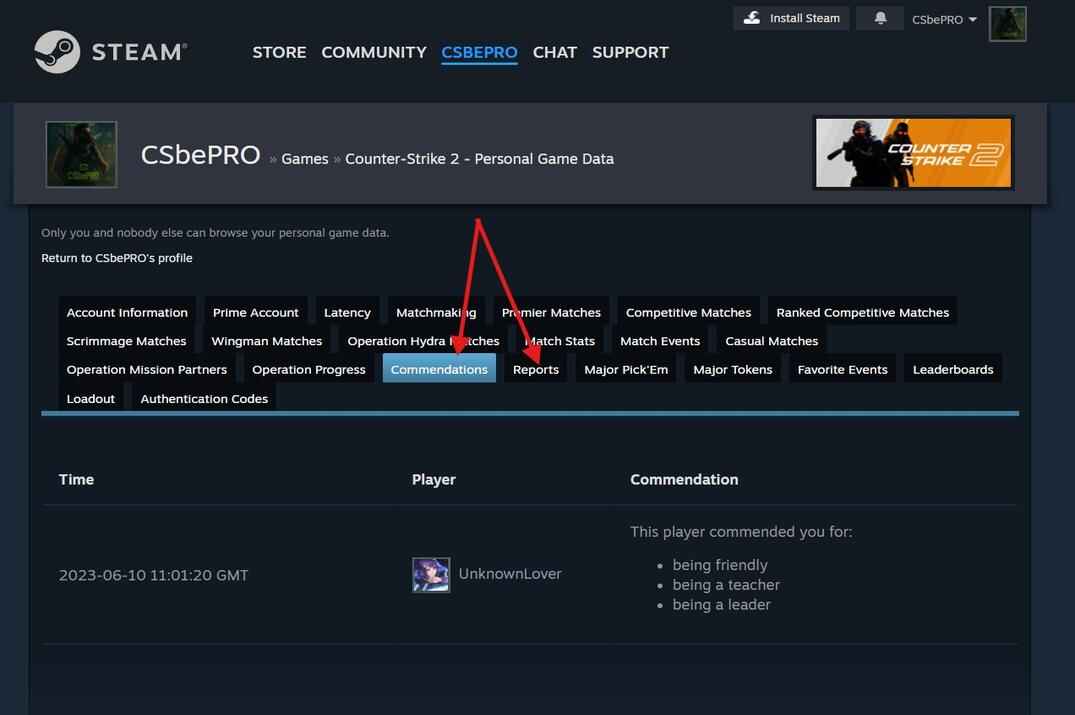
Commendations shows who commended you, when, and in which categories, plus the players you commended yourself. Reports lists the reports you sent: which player, when, and for what. If one of them got banned later, you'll see it there too, so this is the place to check whether your reports went anywhere.
Names in both lists are links to Steam profiles. To check a single player quickly, paste their profile link into my SteamID Lookup: it shows VAC and game bans and how long ago they happened.
Steam doesn't show who reported you. If you play clean, a few reports from angry opponents are nothing to worry about.