What Is a Steam Shortcut for CS2?
A Steam shortcut for CS2 is a custom way to launch the game with specific parameters already attached. Instead of editing launch options in Steam every time, you can use a shortcut to start Counter-Strike 2 with the setup you need in a given situation.
For CS2, this is useful because the shortcut can launch the game with your preferred parameters automatically. It saves time and gives you a separate startup option without changing your default Steam settings.
Steam also supports its own startup parameters through the steam.exe shortcut target. Some examples include:
-noverifyfiles– skips checking game files, which may reduce Steam startup time.-fullscreen– launches Steam in fullscreen mode instead of windowed mode.-nobootstrapupdate– prevents Steam from updating its bootstrapper on launch.-applaunch AppID– starts a specific game directly through its AppID.-tcp– forces Steam to use the TCP protocol, which can help in some network-related cases.-silent– starts Steam in the background without opening the main window.
If you use -applaunch to start CS2, you can also add game-specific launch options after it. This makes shortcuts especially useful when you only need certain parameters from time to time and do not want to keep editing Steam Properties.
Once the shortcut is created, you can place it on your desktop or anywhere else convenient. After that, launching CS2 with a custom setup takes only a double-click.
How to Create a CS2 Steam Shortcut
To create a CS2 Steam shortcut, first find your steam.exe file. In most cases, Steam is installed at C:\Program Files (x86)\Steam\steam.exe, but if you placed it in another folder, use that path instead (for example, D:\Games\Steam\steam.exe).
Next, create a shortcut to steam.exe file.
- Right-click the file, choose Send to -> Desktop (create shortcut), then open the shortcut’s Properties.
- In the Target field, add
-applaunch 730after the Steam path.
A basic CS2 shortcut will look like this:
D:\Games\Steam\steam.exe -applaunch 730You can also append extra launch parameters when needed. For example:
D:\Games\Steam\steam.exe -applaunch 730 -insecure +map cs_mansionThis launches CS2 with VAC disabled and opens the cs_mansion map which is outside the official CS2 map pool.
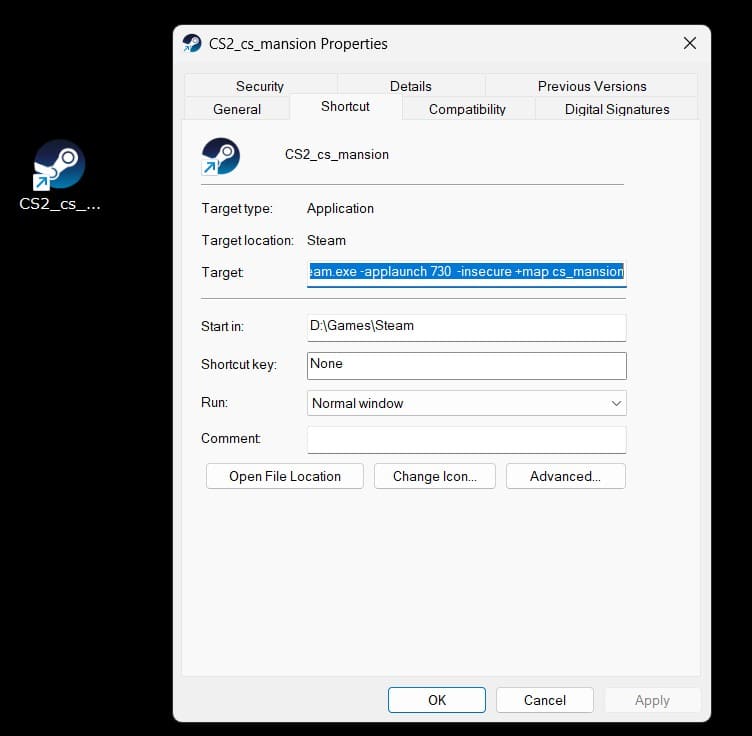
The advantage of this method is that you can create separate shortcuts for different tasks without changing your default Steam launch options each time.
Examples of CS2 Shortcuts
Here are a few examples of CS2 shortcuts that can be useful in different situations.
Enabling Third-Party Software
D:\Games\Steam\steam.exe -applaunch 730 -allow_third_party_softwareThis shortcut allows CS2 to start with third-party software enabled. It can be used when the game needs to run alongside external applications.
Launching a Custom Map in Casual Mode
D:\Games\Steam\steam.exe -applaunch 730 -insecure +game_mode 1 +map cs_mansionThis starts CS2 in Casual mode on cs_mansion map.
The +game_mode option sets the game mode and can use the following values:
+game_mode 0-> Competitive mode+game_mode 1-> Casual mode+game_mode 2-> Wingman mode
Training Configuration
D:\Games\Steam\steam.exe -applaunch 730 +exec training.cfgThis executes a custom training configuration file named training.cfg.
Dust2 with a Training Setup
D:\Games\Steam\steam.exe -applaunch 730 +exec training.cfg +map de_dust2This launches CS2 on Dust2 and automatically loads your training configuration.
Dust2 with a Training Setup in Casual Mode
D:\Games\Steam\steam.exe -applaunch 730 +game_mode 1 +exec training.cfg +map de_dust2This launches Dust2 in Casual mode with the training configuration already enabled.
With shortcuts like these, you can start different CS2 setups with one click instead of editing Steam launch options every time.
Why a CS2 Shortcut Is Better for Temporary Launch Setups

A CS2 shortcut is often the better choice for temporary launch setups because it keeps your main Steam configuration clean. Instead of mixing one-off parameters into your default launch settings, you can keep them separate and use them only when needed.
Shortcuts also give you more flexibility. You can create one for training, one for custom maps, one for recording, and another for a different testing setup. Instead of opening Steam Properties and changing launch options again and again, you just use the shortcut that matches what you need at that moment.
They are also more practical for combined setups. A shortcut can launch CS2 with specific parameters, open a chosen map, and execute a config file in one action. That makes the whole process faster, simpler, and easier to manage.
CS2 Shortcuts FAQ

What is a CS2 Steam shortcut?
A CS2 Steam shortcut is a custom shortcut that launches Counter-Strike 2 through steam.exe with specific parameters already attached. It lets you start the game with a particular setup without changing your default Steam launch options.
When is a shortcut better than standard launch options?
A shortcut is better when you only need certain parameters occasionally. If a launch option should not stay active all the time, using a separate shortcut is usually cleaner than editing Steam Properties before and after each session.
Can I use multiple shortcuts for different CS2 setups?
Yes. You can create separate shortcuts for different situations, such as training, custom maps, recording, or testing. Each shortcut can use its own combination of launch parameters.