How to Switch Weapon Hand in Counter-Strike 2

Table of Contents

Introduction

Counter-Strike 2, built on the Source 2 engine, launched without the classic ability to switch weapon hand in CS2. The old cl_righthand 0/1 command was gone, which meant players could no longer quickly switch between left hand and right hand viewmodels for better comfort, visibility, and crosshair clarity.

That changed on April 25, 2024, when Valve added modern hand-switching options, including a preferred left/right handedness setting and a default toggle key. Today, players can change weapon hand in CS2 through the settings menu, a key bind, or console-based solutions.

Switching hands in CS2 is not just cosmetic. It can improve visibility on certain angles, reduce weapon obstruction near the crosshair, and help players choose the viewmodel side that feels more natural for their playstyle.

Why Switching Weapon Hand Matters in CS2

At first it might look like a small tweak, but in Counter-Strike 2 the side of the screen your weapon sits on can genuinely affect how you play. In clutch moments and fast-paced fights, even a few extra pixels of vision can decide who lands the first shot.

The biggest reason to switch is visibility when peeking corners. Depending on which side of the map you’re moving through, swapping your weapon to the left or right can slightly open your field of view and reduce blind spots that hide enemies.

With CS2’s updated Source 2 models and more detailed animations, the weapon now takes up more visual space. That means your choice of hand isn’t just cosmetic anymore - if your gun feels like it’s blocking your view, it probably is. Setting it to the side that feels clean and unobtrusive helps you focus entirely on your crosshair and movement, where every advantage counts.

How to Change Weapon Hand in CS2

When CS2 first launched, the old cl_righthand 0/1 command was gone. But since the update, Valve has fully restored hand switching with modern options. Today you can change your weapon hand in three different ways, depending on whether you prefer menu settings, key binds, or console commands.

How to Change Weapon Hand in the Settings
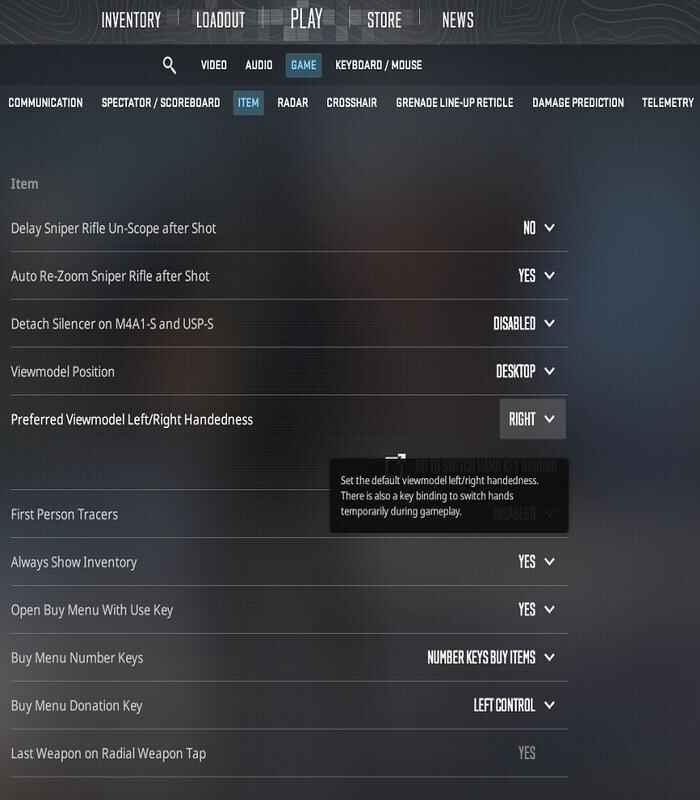
CS2 game settings menu showing the preferred viewmodel handedness set to Right
The CS2 in-game settings menu where players can set their default weapon hand to left or right

The simplest method is through the game menu. Open Settings -> Game -> Item, and look for Preferred Viewmodel Left/Right Handedness. Choose left or right, and that preference will load every time you start CS2. This is the easiest solution if you always want your weapon on the same side.

How to Use the Default Switch Hands Key
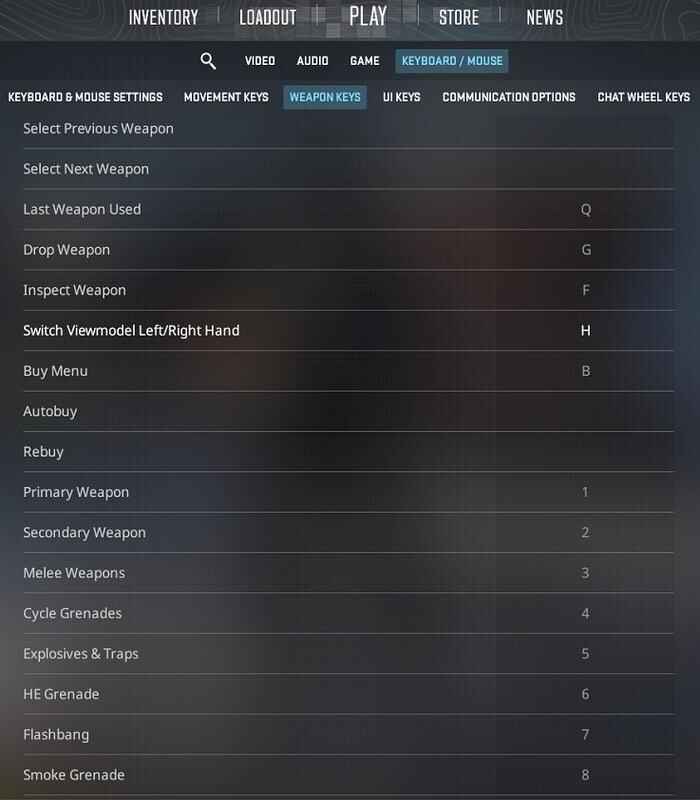
CS2 keyboard settings menu showing weapon keybindings, including the default H key for switching weapon hand
The in-game keyboard and mouse settings menu in CS2, highlighting the keybinding for switching the viewmodel hand (default: H)

By default, pressing H instantly switches the weapon between hands. You can also rebind this key: go to Settings -> Keyboard/Mouse -> Weapon Keys -> Switch Viewmodel Left/Right Hand and assign it to something more comfortable. This option is perfect if you like to swap situationally - for example, switching hands depending on which side you’re peeking.

How to Switch Weapon Hand with Console Commands

For players who like more control, the developer console offers direct commands:

switchhands       // toggles between left and right (H by default)
switchhandsleft   // forces left hand
switchhandsright  // forces right hand

You can bind these commands to any key. For example:

bind "v" "toggle cl_righthand 0 1"
bind "x" "switchhandsleft"
bind "z" "switchhandsright"

You can even combine actions, like pulling out your knife in your left hand:

bind "q" "slot3; switchhandsleft"

To make sure your setup persists, add these lines to your autoexec.cfg. If you want to go deeper into config tweaks, check out detailed guides on CS2 Config Location Guide 2026: Where are Config Files Stored?.

Should You Use Left Hand or Right Hand in CS2?

Choosing between the left and right hand in CS2 mostly comes down to comfort and visibility. For most players, the right side feels more familiar because it is the default. Switching the weapon to the left side can give you a clearer view on certain angles, especially when the weapon model feels too close to the crosshair.

There is no universal best option here. Some players stay with the default view because it feels more natural, while others switch sides because the screen looks cleaner and certain peeks feel easier.

Test both options in a practice server and pay attention to how the game feels when you peek corners, hold angles, and track targets. Stick with the side that gives you the clearest view and feels the most comfortable over time.

Tips for Switching Hands in CS2

One of the most practical uses for hand switching is when you’re peeking corners. If you’re holding an angle on the left side of the map, putting the weapon in your right hand usually gives a clearer line of sight. On the opposite side, swapping to your left hand can free up extra vision and let you spot opponents a fraction earlier. Many players bind a toggle key specifically for these situations, switching hands only when they need that extra pixel of visibility.

Reducing Visual Clutter

CS2’s updated weapon models look great, but they also take up more space on your screen. Sometimes the gun can block parts of your crosshair or the edge of a doorway. Switching hands can instantly reduce that clutter and make your aim feel cleaner. If you’ve ever thought "my gun feels in the way", that’s your cue to swap sides.

Combining Hand Switching with Viewmodel Offsets

If you want to refine your setup even further, experiment with viewmodel offsets. Commands like viewmodel_offset_x, viewmodel_offset_y, and viewmodel_offset_z let you shift the weapon’s position slightly on the screen. A small adjustment here, combined with the right hand setting, can maximize visibility without breaking your comfort. This is especially useful for players who like a minimal view while keeping the weapon visible enough for timing reloads and animations.

For example, you can bind a key to cycle offsets step by step:

bind "c" "incrementvar viewmodel_offset_x -2.5 2.5 0.5"

or

bind "c" "incrementvar viewmodel_offset_y -2 2 0.5"

or

bind "c" "incrementvar viewmodel_offset_z -2 2 0.5"

If you want more advanced setups, check out Counter-Strike 2 Useful Binds - Full Guide 2026 and Counter-Strike 2 Useful Scripts - Full Guide 2026.

Conclusion

Switching weapon hands in CS2 can noticeably improve how clearly you see angles and how comfortable your view feels in different situations. Even a small change can make the game feel cleaner and more natural.

If you want to go further, combine hand switching with viewmodel tweaks like viewmodel_offset_x, viewmodel_offset_y, and viewmodel_offset_z to fine-tune your field of view. Test different setups in practice mode, find what feels right, and stick with it.

CS2 Weapon Hand FAQ

A glowing “FAQ” displayed on a futuristic holographic panel, surrounded by floating question marks and digital circuitry within a cosmic, sci-fi environment
Does switching weapon hand affect accuracy in CS2?

No. It only changes visuals. Your shots, recoil, and spray patterns stay the same.

Which hand is better to use - left or right?

It depends on comfort and vision. Many players stick with right hand, but left hand can open extra space on screen when peeking certain angles.

Can I make weapon hand permanent?

Yes. Set it in the game menu under Preferred Viewmodel Handedness. The game will remember your choice.

What’s the default key to switch hands?

The key H. You can rebind it in Settings -> Game -> Weapon Keys -> Switch Viewmodel Left/Right Hand.

Can I bind separate keys for left and right hand?

Yes. Use console commands:

bind "x" "switchhandsleft"  
bind "z" "switchhandsright"
Why did Valve add a switch-hand animation?

To stop players from spamming the bind and creating unfair smoke holes with multiple gaps in smokes.

Do I need autoexec.cfg for hand switching?

No. Binds are saved automatically. Autoexec is only useful if you want extra control or a full custom config.

Continue Reading

Leave a Reply

Your email address will not be published. Required fields are marked *