Counter-Strike 2 Useful Scripts - Full Guide 2026
Counter-Strike 2 is a game where every movement and every second can decide the outcome of a round. To cut down on repetitive actions and focus more on strategy, players often rely on scripts. Unlike regular binds, which simply attach one or more commands to a key, scripts let you combine actions, create toggles, and even build small macros directly inside the game.
CS2 (2023) inherited its console command and alias scripting system from Counter-Strike 1.6 and Counter-Strike: Global Offensive, but Valve has changed its stance on automation. On one hand, alias and bind commands are still available: you can write autoexec configs, bind keys to command chains, and keep many classic tricks alive. On the other hand, Valve has placed restrictions on scripts that execute multiple actions at once, arguing that this protects competitive balance.
The key update came in August 2024, when Valve officially announced that the game would no longer allow automation of core skills through scripts or hardware. In practice, this means the game now blocks any bind that combines more than one movement or attack command in a single action. For example, the classic Jump Throw script no longer works - you can’t tie a single key to both a jump and a grenade throw (though players like me have already found workarounds). Other multi-action setups, such as Snap Tap - a counter-strafe script for instant stopping - were also disabled.
It’s important to note that CS2 scripts are entirely built on Source 2’s native commands: no external software, no third-party cheats. This makes them safe to use in matchmaking - VAC won’t ban you for using alias chains, toggles, or incrementvar commands. Still, some third-party leagues, tournaments, or private servers may enforce their own rules that differ from Valve’s policies.
In this guide, I’ll explain what scripts are in CS2, how to properly set them up and save them, and I’ll also share my own collection of useful tools.
What Are Scripts in CS2?
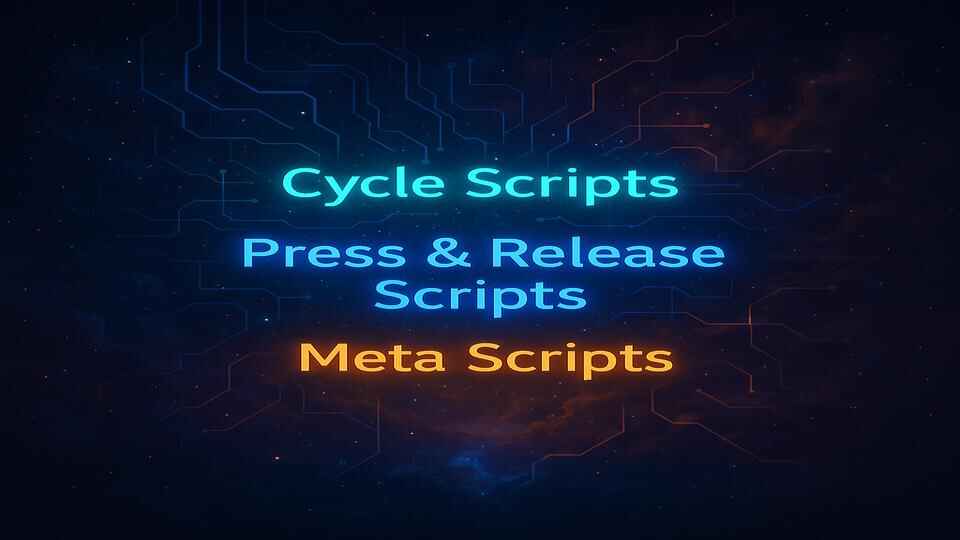
In Counter-Strike 2, a script is a sequence of console commands grouped together and tied to a key or an event. Unlike a simple bind - which just runs one command or a short chain - a script can include toggles, conditions, or even changing states. The main tool for building scripts in CS2 is the alias command, which lets you create your own mini-commands and link them together.
Alias Scripting in CS2
The alias command is the foundation of scripting in CS2. Alias scripting is basically a way to customize the game through the console by chaining multiple commands and running them with a single key press. In other words, it allows you to create macros with custom names and flexible actions, including toggles, loops, or command chains. Alias scripting has been part of Counter-Strike since the CS 1.6 days, and it remains the core method of automation in CS2.
Alias in Action
Alias works on a simple principle: you give a command a name and then define what it should do. From that point, you can use the alias just like a built-in console command.
Example of a Press & Release script:
alias "+knife" "slot3; +attack"
alias "-knife" "-attack"
bind "c" "+knife"
Press & Release scripts trigger on both the press and the release of a key.
The "+" is executed when you press the key.
The "-" is executed when you release it.
In the example above:
The first line creates +knife, which equips the knife (slot3) and
instantly attacks.
The second line defines -knife, which stops the attack.
The third line binds it all to the "c" key.
As a result, pressing "c" makes a quick knife attack, and releasing it ends the action. You can even extend it further. For example, to return to your last weapon after the knife attack:
alias "-knife" "-attack; lastinv"
Or to force a switch to your pistol instead:
alias "-knife" "-attack; slot2"
Is Alias Safe to Use?
Yes - absolutely. Using alias will not trigger a VAC ban, because it’s a built-in Source 2 feature. Valve has clearly stated that console commands, binds, and aliases are part of the game, not external cheats. The golden rule among experienced players is: configs are fine, third-party software is not.
That said, some third-party tournaments or private servers may enforce their own rules, which don’t always align with Valve’s policies.
Alias vs Bind in CS2
A bind connects a key to a single command or a short chain. For example:
bind "c" "cl_showfps 1; echo The FPS counter is activated"
Pressing "c" here will enable the FPS counter and print a message to the console.
An alias, on the other hand, creates a new name for a set of actions, which makes toggles and more complex chains possible. For example:
alias fps_on "cl_showfps 1; alias fps_toggle fps_off"
alias fps_off "cl_showfps 0; alias fps_toggle fps_on"
alias fps_toggle fps_on
bind "c" "fps_toggle"
fps_on enables the FPS counter and flips the toggle to fps_off.
fps_off disables the counter and flips the toggle back to fps_on.
The third line sets the initial state.
Finally, the bind ties everything to "c".
Now every press of "c" toggles the FPS counter on or off. This is a simple use case, but alias scripting can build far more advanced systems.
In short:
Bind = simple assignment.
Alias = mini-script you can combine into a full-blown system.
Why Scripts Are Useful
Scripts in CS2 aren’t magic buttons - they’re quality-of-life tools. They save time, cut down on mistakes, and free up mental space for decision-making, making your gameplay smoother and more consistent. For example, a Jump Throw script ensures a perfect grenade lineup every time, a Quick Scope script helps snipers take faster shots, and a Volume on Walk script boosts the sound of enemy footsteps while you’re sneaking. These aren’t cheats - they’re small efficiencies. In CS2, shaving off fractions of a second can be the difference between winning and losing a round. The real advantage is consistency and speed: the script executes the same way every time, so you never risk fumbling through menus or forgetting a command.
Training & Practice Benefits
Scripts are especially useful in practice sessions. With a single alias, you can
toggle noclip, enable wallhack visuals, reset bots, or loop grenade throws.
This makes it easy to drill smokes, molotovs, or entry tactics without typing out long commands every time.
Instead of wasting energy on setup, you spend more time on actual skill-building.
The result: fewer interruptions, more repetitions, and faster improvement. You can reset the same situation over and over until it becomes muscle memory.
Limitations and Restrictions in CS2
Of course, scripting in CS2 isn’t without limits. Valve has steadily tightened the rules around automation to protect competitive integrity.
Valve’s 2024 Policy Update
In August 2024, Valve officially announced new restrictions on scripts and hardware that automate player actions. The key principle: the game no longer allows multiple movement or attack commands to be combined into a single action.
This change effectively killed many popular legacy scripts, such as Jump Throw or Snap Tap, which were considered standard in CS:GO but now violate fair play rules. In short, Valve is deliberately closing the door on "skill automation", forcing players to rely on their own mechanics.
What Still Works Safely (toggle, incrementvar, alias chains)
Most everyday scripts still work without issue:
Toggle - switches a variable on and off (e.g., cl_showfps, hud_showtargetid).
Incrementvar - steps a value up or down (e.g., gradually changing volume or radar
scale).
Alias chains - simple sequences without multi-action movement or attack binds (e.g.,
viewmodel toggles or FPS counter scripts).
All of these are engine-supported, safe to use, and fully allowed in matchmaking as well as custom games. VAC doesn’t flag them as cheats, since they’re part of the built-in console logic.
How to Add/Load scripts in CS2
You can run scripts in CS2 directly through the developer console, but there’s a catch: anything entered this way disappears once you
close the game. If you want your scripts to stick around and always be available, you need to place them inside
configuration files (.cfg). These files can either be launched manually or set to load
automatically every time you start the game.
Below are the main ways to do this.
Autoexec.cfg
autoexec.cfg is a special configuration file that CS2 runs automatically
on launch. It’s the go-to place for storing your scripts, binds, and personal settings.
By default, this file doesn’t exist - you’ll have to create it yourself.
Go to the config directory, usually:
...\Steam\steamapps\common\Counter-Strike Global Offensive\game\csgo\cfg\
Create a new text file called autoexec.txt and change the extension to .cfg.
Open it with a text editor (Notepad, Notepad++, etc.).
Add your scripts, save, and close.
Now every time you launch CS2, the commands inside autoexec.cfg will load
automatically.
Custom config (manual)
If you want to keep different setups (for example, one for practice and one for competitive matches), you can create a separate .cfg file.
In the same cfg folder, create a file like myconfig.cfg and add your
scripts inside it.
Launch CS2.
Enable the developer console in Settings -> Game -> Enable Developer Console.
Open the console with the ~ key (default).
Type:
exec myconfig
Launch the game and test your scripts. You can also run the file at any time while playing.
Custom config (auto)
To make a specific config load automatically on startup, you can add it to Launch Options in Steam.
Create myconfig.cfg and put your scripts in it.
In Steam, go to your library, right-click Counter-Strike 2 ->
Properties.
Under the General tab, find Launch Options.
Add this line:
+exec myconfig.cfg
Now your config will launch every time you start the game, no manual commands needed.
All CS2 Scripts Explained
Counter-Strike 2 scripting is where the game’s hidden power really comes alive. Scripts are not cheats - they’re smart ways of using the built-in console commands to make your gameplay faster, cleaner, and more consistent. From simple aliases that save you a few keystrokes to advanced toggles that change your viewmodel or control your firing mode, scripts can take away repetitive actions and let you focus on what really matters: outplaying your opponent.
In this section, I’ve collected some of the best CS2 scripts 2025, explained in plain language. You’ll find quality-of-life tweaks, training tools, and even a few experimental tricks. Each script comes with examples you can copy directly into your config and adjust to your style of play.
Simple and useful aliases
Let’s start small. Why type out long commands when you can keep it short and sweet? For example, typing
qq to quit is faster than writing the full quit command. Same with dd
instead of disconnect. Little time savers like this add up.
alias "qq" "quit"
alias "dd" "disconnect"
Telemetry Script
This script shows static data of your FPS, Ping, and network connection.
alias "+drow_stat" "cl_hud_telemetry_frametime_show 2; cl_hud_telemetry_ping_show 2; cl_hud_telemetry_net_detailed 2; cl_hud_telemetry_net_misdelivery_show 2; cl_hud_telemetry_net_quality_graph_show 2"
alias "-drow_stat" "cl_hud_telemetry_frametime_show 0; cl_hud_telemetry_ping_show 0; cl_hud_telemetry_net_detailed 0; cl_hud_telemetry_net_misdelivery_show 0; cl_hud_telemetry_net_quality_graph_show 0"
bind "c" "+drow_stat"
Hold "c" to show detailed telemetry, release it to hide.
👉 Full breakdown: Custom Telemetry Scripts in CS2
Dropbomb Script
As the name suggests, this is a binding for dropping the bomb. This can be very useful for your team’s tactical considerations. The binding allows you to drop the bomb instantly without the delay of switching weapons.
alias "+dropbomb" "slot5"
alias "-dropbomb" "drop"
bind "c" "+dropbomb"
Press "c" and the bomb drops instantly - no need to switch weapons first. By default, after dropping it, the game automatically re-equips your primary weapon (slot3).
Jump Throw Script 2025
The classic jump-throw is essential for consistent smoke, flash and molotov lineups. Valve’s restrictions killed the old method, but this updated script works around it using smart mouse rebinding.
👉 Full breakdown: Jump Throw Script 2025 – Complete Guide
alias "rst_mouse_y" "bind mouse_y pitch"
alias "at" "+attack; bind mouse_y rst_mouse_y"
alias "rst_mouse_x" "bind mouse_x yaw"
alias "rst" "rst_mouse_x; -jump"
alias "+jt" "+jump; bind mouse_y at"
alias "-jt" "-attack; bind mouse_x rst"
bind "c" "+jt"
Classic Jump Throw Script
The old method still works - but only if you enable cl_allow_multi_input_binds 1.
alias "+at" "+attack"
alias "-at" "-attack"
alias "+jt" "+jump; +at"
alias "-jt" "-jump"
bind "c" "+jt; -at"
Automatically performs a jump throw when you press a bound key (e.g., c).
Volume on Walk Script
Turn up your in-game volume while sneaking. Perfect for clutch rounds when sound matters most.
alias "+walk" "volume 1; +sprint"
alias "-walk" "volume 0.5; -sprint"
bind "SHIFT" "+walk"
Hold Shift - footsteps get louder. Release it - volume returns to normal.
Quick Rotate Script
Allows rapid 180-degree turns by temporarily increasing mouse sensitivity while holding a bound key.
alias "+rot" "sensitivity 5; m_yaw 0.5"
alias "-rot" "sensitivity 2.2; m_yaw 0.022"
bind "c" "+rot"
Boosts mouse sensitivity for quick turns and returns to normal when the key is released.
Single Fire Script
Single fire is a valuable technique in Counter-Strike 2 for enhancing precision and controlling recoil, and it can give you an edge in various game situations.
alias "+snp" "alias fire +attack"
alias "-snp" "fire"
bind "c" "+snp; -attack"
Fires one shot upon pressing a bound key (e.g., c, v, alt, mouse3).
Single/Auto Fire Toggle Script
Switch between single-fire and full auto with one key - complete with sound feedback.
alias "one_shot" "+attack; -attack"
alias "trigger_mode" "single_fire"
alias "single_fire" "bind mouse1 one_shot; -attack; alias trigger_mode regular_fire; play weapons\auto_semiauto_switch_01"
alias "regular_fire" "bind mouse1 +attack; alias trigger_mode single_fire; play weapons\auto_semiauto_switch_02"
bind "c" "trigger_mode"
View Model Position Toggle Script
This script lets you instantly switch between two custom viewmodel setups with a single key press. It’s perfect if you like experimenting with different perspectives - one setup can be closer and compact for competitive play, while another can be wider and cinematic for practice or casual fun.
alias "regualar_view" "cl_teamcounter_playercount_instead_of_avatars 0;viewmodel_offset_x -2;viewmodel_offset_y 2;viewmodel_offset_z -2;alias trigger_view adv_view"
alias "adv_view" "cl_teamcounter_playercount_instead_of_avatars 1;viewmodel_offset_x 2.5;viewmodel_offset_y 0;viewmodel_offset_z -1.5;alias trigger_view regualar_view"
alias "trigger_view" "adv_view"
bind "c" "trigger_view"
By pressing "v", you can instantly flip between the two setups. This is especially useful if you want one layout for rifles and another for pistols, or if you just want to find which position feels most natural.
Here are the main variables you can tweak:
viewmodel_offset_x (min -2, max 2,
default 1) -> shifts the model left or right.
viewmodel_offset_y (min -2, max 2,
default 1) -> moves it forward or backward.
viewmodel_offset_z (min -2, max 2,
default -1) -> raises or lowers the model.
viewmodel_fov (min 54, max 68,
default 60) -> changes how "zoomed in" your weapon looks.
A wider FOV can make your weapon look smaller and give more screen space for awareness, while a closer setup might help you focus more on crosshair placement. Play around with these values - you might be surprised how much a small adjustment can improve comfort and visibility.
Wall Hack Boxes Script
Shows blue boxes that track players or objects in real time, and orange boxes that appear but don’t follow
movement. Great for studying positioning, angles, and movement paths.
Works only when cheats are enabled (sv_cheats 1).
alias "toggle_boxes" "boxes_on"
alias "boxes_on" "sv_cheats 1; cl_ent_bbox *; alias toggle_boxes boxes_off"
alias "boxes_off" "cl_ent_clear_debug_overlays; sv_cheats 0; alias toggle_boxes boxes_on"
bind "c" "toggle_boxes"
Wall Hack Numbers Script
Displays small numbers on players’ legs that change based on proximity - useful for visualizing footstep ranges
or stacking. Numbers are visible through obstacles.
Works only when cheats are enabled (sv_cheats 1).
alias "toggle_numbers" "numbers_on"
alias "numbers_on" "sv_cheats 1; cl_player_proximity_debug 1; alias toggle_numbers numbers_off"
alias "numbers_off" "cl_player_proximity_debug 0; sv_cheats 0; alias toggle_numbers numbers_on"
bind "c" "toggle_numbers"
Practical Tips
Scripting in CS2 is powerful, but it only works well if you keep things organized. A few simple habits will save you from headaches:
- Keep your configs clean. Don’t dump every script into one file - split them into practice, competitive, and experimental configs. This way you can load exactly what you need.
-
Use clear names. Aliases like
+jt( jt = jump throw) or+rot(rot = rotate) are fine, but adding comments (//Jump Throw) makes it easier to remember what each command does months later. - Test after updates. Valve patches sometimes break or block old scripting tricks. Always jump into a private server and check if everything still works.
- Know the limits. Scripts can’t replace raw mechanics - they’re there to reduce routine, not to aim or recoil-control for you. Stick to what’s allowed and avoid shady third-party tools.
-
Back up your files. Keep a copy of your
autoexec.cfgand custom configs in a safe folder. A reinstall or Steam sync can wipe your work if you’re not careful.
With these small practices, you’ll always have reliable scripts that support your gameplay instead of getting in the way.
Conclusion
Scripting in Counter-Strike 2 is one of the most powerful ways to customize your game. From alias scripts to practice tools, they’re safe, supported, and easy to set up. Scripts don’t play for you - they simply remove routine, speed things up, and let you focus on the clutch moments that decide a match. From consistent grenade lineups to smarter toggles or quality-of-life shortcuts, every script here is designed to make your gameplay smoother and more controlled.
If you want to dive deeper, check out my other detailed guides:
- Scripting in Counter-Strike 2 – Full Guide - everything you need to know about alias, binds, configs, and safe scripting practices.
- Counter-Strike 2 Useful Binds – Full Guide 2025 - the must-have collection of keybinds to save time and improve consistency.
- Five Necessary Commands to Create Scripts in CS2 - a breakdown of the essential console commands that power every script.
The best part? Scripts in CS2 are 100% safe and fully supported by the engine. No shady tools, no risks - just smart use of the developer console. Start small, experiment, and you’ll see how these little tweaks become second nature in your gameplay.
F.A.Q.
Is scripting in CS2 allowed?
Yes. Scripts that use the in-game console, binds,
alias, and .cfg files are 100% safe.
They’re built into the Source 2 engine and won’t trigger VAC bans.
Only third-party cheat programs are unsafe.
Can I get VAC banned for using a jump throw script?
No. Jump throw scripts use only built-in commands. However, remember that Valve blocked some older multi-action binds in 2024, so you’ll need updated versions that comply with the new rules.
Where do I put my CS2 scripts?
Scripts should be saved inside .cfg files in the cfg folder of
CS2.
The most common method is to create an autoexec.cfg that loads automatically every time the
game starts.
What’s the difference between binds and scripts?
Binds connect a key to one or a few commands.
Scripts (via alias) allow toggles, loops, or complex
sequences.
Think of binds as shortcuts and scripts as mini-programs.
Do scripts work on Faceit or ESEA?
Yes, as long as they’re console-based and don’t use cheats. Simple alias scripts (jump throw, viewmodel toggles, sound tweaks) work fine. But always double-check league rules - some organizers may restrict specific commands.
Can I use scripts with friends on a private server?
Absolutely. On your own local or dedicated server you can run any scripts.
If you want to use cheat commands like sv_cheats 1, you’ll need to enable them as server admin.
What scripts are best for beginners?
Start with quality-of-life scripts:
alias dd disconnect - Quick disconnect
FPS counter toggles
Volume on walk
Jump throw
They’re easy to set up and immediately useful in real matches.
How do I back up my scripts?
Simply copy your .cfg files (autoexec, custom configs) and save them somewhere
safe - like a cloud folder or USB stick.
That way, even after reinstalling CS2 or Windows, you can restore all your scripts in seconds.
Video Guide: CS2 Scripts
Sometimes it’s easier to see a script in action than just read about it. I’ve put together two videos: one showing Useful Scripts that make everyday gameplay smoother, and another breaking down the Jump Throw Script 2025 step by step.
If you’re looking for a CS2 scripting tutorial or want to learn exactly how to use a jump throw script in Counter-Strike 2, these videos will walk you through everything in a clear, practical way.