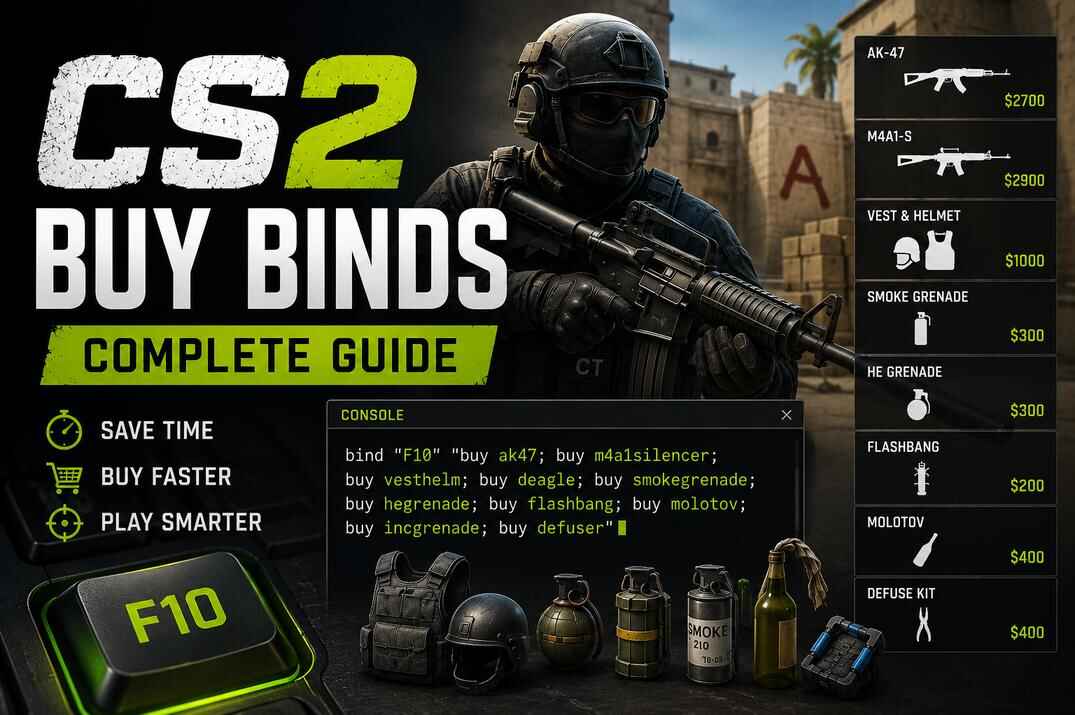
Five necessary commands to create Scripts in CS2

Table of Contents

Introduction

If you’ve ever wanted to make things faster or easier in Counter-Strike 2 - like buying gear with one key, tweaking your crosshair on the fly, or creating custom practice setups - scripting is the way to go. It’s not as complicated as it sounds. With just a few core commands, you can set up personalized controls that fit the way you play.

In this guide, I’ll break down the five essential commands every CS2 player should know when starting with scripting. These are the building blocks - once you learn them, you’ll understand how most advanced scripts are made.

BIND Command in Counter-Strike 2
Illustration explaining key binds in Counter-Strike 2 with gaming keyboard and mouse actions

A bind connects a key or mouse button to a console command or a sequence of commands. It can trigger in-game actions (jump, shoot, drop, buy) or change settings (sensitivity, volume, crosshair, FPS cap). Instead of typing commands mid-match, you just press a key and the game executes them instantly.

Think of it as a shortcut that can automate both actions and configuration changes, saving time and reducing mistakes.

How BIND works

  • Pick a key or mouse button - Whatever’s comfortable for you.
  • Decide what you want it to do - Could be one command or a chain of them.
  • Use - Hit a bound key to execute.

Syntax

bind "your_key" "command"

or multiple binds

bind "your_key" "command1; command2; command3"

Example - Simple bind:

bind "c" "say Hello World"

Now every time you press c, your character says Hello World in chat.

Example - Advanced bind:

bind "F9" "buy awp; buy vesthelm; say_team I am a Sniper"

One press buys you an AWP, armor + helmet, and sends a message to your team chat.

Tips

  • Use key_listboundkeys in the console to see all current binds.
  • Add // in configs for comments - these lines are ignored by the game.
  • Use binddefaults in the console to reset the current key bindings to default.
  • Use unbind [key] in the console to unbind a key.

ALIAS Command in Counter-Strike 2
Illustration explaining alias in Counter-Strike 2 with gaming keyboard and mouse actions

In Counter-Strike 2, aliases are your best friends when it comes to simplifying and organizing your scripts. Instead of writing long chains every time, you define them once and then call the alias like any built-in command. Aliases allow toggles, loops, and complex logic by linking multiple commands together.

They are the backbone of scripting (Useful Scripts - Full Guide 2025): with aliases, you can build reusable blocks, combine them into larger systems, and keep configs clean.

How ALIAS works

  • Pick a name - Something short and easy to remember for your new command.
  • Define commands - Group one or more console commands under that name.
  • Use - Call the alias directly or bind it to a key.

Syntax

alias "alias_name" "command1; command2; command3"
bind "key" "alias_name"

Example - Simple alias:

alias "awp" "buy awp; say_team I am a Sniper"

Now when you type awp in the console, it’ll buy an AWP and send the message I am a Sniper to your team chat. Easy.

Example - Advanced alias:

Let’s say you want to do a few things at once when you press a key, like send a chat message and buy a weapon.

alias "com_1" "say I'm a Sniper"
alias "com_2" "buy awp"
alias "com_3" "com_1; com_2"
bind "c" "com_3"

What’s happening here:

  1. com_1 – sends the message.
  2. com_2 – buys the AWP.
  3. com_3 – runs both commands.

Pressing c triggers com_3, so you get both effects with one press.

Type alias in the console to list all aliases currently loaded.

Aliases are the backbone of scripting: they allow toggles, loops, and complex behavior. It’s a simple trick that makes your CS2 setup feel more personalized and quicker to use.

TOGGLE Command in Counter-Strike 2

A toggle flips a command between two or more preset values each time you press a key and is a really useful way to switch between different settings with just one key press. It’s most often used for settings like radar scale, crosshair size, or sound levels. Instead of binding separate keys for each state, toggle cycles through them automatically.

How TOGGLE works

  • Choose a key or mouse button - this will be your toggle switch.
  • Pick the setting you want to change - e.g., radar scale, volume, or crosshair size.
  • Define the values - at least two numbers or states to cycle through.
  • Each press switches the command to the next value automatically.lly.

Syntax

bind "your_key" "toggle command value1 value2 value3"

Example - Changing radar size:

bind "h" "toggle cl_radar_scale 0.25 0.5 0.75 1"

Every time you press h, it cycles through those radar sizes. So you can quickly adjust it depending on how much map info you want during a game.

Basically, any setting that uses a value can be toggled.

The toggle command keeps your gameplay smooth and flexible - no need to pause and type into the console. Just hit a key to cycle through your preferred options and adjust the game to fit your style.

INCREMENTVAR Command in Counter-Strike 2

The incrementvar command changes a variable step by step within a defined range. Each press increases (or decreases) the value by the step you set, looping back when it hits the maximum. This makes it perfect for fine-tuning things like sensitivity, radar zoom, or volume on the fly.

It works like a dial: smooth, controlled adjustments instead of instant jumps.

How INCREMENTVAR works

  • Pick a key or button - This is what you’ll press to make the change.
  • Choose a command - Like sensitivity, radar zoom, or volume.
  • Set min, max, and step - Define the lowest value, highest value, and how much it changes each press.
  • Bind it all together - Use bind with incrementvar.

Syntax

bind "your_key" "incrementvar command min max step"

Example - Changing radar size:

bind "c" "incrementvar cl_radar_scale 0 1 0.25"

Explanation:
Each press raises radar scale by 0.25 until it hits 1, then loops back to 0.

  • First press: radar scale = 0
  • Second press: 0.25
  • Third press: 0.5
  • Then 0.75
  • Then 1
  • Next press loops back to 0 and starts again

This is perfect for when you want to tweak settings gradually while you’re playing, no need to open the console every time.

Best uses (Useful Binds - Full Guide 2025):

  • Adjusting radar or crosshair size step by step
  • Changing volume in small increments
  • Fine-tuning visual settings like brightness or FOV
  • In your scripts

This dynamic feature allows for fine-tuning specific settings with precision, providing a convenient way to adapt your gameplay experience to your preferences. Experiment with different values and steps to find the optimal configuration for your play style.

BINDTOGGLE Command in Counter-Strike 2

In CS:GO, bindtoggle allowed you to tie a variable to one key and flip it between two states. But with the transition to CS2, this command was removed (September 28, 2023).

Replacements in CS2:

  • Use toggle for switching between multiple values.
  • Use incrementvar if you need step-by-step adjustments.

So while bindtoggle is part of history, its functionality still exists in more powerful forms.

Best Practices for Scripting

To keep your scripts clean, reliable, and easy to maintain, it helps to follow a few simple rules. These practices will save you from common mistakes and make your configs easier to manage.

  • Always quote both the key and the command.
  • Use echo messages for feedback (echo Crosshair set to small).
  • Keep separate configs for training (training.cfg) and/or for regular play (config.cfg) and/or matchmaking.
  • Add comments with // so you don’t forget what a line does.
Optimizing Counter-Strike 2 Player Configuration Files

Conclusion

These five commands - bind, alias, toggle, incrementvar, and (historically) bindtoggle - are the foundation of scripting in Counter-Strike 2. With them, you can customize your controls, build quality-of-life tweaks, and keep your gameplay smooth and efficient.

They don’t replace skill; they simply remove unnecessary friction. Used well, scripting helps you focus on what really matters: timing, positioning, and aim.

F.A.Q.

A glowing “FAQ” displayed on a futuristic holographic panel, surrounded by floating question marks and digital circuitry within a cosmic, sci-fi environment
Do I need to enable the developer console to use these commands?

Yes, you’ll need to turn on the developer console in your settings. Then press ~ (tilde key) to open it.

Can I use these commands in competitive matches?

Yes! All the commands shown are legal and safe to use in official matchmaking. They just help you control your settings more efficiently.

What's the difference between toggle and incrementvar?

toggle switches between set values like flipping a switch, while incrementvar moves through values step by step within a range.

Where are these binds saved?

Binds and aliases are saved in your CS2 config file. You can also create your own custom .cfg file and execute it with exec filename.cfg.

How do I remove or change a bind?

To remove a bind, use unbind "key". To change it, just use the bind command again with a new action.

Can I use these commands on any key?

Almost! Most keyboard keys and mouse buttons can be used, but avoid binding to keys already used for core actions unless you’re customizing carefully.

Will I get VAC banned for using binds or aliases?

No. VAC only bans for external cheats (macros, injections, modified drivers). Built-in scripting commands are safe.

Why did some scripts stop working after 2024 updates?

Valve blocked multi-input binds that mimicked skill (e.g., movement + jump + attack). QoL scripts still work fine.

What’s safer: console, launch options, or autoexec.cfg?

All are safe. For daily use, autoexec.cfg is easiest. Console is best for quick testing. Launch options guarantee configs load at startup.

My autoexec.cfg won’t run - why?

Check file extension (.cfg, not .txt), confirm it’s in the right folder, and test with exec autoexec.cfg. Add echo autoexec loaded as a debug line.

Can I bind multiple scripts to one key?

Yes. Separate them with ; inside a bind or call multiple aliases.

Can I use training scripts in matchmaking?

No. Commands like noclip or sv_cheats are only for local/custom servers. Use separate configs for practice.

Are scripts allowed on Faceit/ESEA?

Most basic scripts (buy binds, radar toggles) are fine, but these platforms have stricter policies. Always check their current rules.

How do I reset a broken bind in-game?

Use unbind key or run exec reset.cfg with default binds.

Is scripting used by pros?

Yes — nearly every pro uses an autoexec.cfg with binds, aliases, toggles, and buy scripts. The difference is they only use quality-of-life scripts, never automation that replaces skill.
Continue Reading

A sleek gaming-themed graphic for "CS2 Useful Binds," featuring a glowing keyboard and mouse with bind icons like grenades, bombs, and FPS stats.
Counter-Strike 2 Useful Binds

Counter-Strike 2 Useful Binds – Full Guide 2026 Table of Contents Counter-Strike 2 is a game where milliseconds decide whether you clutch the round or end up on the scoreboard as another frag. Every action counts – switching weapons, dropping the bomb, throwing a grenade with perfect timing, or simply

Read More
One Response
Leave a Reply

Your email address will not be published. Required fields are marked *