CS2 Config Location Guide 2026: Where are Config Files Stored?

Table of Contents

Introduction

Counter-Strike 2 gives players a lot of control over settings, but the way those settings are stored is not obvious. Many players know about configs, copy an autoexec.cfg, place it in what they think is the correct CS2 config folder path, launch the game - and then feel confused when nothing seems to change. The problem is usually not the file itself, but a misunderstanding of CS2 config locations and where different types of configuration files actually belong.

CS2 does not use a single config location. Instead, it relies on two separate folders, each with its own purpose. One is designed to store the game’s own configuration data and mode settings, while the other is used to save personal player preferences linked to a Steam account. Once this separation is clear, working with configs stops being trial and error and starts making sense.

Related guide: CS2 Config: How to Create, Load, and Manage CFG Files

What CS2 Config Files Are

CS2 configuration files are plain text files with .cfg and .vcfg extensions that contain console commands and settings the game can read and apply. Some of these files are created and maintained automatically by the game itself - for example, your key binds, crosshair options, sensitivity, and video settings. CS2 updates these files as you change settings in-game or when the game receives updates. If any of them are deleted, CS2 will automatically recreate them the next time it launches.

At the same time, CS2 also supports custom .cfg files written by the player. These files are used to group commands together - for practice setups, binds, scripts, or personal tweaks - so they can be applied quickly or kept as a backup.

Why CS2 Uses Two Different Config Locations

In CS2, just like in CS:GO, two configuration directories are used because they serve different purposes: one stores game-related configuration files, while the other stores personal player settings linked to a specific Steam account. Valve created this separation specifically to support multiple Steam accounts being used on the same computer.

Your personal settings - things tied directly to your account - are stored in the Steam userdata folder. This includes key binds, crosshair settings, mouse options, and video configuration. If Steam Cloud is enabled in your Steam settings, these files can be synchronized between different PCs, allowing your setup to follow your account.

The game config folder (game\csgo\cfg) serves a different purpose. This directory contains the game’s own configuration files, such as mode-specific configs for Competitive, Casual, Deathmatch, practice, and local servers. It is part of the game installation itself. CS2 does not automatically save personal preferences here.

Because this folder is designed to hold configuration files that the game can read and execute, you also can place custom .cfg files there. From that location, the CS2 console can load and run them using the exec command, including autoexec.cfg at startup.

Once you separate these two in your head - \userdata\ = saved personal settings, \game\cfg\ = your custom scripts - the whole config system stops being confusing.

Global Game Folder (Path)

The \cfg\ folder exists to store game configuration files, not personal player preferences. It is part of the CS2 installation itself. This is where the game keeps its core configuration files, including mode presets such as Competitive, Casual, etc., or local practice sessions and server-related configs. Unlike user settings, files in this directory are not tied to a Steam account and are not synced via Steam Cloud.
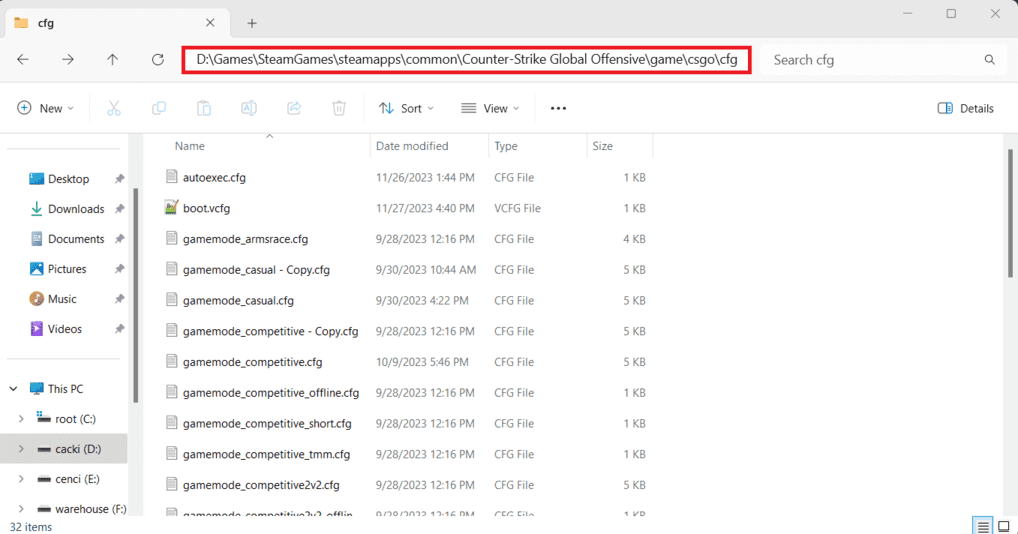
File path to the Counter-Strike 2 configuration files displayed on a computer screen
Directory structure showing the location of configuration files for CS2

Understanding this folder is important because many players confuse it with the \userdata\ directory and expect personal settings to be saved here - which CS2 never does.

These mode preset files (for example, gamemode_casual.cfg) define server-side behavior for a specific game mode. They include bot settings, economy rules, round timing, and other server cvars that control how a match is played. This is one of the reasons why local games and practice sessions feel "preconfigured" right after you join - CS2 automatically applies these presets without requiring you to load any additional config files manually.

In practice, this means you can start a local or bot match and already have a working setup in place. Typical commands found in these preset files include:

bot_difficulty 1
bot_quota 10
mp_buytime 45
mp_buy_anywhere 0
mp_freezetime 5
mp_friendlyfire 0
mp_startmoney 1000

If you want a deeper breakdown of these files and how they affect local servers, practice matches, and custom setups, see the Counter-Strike 2 Server Configuration Files guide, where each gamemode config is explained in detail.

Standard Installation Path for Game Configs

By default, CS2 game configuration files are located in the following directory:

C:\Program Files (x86)\Steam\steamapps\common\Counter-Strike Global Offensive\game\csgo\cfg\

If you installed Steam on a different drive or if you use multiple Steam libraries, the path may vary, but the ..\steamapps\common\Counter-Strike Global Offensive\game\csgo\cfg\ structure remains the same in all cases.

How to Find the CS2 cfg Folder

If you’re not sure where CS2 is installed on your system, you can locate the correct folder directly through Steam.

Counter-Strike 2 installed files location in Steam showing Verify Integrity and Browse options
Image shows the Installed Files tab for Counter-Strike 2
Browse local files option for Counter-Strike 2 in Steam Library
Screenshot shows how to open the local files for Counter-Strike 2
  • Open Steam and go to your Library
  • Right-click Counter-Strike 2 and either choose Manage -> Browse local files
  • or

  • open Properties, switch to the Installed Files tab, and click Browse…

Once the game folder opens, navigate to \game\, then \csgo\, and finally \cfg\ - this is the main game configuration directory.

autoexec.cfg - System Game File

Technically, autoexec.cfg is just a standard text file with a .cfg extension. For the Counter-Strike series, however, it is a special optional system file that the game automatically executes on startup, without requiring launch options or manual console input.

By default, autoexec.cfg does not exist and must be created manually by the user. When present, it allows you to execute console commands, binds, scripts, or load other .cfg files every time CS2 launches.

It is important to understand that autoexec.cfg does not "store" settings. It does not store keybinds created through the in-game settings menu, crosshair changes made in the UI, video or resolution settings, or any data written by the host_writeconfig command. All of that is always saved in the userdata configuration files, regardless of whether autoexec.cfg exists or not.

Personal Userdata Folder (SteamID Path)

Unlike the game configuration folder, the userdata directory is account-specific. This is where CS2 stores personal player settings that belong to a particular Steam account. These files are created, updated, and maintained automatically by the game and are not meant to be edited as part of normal config workflows.

Steam userdata folder with multiple account ID subfolders in Windows File Explorer
The userdata folder in Steam containing local data for multiple accounts
Counter-Strike 2 cfg folder with configuration and settings files in Windows File Explorer
The cfg folder containing local Counter-Strike 2 settings files

Understanding how this folder works is critical, because this is where most players expect their settings to be saved - and in CS2, they actually are.

Where Userdata Config Files Are Stored

CS2 user configuration files are stored inside Steam’s userdata directory. The full path looks like this:

..\Steam\userdata\SteamID\730\local\cfg\
  • SteamID - is a numeric folder that represents a specific Steam account
  • 730 - is the Steam App ID
  • \local\cfg\ - contains the actual user configuration files

Each Steam account on the same computer has its own separate userdata folder.

What the Userdata Folder Is Used For

The userdata folder is used to store personal player settings, not game or server configurations. This includes keybinds, crosshair options, mouse and input settings, audio preferences, and video configuration.

In addition to CS2-related files, the userdata directory also contains other account-specific data. For example, the localconfig.vdf file stores information about your Steam settings, friends, and launch options. The serverbrowser_hist.vdf file keeps a history of recently connected servers, including IP addresses and connection dates.

These files are updated automatically as you change settings in-game or when CS2 applies updates. If a file is deleted, CS2 will recreate it on the next launch using default values. This behavior ensures that user settings are always present and consistent for the account.

Unlike the game cfg folder, userdata files are not meant to be used as startup scripts or command containers. They function strictly as storage for saved preferences.

Steam Cloud Sync and User Settings

When Steam Cloud is enabled in Steam settings, CS2 can synchronize userdata configuration files between different computers. This allows your personal settings to follow your Steam account without needing to copy files manually.

If Steam Cloud is disabled, userdata files remain local to the system, but the folder structure and behavior stay the same. CS2 will still use the userdata directory to store and load personal settings - only synchronization is affected.

How to Find Your SteamID Folder

On systems where multiple Steam accounts have been used, the userdata directory can contain several folders with long numerical names. Each of these folders represents a separate Steam account, which often causes confusion when trying to locate the correct CS2 configuration files.

The folder name you see in userdata corresponds to SteamID3 (also commonly referred to as the Account ID). Steam uses several identifier formats:

  • SteamID (32-bit – legacy format)
  • SteamID3 (64-bit – AccountID)
  • SteamID64 (64-bit – 17-digit Community ID)

For a detailed explanation of SteamIDs - what they are, how they differ, and how to convert between formats - refer to my guide: Steam ID: The Complete Guide to Steam Identifiers

Identifying Your SteamID in userdata

If you’re unsure which folder belongs to your account, there are two simple ways to identify it.

Method 1: Check file activity

CS2 rewrites user configuration files every time you launch and exit the game. Start CS2, then close it, and look inside:

..\SteamID3\730\local\cfg\

The folder with the most recently modified files belongs to the active Steam account.

Method 2: Check the account name inside a config file

Open the following file:

..\SteamID3\730\local\cfg\cs2_user_convars_0_slot0.vcfg

Near the bottom of the file, you will find a line similar to:

"name"  "CSBEPRO"

This value corresponds to the in-game player name used by that account.

Tools for Finding SteamID

My SteamIDs Lookup tool provides a more reliable way to identify the correct SteamID3 folder. It can display all SteamID formats at once, including SteamID, SteamID3, and SteamID64.

To use it, you need at least one identifier - such as a Steam profile URL, trade link, vanity URL, or any known SteamID.

This method removes guesswork and is especially useful when managing configurations for multiple accounts or systems. It can also be helpful when analyzing player profiles for trading or administrative purposes.

User Configuration Files Explained

In Counter-Strike 2, the Source 2 engine uses .vcfg files instead of traditional .cfg files to store most player settings. The majority of personal CS2 configuration data is saved in these internal files located in the \userdata\ directory.

Files such as cs2_machine_convars.vcfg, cs2_user_convars_0_slot0.vcfg, cs2_user_keys_0_slot0.vcfg, and cs2_video.txt are responsible for storing player settings, but each of them serves a different purpose. These files are created and managed automatically by the game itself and are updated during normal gameplay.

Although they are plain text and readable, they are not intended to be used as custom configuration files or startup scripts but can be edited.

cs2_machine_convars file - Game Preferences

This file contains machine-dependent game settings. It includes parameters related to hardware, operating system interaction, drivers, audio behavior, and other low-level configuration values.

Valve uses this file to adapt CS2 to the specific system it is running on, including automatic adjustments based on hardware and environment.

cs2_user_convars_0_slot0 file - User Preferences

This file stores most player-specific console variables related to in-game behavior and personal preferences. It covers settings such as HUD options, field of view, radar behavior, sound configuration, joystick input, and other gameplay-related parameters.

cs2_user_keys_0_slot0 file - Key Binds and Input Settings

This file stores all keybinds created through the in-game settings menu or via console commands during gameplay. This includes buy binds, movement keys, communication binds, and other custom input mappings.

cs2_video.txt file - Video and Graphics Settings

This text file stores video-related settings such as resolution, aspect ratio, display mode, shadow quality, texture settings, and other graphical options configured through the video settings menu.

Properties and features of .vcfg files

These configuration files are automatically overwritten by the game multiple times during normal operation. CS2 rewrites them when you launch the game, when you exit it normally, when settings are changed through the menu or console, and during updates if new variables are added or default values are adjusted.

Using the host_writeconfig command also forces the current configuration to be written into these files. If any of them are deleted, CS2 will recreate them on the next launch using default values.

Editing .vcfg files

Manual editing of .vcfg files is possible, but only existing commands should be modified. Edited values for known variables will be applied by the game and preserved.

Newly added commands may still execute when the game starts, but CS2 will remove them from the file immediately afterward, leaving only recognized entries. For example, if the last line in cs2_machine_convars.vcfg is:

"volume" "0.600000"

and you change it to 0.4 while also adding:

"cl_showfps" "1"

both commands will apply when the game launches. However, CS2 will then rewrite the file and remove the unsupported cl_showfps entry, keeping only the valid configuration values.

In Counter-Strike 1.6, it was common to prevent the game from rewriting config.cfg by setting the file to read-only. The same approach can technically be applied to .vcfg files. While this will force added commands and binds to persist, it is not recommended, as it may prevent important updates from being applied and can lead to unexpected issues.

How CS2 Loads Config Files

When CS2 launches, the game loads a combination of internal game configuration files and user-specific files linked to the active Steam account. User configuration files stored in the \userdata\ directory are loaded first, followed by configuration files located in the game folder:

..\steamapps\common\Counter-Strike Global Offensive\game\csgo\cfg\

If an autoexec.cfg file is present in this directory, it is executed automatically during startup. This behavior does not require launch options and applies every time the game starts.

Config Load Order

For example, when launching CS2 and entering a Competitive practice session, the configuration loading sequence typically looks like this:

  • First - cs2_user_convars_0_slot0.vcfg
  • Second - cs2_machine_convars.vcfg
  • Third - autoexec.cfg (if present)
  • Fourth - Config file specified in Launch Options (if present)
  • Fifth - gamemode_competitive.cfg

This order explains why some settings appear to come from personal preferences, while others are enforced by the selected game mode.

What Happens When Settings Conflict

Nothing special. Whatever loads last, wins. If your autoexec says volume 0.5 but your user config says 1.0, the game will stick with 1.0 because it loads later.

If a command defined in a .cfg file duplicates a value stored in a .vcfg file (for example, volume), the new value will be applied and then written back into the corresponding .vcfg file during normal configuration saving.

How to Be Sure That a Config File Was Loaded

If you need to verify whether a specific config file was executed, you can output a message to the console using the echo command. For example, add the following line to the config file:

echo autoexec has been loaded

The message will only be visible after the console becomes active. By default, CS2 does not show the startup console output, so these messages are not visible during launch.

To view the config loading process during startup, you must enable developer logging by adding the -dev launch option. This forces CS2 to display the console output generated while the game is loading, making it possible to see exactly which config files are executed and in what order.

Running the game permanently in developer mode is not recommended, as it may negatively affect performance. Developer logging should be enabled only for troubleshooting or testing purposes.

If needed, extended console output can also be enabled temporarily using the developer 1 command.

Complete CS2 Config Files Tables

This section provides a structured overview of the main configuration files used by CS2. The files are grouped by location, because their purpose and behavior depend entirely on where they are stored.

Game Folder Config Files

These configuration files are located inside the CS2 installation directory:

...\steamapps\common\Counter-Strike Global Offensive\game\csgo\cfg\

They define game and server behavior, game modes, and startup execution logic. These files are not account-specific and are not synced via Steam Cloud.

File name Execution Type Purpose and Behavior
autoexec.cfg Automatic on game start Executes custom config files, commands, binds, and scripts. Does not store settings and does not overwrite user data.
personal.cfg Manual execution User-created config executed manually. Similar to autoexec.cfg. Does not overwrite user data.
gamemode_competitive.cfg Automatic on mode load Applies default Competitive mode rules as console commands. Overwrites conflicting settings.
gamemode_casual.cfg Automatic on mode load Applies default Casual mode rules as console commands. Overwrites conflicting settings.
gamemode_deathmatch.cfg Automatic on mode load Applies default Deathmatch mode rules as console commands. Overwrites conflicting settings.
gamemode_wingman.cfg Automatic on mode load Applies default Wingman mode rules as console commands. Overwrites conflicting settings.

Userdata Config Files

These files are stored in the account-specific userdata directory:

...\Steam\userdata\AccountID\730\local\cfg\

They contain personal player settings and are created and managed automatically by CS2. When Steam Cloud is enabled, these files may be synchronized between systems.

File name Execution Type Purpose and Behavior
cs2_user_convars_0_slot0.vcfg Automatic (managed by game) Stores player-specific gameplay and preference cvars (HUD, FOV, radar, sound, input). Automatically updated and overwritten by CS2.
cs2_user_keys_0_slot0.vcfg Automatic (managed by game) Stores all keybinds and input mappings created in-game or via console. Rewritten on exit and during updates.
cs2_machine_convars.vcfg Automatic (managed by game) Stores machine-dependent settings related to hardware, audio, drivers, and system behavior. Used by CS2 for system-level configuration and optimization.
cs2_video.txt Automatic (managed by game) Stores video and graphics settings such as resolution, display mode, and quality options. Updated through the video settings menu.

Conclusion

Counter-Strike 2 does not use a single configuration system. It uses two different locations for two different purposes, and most confusion around configs comes from mixing them up.

The game cfg folder is part of the CS2 installation and exists for game and mode configuration. This is where files like autoexec.cfg, gamemode presets, and custom configs belong. These files are executed as commands and scripts and are not tied to a Steam account.

The userdata folder is account-specific. It exists to store personal settings such as keybinds, crosshair options, video settings, and other preferences. These files are managed and rewritten by the game and, if Steam Cloud is enabled, synchronized automatically.

Once this separation is understood, config management in CS2 becomes straightforward. Custom logic goes into the game folder. Saved preferences stay in userdata. Trying to use one in place of the other only leads to overwritten settings and unnecessary problems.

That’s the whole system - no tricks, no magic, just knowing where each file belongs.

F.A.Q.

A glowing 'FAQ' displayed on a futuristic holographic panel, surrounded by floating question marks and digital circuitry within a cosmic, sci-fi environment
Where are my CS2 settings actually stored?

Most personal settings (keybinds, crosshair, ..\Steam\userdata\AccountID\730\local\cfg\ directory. These files are created and managed automatically by CS2.

Why does my autoexec.cfg not save my settings?

Because autoexec.cfg does not store settings. It only executes commands at startup. Any settings saved by the game itself are written to userdata files, not to autoexec.

Can autoexec.cfg overwrite userdata settings?

No. autoexec.cfg can apply commands, but it does not replace how CS2 stores settings. Final saved values are always written to userdata configuration files.

Is it safe to edit .vcfg files manually?

Editing existing values is possible, but CS2 will overwrite these files regularly. New or unsupported commands may be removed should stay in the game cfg folder.

What happens if I delete a userdata config file?

CS2 will recreate the file on the next launch using default values. No permanent damage is done, but your personal settings will be reset.

Why do I have multiple folders inside userdata?

Each folder represents a different Steam account that has been used on the same computer. CS2 stores settings separately for each account.

Does Steam Cloud affect CS2 config files?

Yes. If Steam Cloud is enabled, userdata files may be synchronized between systems. If it is disabled, the files remain local, but CS2 behavior does not change otherwise.

What does the -dev launch option do in CS2?

The -dev launch option enables full game logging. It should be used only for testing and troubleshooting, as running CS2 permanently in developer mode may negatively affect performance.
Continue Reading

A visually striking title image for "Screen Resolution in Counter-Strike 2: A Complete Guide," featuring a high-quality Counter-Strike 2 gameplay background. Overlaid graphics illustrate resolution differences such as 1920x1080 and 1280x960, highlighting changes in clarity and player model sizes. Aspect ratios like 16:9 and 4:3 are displayed with distinct frames. The bold, modern title seamlessly integrates into the composition for maximum readability.
Best Resolution for CS2: Complete Screen Resolution Guide

Best Resolution for CS2: Complete Screen Resolution Guide Table of Contents Inroduction Screen resolution in Counter-Strike 2 affects much more than image sharpness. It changes how clearly you see enemy models, how smooth the game feels, how stable your FPS is, and how comfortable aiming feels during real matches. The

Read More
Leave a Reply

Your email address will not be published. Required fields are marked *