
How to add CS2 Launch Options in Steam
The most common way to use CS2 launch options is directly through the Steam client. This method is simple, reliable, and works exactly as expected - as long as you understand that launch options apply globally to the game until you remove them.
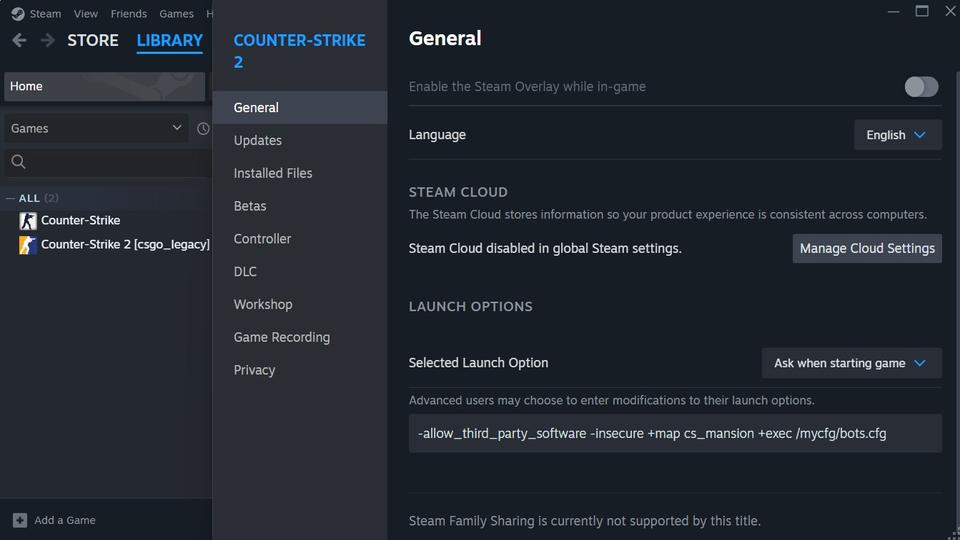
To add launch options in Steam:
- Open Steam and go to your Library.
- Find Counter-Strike 2, right-click it, and select Properties.
- On the General tab locate the Launch Options field.
- Enter your desired launch options.
Each option must start with a dash (-) and separate multiple options with a space. To remove launch options, simply clear the field.
Launch options set this way remain active every time the game starts. This is why players often forget that the option like "-insecure" is still enabled when they try to queue for matchmaking.
Steam internally stores launch options in the following file:
..\Steam\userdata\SteamID\config\localconfig.vdfThis file contains much more than just launch options. It also stores information such as installed games, timestamps of recent launches, connection history, and the current - as well as previous - player nicknames (if available). Because of this, localconfig.vdf is treated as an internal Steam configuration file and is not meant to be edited manually.
Any direct changes to this file are ignored or overwritten by Steam. Launch options must always be added or removed through the Steam interface.
If you frequently switch between matchmaking, training, and testing, this limitation is exactly why Steam shortcuts (covered in the section below) provide a cleaner and safer workflow.
CS2 Launch Options - Complete Reference (2026)
This section is a complete and up-to-date reference of CS2 launch options that are still recognized by the Source 2 engine in 2026. Unlike many copy-paste lists found online, this reference separates options that actually work from those that are ignored, deprecated, or no longer relevant in Counter-Strike 2.
Every option listed below is categorized by purpose and marked based on its real behavior in CS2. Some options are still functional but highly situational, others exist only for legacy compatibility, and a few are commonly misunderstood because they were useful in CS:GO but no longer apply. This reference is meant to be practical, not exhaustive for the sake of numbers.
General Launch Options
General launch options control basic startup behavior rather than gameplay, performance, or graphics. These options affect how CS2 initializes - for example, whether the developer console opens automatically, which language the game uses, or whether certain systems are disabled for debugging or offline use.
Most players will never need more than one or two options from this category. While several of them technically still work in CS2, their usefulness is limited to specific scenarios such as testing, custom servers, or troubleshooting. If an option here doesn’t solve a clear startup-related problem, it’s usually safe - and often better - to leave it unused.
| Option | Description | CS2? |
|---|---|---|
-novid | Skips intro video. No longer needed - CS2 has no startup video. | Useless |
-console | Opens the developer console at launch. | Works |
-lv | Low-violence mode from CS:GO. Not used in CS2. | Useless |
-nosound | Disables all sound. Only useful for debugging. | Works |
-safe | Launches in "safe mode" with minimal settings. | Useless |
-insecure | Disables VAC. Used for playing on custom servers or offline maps. | Works |
-allow_third_party_software | Enables OBS, Discord overlays, Afterburner, etc. | Works |
-language <lang> | Forces game to use specific language (e.g., -language english). | Works |
+exec filename / +map map_name | Executes commands at startup. Not a launch option, but used in launch string. | Works* |
* Not a real launch option, but accepted in launch string to pass console commands, usually use + ahead.
Display & Graphics Launch Options
Display and graphics launch options are among the most misunderstood and overused parameters in CS2. Many of them come directly from CS:GO-era guides, where startup flags could, override resolution, fullscreen mode, refresh rate, or aspect ratio. In Counter-Strike 2, this behavior has fundamentally changed.
With the Source 2 engine, most display and graphics settings are now handled internally or through the in-game video menu. As a result, many launch options that previously forced fullscreen modes, refresh rates, or stretched resolutions are either ignored or simply do nothing when passed via Steam launch options.
The few options in this category that still work are limited to initial window creation, such as setting a startup resolution. Everything else - fullscreen behavior, borderless mode, aspect ratio, refresh rate, and scaling - is controlled by CS2 itself after launch. This is why display-related launch options are often mistaken for performance or input tweaks, even though they no longer function that way.
Use these options only when you need specific startup behavior for testing or multi-display setups. For regular gameplay, relying on the in-game settings is both cleaner and more reliable.
| Option | Description | CS2? |
|---|---|---|
-w <x> -h <y> | Sets resolution (e.g., -w 1920 or -h 1080 or -w 1920 -h 1080). | Works |
-full / -fullscreen | Forces fullscreen mode. -full GoldSCR & Source, -fullscreen GoldSCR & Source & Source 2 | Works |
-window, -windowed, -startwindowed | Forces windowed mode. All options are works for GoldSCR and Source | Useless |
-noborder | Used with -windowed to simulate borderless fullscreen. Works for GoldSCR and Source | Useless |
-refreshrate, -freq -refresh, <rate in Hz> | These commands force a specific screen refresh rate. All three commands are work in GoldSRC and Source engines but are ineffective in Source 2. Note that only standard refresh rates - such as 60, 75, 100, 120, 144, 240, and 360 - are accepted. Custom values, like 150, will not work. All three engines automatically set the monitor refresh rate based on your operating system settings (RMB -> Display Settings -> Advanced display -> Choose a refresh rate). However, only Source 2 detects your actual monitor refresh rate and will alert you if it’s lower than the nominal rate. | Useless |
-stretchaspect | Stretches the aspect ratio. Has no effect - aspect ratio controlled via game UI. | Useless |
Mouse Input Launch Options
Mouse-related launch options were once mandatory in classic Counter-Strike versions, especially in CS 1.6. Back then, parameters like -noforcemaccel, -noforcemparms, and -noforcemspd were essential for disabling Windows mouse acceleration and ensuring consistent, predictable input. For competitive play, these options were not optional - they were a must-have.
If you’re like me and come from the old school - and still occasionally enjoy classic Counter-Strike 1.6 - these parameters are still absolutely mandatory in that environment. They remain relevant there for the exact same reasons they always were: clean input and consistent muscle memory.

This also goes hand in hand with system-level tweaks, such as disabling Enhance pointer precision in Windows. Without doing so, mouse input can feel inconsistent or artificially accelerated, directly affecting aim control in older engines.
In Counter-Strike 2, however, this entire category has become legacy noise. The game uses a different input pipeline, and mouse behavior is now handled internally by the engine and in-game settings. Launch options that once disabled acceleration or forced raw input are either ignored or have no effect.
For CS2, proper mouse setup should be done inside the game using sensitivity and raw input settings, not through Steam launch options. Keeping old mouse-related flags in your launch string does not improve aim - it just adds unnecessary clutter.
| Option | Description | CS2? |
|---|---|---|
-noforcemparms | Prevents CS from overriding Windows mouse settings. | Useless |
-noforcemaccel | Disables forced mouse acceleration. | Useless |
-noforcemspd | Disables forced mouse speed settings. | Useless |
-nomouse | Disables mouse input (debug only). | Useless |
Use raw input and sensitivity settings in CS2 settings or via m_rawinput, sensitivity console commands.
CPU & RAM Optimization Options
CPU and threading-related launch options are often advertised as performance tweaks, but in CS2 this category is mostly misunderstood. The Source 2 engine manages CPU threads, scheduling, and memory allocation automatically, which makes most manual overrides either unnecessary or ineffective.
The most discussed option here is -high. Technically, it does work - it launches CS2 with a higher process priority at the operating system level. In certain situations, this can reduce interruptions from background tasks and lead to slightly more consistent frametimes. However, this behavior is not always stable or predictable, because it is applied only when the game starts and depends heavily on how Windows schedules processes at that moment.
More importantly, controlling CPU priority through launch options is a reactive approach. If higher priority truly benefits your system, it’s more reliable to define it in advance at the system level - for example, through Windows settings or registry-based priority rules - rather than relying on a launch flag.
Other options in this category, such as manual thread counts or legacy memory flags, are leftovers from older Source versions. They either provide no real benefit in CS2 or exist solely for debugging and testing scenarios.
The practical impact of -high and similar options will be examined later, where real benchmarks and test results show what actually works - and what merely sounds useful on paper.
| Option | Description | CS2? |
|---|---|---|
-threads <x> | Manually sets number of engine threads. Works, but offers no FPS gain. CS2 auto-manages threads by formula your_threads - 1, check the sys_info command output. | Works (not useful) |
-nosse4 | Disables SSE4 instruction set. For Source engine, may be usefull fol old CPU. | Useless |
-high | Launches CS2 with high CPU priority. Better handled via system settings. | Works |
-low | Launches hl.exe (CS 1.6) and csgo.exe (CS:GO) with low priority. | Useless |
-heapsize | Sets RAM allocation (obsolete from GoldSCR era). | Useless |
-dev | Enables developer mode (more verbose logging). | Works |
-condebug | Saves console output to console.log. | Works |
-nocrashdialog | Suppresses Windows error popups. Used for automated testing, often by server administrators on Source engine. | Useless |
-zone | Legacy memory allocator from older Source games. | Useless |
Note: In CS:GO, the -threads launch option always used 3 threads, regardless of your CPU. In CS2, things have changed: the game analyzes your processor, detects the number of cores, and uses a "Total Cores – 1" scheme to calculate the engine thread pool. You can verify this via the sys_info command.
The -threads option still works and does affect the engine’s threading - but it does not improve FPS. If you enter a lower value (e.g. -threads 3), it may even reduce performance. If you use a higher value (e.g. -threads 17), the engine will accept it, but it won’t help - CS2 already optimizes thread usage automatically.
Recommendation: Use -threads only for testing, debugging, or experimentation. For regular players, it’s a waste of time. Let Source 2 handle thread management.
GPU & Graphics API Options
This category is almost entirely made up of legacy CS:GO launch options that no longer apply to Counter-Strike 2. In Source, forcing a specific graphics API or DirectX version could influence stability or compatibility. In Source 2, that control has been removed.
CS2 automatically selects the appropriate graphics backend based on your system and driver support. Options that attempt to force DirectX levels, OpenGL, software rendering, or shader limits are either ignored, deprecated, or completely removed. Passing them through Steam launch options has no effect on rendering behavior, performance, or latency.
Many of these flags still appear in old guides, forum posts, and copy-paste launch strings simply because they were once valid. In CS2, they do not provide fallbacks, compatibility modes, or performance gains. They exist here only to show what no longer works - not because they should be used.
If you are troubleshooting graphics issues in CS2, the correct place to look is driver-level settings or the in-game video menu, not Steam launch options. Keeping GPU-related legacy flags in your launch string only adds confusion without delivering any real benefit.
| Option | Description | CS2? |
|---|---|---|
-dxlevel, -d3d9ex | Forces specific DirectX versions. Deprecated, removed from Source 2. | Useless |
-soft | Enables software rendering. Not supported in CS2. | Useless |
-d3d, -gl | Forces specific API. CS2 auto-selects best renderer (DX11 or Vulkan). | Useless |
-noaafonts | Disables anti-aliasing for fonts. Obsolete. | Useless |
-r_emulate_gl | Emulates OpenGL. Source 2 does not support this. | Useless |
-softparticlesdefaultoff | Disables soft particles. No effect in CS2. | Useless |
-limitvsconst | Limits vertex shader constants. DirectX 8-era setting. | Useless |
-forcenovsync | Tries to disable VSync. Use driver-level or in-game settings instead. | Useless |
Miscellaneous Options
This category consists almost entirely of obsolete or irrelevant launch options carried over from much older Source-based games. In CS2, these options do nothing or are already handled internally by the engine.
The only option here with a real, practical use case is -autoconfig, which forcibly resets all in-game settings to default. This can be useful for troubleshooting or recovering from a broken configuration, but it should be used with caution, as it will overwrite binds, video settings, and other personal preferences.
Everything else in this category exists for reference purposes only. If you see these options in modern CS2 guides, configs, or "optimization packs", it’s a clear sign that the information hasn’t been updated.
| Option | Description | CS2? |
|---|---|---|
-nojoy | Disables joystick support. Already disabled in CS2 by default. | Useless |
-noipx | Disables IPX protocol (obsolete). | Useless |
-nopreload, -preload | Forces/prevents preloading assets. No effect in CS2. | Useless |
-no-browser | Disables in-game browser. Deprecated. | Useless |
-autoconfig | Resets all game settings to default (resolution, binds, etc.). Use with caution. | Works |
Launch Options for Training & Practice
While most CS2 Launch Options are unnecessary for regular matchmaking, they can be genuinely useful in training and practice scenarios. This is where launch options still make sense - not as optimizations, but as tools for speeding up setup, reducing friction, and creating consistent testing conditions.
When working with offline practice, custom maps, grenade training, aim routines, or repeated testing sessions, certain launch options can save time by automating startup steps. Loading a specific map, executing a training config, or disabling restrictions that apply only to matchmaking can make practice workflows faster and more predictable.
Let’s take a look at a practical set of launch options for training:
-allow_third_party_software -insecure +game_mode 1 +exec training.cfg +map cs_mansionIf you want to test settings, practice mechanics, or warm up with bots, this combo works as a solid training launch base.
-allow_third_party_softwareAllows third-party software and overlays to work with the game. Common examples include OBS, MSI Afterburner, Discord, and Mumble. This option has no gameplay impact and is intended purely for compatibility with external tools.
-insecureDisables VAC, which allows you to load custom maps and content outside the official map pool.
+game_mode 1Starts the game in Casual mode (You can also use: 0 for Competitive and 2 for Wingman). This saves time by avoiding manual mode selection on every launch.
+exec training.cfgAutomatically loads your custom training configuration at startup. This keeps practice commands separate from your everyday gameplay config.
+map cs_mansionLaunches the game directly into cs_mansion - a classic and, frankly, legendary map. Many CS 1.6 players know this house better than their own. =)
Interesting fact: cs_mansion was one of the first four maps released with Counter-Strike Beta 1.0 on June 19, 1999. Alongside cs_siege, cs_prison, and cs_wpndepot, it helped define the foundation of Counter-Strike as we know it today.
You can explore this early history in my detailed guide: History of Counter-Strike 1.6
About practice config (e.g., training.cfg)
This training config is already optimally tuned for practice, with a focus on grenade training and positioning (C key bind). Team auto-balance and team limits are disabled, allowing full control over bot distribution.
bots are set to a high baseline difficulty, making practice realistic. From there, you only need to manually add bots you need, choosing their team and difficulty. The total number of players on the server (including you) should not exceed 20. Bots are added manually via the console using simple commands.
Examples:
bot_add expert- Adds a random bot with Expert difficulty to any team.bot_add_ct easy- Adds a CT bot with Easy difficulty.bot_add- Adds a random bot to a random team.
The highest difficulty bot in CS2 is Elite. This difficulty cannot be selected directly with a generic difficulty flag. To spawn an Elite-level bot, you must add it by name, using a predefined bot profile, example: bot_add_t muhlik
Adds a Terrorist bot named muhlik with the Elite difficulty template attached.
For a detailed explanation of bot difficulty levels, bot naming, templates, and weapon behavior in CS2, see:
Commands and values
Customize, tweak, and experiment – this setup is ideal for offline practice and testing mechanics.
sv_showimpacts 2
sv_showimpacts_time 5
sv_showbullethits 1
sv_maxspeed 320
mp_warmuptime 5
mp_freezetime 3
mp_limitteams 0
mp_autoteambalance 0
mp_buytime 120
mp_buy_anywhere 1
mp_maxmoney 16000
mp_startmoney 16000
mp_roundtime 2.5
mp_maxrounds 24
mp_timelimit 20
mp_c4timer 40
mp_friendlyfire 0

sv_cheats 1
sv_infinite_ammo 1
sv_grenade_trajectory_prac_pipreview 1
sv_grenade_trajectory_prac_trailtime 8
ammo_grenade_limit_total 5
bind "c" "toggle cl_showpos"
bind "f" "noclip"
bot_autodifficulty_threshold_low -99
bot_autodifficulty_threshold_high 99
bot_difficulty 3
If you want a deeper breakdown of training commands and ready-to-use configs, visit my guide: CS2 Console Commands 2026: Best Practice, Gameplay & FPS Settings
There you’ll find detailed explanations of practical commands, their recommended and default values, and downloadable configs for bot training, grenade practice, bunnyhopping, and everyday gameplay.
Steam Shortcuts for CS2 Launch Options
I’ve run into this situation more times than I can count. You add a launch option - for example, -dev to check startup errors, or -insecure to load a local map - and then simply forget about it. Later, you try to queue for a match, only to find that the game won’t let you connect because VAC is disabled. At that point, the only option is to close the game, edit the launch options, and restart everything again.
This is a common and frustrating workflow issue, especially if you regularly switch between matchmaking, training, and testing. Launch options are powerful, but managing them directly in Steam makes it easy to forget what’s enabled -insecure and why.
But what if you could use any launch options you want without ever editing them in Steam?
That’s where Steam shortcuts come in.
Here, I want to briefly share with you a simple yet incredibly powerful trick for using Launch Options, and it's called a shortcut. A shortcut is basically a quick way to launch a program, and many programs support extra commands (or settings) that can be added when they start up.
For Counter-Strike 2, this means you can create a shortcut that automatically applies your preferred launch options, so there’s no need to tweak them every time. It saves time and gets you into the game faster.
The default CS2 launch shortcut looks like this:
steam://rungameid/730This is the shortcut I created myself (Steam is installed on drive D: in the \Games folder):
D:\Games\Steam\steam.exe -applaunch 730Both shortcuts launch CS2 in default mode, but the second shortcut can be modified by adding launch options directly.
Examples:
D:\Games\Steam\steam.exe -applaunch 730 -insecureA shortcut that launches CS2 with VAC disabled.
D:\Games\Steam\steam.exe -applaunch 730 +map de_dust2A shortcut that launches a Casual training match on the de_dust2 map.
D:\Games\Steam\steam.exe -applaunch 730 -allow_third_party_software
A shortcut that launches CS2 with overlay protection disabled. This means you no longer need to open Steam to remove or add a launch option. Simply create the necessary shortcut and you can forget about Launch Options in Steam forever.
Here's a detailed guide: Shortcuts vs. Launch Options in Counter-Strike 2
Steam also supports a wide range of launch options – not just for games, but for the Steam app itself. Here are a few examples you can use with the Steam executable file (steam.exe):
-noverifyfiles- Skips checking game files, which can make Steam load faster.-fullscreen- Launches Steam in fullscreen instead of windowed mode.-nobootstrapupdate- Stops Steam from updating its bootstrapper when it launches.-applaunch AppID- Opens a specific game directly using its AppID.-tcp- Forces Steam to use the TCP protocol, which might help with network issues.-silent- Starts Steam in the background without popping up the main window.
Once you’ve got your shortcut or shortcuts set up, just drop them on your desktop or wherever’s convenient. That way, launching the game with your custom setup becomes as easy as a double click.
CS2 Performance Benchmark: -high vs Registry vs Default
To test whether running CS2 with elevated process priority actually affects performance, I ran a series of benchmarks using the CS2 FPS Benchmark Dust2 map. The goal was not to chase peak FPS, but to observe changes in average performance and frame stability under different priority methods.
Test Setup and Conditions
System Specs:
- CPU: AMD Ryzen 5 3550H @ 2.10GHz
- GPU: NVIDIA GTX 1650
- RAM: 16GB
- Storage: SSD

System-level and NVIDIA Control Panel settings were left at default. In-game graphics were manually lowered to the minimum to reduce GPU bottlenecks and ensure consistent CPU load across all test runs.
Default Launch (Baseline Test)

Results: Average FPS was 114.3, with P1 (1% low) at 53.8. Test condition: Default.

Launch Priority via -high Option
Results: Average FPS was 117.4, with P1 (1% low) at 59.0. Test condition: -high option.

High Priority via Windows Registry
Results: Average FPS was 121.5, with P1 (1% low) at 62.5. Test condition: Registry method.

In this third case, the console command sys_info still reported Process priority: normal, but Task Manager confirmed that cs2.exe was indeed running at high priority - just like in previous test.
CS2 Performance Comparison
| Test | Average FPS | P1 (1% Low) | Test Condition |
|---|---|---|---|
| Result #1 | 114.3 | 53.8 | Default |
| Result #2 | 117.4 | 59.0 | -high option |
| Result #3 | 121.5 | 62.5 | Registry method |
Benchmark Analysis
The test revealed an interesting detail. When CS2 is launched with the -high option, the console command sys_info correctly displays Process priority: high, and the game runs at elevated priority. This results in a small performance boost: average FPS increases slightly, and lows become more stable.
However, when CS2 is launched with a forced high priority via the Windows Registry, sys_info shows Process priority: normal. Despite this, Task Manager confirms that the cs2.exe process is running with high priority - and this method produced the best benchmark result overall.

This leads to several important conclusions:
sys_infois not always accurate - especially when priority is set externally via the operating system.- The registry method is deeper and more effective than
-high, since priority is applied before the CS2 process even starts. -highis a safe and functional option, but it doesn’t deliver the best possible result.
There’s also a theory that when CS2 is launched via the registry (console still says "normal"), Windows may actually balance resources more effectively across threads - especially on weaker CPUs - resulting in smoother gameplay. But strictly by the numbers, the registry method wins.
F.A.Q.

What are CS2 launch options?
Launch options are command-line parameters that players can set in Steam to modify how Counter-Strike 2 starts. These options apply only during startup and allow limited technical adjustments. They do not dynamically affect gameplay or performance once the game is running.
Do launch options improve FPS in CS2?
No. CS2 is optimized to run with its default settings. Most performance-related launch options from older versions (like CS:GO or CS 1.6) are either deprecated or completely ignored in CS2.
What is the best launch option for CS2?
For 99% of players - none. Valve has explicitly stated that “the best launch options are no launch options," because the game is tested and optimized under default conditions.
Can launch options reduce input lag or improve mouse response?
No. CS2 handles input using its internal system. If you want to improve responsiveness, use in-game settings, enable Raw Input, and adjust sensitivity – not launch options.
Should I use -threads to match my CPU cores?
Technically, it works - but it won’t help. CS2 already detects your hardware and automatically manages the optimal thread pool. Using -threads manually won’t improve FPS, and can even make it worse.
Is it safe to use -insecure?
Yes - but only if you're playing offline or on custom, non-VAC servers. -insecure disables VAC protection, so you cannot join official matchmaking while it’s enabled.
Can I force CS2 to use borderless fullscreen with -noborder?
No. -noborder and -windowed do not work reliably in CS2 via launch options. Use in-game settings to switch to "Windowed" or "Fullscreen Windowed" instead - that’s the only method that works properly.
Why do so many guides still list broken launch options?
Because they copy outdated info from CS:GO. Most "top 10 launch options" articles are SEO filler, not verified facts. Always test things yourself - or trust guides that do.
Is +exec autoexec.cfg a launch option?
Technically, no - it’s a console command that can be placed at the end of a launch string in Steam. But yes, it works: it tells the game to execute your custom config on startup.



3 Responses
that’s useful, thanks
nice guide! But, how about “-noreflex”?
Hi! This is a valid CS2 launch option. It disables NVIDIA Reflex / NVIDIA Low Latency technology at the game launch level.
Personally, I do not use it because I have NVIDIA Reflex Enabled + Boost turned on in my CS2 settings. If you do not need to disable Reflex, do not use this launch option just because someone wrote somewhere that it supposedly helps. The best option is to test CS2 with -noreflex and without it. Compare FPS, frametime, and how the input lag feels. If there is no noticeable difference, you do not need to use -noreflex.