CS2 Server Configuration Files Guide

Table of Contents

Counter-Strike 2 still lets you control offline play, bot games, and local sessions through config files and server commands. If you want to change bot behavior, adjust round rules, or host a simple LAN server, the main tools are cfg files and server commands built around sv_*, mp_*, and bot_* settings.

This guide explains where CS2 server config files are stored, which server commands are useful, how gamemode cfg files work, and how to customize them for offline or local play.

CS2 Server Config File Locations

CS2 stores its default gamemode server configs in the main game cfg directory. These files are used by built-in modes such as Competitive, Casual, and Deathmatch, and they can be edited if you want to change the default rules of that mode for offline or local play.

Where CFG Files Are Stored
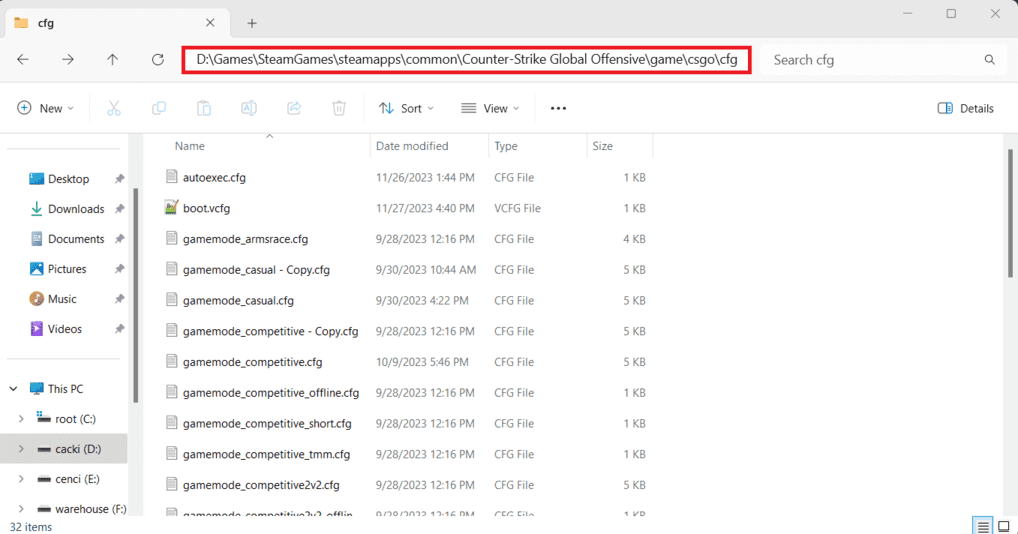
File path to the Counter-Strike 2 configuration files displayed on a computer screen
Directory structure showing the location of configuration files for Counter-Strike 2 on my computer

The default server config files are stored in the main CS2 cfg directory inside the game installation folder. The path is ..\Steam\steamapps\common\Counter-Strike Global Offensive\game\csgo\cfg\.

Which Gamemode CFG Files Are Loaded

The most important files in this guide are the gamemode configs that CS2 loads for each built-in mode. That means files such as gamemode_competitive.cfg, gamemode_casual.cfg, and gamemode_deathmatch.cfg. When you start an offline Competitive game with bots, CS2 applies the rules from gamemode_competitive.cfg. The same logic applies to Casual and Deathmatch. These files define the default server behavior of each mode before you change anything manually.

Default CS2 Server Commands in Gamemode CFG Files

The built-in gamemode_*.cfg files are filled with server cvars that define how each offline or local session behaves. These commands can be grouped around three main areas: bot behavior - bot_* (bots), game rules - mp_* (multiplayer), and core server settings - sv_* (server).

Bot Commands

The bot_* commands control how many bots join the server, how strong they are, and how they behave during the match. In the current file examples, this includes settings such as bot_difficulty, bot_quota, bot_quota_mode, bot_chatter, and the auto-difficulty threshold commands. These are the lines that shape the basic offline experience when you launch a mode with bots already enabled.

MP Commands

The mp_* commands handle the actual game rules. This is the biggest group in the default configs, because it covers economy, round time, buy time, freeze time, respawn logic, friendly fire, warmup, max rounds, starting money, and many other gameplay rules. If you want to change round rules, economy, timing, or respawn behavior, the answer is usually in the mp_* section.

SV Commands

The sv_* commands control broader server behavior. In the default gamemode files, these lines are used for settings such as voting, enemy voice communication, dead talk, infinite ammo, grenade radio behavior, and other server-side rules. They are not as numerous as mp_* commands, but they are still important because they define how the server handles communication, permissions, and core session logic.

How to Customize Gamemode Config Files

There are two common ways to change the default rules loaded by CS2 for Competitive, Casual, or Deathmatch. You can edit the original gamemode_*.cfg file directly, or keep the default file untouched and load your own custom cfg on top of it. Both methods work, but they serve different purposes.

Editing the Default File Directly

The most direct method is to open a file such as gamemode_competitive.cfg and change the cvars inside it. This gives you full control over the default behavior of that mode, because the game will read your edited values as soon as the session starts. For quick personal testing, this is simple and easy to understand. The downside is that game updates can overwrite these files, and later it becomes harder to remember which values were changed from the original version.

Using a Separate Custom CFG with Exec
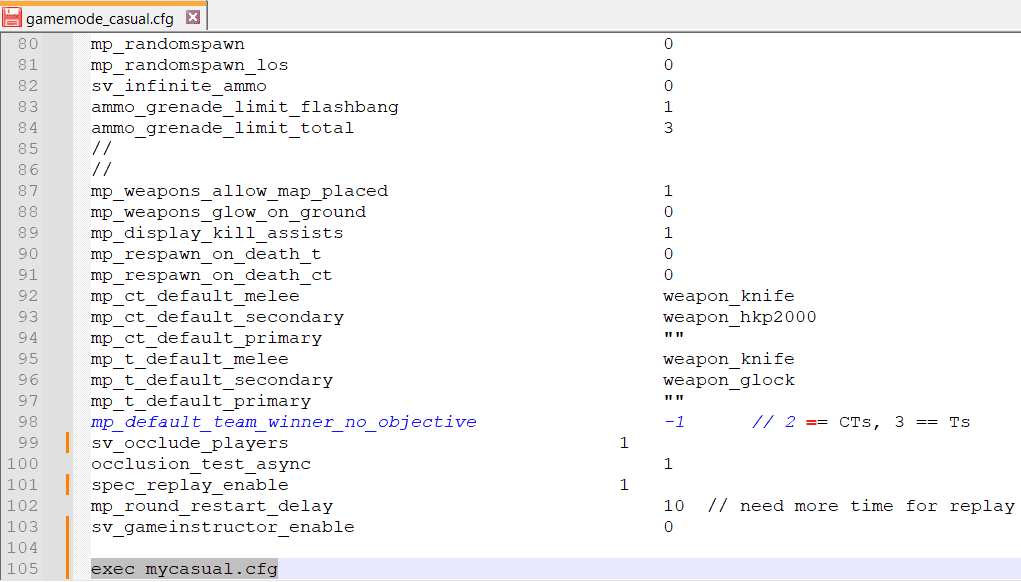
Screenshot of casual server configuration files for CS2, displaying key settings and parameters
The view of the configuration file gamemode_casual.cfg which loading an addition config mycasual.cfg by exec command

The cleaner method is to leave the default gamemode file as it is and load a separate custom cfg with exec. This lets CS2 start with the normal rules of the selected mode and then apply your own changes afterward. That approach is easier to manage, easier to update, and much safer if you want to keep your own settings without permanently rewriting the base gamemode files.

Playing on a Local Network

To play on a local network, enable LAN mode with sv_lan 1 or sv_lan true. Players can then join the server with the connect command by entering the host machine’s local IP address and port, for example connect 192.168.1.15:27015. The default port is usually 27015.

Finding Server IP

To find the local IP address of the host PC, use the ipconfig command in Command Prompt and check the active network adapter. Another option is the status command in the CS2 console, although it does not always show the address correctly. For LAN play, the important address is the local network IP, not the public internet IP.

Conclusion

CS2 uses separate gamemode cfg files for Competitive, Casual, and Deathmatch. If you want to change how one of these modes behaves offline or on a local server, these files are where that rule set begins.

You can edit the default file directly or load a separate cfg with exec. The first method is quicker, while the second is cleaner and easier to maintain.

Related CS2 Settings and Config Guides

If you are still adjusting your setup after a full reset, these guides can help you rebuild your CS2 settings more carefully and avoid old problems coming back.

CS2 Server Configuration Files FAQ

A glowing 'FAQ' displayed on a futuristic holographic panel, surrounded by floating question marks and digital circuitry within a cosmic, sci-fi environment
What is a gamemode cfg file in CS2?

A gamemode cfg file is a server configuration file that CS2 loads automatically when you start a specific mode such as Competitive, Casual, or Deathmatch. These files contain the default bot_*, mp_*, and sv_* rules for that session.

Can I edit a gamemode cfg file directly?

Yes, you can open the file and change the cvars inside it. This is the quickest method, but game updates may overwrite your edits.

Is it better to use a separate custom cfg instead of editing the default file?

Often, yes. A separate file loaded with exec is easier to manage and keeps the original gamemode cfg cleaner. It also makes your own changes easier to find later.

Do these files affect bot matches and LAN sessions?

Yes, the selected mode still uses its corresponding gamemode cfg as the default rule set.
Continue Reading

Split-screen comparison of the Counter-Strike 2 HUD showing two different interface layouts during AK-47 gameplay on Dust2
CS2 HUD Customization, Commands, and Clean HUD Setup

CS2 HUD Customization, Commands, and Clean HUD Setup Table of Contents Introduction to the CS2 HUD In Counter-Strike 2, the Heads-Up Display – or simply HUD – is a core part of the competitive experience. It’s the layer of information that sits on top of the action: your health, ammo,

Read More
Leave a Reply

Your email address will not be published. Required fields are marked *