CS2 Resolution Basics You Need to Know
Before you start tweaking settings, it’s important to understand the basics. Resolution, pixel density, and aspect ratio aren’t just technical jargon - they define how Counter-Strike 2 looks, feels, and performs on your screen.
Resolution vs Pixel Count vs Pixel Density
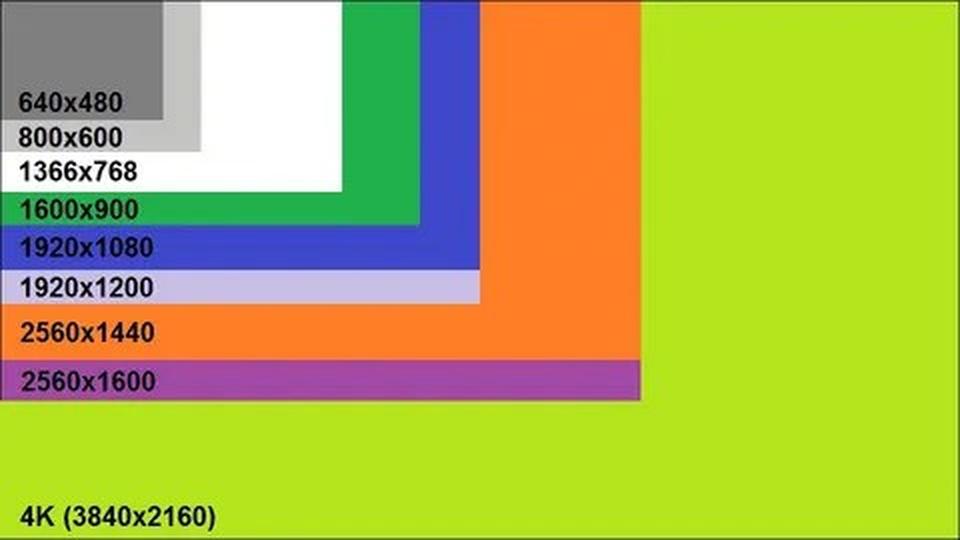
Resolution is the raw number of pixels shown on your monitor, like 1920×1080 or 1280×960. The higher the pixel count, the sharper the game looks, but the more power your GPU needs to keep a stable frame rate. Pixel density adds another layer - it’s how tightly those pixels are packed on your screen. For example, 1920×1080 on a 24-inch monitor will look sharper than the same resolution stretched across a 32-inch panel. In CS2, this balance between resolution and density determines whether you get crisp visuals or a blurrier image that might actually make enemies harder to track.
CS2 Aspect Ratio Guide: 4:3, 16:9, 16:10, 5:4
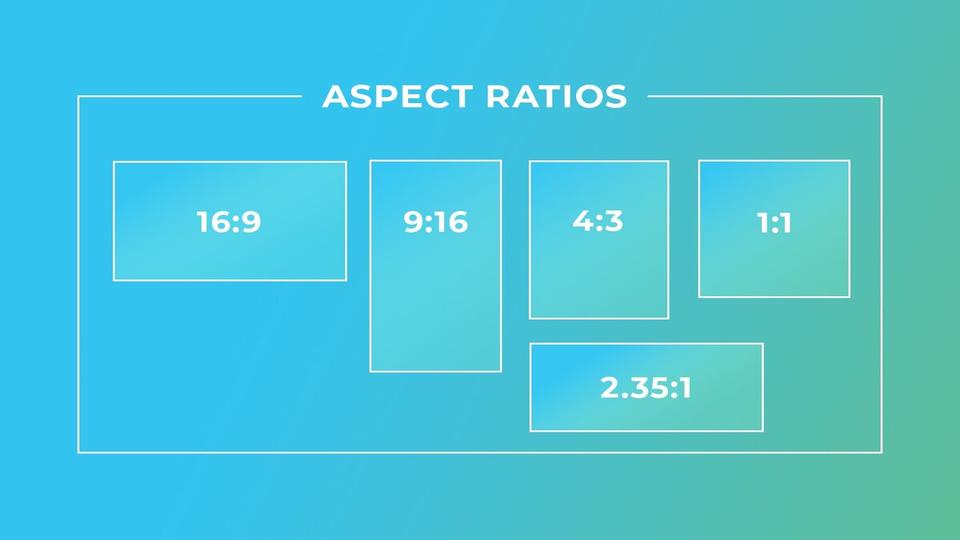
Aspect ratio is the relationship between screen width and height. The most common are 16:9 (standard widescreen), 4:3 (classic competitive choice), and 16:10 (a compromise between the two). Some players still experiment with 5:4, while others use ultrawide monitors for a cinematic feel. In practice, aspect ratio in CS2 directly affects field of view (FOV). A 16:9 setup shows more on the sides, which helps with awareness, while 4:3 compresses the view and makes player models appear bigger. Ultrawide gives the widest FOV possible, but it’s rarely used in tournaments and can even be distracting for competitive play.
Stretched vs Black Bars vs Native in CS2
This is where personal preference comes in. Playing 4:3 stretched makes models wider and easier to hit but sacrifices peripheral vision. Using 4:3 with black bars keeps natural proportions and isolates the action in the center of your screen, which some players find increases focus. Native 16:9 offers the cleanest image and the largest field of view, but player models appear smaller, which may feel harder for aiming. In 2025, most pro players still prefer 4:3 stretched because of the larger target models, but casual players often stick to native 16:9 for comfort and clarity.
Best CS2 Resolution Options Compared
There is no single screen resolution that works best for everyone in CS2. Each option changes model size, field of view, image clarity, and FPS in different ways, so the real choice depends on what feels more useful on your setup.
4:3 Stretched - Advantages and Disadvantages
This is the go-to resolution for many experienced players in CS2. By stretching the 4:3 image to fill a widescreen monitor, player models appear wider and easier to hit. The added size makes duels feel more forgiving, especially in close-range fights. On top of that, fewer rendered pixels usually translate into higher FPS and lower input lag. The downside is a reduced field of view - you’ll see less on the edges compared to 16:9 - and the stretched look can feel unnatural at first. Still, "4:3 stretched CS2" remains a top search term for a reason: it gives a tangible aiming advantage.
4:3 with Black Bars - Isolation & Focused Vision
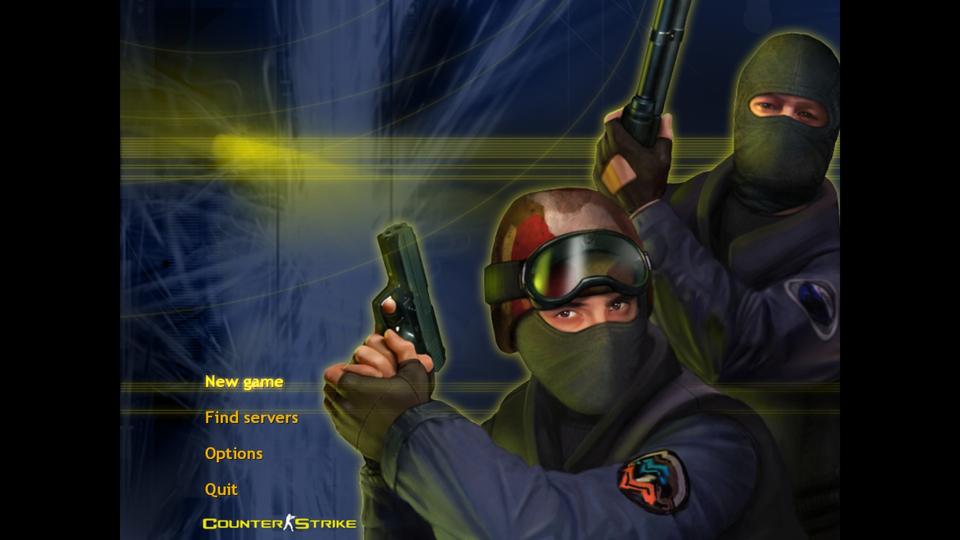
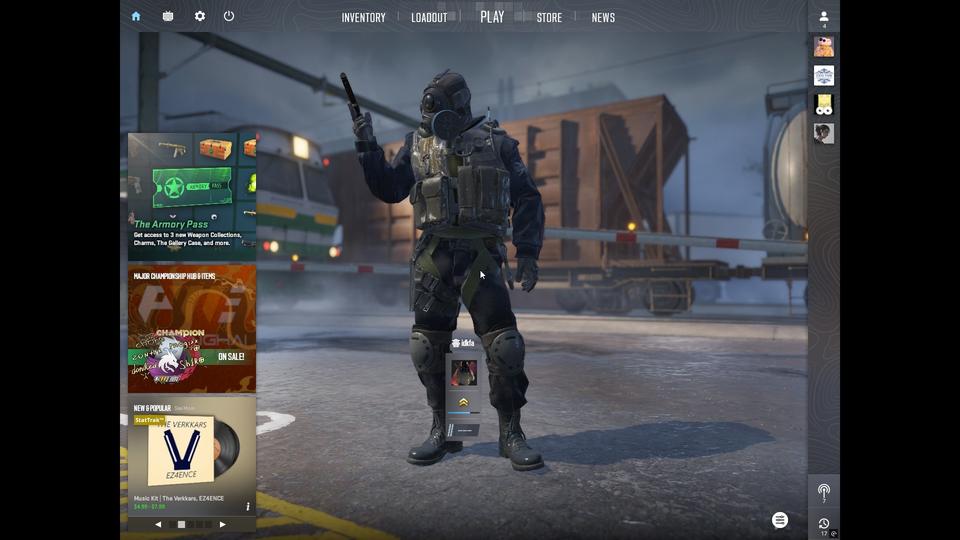
This option keeps the natural proportions of the game while simply adding black bars on the sides of the screen. For many "old school" players who grew up on Counter-Strike 1.6, this was the most popular setup. It isolates the action to the center of the screen, which some argue helps with focus and tunnel vision during intense matches. The trade-off is the same as stretched - less peripheral vision - but without the model enlargement. Today, 4:3 black bars is less common among pros, but it still has a loyal following among veterans who value comfort and familiarity.
16:9 Native - FOV & Visual Clarity
Native 16:9 is the cleanest and sharpest way to experience CS2. You get the full field of view, the most natural visuals, and the game exactly as Valve intended it. For players who value awareness, spotting flanks, and holding wide angles, 16:9 is the clear winner. The drawback? Player models look smaller compared to 4:3 stretched, and if your GPU isn’t strong enough, maintaining consistent FPS at 1920×1080 can be a challenge. Still, for casual players and many streamers, this remains the most comfortable resolution.
16:10 & Other Ratios - A Middle Ground?
The 16:10 aspect ratio is less popular today but still has its advocates. It offers slightly larger models than 16:9 while keeping more horizontal vision than 4:3. Resolutions like 1680×1050 or 1280×800 provide a compromise that some pros (like EliGE in the past) continue to use. Think of it as a hybrid choice - not as extreme as stretched, not as wide as native, but a balanced middle ground.
Ultrawide & Other Rare Ratios
Ultrawide monitors (21:9 or 32:9) give the widest FOV possible, making maps feel cinematic and immersive. For casual or content creators, ultrawide CS2 looks stunning. But in competitive play, ultrawide is rarely used - it can be distracting, and some tournaments don’t even allow it. Other rare ratios like 5:4 or 1:1 exist, but they are mostly experiments or personal quirks rather than serious competitive options.
Performance Benchmarks - FPS Gains at Different Resolutions
Before running the tests, I configured all systems the same way. NVIDIA driver settings were tuned for maximum performance, and in-game video settings were set to Low - with just a few exceptions for visual clarity:
- Global Shadow Quality: Medium
- Dynamic Shadows: All
- FidelityFX Super Resolution: Disabled
This way, the benchmark focuses purely on how resolution impacts FPS, without extra variables.
CS2 Resolutions Compared (Avg FPS / 1% Low)
| System | Resolution | Avg FPS | 1% Low | Gain vs 1920×1080 |
|---|---|---|---|---|
| Desktop #1 - Ryzen 7 7800X3D + RTX 3070 Ti | 1920×1080 | 599.3 | 269.4 | - |
| 1440×1080 | 666.4 | 282.3 | +11.2% | |
| 1280×960 | 705.9 | 272.3 | +17.8% | |
| Desktop #2 - i5-7400 + GTX 1060 3GB | 1920×1080 | 203.9 | 151.7 | - |
| 1440×1080 | 235.1 | 115.3 | +15.3% | |
| 1280×960 | 240.2 | 118.0 | +17.8% | |
| Notebook - Ryzen 5 3550H + GTX 1650 | 1920×1080 | 152.2 | 65.7 | - |
| 1440×1080 | 163.7 | 82.5 | +7.6% | |
| 1280×960 | 168.3 | 92.4 | +10.6% |
Analysis of Results
On the high-end desktop (7800X3D + RTX 3070 Ti), switching from 1920×1080 to 1280×960 boosted performance by almost +18%, with FPS climbing over 700. Even on such powerful hardware, the jump made the game feel snappier and more responsive, showing that resolution tweaks matter even when you’re already well above competitive frame rates.
On the mid-range PC (i5-7400 + GTX 1060 3GB), the gains were just as impressive. Dropping resolution increased FPS by +17-18%, which can be the difference between struggling to stay smooth and actually holding a consistent, fluid experience.
The gaming laptop (Ryzen 5 3550H + GTX 1650) showed smaller but still valuable gains: about +10% average FPS, with 1% lows jumping from 65 to 92 - fewer stutters, smoother gunfights, and a steadier feel in tense rounds.
The takeaway: lowering resolution in CS2 doesn’t just raise the average FPS counter, it makes gameplay feel more stable and comfortable across every tier of hardware.
Average FPS Gain by Lowering Resolution
| System | 1440×1080 vs 1920×1080 | 1280×960 vs 1920×1080 |
|---|---|---|
| High-end Desktop (7800X3D + RTX 3070 Ti) | +11% | +18% |
| Mid-range Desktop (i5-7400 + GTX 1060 3GB) | +15% | +18% |
| Gaming Laptop (Ryzen 5 3550H + GTX 1650) | +8% | +11% |
How to Create a Custom Resolution for CS2
Some players online talk about "cheat resolutions" in CS2, pointing to unusual setups such as 1080x1080 or stretched formats like 1152x864. In reality, these are not cheat settings and they do not give you any hidden advantage by themselves. They only change how the image is displayed: model width, overall proportions, field of view, and sometimes performance. How much this improves or worsens your gaming experience depends entirely on your monitor, hardware, and preferences.
Custom resolutions like these do not exist in CS2 by default. If you want to test one, you first need to create it in your GPU control panel at the driver level. Once Windows and your graphics driver accept it, CS2 can use it like any other supported resolution. After that, you can select it in the in-game video settings or force it through launch options if needed.
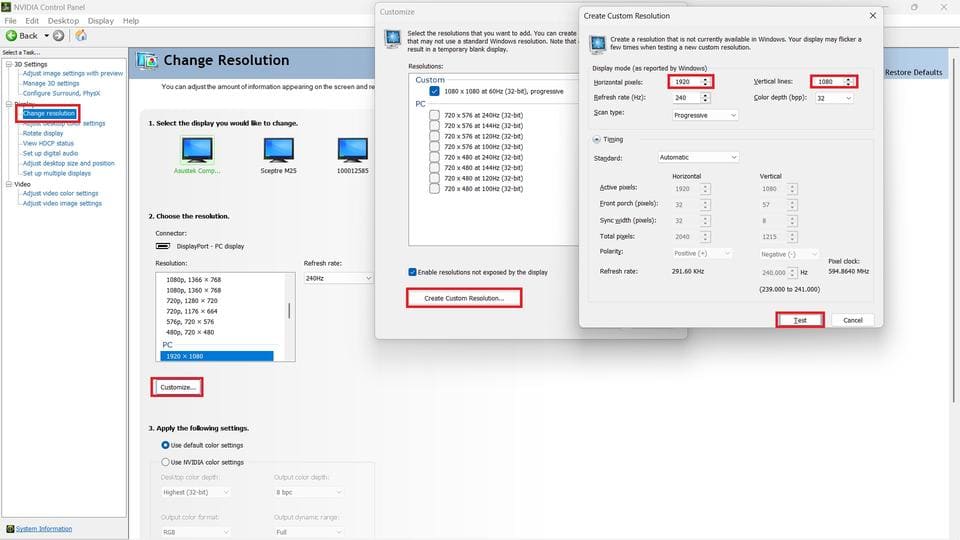
NVIDIA:
- Open NVIDIA Control Panel -> Change Resolution -> Customize.
- Click Create Custom Resolution, enter your desired width and height (e.g., 1350×1080 or 1080×1080).
- Test and save it.
AMD Radeon:
- Open AMD Sowtware (e.g, Adrenalin Edition) -> Settings -> Display -> Custom Resolutions.
- Add the new values.
- Save profile and check if it appears in CS2.
Intel Graphics:
- Open Intel Graphics Command Center -> Display -> Custom Modes.
- Enter your custom values and apply them.
- Launch CS2 to check the new resolution.
Once the resolution is created at the driver level, CS2 will recognize it. You can then select it in the in-game menu, or force it with launch options like: -w 1350 -h 1080
Not every monitor supports custom resolutions. If the display refuses the test or shows a black screen, don’t push it - stick to safe values close to your native resolution.
How to Set Up Aspect Ratio, Stretch, and Scaling
This section covers the main methods used to set resolution, aspect ratio, and scaling in CS2. Some players change these settings in the in-game menu, others use launch options or the config file, while GPU scaling is only relevant when you want stretched image or black bars.
In-game Settings - Video, Resolution & Aspect Ratio
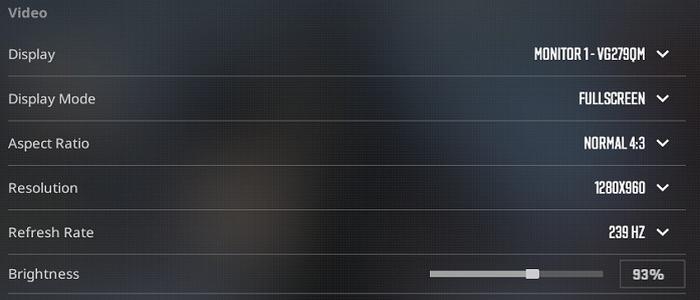
The easiest way to change resolution in Counter-Strike 2 is directly through the in-game video menu. Go to Settings -> Video, pick your aspect ratio (16:9, 4:3, or 16:10), and then select your preferred resolution from the drop-down list. For the smoothest performance, always set Display Mode to Fullscreen, since windowed and borderless can add extra input lag. This is the most beginner-friendly method, and it works instantly without restarting the game.
GPU Panel Configuration (NVIDIA, AMD, Intel) for Stretch / Scaling
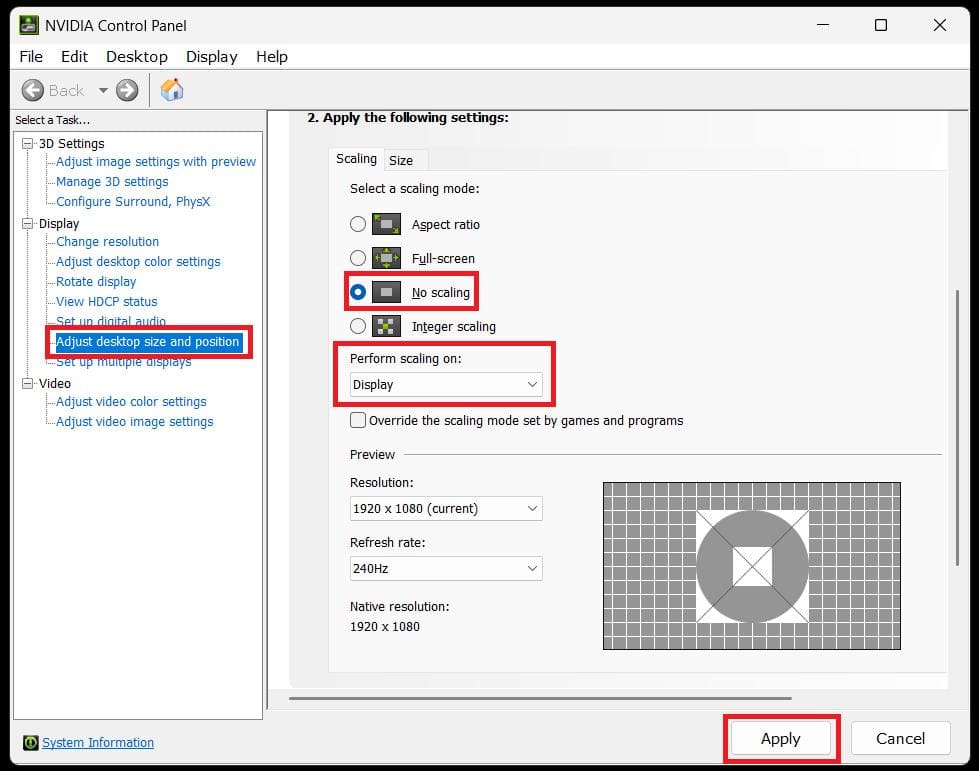
If you want to play 4:3 stretched (default) or with black bars, you need to adjust scaling in your graphics card’s control panel.
- On NVIDIA, open the Control Panel -> Adjust Desktop Size and Position -> set Scaling Mode to Full-Screen for stretched or No Scaling for black bars.
- On AMD Radeon, go to Display -> Scaling Mode and choose Full Panel (stretched) or Preserve Aspect Ratio (black bars).
- Intel GPU users can do the same in Intel Graphics Command Center. Once applied, your resolution choice in CS2 will follow this scaling rule automatically.
Launch Options
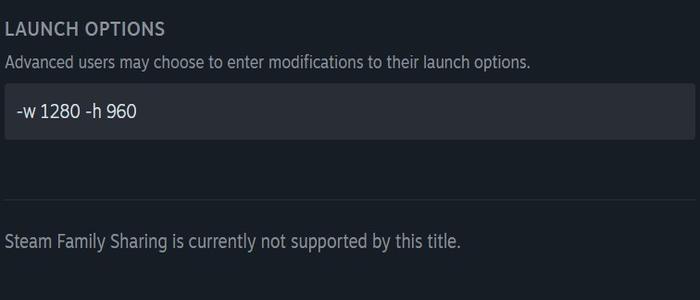
Advanced players sometimes prefer to set resolution through Steam launch options or CS2 console commands. In Steam, right-click CS2 -> Properties -> General under Launch Options add: -w 1280 -h 960
This forces the game to start at 1280×960. You can also use options like: -fullscreen (forces fullscreen mode)
Config File
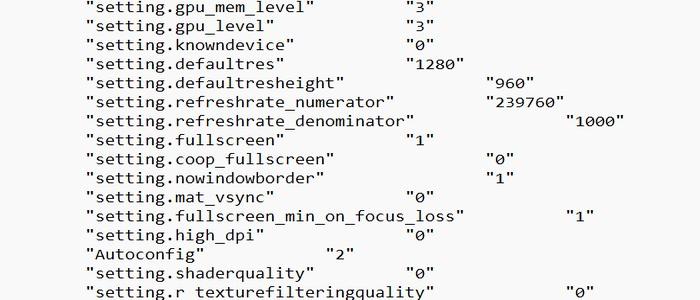
You can also set your screen resolution directly in CS2’s configuration file.
Find the CS2 settings folder, usually at:
C:\Program Files (x86)\Steam\userdata\YOUR_STEAM_ID\730\local\cfg\
Open cs2_video.txt and edit these lines:
"setting.defaultres" "1280"
"setting.defaultresheight" "960"
Save the file and start CS2. The game will now run at your chosen resolution without needing to change it in the menu or launch options.
Screen Resolution in CS2 FAQ

What is the best resolution for CS2 in 2025?
There isn’t a single best choice for everyone. Most pros still use 1280×960 (4:3 stretched) because enemy models look bigger, while many casual players stick with 1920×1080 (16:9 native) for clarity and wider field of view.
Does resolution affect FPS in CS2?
Yes. Lowering resolution reduces the number of pixels your GPU has to render, which increases FPS and lowers input lag. That’s why experienced players on mid-tier PCs prefer 1280×960 instead of 1920×1080.
Is 4:3 stretched better than 16:9?
It depends on your goals. 4:3 stretched makes opponents appear wider and easier to hit but narrows your side vision. 16:9 shows more of the map, which helps with awareness, but models look smaller.
Can I use ultrawide monitors in CS2?
Yes, CS2 supports ultrawide resolutions like 2560×1080 or 3440×1440. They give the widest FOV, but they aren’t common in competitive play and sometimes feel distracting.
Why do pro players avoid high resolutions like 2K or 4K?
Because higher resolutions shrink player models and increase input lag. In CS2, precision and reaction speed matter more than visual beauty, so most pros sacrifice sharpness for consistency.
How do I change resolution in CS2?
You can do it in Settings -> Video, through your GPU control panel (for stretched or black bars), or with
Steam launch options like -w 1280 -h 960.