
Counter-Strike 2 Useful Binds - Full Guide 2026
Counter-Strike 2 is a game where milliseconds decide whether you clutch the round or end up on the scoreboard as another frag. Every action counts - switching weapons, dropping the bomb, throwing a grenade with perfect timing, or simply communicating with your team. While many players focus only on crosshairs, configs, and settings, the real edge often comes from something far simpler: key binds.
Binds in CS2 allow you to assign specific actions to single keys, turning complicated sequences into one smooth input. Instead of fumbling through the buy menu, you can press a single button to grab your rifle, armor, and grenades. Instead of missing that perfect jump-throw for a smoke, you can lock it to one key and never fail the lineup again. They save time, reduce mistakes, and let you focus on what really matters - reading the game and outplaying your opponents.
In this guide, I’ll show you my collection of the most useful CS2 binds and explain how each one works. You’ll
also learn how to add binds through the developer console or your config file
(such as autoexec.cfg), and how to chain multiple commands into a single action. To avoid
confusion, in my examples I’ll use the cl_showfps command and the "c" key, but of
course you can replace "c" with any key you want.
What Are Binds in CS2?
In Counter-Strike 2, a bind is a custom key assignment that tells the game to perform a specific action when you press a button. Instead of relying only on the default controls, you can re-map your keyboard and mouse to speed up actions or even combine multiple commands into one key press. Think of binds as shortcuts - they remove unnecessary steps and let you play faster, cleaner, and with fewer mistakes.
At its core, a bind uses a very simple command structure inside the CS2 developer console:
bind "key" "command"or a sequence of commands:
bind "key" "command1; command2; command3"
The "key" is the button you want to use. For example:
mouse1, mouse2, mouse3 -> left, right, and middle mouse buttons
mwheelup, mwheeldown -> mouse wheel scroll up or down
space, ctrl, shift, a–z, 0–9 -> standard
keyboard keys
The "command" is what the game will do when you press it, such as +attack,
cl_showfps 1, or buy ak47.
The real power of binds comes from how flexible they are. You can bind a single action, like dropping your weapon, or chain multiple actions together. For example, one key can instantly buy your rifle, armor, and grenades at the start of a round - no menus, no wasted seconds.
Toggle and BindToggle in CS2
Beyond simple binds, CS2 also supports the toggle command, which makes bindings even more versatile. The old bindtoggle command (limited to boolean values like 1/0 or On/Off) was replaced in September 2023 by toggle, which works with any command and any set of values you specify.
If no arguments are given, toggle behaves like bindtoggle and flips between 1 and 0:
bind "c" "toggle cl_showfps"[Console] toggle: Toggled "cl_showfps": cl_showfps 1
[Console] toggle: Toggled "cl_showfps": cl_showfps 0
Every press of "c" will switch cl_showfps between 1 and 0, and you’ll see this
confirmation message in the console.
But unlike the old system, toggle allows you to define multiple states. For example,
the cl_showfps command has five valid values (0–4), and you can cycle through them with one key:
bind "c" "toggle cl_showfps 1 2 0"
Pressing "c" will now loop through cl_showfps 1 -> cl_showfps 2 -> cl_showfps
0. This flexibility means you can use a single key to switch between different crosshair styles, adjust
volume, or even change viewmodel positions on the fly.
Why Binds Matter
Binds in CS2 cover every part of the game.
Utility binds. Make grenade throws consistent (jump-throw binds), combine jump with crouch for smoother movement, or adjust your volume
on the fly.
Competitive binds. Let you drop the bomb instantly, switch crosshair settings, or
trigger quick radio commands for teamplay.
Training binds. Enable noclip, infinite ammo, or quick restarts when
practicing smokes and lineups.
The reason pro players and serious grinders rely on binds is simple: they eliminate friction. Instead of wasting mental energy on mechanics, you can focus on decision-making, positioning, and timing. A good bind won’t win the round by itself, but it will make sure you never lose one because you were stuck in the buy menu or mistimed a grenade.
In short, binds are one of the easiest ways to optimize your Counter-Strike 2 experience. They’re legal, safe to use, and fully supported by the game’s console and config system. Mastering them takes only a little effort, but pays off every time you play.
How to Add Binds in CS2
Adding binds in Counter-Strike 2 is simple, but doing it the right way ensures your
settings never reset and always load when you start the game. There are two main methods players use: directly
through the developer console or by saving commands in a config file
such as autoexec.cfg.
Using the Developer Console
The fastest way to create a bind is through the in-game console. Open the console (default key: ~)
and type the following:
bind "key" "command"For example:
bind "c" "cl_showfps 1"
This command assigns the "c" key to display your current FPS on the screen.
Unlike CS:GO, in CS2 binds are saved automatically in the file cs2_user_keys_0_slot0.vcfg.
However, if you want to be absolutely sure, and also save all the commands and values you changed during the
session, you can use the host_writeconfig command. This will overwrite all of your account’s
configuration files.
📌 If you want to dig deeper into account configs (stored in the \Steam\userdata\ folder) and game
configs (located in \game\csgo\cfg\), check my article on
Optimizing Counter-Strike 2 Player Configuration Files
.
Using the autoexec.cfg file
If you want your binds to stay forever, the best method is creating an autoexec.cfg file. This is a
simple text file (just rename .txt to .cfg) that contains all your personal commands.
Every time CS2 launches, it runs the file automatically and loads your binds.
Step-by-step:
- Go to your CS2 installation folder:
..\steamapps\common\Counter-Strike Global Offensive\game\csgo\cfg\ - Create a new text file and name it
autoexec.cfg. - Add your bind/s commands inside and save the file, for example:
bind "c" "showfps 1"
That’s it. Now every time you start the game, your binds will load automatically.
It’s not required to add +exec autoexec.cfg to your Launch Options, since the
file loads automatically in CS2.
Why you should use both methods
The console is perfect for quick tests and temporary setups, while the autoexec.cfg stores your
permanent, trusted binds and useful commands so they’re always available in tournaments, scrims, or casual
games. By combining both, you get the flexibility to try new ideas on the fly and the stability of never losing
your core setup.
All CS2 Binds Explained
Binds in Counter-Strike 2 cover everything from movement tricks to buying weapons, checking your FPS, or communicating with your team. Instead of memorizing long console commands, you can assign the most useful actions to simple keys and save time in every round.
Here you’ll find the most useful CS2 binds, split into clear groups so it’s easy to pick what you need. Some will help with movement and jumps, others make grenades easier to handle, and a few are just about making the HUD or sound work the way you want. Also, each one comes with a quick explanation.
You don’t need to add every bind from this list - just grab the ones that solve problems for you. The idea isn’t to overcomplicate your setup, but to make your game smoother and give you more room to focus on decision-making instead of fighting the controls.
Please note: to avoid confusion, I always use the binding key "c" in my
examples. Of course, you can and should use whichever key is most comfortable for you.
Binds for Movement & Utility
Mousewheel Jump Bind
Binding jump to the mouse wheel makes movement in CS2 much smoother. It’s a classic trick from older Counter-Strike versions that’s still useful today. By scrolling up or down you can hit jumps more consistently, which helps with bunny hopping, long jumps, or just making sure you don’t miss a spacebar press in a clutch.
bind "mwheelup" "+jump"
bind "mwheeldown" "+jump"
Quick Switch Bind
The quick switch bind instantly pulls out your knife. Old-school AWPers know this trick - after taking a shot, you hit the key and switch back to your rifle faster. It’s also handy if you just want slightly quicker movement speed, or if you enjoy the smooth "knife flick" feel between shots.
bind "q" "slot3"Bomb Finder Bind
Ever lost the bomb in a messy smoke fight? This bind toggles the in-game instructor, which highlights the bomb’s location. It only works in casual mode, but when it does, it’s a quick way to spot the bomb without relying on teammates or searching blindly.
bind "c" "toggle gameinstructor_enable 1 0"Binds for Grenades & Combat
Grenade Binds
Instead of scrolling through your inventory and wasting time, you can bind each grenade to its own key. Tap the button and the exact grenade comes out instantly - perfect cleaner gameplay.
Here’s how you can do it:
bind "z" "slot6"  // He Grenade
bind "x" "slot7"  // Flashbang
bind "c" "slot8"  // Smoke Grenade
bind "v" "slot9"  // Decoy Grenade
bind "b" "slot10" // Molotov Cocktail/Incendiary Grenade
With this setup, you’ll never fumble in your grenades again - muscle memory takes over.
Grenades Helper Bind
Landing grenades consistently can be tricky. This bind temporarily turns your crosshair into a massive plus sign across the whole screen. It’s not something you’ll use in matches, but when practicing smokes or lineups, it makes finding the exact throw point much easier.
bind "c" "toggle cl_crosshairsize 1 1000"Binds for Interface & Information
Zoom Radar Switch Bind
The radar in CS2 can either show you the whole map or zoom in closely around your position. Both views are useful: a wide view for spotting rotations and a close zoom for clutch fights or checking smokes. This bind lets you cycle between different radar scales with a single key.
Here’s how you can do it:
bind "c" "incrementvar cl_radar_scale 0 1 0.25"
or
bind "c" "toggle cl_radar_scale 0 0.25 0.5 0.75 1"
FPS Display Bind
Knowing your FPS helps track performance issues and test different settings. The old cl_showfps
command still works, but Valve recommends the newer telemetry commands. With this
bind, you can quickly toggle
the FPS counter on or off without digging into menus.
bind "c" "toggle cl_showfps"
or
bind "c" "toggle cl_hud_telemetry_frametime_show 2 1"
FPS+Ping+Network Display Bind
Sometimes FPS alone isn’t enough. You might want to see your ping or network stability too. This bind cycles between showing FPS, frametime, ping, and packet loss - basically everything you need to troubleshoot lag or connection drops in CS2.
bind "c" "toggle cl_hud_telemetry_frametime_show 2 1; toggle cl_hud_telemetry_ping_show 2 1; toggle cl_hud_telemetry_net_misdelivery_show 2 1"For a more detailed report, you can even combine it with cl_showfps:
bind "c" "toggle cl_showfps 2 0; toggle cl_hud_telemetry_frametime_show 2 1; toggle cl_hud_telemetry_ping_show 2 1; toggle cl_hud_telemetry_net_misdelivery_show 2 1"Clean Screen Bind
Want a clean screen for screenshots, frag movies, or just a minimalist interface? This bind hides the HUD, radar, and ammo counters, leaving only death notices and your crosshair. Press again and everything comes back.
bind "c" "toggle cl_draw_only_deathnotices 1 0; toggle crosshair 0 1"Showtag Bind
When you aim at an enemy, CS2 shows their nickname and when you aim at a teammate adds a helper circle on your crosshair. Some players find it distracting, or even notice small FPS drops. This bind toggles those indicators on or off, depending on what you prefer.
bind "c" "toggle hud_showtargetid"Viewmodel Binds
Everyone has a preferred weapon or hands position on the screen - some like it centered, others pulled far to the side. With these binds you can cycle your viewmodel offsets step by step until it feels perfect.
bind "c" "incrementvar viewmodel_offset_x -2.5 2.5 0.5"
and
bind "c" "incrementvar viewmodel_offset_y -2 2 0.5"
Binds for Sound & Communication
Mute/Unmute Bind
Sometimes voice chat is helpful, sometimes it’s pure chaos. This bind lets you instantly mute or unmute everyone. Perfect for clutch moments when you need focus - one tap and all the noise is gone.
bind "c" "toggle cl_mute_all_but_friends_and_party"Volume Change Bind
Sound is everything in CS2 - footsteps, reloading, or a dropped weapon can win you a duel. But sometimes you need different volume levels: quieter for long practice sessions, louder for intense ranked games. This bind lets you cycle between preset volume levels with one key.
bind "c" "incrementvar volume 0 1 0.25"Now you can crank up the sound mid-match to catch every step, then drop it back down once the round ends.
Binds for Economy & Items
Refund All Bind
Bought the wrong gun by mistake? This bind instantly refunds everything you purchased that round and gives your money back. It even plays a little sound so you know it worked.
Here’s how you can do it:
bind "c" "sellbackall; play ui\panorama\itemtile_click_02.vsnd_c"Buy Binds
Opening the buy menu every round takes time you don’t always have - especially in fast-paced games. With buy binds, you can grab your full loadout in one tap: rifles, armor, grenades, or even just a defuse kit.
Here are some examples:
bind "F3" "buy incgrenade; buy molotov; buy defuser"
bind "F4" "buy hegrenade; buy flashbang; buy smokegrenade; buy defuser"
bind "F7" "buy ak47; buy m4a1_silencer; buy vesthelm; buy defuser"
bind "F9" "buy awp; buy vesthelm; buy defuser"
Each key instantly gives you a full setup without wasting time in the menu. If you want more details and advanced buy setups, check out my full guide: Counter-Strike 2 Buy Binds Guide.
Binds for Training & Practice
Remove Decals Bind
In older CS games there was a r_cleardecals command to wipe blood and bullet marks from walls
mid-round. In CS2 that command doesn’t exist - instead, you can disable or enable decals entirely. This bind
toggles them on or off. It’s not a "clear decals" bind in the classic sense, but players still call it that out
of habit.
bind "c" "sv_cheats 1; toggle r_csgo_render_decals"Perfect if you want a cleaner view in practice or just a minimalistic look.
Noclip Bind
Need to fly around the map? The noclip bind lets you move through walls and float across the map at high speed. It’s a must-have when practicing grenade lineups, exploring new maps, or setting up strategies with friends.
bind "c" "sv_cheats 1; noclip"Throw Grenade Bind
Practicing smokes or flashes? This bind rethrows the last grenade you threw - same position, same trajectory, no matter where you’re standing. It saves tons of time when grinding lineups, since you don’t have to keep rebuying and repositioning.
bind "c" "sv_cheats 1; sv_rethrow_last_grenade;"Wall Hack bind
This training bind enables a built-in debug tool that draws small numbers on player legs. The numbers change based on proximity, which makes it easy to visualize how far footsteps can be heard or how close players are when stacking. Just like hitbox overlays, the numbers are visible even through walls - making it a kind of "legal wallhack" for practice.
bind "c" "sv_cheats 1; cl_player_proximity_debug 1"
or
bind "c" "toggle sv_cheats; toggle cl_player_proximity_debug"
It’s a great way to study sound ranges and movement in CS2. Of course, this only works with sv_cheats
1 enabled, so it’s purely for private practice or training servers.
For more on this, check out my guides:
Legal WallHack in
Counter-Strike 2
Legal
WallHack Scripts in Counter-Strike 2
Advanced Binds and Scripts
Besides simple binds, Counter-Strike has always supported scripting - both in CS 1.6, CS:GO, and now CS2. And it’s important to understand: a bind and a script are not the same thing.
A bind is just one line that connects a key to a command (or a short sequence of commands). Example:
bind "c" "cl_showfps 1"This is a bind - one key, one action.
A script, on the other hand, uses extra tools like alias (and in older CS versions also
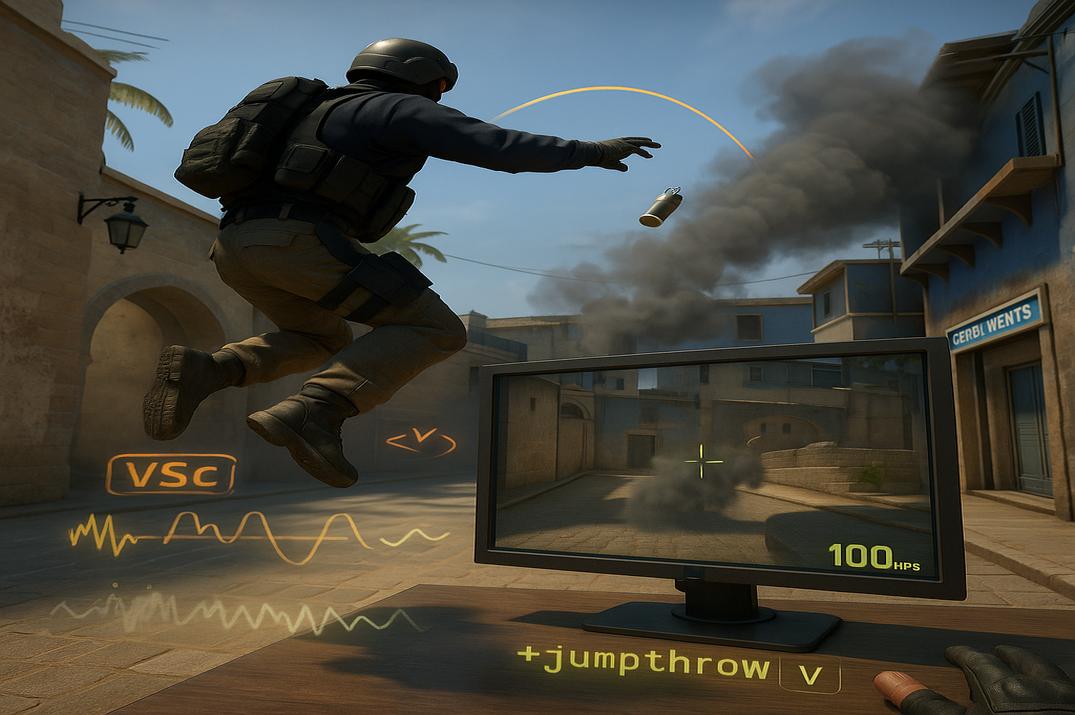
wait) to create logic, toggles, or even entire macros. That’s why when players say Jump Throw bind", it’s actually not correct - it’s a Jump Throw script,
because it relies on multiple commands chained together.
Why "wait" disappeared
In CS 1.6, the wait command allowed scripts to pause between actions, which opened the door for
advanced macros: burst fire, recoil control, even automated spray patterns. It was powerful - too powerful - so
Valve locked it in CS:GO, and it’s still locked in CS2.
How alias works
The alias command lets you create your own custom command (macro) and assign it a sequence of other
commands. Think of it as writing a small function: you give it a name, and whenever you call that name, the game
executes all the actions you defined.
To show how it works, let’s take a simple example - toggling the FPS counter. Today CS2 has a built-in toggle
command, but you can achieve the same thing using an alias script:
alias fps_on "cl_showfps 1; alias fps_toggle fps_off"
alias fps_off "cl_showfps 0; alias fps_toggle fps_on"
alias fps_toggle fps_on
bind "c" "fps_toggle"
The first alias (fps_on) turns on cl_showfps 1 and then reassigns the toggle to fps_off.
The second alias (fps_off) turns it back off and reassigns the toggle to fps_on.
The third line sets the initial state of the toggle.
Finally, the bind connects everything to the "c" key.
Every time you press "c", the script switches the FPS counter on or off - something we can now do
with a simple toggle command. But back then, this was the only way.
That’s why alias scripting is often called the "old school" style - and it’s still useful for more complex setups where a single bind isn’t enough. This is just one example, but you could use aliases to build far more complex scripts - from viewmodel switches to practice helpers.
For a deeper dive into scripting in CS2, check out my other guides:
Scripting
in Counter-Strike 2 – Full Guide
Counter-Strike 2
Useful Scripts
Five Necessary Commands to Create Scripts in CS2
Practical Tips
Binds in CS2 are simple to set up, but there are a few practical things worth keeping in mind. These small details will save you from frustration and help you manage your configuration cleanly.
-
You don’t need to add the
autoexec.cfgfile to your Launch Options - CS2 treats it like a system file and always loads it automatically if it’s in the correct directory. -
All your bindings are automatically saved to your config file located in your Steam folder:
..\userdata\Your_Steam_ID\730\local\cfg\cs2_user_keys_0_slot0.vcfg -
To manually save your current configuration (commands and their values), use:
host_writeconfig -
To display all your current key bindings, type:
key_listboundkeys -
To reset the current key bindings to default, type:
binddefaults - Be careful when binding a new command to a key because it will overwrite whatever was there before.
-
To remove a bind, use:
or edit theunbind "key"cs2_user_keys_0_slot0.vcfgfile directly.
Conclusion
Key binds in Counter-Strike 2 are one of the easiest upgrades you can make to your gameplay. They save time, cut down on mistakes, and let you focus on what really matters - outplaying your opponents. From smoother movement to instant grenade access or quick volume toggles, every bind here is designed to make your life easier in the heat of a match.
If you want to push your setup even further, check out my full FPS Guide for Counter-Strike 2 - perfect for players who want to squeeze every frame out of their system. And if you’re ready to take control of your settings permanently, explore my detailed CS2 Configs Guide where I explain how to optimize and manage your config files step by step.
The best part? Binds and configs are 100% safe and fully supported by the game - no risks, no shady tools, just smart use of the console. Start small, experiment, and soon these little shortcuts will feel like second nature.
F.A.Q.

Can binds be used in Competitive or Premier matchmaking?
Yes, absolutely! Valve will never ban you for using binds or scripts since
these are native game
features.
To clarify: nothing prevents you from typing the cheat command sv_cheats 1 in Competitive or
Premier - and VAC won’t ban you for it - but it still won’t work.
This is because sv_cheats is a server variable that is permanently locked to 0 on official
servers.
You can’t change it without server access, so cheat-related commands will never run in matchmaking.
That’s all.
What are binds in CS2?
Binds in CS2 allow you to assign specific commands or actions to a single key or mouse button. They help increase efficiency, speed up movement, improve reaction time, and reduce mistakes in tense moments.
Where are bindings saved in CS2?
All your active binds are saved automatically in your local Steam folder:
..\Steam\userdata\Your_Steam_ID\730\local\cfg\cs2_user_keys_0_slot0.vcfg
This happens without you having to do anything manually.
How to load bindings in CS2?
To be sure that binds are always loaded, create an autoexec.cfg file inside:
..\steamapps\common\Counter-Strike Global Offensive\game\csgo\cfg\
Add your binds inside the file and save it. Every time CS2 launches, the file will load automatically.
Do I need to add autoexec.cfg to Launch Options?
No. CS2 always runs autoexec.cfg automatically if the file exists in the correct folder.
No extra launch parameters are needed.
Can binds give me an advantage over other players?
Binds won’t magically improve your aim, but they will make your gameplay smoother and more consistent. They save time, reduce errors, and help you stay focused. For example, a jump bind ensures you never miss a lineup, while buy binds let you grab a full loadout instantly. The real advantage comes from training, consistency, and focus - not from "magic binds".

One Response
bind “c” “sv_cheats 1; cl_player_proximity_debug 1” – this is exactly what I needed. thx