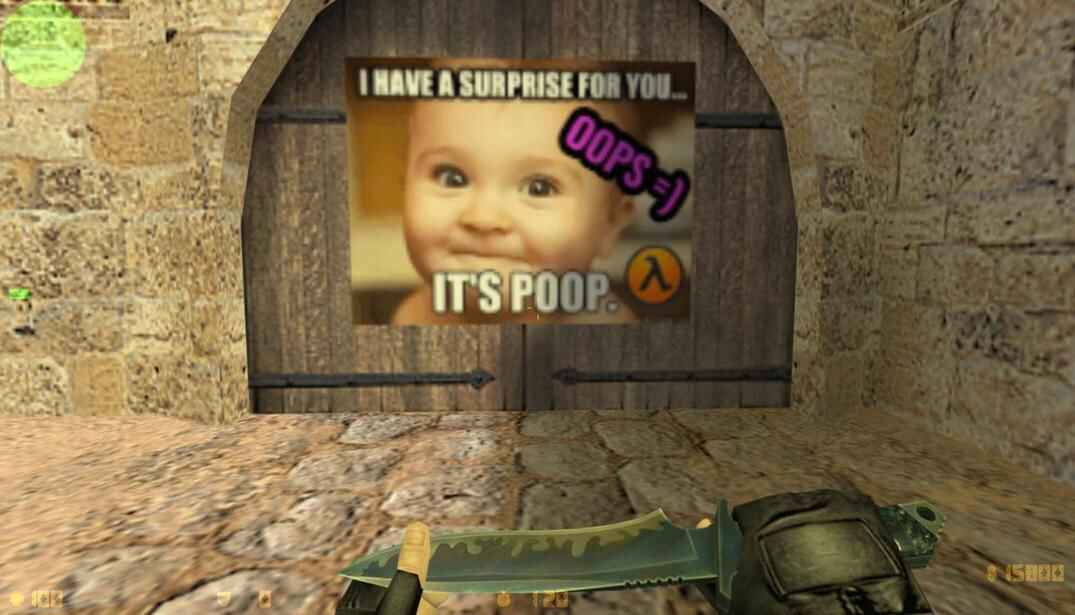
Custom colour spray displayed on the de_dust2 double doors in Counter-Strike 1.6

CS 1.6 Spray Maker

Turn any picture into a tempdecal.wad: full color or single color, with a see-through background

Drop a picture below and get a spray file for Counter-Strike 1.6. You place the picture in the frame, pick the size, cut out the background, add your nickname, and see the spray on a de_dust2 wall at its real size before you download it.

The sizes on the page are the ones the game really draws. I checked them in CS 1.6 one by one, so a spray made here doesn't turn into the default logo on the wall. Nothing to install.

CS 1.6 spray
Drop a picture here Pick a picture PNG, JPG, WebP, GIF or BMP. You can also paste one with Ctrl+V, or drop a tempdecal.wad to see what is inside.

I turn the picture into tempdecal.wad, the file the game sprays on walls. Colour or one colour, with a see-through background if you want one.

How to Make a Custom Spray for CS 1.6

From a picture to tempdecal.wad in a minute
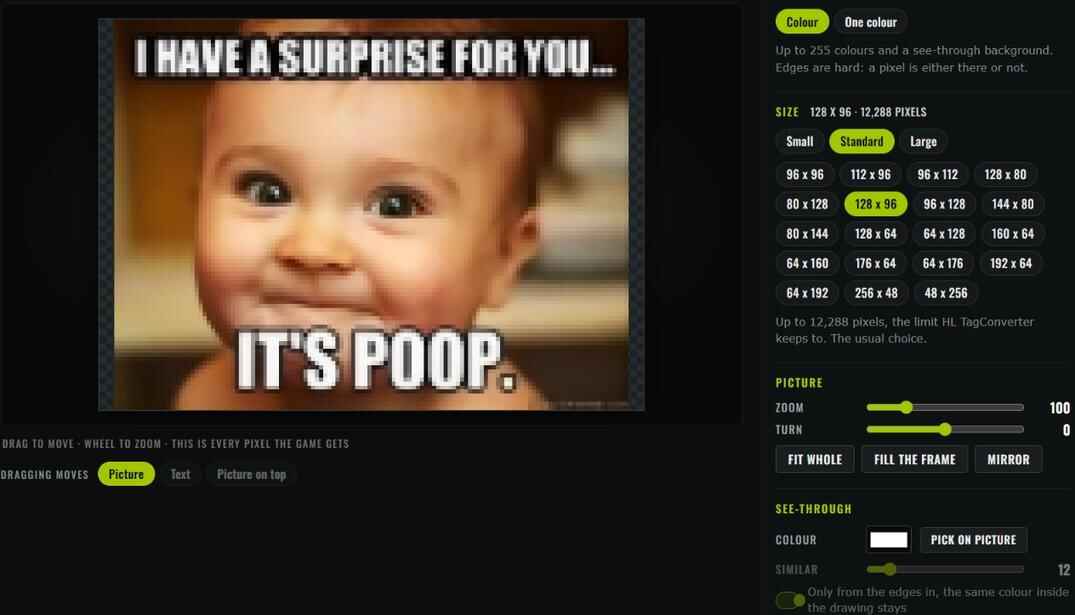
CS 1.6 Spray Maker editor with a custom colour spray, size options and image controls
The picture in the frame, pixel by pixel, the controls on the right
  1. Drop a picture into the box at the top of the page, or press Pick a file. PNG, JPG, WebP, GIF and BMP work. A picture you copied somewhere can be pasted with Ctrl+V.
  2. Pick Colour or One colour.
  3. Pick the size. The page chooses one that fits the shape of your picture, change it if you want.
  4. Move the picture in the frame: drag it with the mouse, zoom with the wheel or the Zoom slider.
  5. Cut out the background if it should not be there, add text if you want.
  6. Look at the spray on the wall below, then press Make the spray and Download tempdecal.wad.

The frame shows every pixel the game gets, nothing more. If something looks rough there, it will look rough in the game too. That's the moment to zoom in or pick a bigger size.

Fit whole
The whole picture goes into the frame. If its shape differs from the frame, the empty strips stay see-through.
Fill the frame
The picture covers the frame from edge to edge, what sticks out is cut off.
Turn and Mirror
Turn rotates the picture, Mirror flips it left to right.
Dragging moves
Under the frame: what the mouse moves right now, the picture, the text or the picture on top. The arrow keys move it one pixel at a time.

Colour and One-Colour Sprays

Two kinds of spray the game knows

CS 1.6 has two kinds of spray, and the file says which one it is. The game's own Spraypaint Image in the options only makes the second kind, which is why most people end up with a grey or one-colour spray.

Colour One colour
Colours Up to 255 plus a see-through one One paint, from light to full
Edges Hard: a pixel is there or not Soft, the paint fades out
Good for Photos, flags, logos in colour Logos, outlines, stencils
The paint The picture's own colours Any colour you pick in Paint

In a one-colour spray the dark parts of the picture become paint and the light parts stay empty. A black logo on white is ready as it is. For a white logo on black switch on Paint the light parts, not the dark ones.
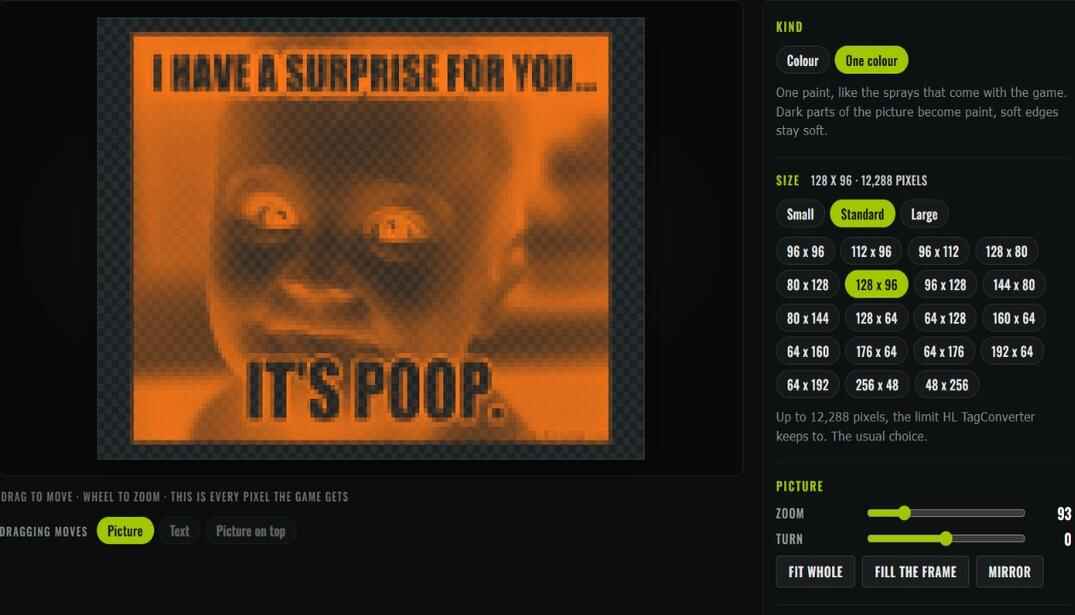
One-colour orange CS 1.6 spray with soft edges in the Spray Maker editor
A one-colour spray: one paint, soft edges

CS 1.6 Spray Size Limits

How big a spray the game really draws

Every guide gives its own number, so I checked in the game. CS 1.6 draws a spray of up to 14,336 pixels: 128 x 112 shows up on the wall, 128 x 128 doesn't, the game puts the default spray in its place. One side can be as long as 256 as long as the whole stays under the limit, 256 x 48 works fine.

Both sides go in steps of 16. The file also holds three smaller copies of the picture that the game shows from far away, and with steps of 16 they come out even.

Group Pixels Sizes When to pick it
Small up to 4,096 64 x 64, 64 x 48, 64 x 32 Servers that allow only small sprays. ReHLDS servers with sv_rehlds_allow_large_sprays 0 stop at 64 x 64.
Standard up to 12,288 96 x 96, 128 x 80, 128 x 96, 144 x 80, 192 x 64, 256 x 48 The usual choice. The same limit HL TagConverter keeps to.
Large up to 14,336 112 x 112, 128 x 112, 144 x 96, 176 x 80, 224 x 64 The most the game takes, the sharpest spray.

The page picks the size closest to the shape of your picture: a wide flag gets 144 x 80, a square logo 96 x 96. Upright sizes like 80 x 144 are in the list too.

Spray with a Transparent Background

Only the drawing on the wall, no rectangle around it

A colour spray has one see-through colour. Everything in it is a hole and the wall shows through. In the frame the holes look like a dark checkerboard.

PNG with transparency
Needs nothing. What is see-through in the PNG is see-through on the wall. Half-transparent pixels become either solid or a hole, a colour spray has nothing in between.
Remove the background
For a picture on a plain background, white or any other colour. The page takes the colour from a corner and cuts it out.
Pick on picture
Press it and click the colour on the spray that has to go. Similar sets how close a colour has to be to go too: move it up if a rim is left, down if the hole eats into the drawing.
Only from the edges in
On by default. The background is cut from the edges of the frame inwards, so the same white inside the drawing, the eyes of a face for example, stays. Switch it off and that colour goes everywhere.

Put it back brings the cut colour back. A one-colour spray doesn't need any of this: its empty parts are empty anyway.

Adding Text and Logos to a Spray

Your nickname, your clan, a badge on top
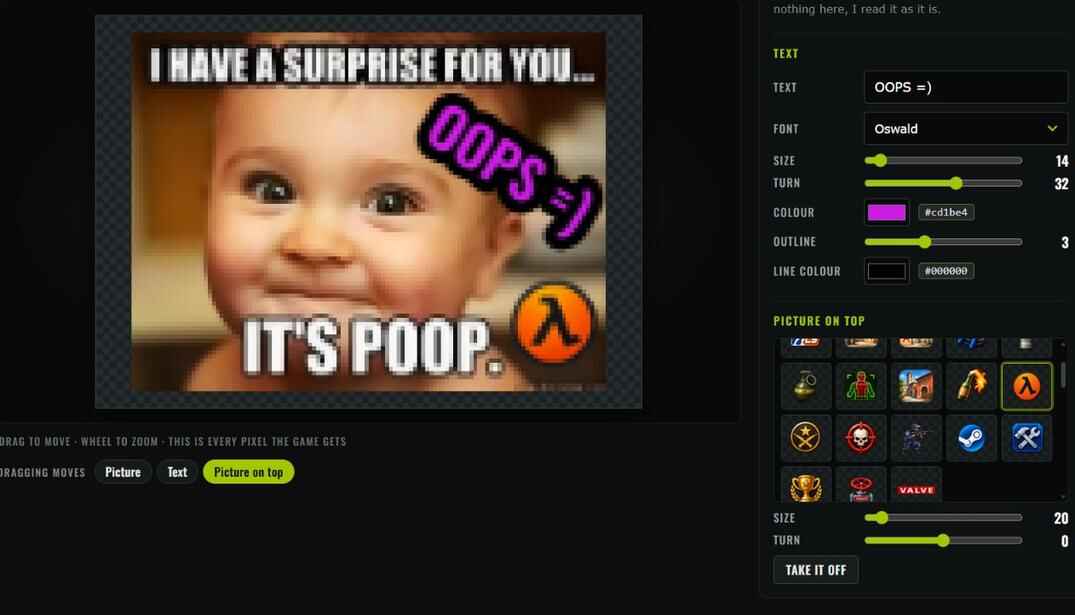
Custom CS 1.6 spray with purple text and a Half-Life logo added in the editor
A nickname turned at an angle and a small picture in the corner

Type into Text and it appears on the spray. There are six fonts, a size, a turn, a colour and an outline with a colour of its own. Drag the text in the frame to move it, the mouse wheel changes its size.

Picture on top is a set of badges, icons and sprays from the game. Click one and it lands on the spray, drag it where you want it, set its size and turn. Take it off removes it.

On a spray of 64 or 96 pixels there is room for a short word, not a sentence. A letter needs about 8 pixels of height to read on the wall. Use a bigger size and a thick font like Impact or Oswald.

In a one-colour spray text and pictures are painted in the same paint as the rest. Their own colours don't count there.

Spray Preview on a de_dust2 Wall

The size it has in the game
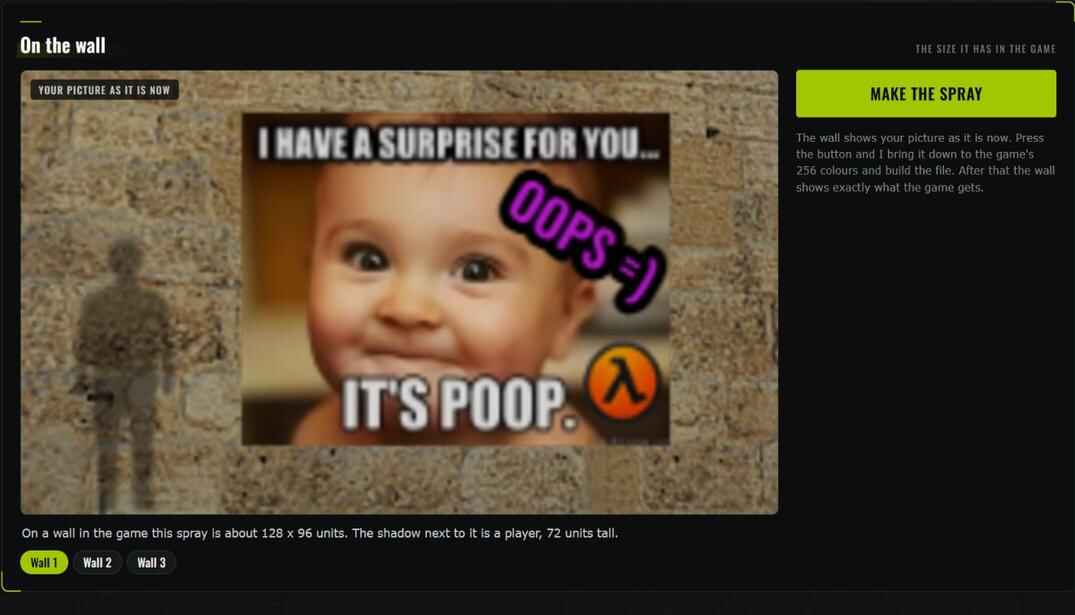
CS 1.6 spray preview on a de_dust2 wall with a player silhouette for size comparison
The spray on a de_dust2 wall, the player figure is 72 units tall

The On the wall block shows the spray on one of three de_dust2 walls. In the game a spray pixel takes about one unit on the wall. Under the wall the page writes the size in units, and the shadow of a player, 72 units tall, shows how big that is.

Until you press Make the spray, the wall shows your picture as it is now, with all its colours. After you press the button, it shows exactly what the game gets: the picture brought down to 256 colours. The label in the corner tells you which one you are looking at.

The game lights a spray like the wall under it, so in a shadow it gets darker. The wall on the page does the same, roughly. In a dark corner of a map a dark spray can almost disappear.

How to Install a Spray in CS 1.6

Where tempdecal.wad goes and how to keep it there

  1. Close the game.
  2. Open Steam\steamapps\common\Half-Life\cstrike.
  3. If there is a tempdecal.wad already, copy it somewhere safe. If it is Read-only, take the tick off first.
  4. Put the downloaded tempdecal.wad in its place.
  5. Right-click the file, Properties, tick Read-only.
  6. Start the game and spray with T.
Custom colour spray displayed on the de_dust2 double doors in Counter-Strike 1.6
The spray from the page in CS 1.6

Read-only matters. When you press OK in Options → Multiplayer, the game builds its own tempdecal.wad from its spray list and writes it over yours. With Read-only it can't.

T does nothing
The key isn't bound. Type bind "t" "impulse 201" in the console. A spray can be used once every 30 seconds by default.
Others don't see it
You need cl_allowupload 1, they need cl_allowdownload 1, and the server has to allow uploads. Some servers turn custom sprays off on purpose.
The default spray shows up
The file is too big for the game or broken. A spray from this page stays in the limits, so check that the game didn't write its own file over yours.

Grey sprays, servers, custom.hpk and the rest are in my guide How to Make a Custom Spray in CS 1.6.

Open and Edit tempdecal.wad Files

See what is in a spray file and change it

Drop a tempdecal.wad into the same box as a picture. The page shows the spray inside it: its size, its kind, how many colours it has, and for a one-colour spray its paint.

From there it is like any picture. Put a nickname on it, change the paint, turn a one-colour spray into a colour one, pick another size, and make the file again.

If the file is bigger than the game takes, the page tells you so. That alone answers why a spray found on the internet shows up as the default logo.

Spray Maker Limits

What the Spray Maker takes and what it doesn't do

14,336 pixels
The biggest spray the game draws. The page doesn't offer bigger sizes.
256 colours
255 in a colour spray plus the see-through one. That's the format, not the page.
No animation
CS 1.6 sprays stand still. From an animated GIF the page takes the first frame.
One text, one picture on top
For more, put them into the picture in any editor before you drop it here.
30 actions a minute
Making a spray and opening a tempdecal.wad count as one each. Moving and changing the picture don't count.

CS 1.6 Spray Maker FAQ

Short answers to the questions people ask most

Is the CS 1.6 Spray Maker free?

Yes. No sign-up, no account, nothing to install.

What is the maximum spray size in CS 1.6?

14,336 pixels, for example 128 x 112. Checked in the game: 128 x 128 is not drawn and the default spray appears in its place. One side can be up to 256 if the whole stays under the limit. See Spray Size.

Why is my spray grey or one colour?

It was made as a one-colour spray, most likely through Spraypaint Image in the game's options. Make it here with Colour picked and put the file in with Read-only on.

Why does the default spray show up instead of mine?

The file is bigger than the game takes, broken, or the game wrote its own file over yours. Drop your tempdecal.wad on this page and it tells you its size.

Can a spray have a transparent background?

Yes, a colour spray has one see-through colour. A PNG with transparency works as it is, a plain background can be cut out with Remove the background. See See-Through Background.

Will other players see my spray?

Yes, if you have cl_allowupload 1, they have cl_allowdownload 1 and the server allows custom sprays.

Where does tempdecal.wad go?

Into the cstrike folder: Steam\steamapps\common\Half-Life\cstrike\tempdecal.wad. Set it to Read-only so the game doesn't replace it.

Can I edit a spray I already have?

Yes. Drop the tempdecal.wad into the box at the top, change it and make it again.

Do I still need HL TagConverter or Wally?

No. The page does what they do: 256 colours, the see-through colour, the file itself. It also lets you place the picture, cut out the background, add text and see the spray on a wall first.

Leave a Reply

Your email address will not be published. Required fields are marked *