What Is Ping in CS2 and What Latency Means?
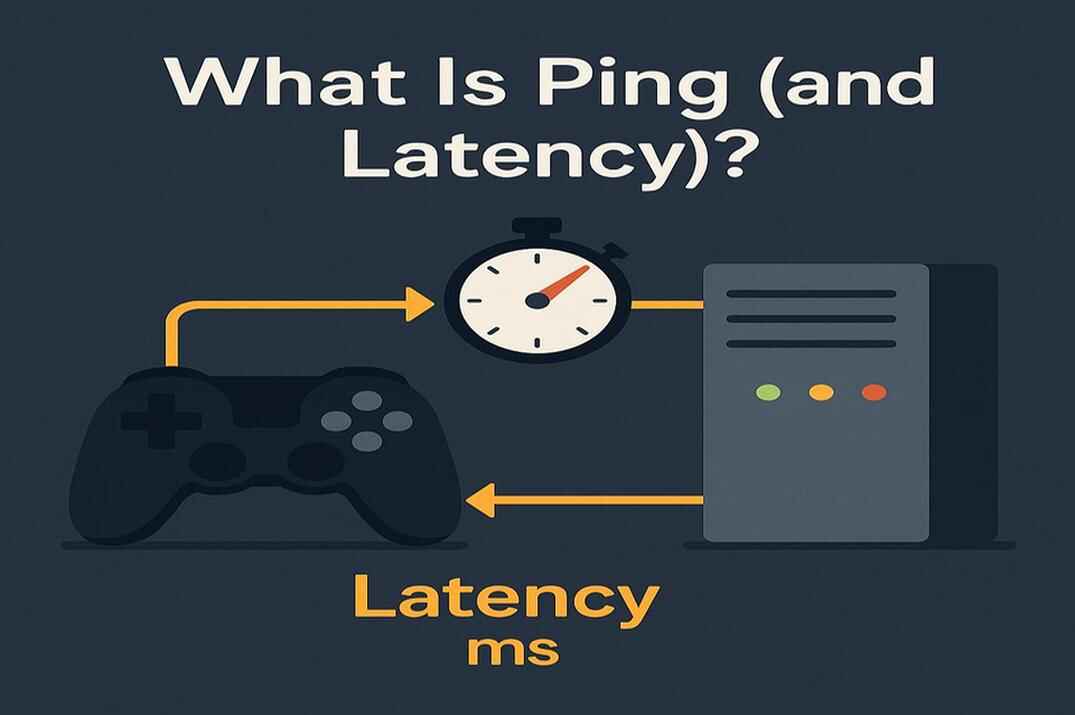
Technically, Ping is the name of a network tool (ping.exe) that checks if another device is reachable. In gaming, however, the word has turned into shorthand for Latency - the time (in milliseconds) it takes for your data to travel to the server and back.
So when players complain, "my ping is high", what they really mean is that their latency is high. Strictly speaking, the term isn’t correct, but it has become part of gaming slang.
- Low latency (20–40 ms) - smooth, instant reactions; your actions register almost instantly.
- High latency (99+ ms) - lag, delays, missed shots; a feeling that the game isn’t keeping up with you.
Ping and latency aren’t the same thing, but in games like CS2, most players use ping as a quick way of saying that their connection feels slow.
Why Ping Matters in CS2

In Counter-Strike 2, every millisecond counts. The lower your ping, the faster your actions reach the server - and the more accurate the game feels. With low latency, shots connect the way you expect, peeks look fair, and movement feels sharp and responsive.
When ping is high , the game starts to work against you. Your bullets register late, enemies seem to peek faster than they should, and small delays pile up into lost rounds. That’s why players always aim for the lowest ping possible, and why matchmaking gives you the option to set a maximum acceptable value.
Here’s a rough scale to keep in mind:
- Under 30 ms - Excellent: gameplay feels almost instant.
- 30-60 ms - Good: still very smooth for competitive play.
- 60-100 ms - Acceptable: some slight sluggishness, but playable.
- 100-150 ms - Poor: noticeable delays and frustrating trades.
- Above 150 ms - Bad: serious lag, often unplayable, especially at a competitive level.
How to Check Your Ping in CS2
Before you adjust matchmaking settings, it’s important to know your real latency. CS2 gives you a few different ways to check your ping and monitor connection stability while you play.
Using the Net Graph (Telemetry in CS2)
In CS:GO, players used the classic net_graph command. In CS2, this has been fully replaced by Telemetry - a modern, customizable overlay built into the HUD. It shows your ping, packet loss, jitter, and FPS in real time.
You can enable it in the in-game menu: Settings -> Game -> Telemetry - choose which stats you want to see (Ping, FPS, Network).
Or with console commands, for example:
cl_hud_telemetry_ping_show 2
cl_hud_telemetry_net_quality_graph_show 2
Here, 0 = never, 1 = only if poor, and 2 = always.
You can also see your ping on the scoreboard by Tab key (+showscores command).
Telemetry is the most accurate way to track your connection in CS2 and immediately see if spikes or packet loss are causing problems. If you want a full walkthrough, check out my guide: CS2 Telemetry (Net Graph): Complete Guide.
For players who like more control, you can create custom binds and scripts to toggle Telemetry on and off during game. I’ve covered that in detail in another guide: Custom Telemetry Scripts in Counter-Strike 2.
Steamworks Network Connection

There’s a hidden diagnostic tool in Steam that lets you see exactly how your game connects to CS2 servers. Press CTRL + \ in the Steam client, and a window called Steamworks Network Connections will appear.
This panel shows all of your recent server sessions, including:
- Ping (Round Trip Latency): the delay between you and the game server. Lower is always better.
- Jitter: how much your ping jumps around. Even small spikes can make the game feel inconsistent.
- Packet Delivery: whether your data reaches the server. Packet loss explains rubber-banding or ghost shots.
- Connection Quality: a percentage score that combines stability, packet loss, and consistency.
If you hover over Ping or Quality, you’ll get detailed breakdowns: latency distribution, jitter samples, and packet-delivery charts. These stats help you see whether issues come from your ISP, your router, or the server.
Steam uses SDR (Steam Datagram Relay) for CS2 matchmaking. That’s why you’ll see both End-to-end (direct) and Relay paths in the window. In most cases, the relay adds almost no extra ping but improves stability and protects your IP address.
This tool gives you the most accurate network report of your last CS2 session. Instead of just showing live numbers like Telemetry, it breaks everything down step by step - latency distribution, jitter percentages, and packet-delivery quality in detail.


Best Max Acceptable Matchmaking Ping Settings in CS2
Once you know how to check your latency, the next step is making sure matchmaking doesn’t place you on high-ping servers. CS2 gives you direct control over this with a setting called Max Acceptable Matchmaking Ping. By lowering this value, you can force the game to prioritize nearby servers and avoid laggy matches.
How to Change Max Acceptable Matchmaking Ping in the In-Game Menu
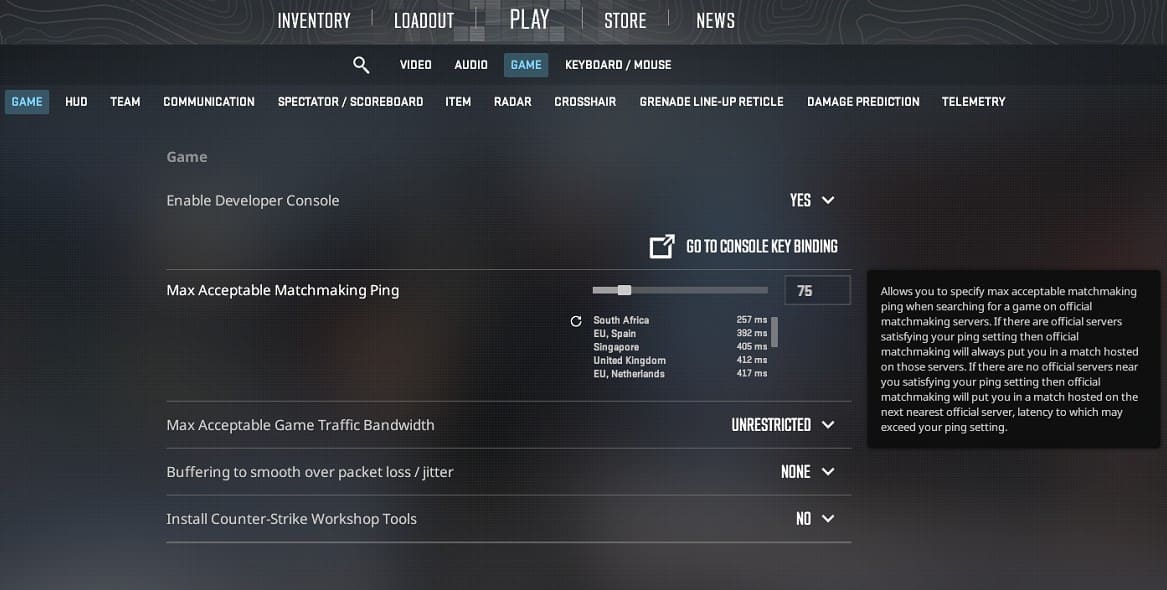
The easiest way is through the settings menu:
- Launch CS2 and open Settings -> Game.
- Scroll down to Max Acceptable Matchmaking Ping.
- Use the slider or type a number in milliseconds.
For example, setting it to 50 ms means CS2 will only place you on servers with a ping of 50 or lower. If no servers match that, the game will expand the search to the next closest region, which may take longer to find a match.
A good balance is usually 60-80 ms - low enough for smooth play, but high enough to avoid long queue times.
How to Set Max Acceptable Matchmaking Ping in the Developer Console
If you prefer more control, you can set the same limit with a console command.
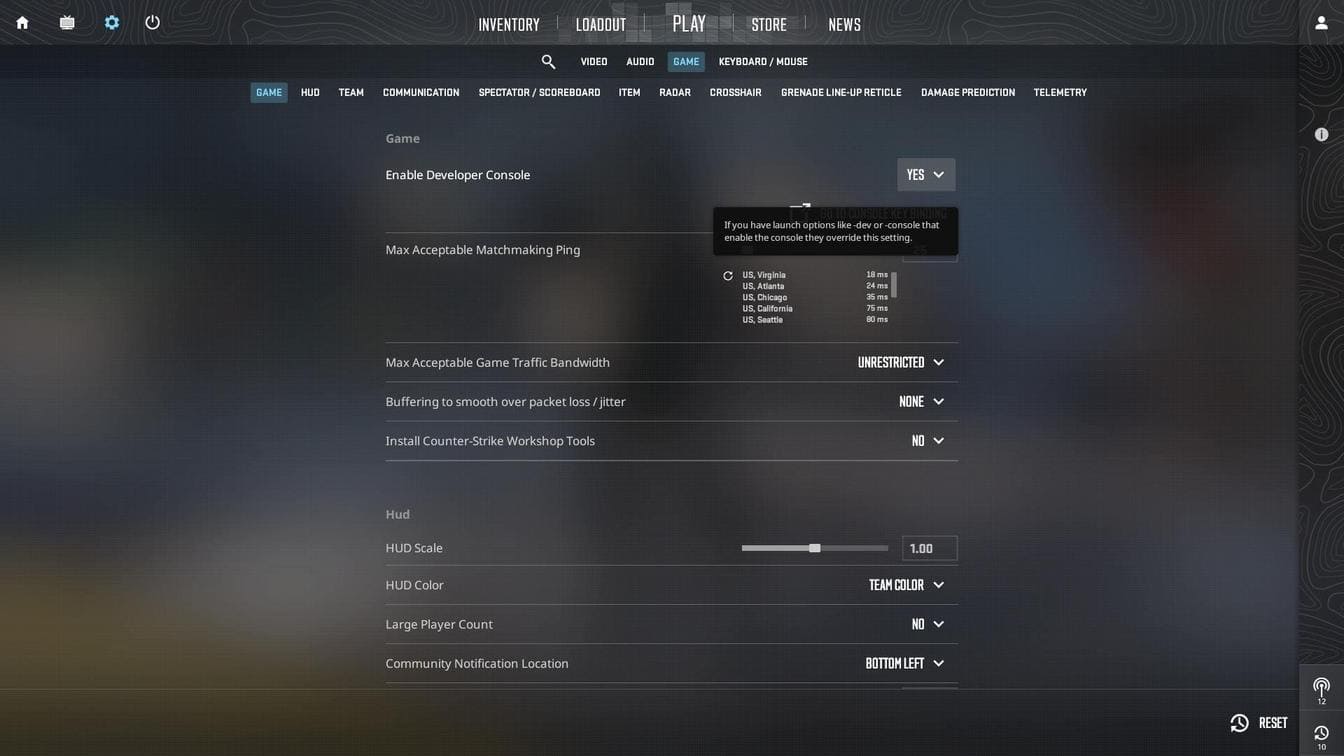
Enable the console in Settings -> Game -> Enable Developer Console -> Yes. Press ~ (default) to open it and type: mm_dedicated_search_maxping 60
This example sets your maximum matchmaking ping to 60 ms. You can adjust the number as needed. To make the change permanent, add the command to your autoexec.cfg file.
Adjusting this value is one of the simplest ways to improve your matchmaking experience. Lower numbers mean fairer fights and cleaner hit registration - but remember, too strict a limit can increase queue times.
Recommended Max Ping Settings by Region
The best matchmaking ping setting depends on where you live and which servers you connect to most often. As a rule of thumb:
- North America (East/West): keep max ping at 60-80 ms. Queue times are short and servers are well distributed.
- Europe: aim for 50-70 ms since the region has dense server coverage.
- Asia / South America: you may need to allow up to 90-100 ms depending on how close you are to major hubs.
If queues feel too long, raise the value slightly until you find a balance between speed and latency.
CS2 Ping FAQ

What is a good ping for CS2?
Anything under 50-60 ms feels smooth and competitive. Above 80 ms you’ll start noticing delays, and over 120 ms it becomes frustrating to play seriously.
Why is my ping so high in CS2 but fine in other games?
CS2 uses its own server regions through Steam Datagram Relay. If you’re connected to a further region, or if your ISP routes traffic poorly to Valve’s servers, your ping may be higher than in other games.
Can I play CS2 with 100+ ms ping?
You can, but expect noticeable input delay and unfair duels. It’s fine for casual matches, but in ranked or Premier mode you’ll be at a disadvantage.
Why does my ping spike randomly?
The most common causes are background apps using bandwidth, Wi-Fi interference, or temporary ISP issues. Switching to Ethernet and closing heavy apps usually helps stabilize ping.
Does a VPN lower ping in CS2?
Sometimes, yes. A VPN can’t break the laws of physics, but it can give you a better route to the game server than your ISP. If your provider sends traffic along an inefficient path, a VPN server that’s closer to the destination may shorten the trip and smooth out jitter.
For example, imagine you live in Texas but play with friends on a dedicated server hosted in New York. Through your ISP, the ping might be 70 ms ±5. With a VPN server in New York, it could drop to 50 ms ±2 - both lower and much more stable.
That’s why the effect of VPNs is situational. Sometimes they help a lot, sometimes they add extra delay. The only way to know is to test both with and without a VPN on the servers you actually play.
How do I see my ping in CS2?
Enable Telemetry in the game settings or use console commands like cl_hud_telemetry_ping_show 2. For a full session report, you can also open Steamworks Network Connections with CTRL + \.