
CS 1.6 Sprite Editor
Open a .spr file in your browser: play it, change its frames and colours, make your own
CS 1.6 uses sprites for muzzle flashes, smoke, explosions, rain, and HUD icons. Drop a .spr file below and it plays the way the game draws it. You can recolour it, swap frames, add your own pictures and download the new sprite.
It works with the sprites of Counter-Strike 1.6 and Half-Life. To create a new sprite, drop your images here. Each image becomes a frame. Nothing to install.
How to Edit a CS 1.6 Sprite
From a .spr file to a changed one in a few steps
- Drop a
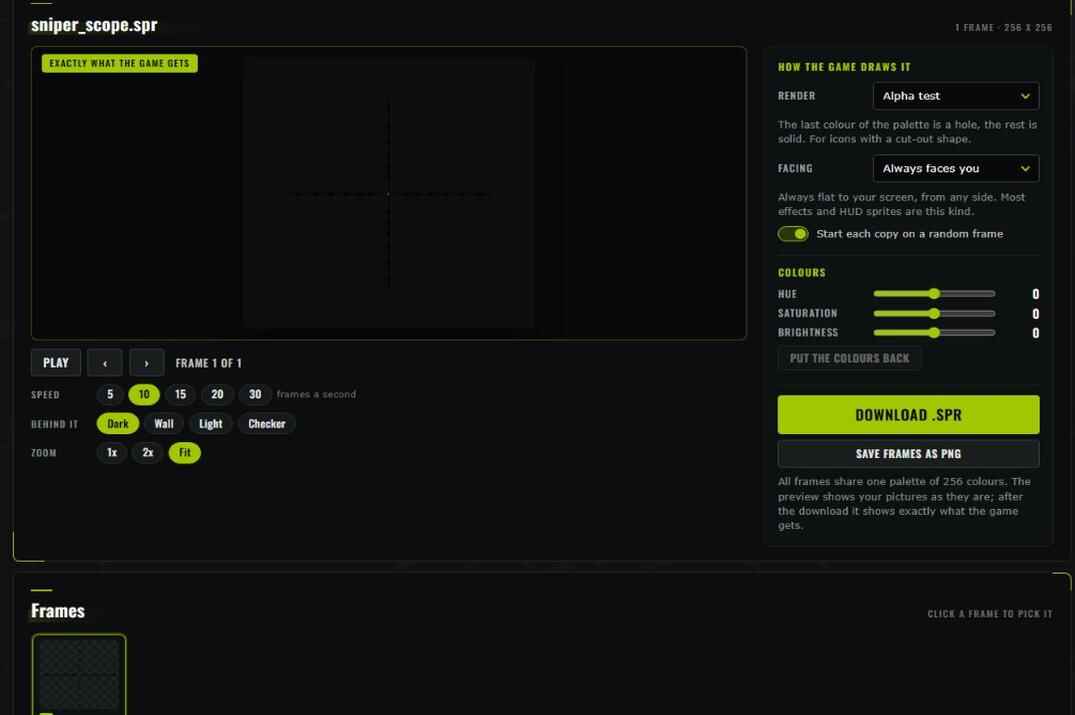
.sprfile into the box at the top of the page, or press Pick files. The sprite starts playing at once. - Look at it the way you need: Speed changes the frames a second, Behind it puts a dark, light, checker or de_dust2 wall background behind it, Zoom shows every pixel. Pause and the arrows go frame by frame.
- Change what you want: the colours, the render mode, the frames. To work on one picture, click its frame and press Edit. Changes appear immediately in the sprite preview.
- Press Download .spr. The file keeps its name.
- Put it into the game folder in place of the old one, see Into the Game.
After the download the page opens the new file by itself. The label in the corner of the sprite changes from Your pictures as they are to Exactly what the game gets: from that moment you see the sprite with the colours the file really holds.
Don't know which file you need? Drop the whole sprites folder into the box, or press Pick a folder. Every sprite shows up as a picture in the Your sprites list. Type a part of the name to find one, or narrow the list with Animations, One picture and HUD. A click opens the sprite below.
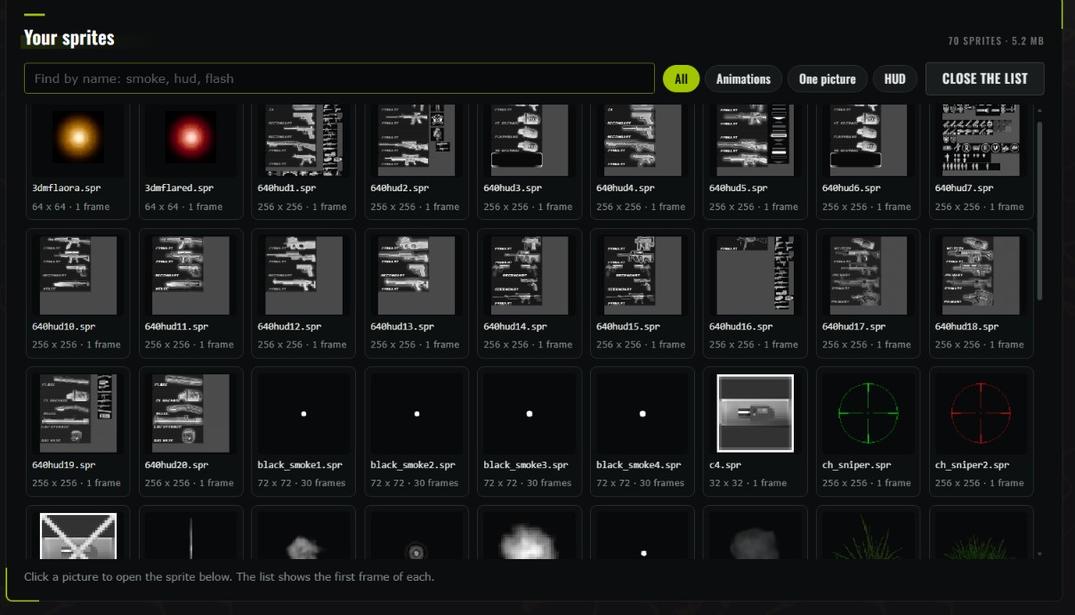
A list holds up to 401 sprites and 24 MB, enough for the sprites folder of CS 1.6 or of Half-Life in one go. A bigger folder goes in two parts.
Where to Find CS 1.6 Sprite Files
Where the game keeps them and which is which
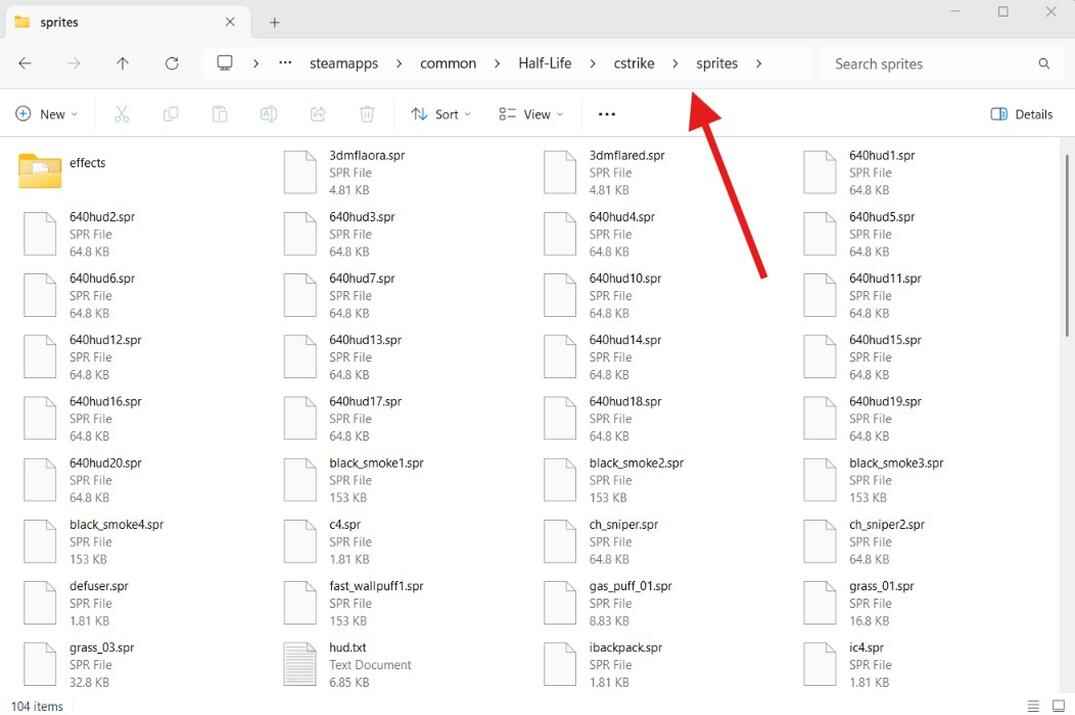
The sprites of CS 1.6 are in Steam\steamapps\common\Half-Life\cstrike\sprites, the ones it shares with Half-Life in valve\sprites. A few you'll meet often:
| File | What it is |
|---|---|
640hud1.spr to 640hud10.spr |
Sheets with the icons and numbers of the HUD: health, armor, ammo, weapons. |
muzzleflash*.spr |
The flash at the barrel when you shoot. |
rainsplash.spr, ripple.spr, snow.spr |
Rain drops, rings on water and snow on maps with weather, like de_aztec. |
fexplo.spr, zerogxplode.spr |
Explosions, in the valve\sprites folder. |
A HUD sheet is one big picture, and the game cuts each icon out of it by fixed coordinates. Which piece is which icon is written in hud.txt, in the same sprites folder. The icons of each weapon are in its own file: weapon_ak47.txt, weapon_awp.txt and so on.
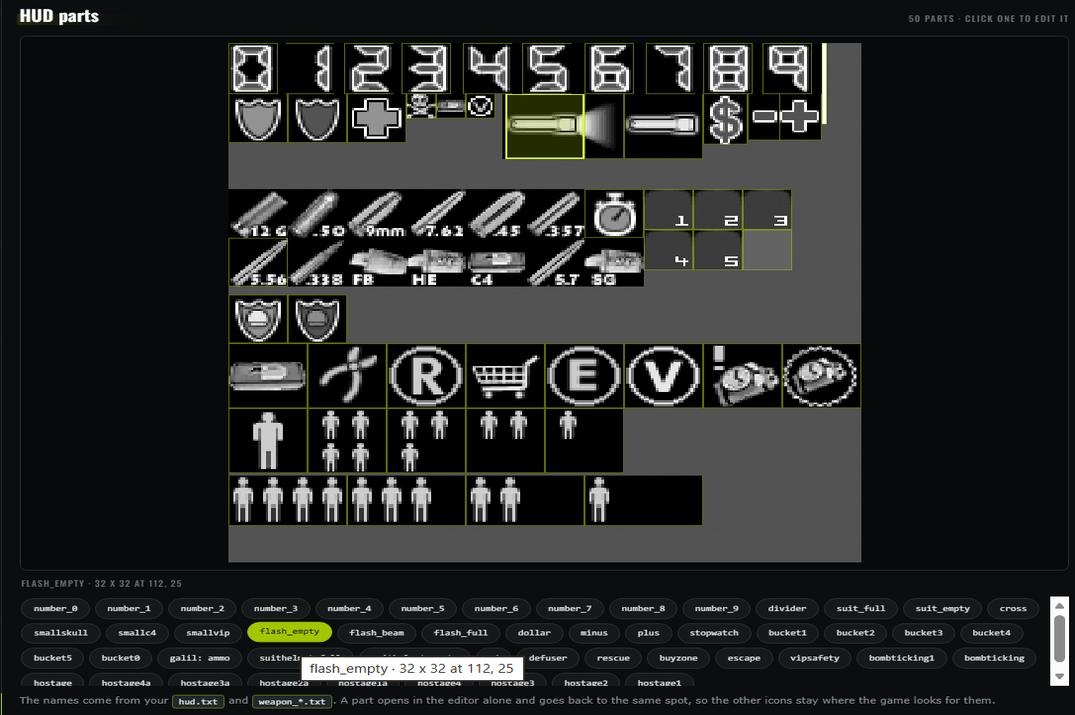
Drop these text files into the box together with the sprite, or after it. A HUD parts block shows up under the frames: the sheet with every icon outlined, and the names from the files, like number_0, cross or ak47: ammo. Click a part and it opens in the editor alone. After Apply it goes back to the same spot, and the rest of the sheet stays as it was.
Without the text files the page shows the sheet as one picture. You can still draw over it with Edit or Replace, just keep every icon in its spot, or the game cuts out the wrong part.
All frames of a sprite share one palette of 256 colours. Some old sprites keep frames in groups with their own timing. The page shows them in a row and writes them back as single frames, which every version of the game reads.
Recolouring Sprites, Editing Frames and Making New Ones
A green scope, a red muzzle flash, your name on the HUD
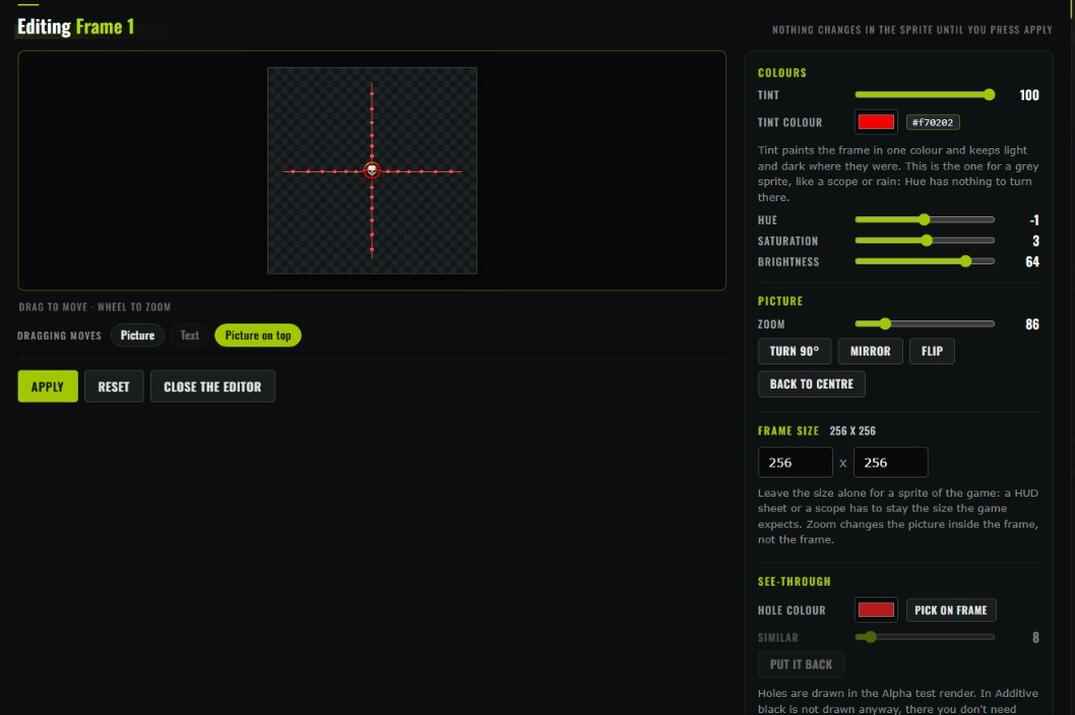
There are two ways to change colours. The Colours block next to the sprite turns Hue, Saturation and Brightness for every frame at once. For everything else click a frame and press Edit: the frame opens big, with its own controls. Nothing changes in the sprite until you press Apply.
- Tint
- Paints the frame in the colour you pick and keeps light and dark where they were. This is the one for grey sprites: a sniper scope, rain, smoke. Hue does nothing there, a grey pixel has no colour to turn.
- Zoom, Turn, Mirror, Flip
- Zoom makes the picture bigger or smaller inside the frame, dragging moves it, Turn 90°, Mirror and Flip do what they say. Back to centre undoes the moving and the zoom.
- Text and a picture on top
- Type a text and pick a font, a size, a colour and an outline. Put a badge from the set or your own picture on the frame. Dragging moves says what the mouse moves: the picture, the text or the picture on top.
- See-through
- Pick on frame and click the colour that has to become a hole. Holes are drawn in the Alpha test render, and the page switches a Normal sprite to it by itself.
- Frame size
- For your own sprites. Leave it alone for a sprite of the game: a HUD sheet or a scope has to stay the size the game expects.
- Apply to all frames
- Does the same to every frame of the animation in one go: tint a whole muzzle flash, shrink a whole explosion.
To start a new sprite, drop pictures without a .spr. Each picture becomes a frame, in the order of the file names.
- A frame can be up to 512 pixels a side. A bigger picture is made smaller.
- All frames share 256 colours. Pictures in a few colours keep their look, a photo loses some smooth shades.
- PNG pictures with a see-through background switch the new sprite to Alpha test, so the holes stay holes.
- For a flash or a glow, draw it on black and switch the render to Additive: black disappears in the game.
Before the download the page shows your pictures with all their colours. The real 256 come with the file, and the page shows them right after the download.
Installing an Edited Sprite in CS 1.6
Where the file goes and who sees it
- Close the game.
- Open
cstrike\sprites(orvalve\spritesfor a Half-Life sprite) and copy the original somewhere safe. - Put the downloaded file in its place, under the same name.
- Start the game and go where the sprite shows up: shoot for a muzzle flash, de_aztec for the rain.
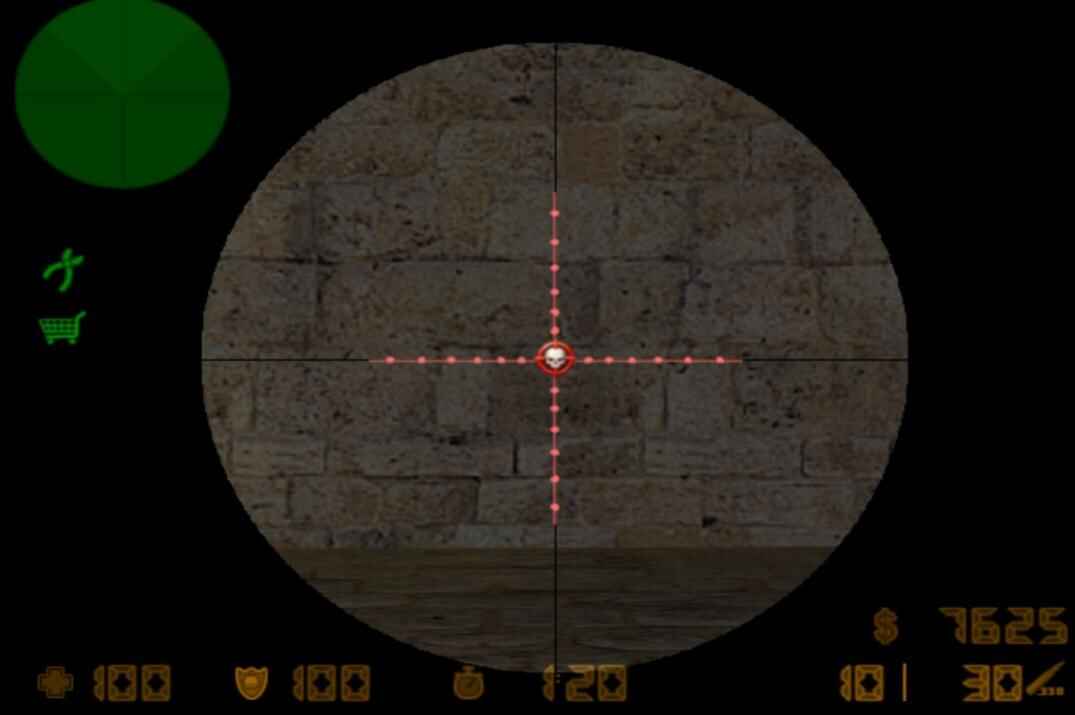
Changed sprites are seen only by you. Other players take the sprites from their own game folders.
CS 1.6 paints a large part of its HUD in its own colour. A new colour in a HUD sprite may not show, a new shape does.
For the other parts of the game: weapon and player skins are made in the CS 1.6 Model Editor, map textures in the CS 1.6 WAD Editor, and your spray in the CS 1.6 Spray Maker.