What Does -high Do in CS2?
When you add -high to your CS2 Launch Options, you tell Windows to run the game with high process priority. In simple terms, this means the operating system may give cs2.exe proccess more CPU time than many background tasks.
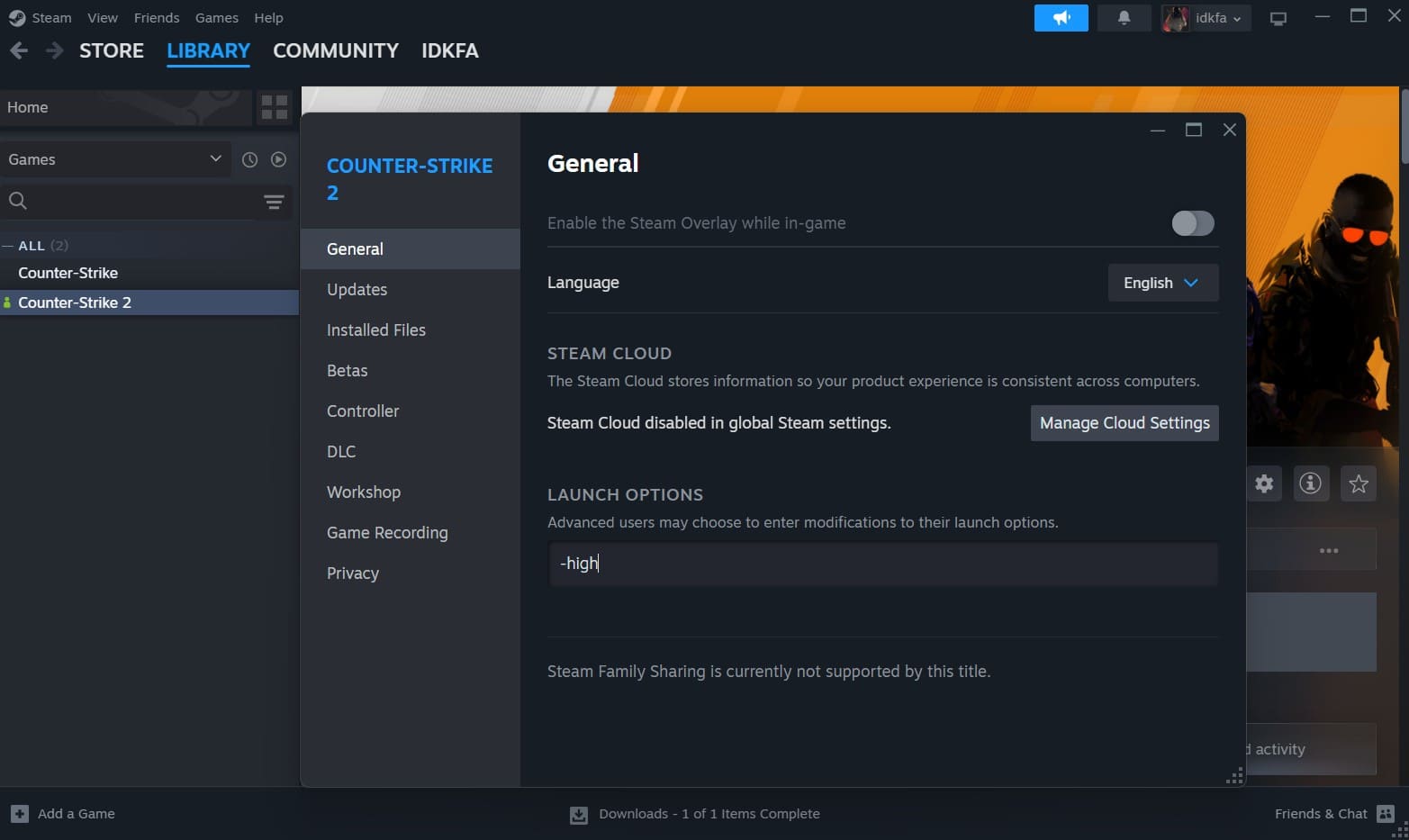
This can matter more on weaker systems or in situations where other apps are active in the background. For example, if your PC is running antivirus scans, browser tabs, or update services while you play, higher priority may reduce interruptions caused by those processes competing for CPU time.
Sometimes it helps. But the effect is often small or inconsistent.
Common Problems With the -high Launch Option
Some players report stutter, audio crackling, input delay, or even worse overall performance after enabling the -high launch option.
One reason is that this method changes process priority after the game has already started. In technical terms, CS2 can adjust its priority through a Windows API call such as SetPriorityClass(), but by that stage the process is already running, threads have been created, system libraries are loaded, and game resources are being prepared.
Because of that, forcing high priority at runtime does not always lead to cleaner performance. In some cases, it may interfere with timing-sensitive parts of the game such as audio processing, input handling, or background system activity, which can result in stutter, desync, or inconsistent frame pacing.
A Better Alternative to -high

Instead of relying on -high, a cleaner method is to have Windows start CS2 with high priority from the very beginning.
When the operating system launches a process, it can assign the priority class at startup rather than changing it later while the game is already running. In the case of CS2, this means cs2.exe starts with high priority before the main workload is fully underway.
This approach is generally cleaner and more consistent than using the -high launch option.
How to Set High Priority for cs2.exe in Windows
If you want CS2 to start with high priority without using the -high launch option, you can configure it directly in the Windows Registry. This makes Windows apply the priority rule when cs2.exe starts, so you do not have to set it manually every time.
Registry Setup Steps
To get started,
-
Open the Registry Editor. You can do this in any of these ways:

The regedit.exe file located within the C:\Windows directory - Press Win + R, type regedit, and press Enter
- Search for regedit in the Start Menu
- Run regedit from Command Prompt or PowerShell
- In the Registry Editor, use the address bar at the top and go to:
Computer\HKEY_LOCAL_MACHINE\SOFTWARE\Microsoft\Windows NT\CurrentVersion\Image File Execution Options - Right-click the Image File Execution Options folder, choose New -> Key, and name it: cs2.exe
- Next, right-click the new cs2.exe key, choose New -> Key, and name it: PerfOptions.
- Inside the PerfOptions. key, right-click in the right panel and choose New -> DWORD (32-bit) Value. Name it: CpuPriorityClass
- Then double-click it and set the value to: 3
You can leave the base as Hexadecimal or switch it to Decimal. For this value, it does not matter because it makes no difference for values from 0 to 9, including 3 of course.
- 1 -> Low
- 2 -> Normal
- 3 -> High
- 4 -> Normal
- 5 -> Below Normal
- 6 -> Above Normal
Yes, 2 and 4 both map to normal priority.


That’s it. After this, cs2.exe will start with high priority automatically, without using the -high launch option.
CS2 -high option FAQ

Does -high increase FPS in CS2?
Sometimes, but not in a reliable way. On some systems the difference is minimal, and on others it can cause stutter or instability instead of improving performance.
Does -high reduce input lag?
It can in some cases, especially if the CPU is under heavy background load.
Can -high make CS2 run worse?
Yes, some players report audio crackling, frame pacing issues, lag spikes, or worse overall smoothness after enabling it.
Is -high better than setting priority through Windows?
Usually no. A system-level method is generally cleaner because Windows applies the rule when cs2.exe starts, rather than changing priority after the game is already loading.
Should you use -high in CS2?
Only if you want to test it on your own system. It is not an essential launch option, not a guaranteed FPS boost, and not the best way to manage high process priority.