Logitech G HUB Overview and CS2 Macros Guide
G HUB tabs, profiles and on-board memory, G502 HERO DPI and button assignments, the four macro types, how to create a macro and six CS2 macros with exact timings
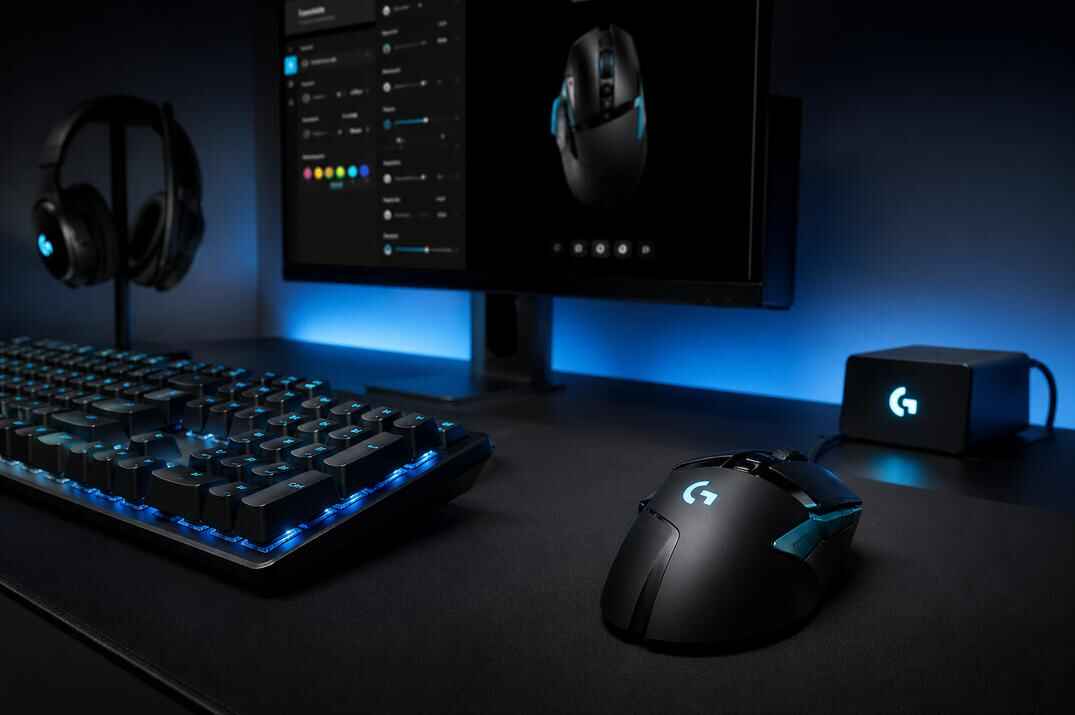
Logitech G HUB is the software for Logitech G mice, keyboards, headsets and other gear. It handles DPI, profiles, button assignments, LIGHTSYNC RGB and macros, plus Lua scripting on supported devices.
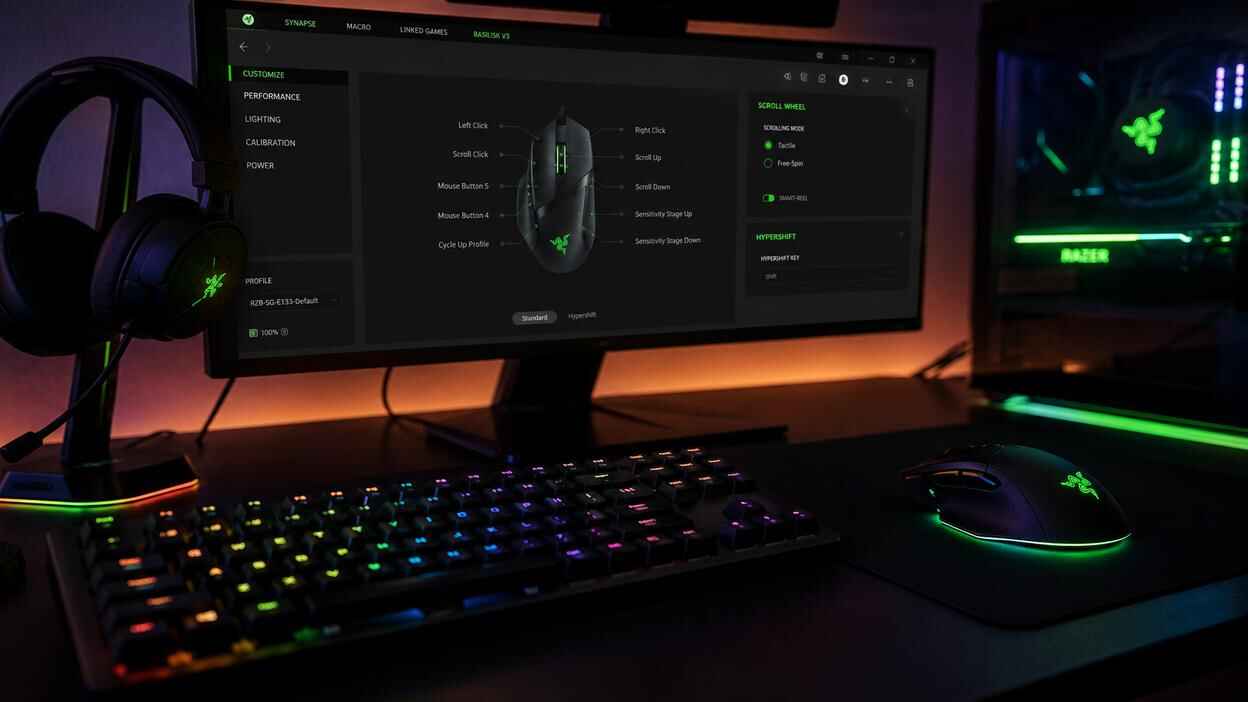
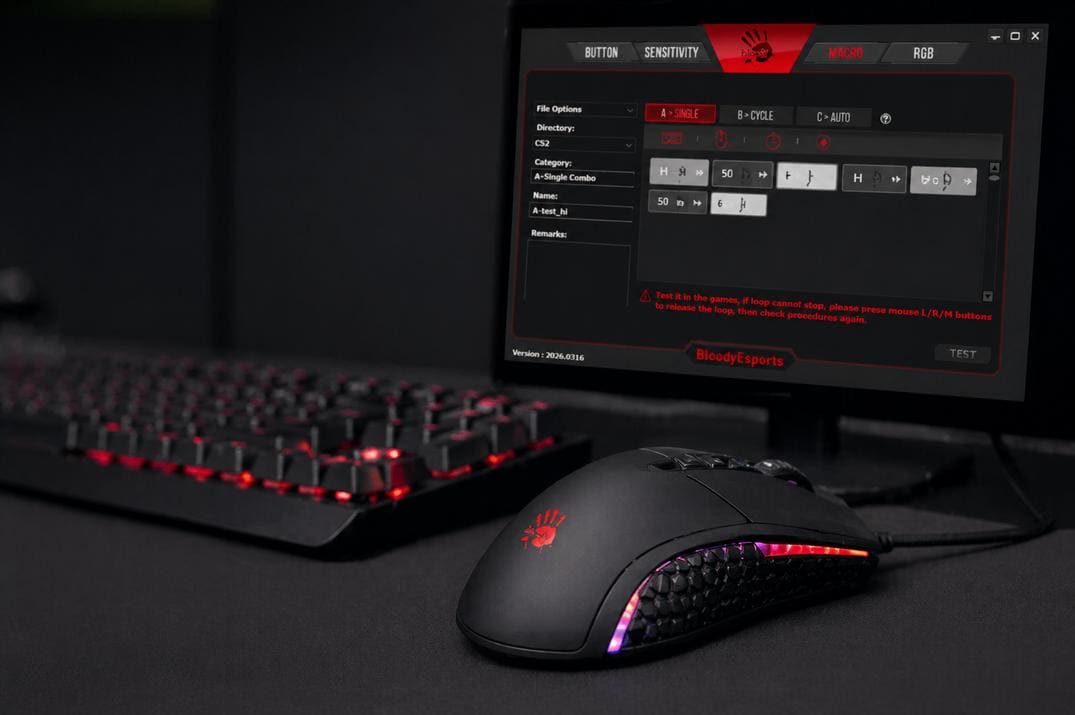
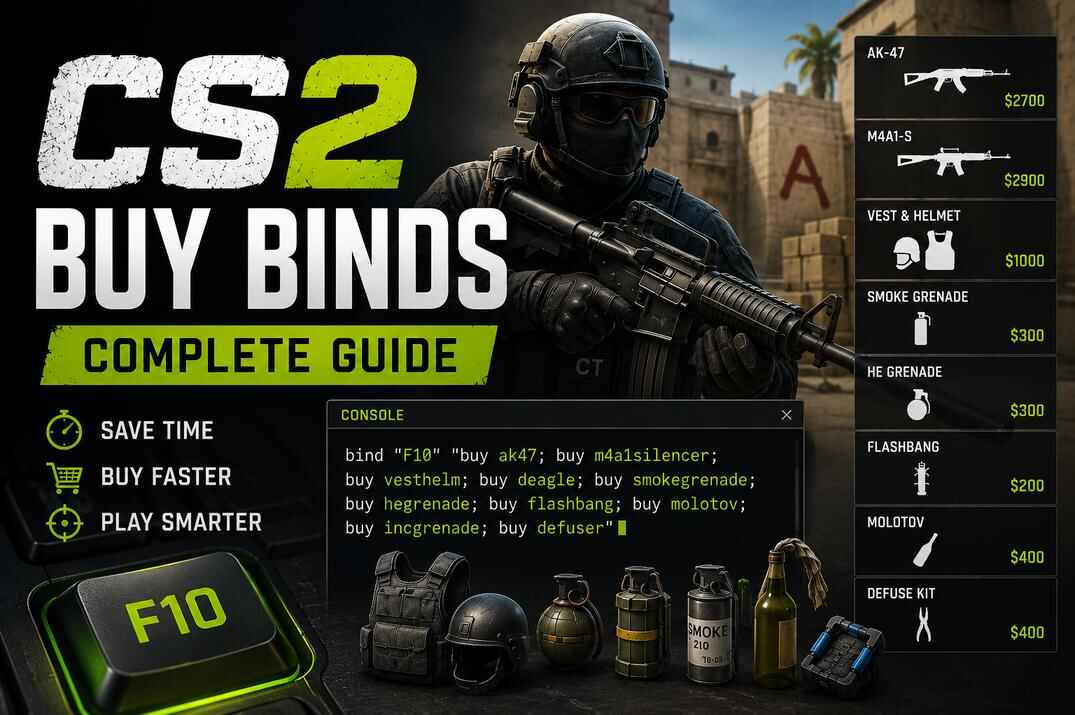
This guide is about macros for Counter-Strike 2. I show how G HUB profiles, assignments, macro types, delays and playback modes work on my G502 HERO and G213 keyboard, then go through several CS2 macros: jump throw, burst fire, single shot, bunny hop, fast scope and Tec-9. The same topic for other brands: Razer Synapse 4, HyperX NGENUITY and Bloody Esports.
Logitech G HUB Interface: Profiles, Devices and Settings
The main G HUB window is built around four things: Devices, Profiles, Community and the Gear icon for general settings. That's enough to understand the logic before going into device settings and macros.
General Settings
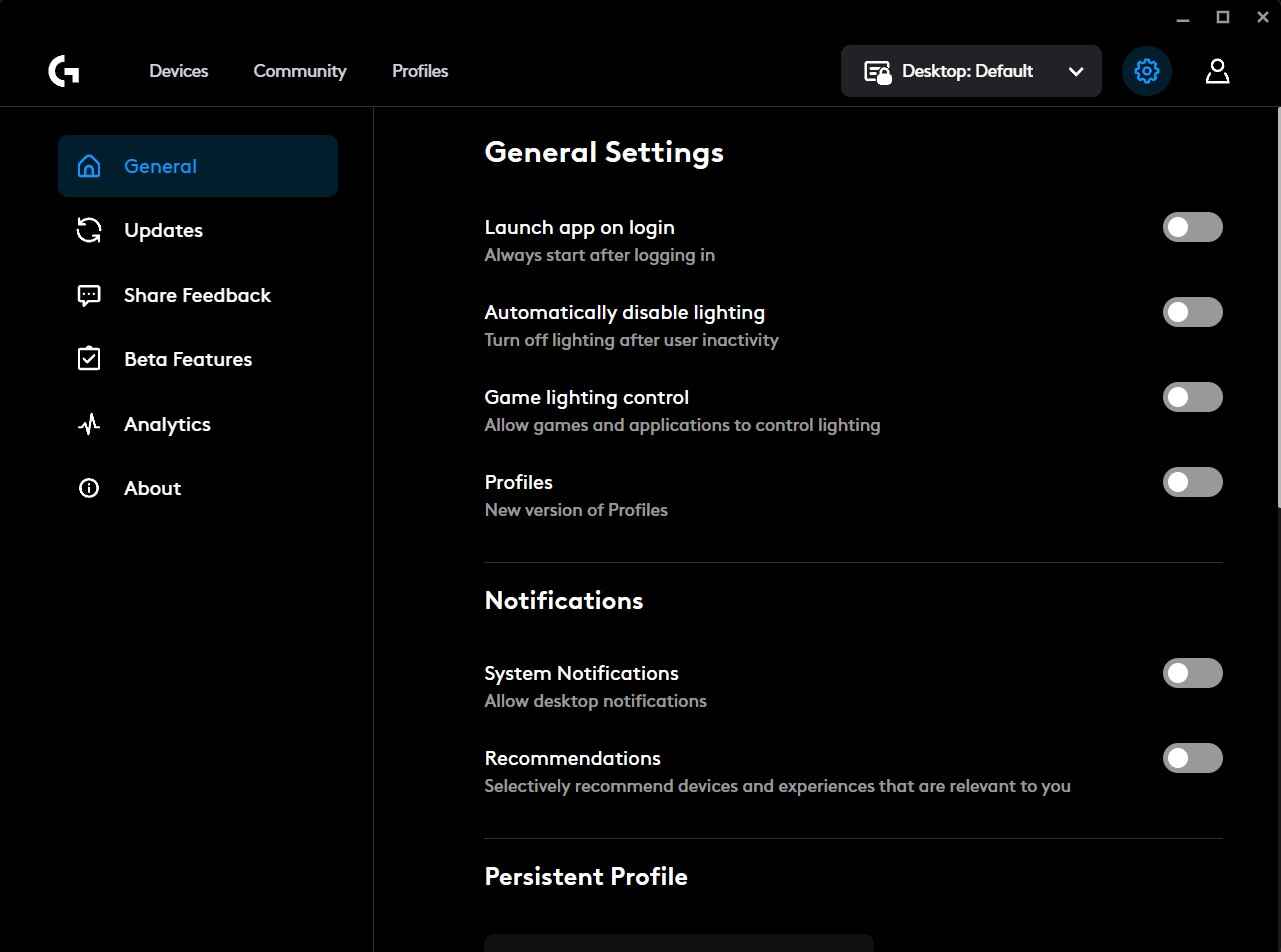
The Gear icon opens the global settings: updates, launch on startup, notifications, analytics, the persistent profile and everything else that affects how G HUB runs in the background.
Community
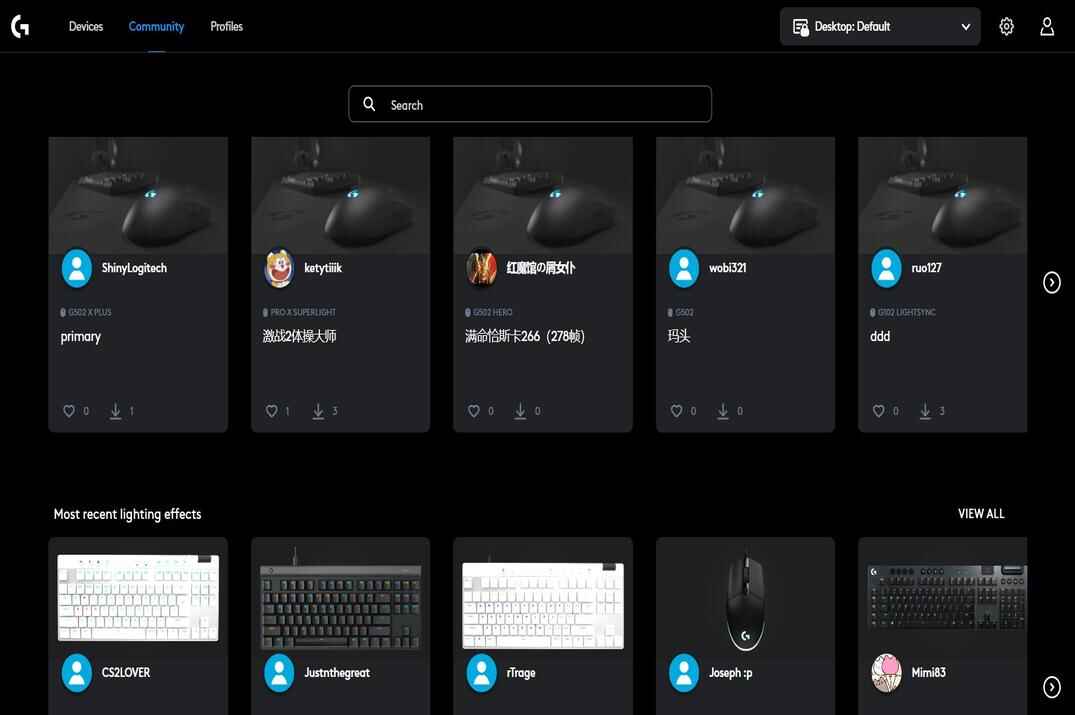
Shared content from other players: lighting effects, audio presets, device profiles and macros. Handy for trying ready setups, but check every downloaded profile by hand, especially if it has macros or strange button assignments.
Profiles and Lua Scripting
The Profiles tab decides how G HUB behaves in different games and programs. You keep a global desktop profile, then separate ones for CS2, CS 1.6 or anything else. When a game or program starts, G HUB can switch to its profile automatically. In my experience this auto switching doesn't always fire, so check which profile is active before a game. The point is that one button can do different things per profile: "Back" in Windows, a custom bind in CS2 and something else again in CS 1.6.

Profiles also have Scripting, where you write Lua scripts. Unlike simple macros, Lua is a real programming language, so scripts can react to events and do far more complex things.
Devices and On-board Memory

The Devices screen shows your connected Logitech G gear. Click a device to open its settings: for a mouse that's DPI, buttons, macros and lighting, for a keyboard key assignments, lighting zones, game mode and macro keys.

Many Logitech G devices have On-board Memory: settings are saved in the device and work without G HUB running. Mostly that covers simple things like DPI levels, basic button assignments and lighting. Advanced macros, software actions and Lua scripts usually need G HUB running in the background.
G HUB Device Settings: DPI, LIGHTSYNC and Assignments
For a mouse G HUB shows three tabs on the left: Sensitivity (DPI), Assignments and LIGHTSYNC. I use the G502 HERO as the example.
Sensitivity (DPI)

Here you set the DPI levels and how many of them you keep. Out of the box the G502 had four levels for me: 1200, 2400, 3200 and 6400. You can change them, delete them or click on the slider to add a new one. On the screenshot is my own setup with three levels.
- DPI Speeds
- The underlined value is the current one. The slider goes up to 25600 DPI. Click a number to type it by hand.
- DPI Shift Speed
- The yellow marker. While you hold the DPI Shift button, the mouse temporarily switches to this value.
- Report Rate
- 1000, 500, 250 or 125 times per second. For CS2 keep 1000.
- Restore Default Settings
- Puts the factory DPI levels back.
Your real sensitivity in CS2 is DPI multiplied by the in-game sensitivity. If you change DPI here, adjust the in-game value too.
LIGHTSYNC
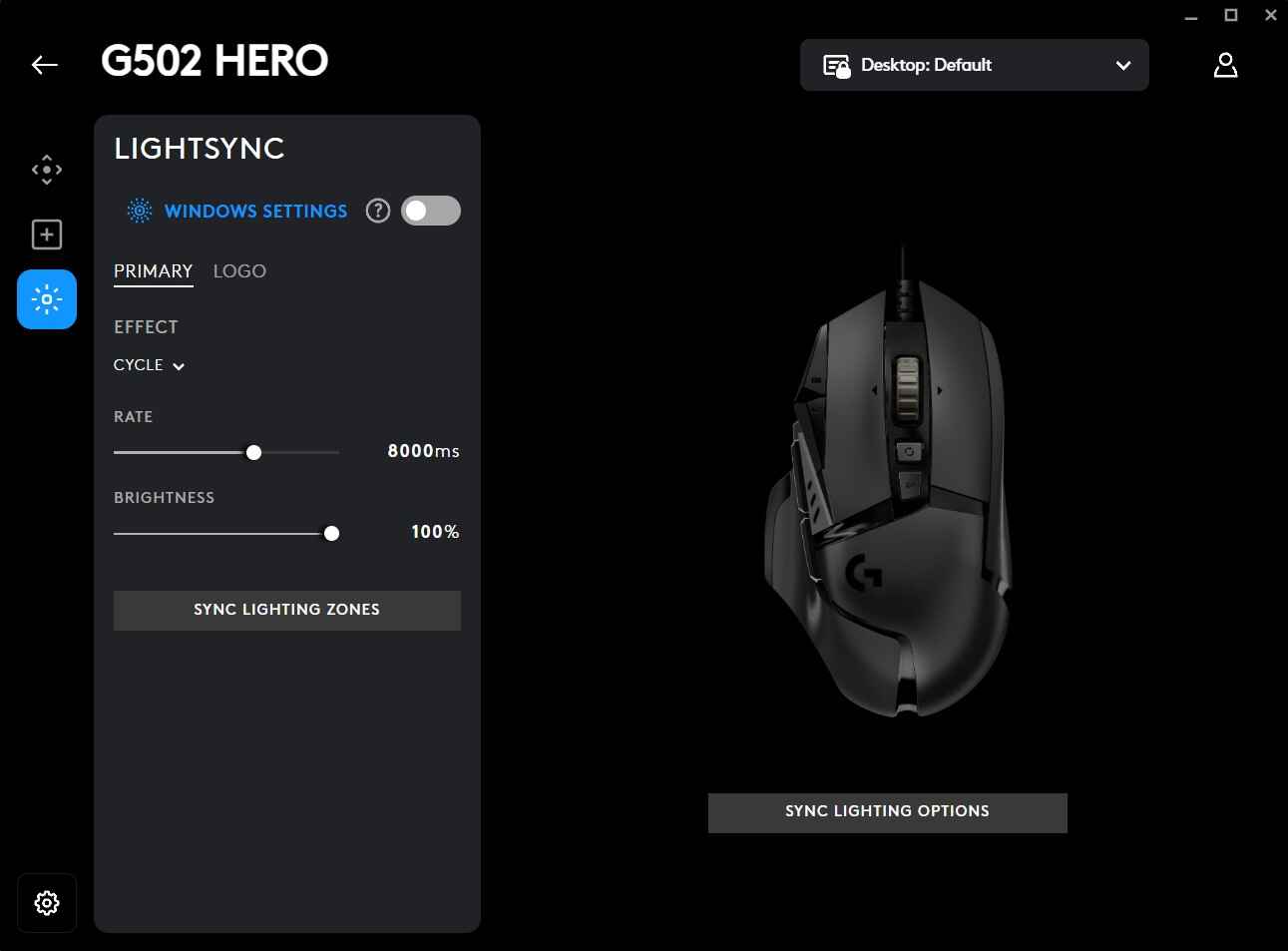
The G502 has two lighting zones: Primary (main lighting) and Logo (the G logo). For each you pick a color from the RGB palette and an effect: static, animated or synced with the rest of your Logitech G gear.
Assignments

This is where buttons get their actions. Assignments are split into five categories:
- Commands
- System-style commands usually done with shortcuts: copy, paste, undo and so on.
- Keys
- Turns a mouse button into a keyboard key.
- Actions
- Actions from a supported game or application profile.
- Macros
- Create, record and assign macros.
- System
- Device and system functions: button swapping, mouse functions, DPI controls and others.
To use a macro, drag it from the Macros list and drop it on the button. That button now runs the macro.
Keyboard Assignments
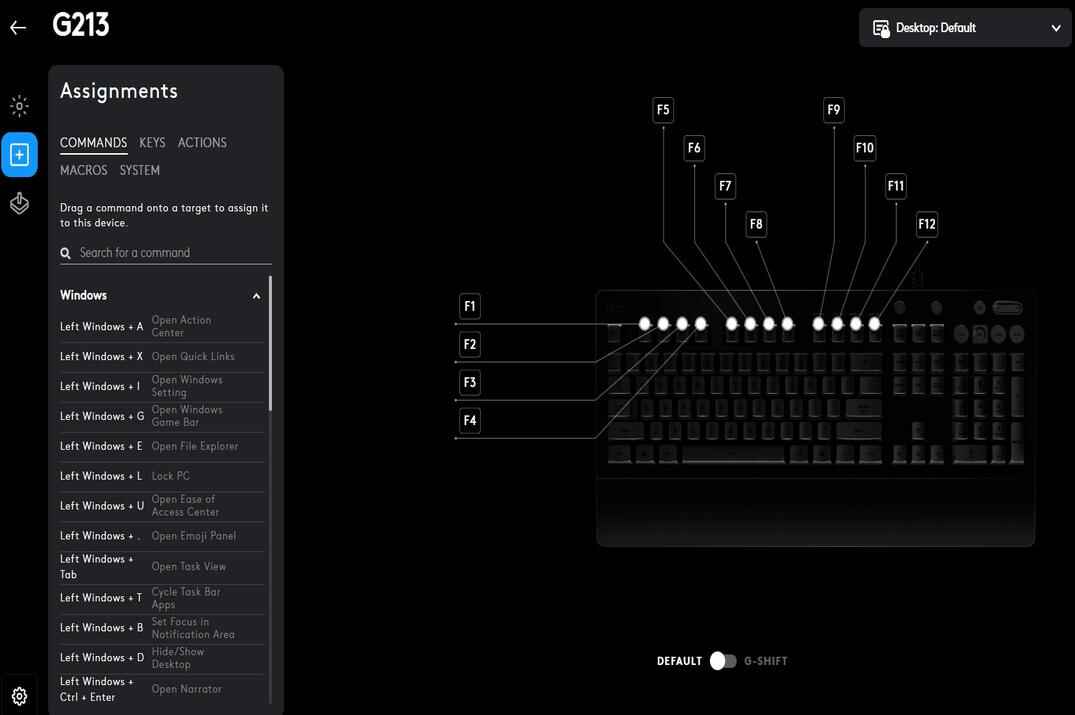
On a keyboard it works almost the same. The difference is where the macro can go: on many Logitech G keyboards, like my G213, that's F1 to F12, so you get twelve macro slots. Useful when you don't want to load up the mouse buttons, or when a macro is just easier to hit on the keyboard.
How to Create a Macro in Logitech G HUB
A G HUB macro is a recorded or hand-built sequence of key presses, mouse clicks, delays, holds and releases. In Counter-Strike terms it sits one level above binds and aliases:
- Bind
- One key, one command or action.
- Script / alias
- A chain of in-game commands. See my CS2 scripting guide.
- Macro
- A chain of physical inputs with timing and a playback mode. The game only sees normal clicks and key presses.
G HUB Macro Types
- No Repeat
- Runs once per press.
- Repeat While Holding
- Loops as long as you hold the button.
- Toggle
- One press starts the loop, the next press stops it.
- Sequence
- The advanced one: separate parts of the macro run on press, while holding and on release.
Step by Step
- Open the device, go to Assignments, choose Macros and click Create New Macro.
- Name it, pick the macro type and click Start Now.
- Choose what to add (list below), add the inputs and delays.
- Save the macro.
- Drag it from the Macros list onto the mouse button or keyboard key. Check that the right profile is active first, assignments belong to a profile.

After Start Now, G HUB offers these action types:
- Record Keystrokes
- Records key presses, mouse clicks and scroll with their timing.
- Text & Emojis
- Types a text or emoji into the active field with one press.
- Action
- An action of a supported game or application.
- Launch Application
- Starts a program or game.
- System
- One or more system-level actions.
- Delay
- A custom pause you can put between any actions.
One setting to watch in the top right of the editor: USE STANDARD DELAYS (50 ms). If it's on, G HUB replaces all your delays with 50 ms. For CS2 macros keep it off, it should say "Currently using recorded input delays", otherwise the exact timings below don't work.
CS2 Macros for Logitech G HUB
These macros are here to show how the editor works and to test them on your own server or offline. Valve's position since August 2024: automating movement or shooting with scripts or hardware is not allowed, and on official servers it can get you kicked from the match. FACEIT and other platforms have their own rules, check them first.
In G HUB, NGENUITY, Bloody, Synapse and similar programs a simple macro looks like this:
input 1 press -> X ms -> input 1 release -> X ms -> input 2 press -> ...
G HUB can also hold several inputs at once, which matters when two buttons have to overlap for a moment. A jump throw pulls the pin with +attack and almost instantly does +jump, so the sequence looks like this:
input 1 press -> X ms -> input 2 press -> X ms -> input 1 release -> X ms -> input 2 release
In the tables: LMB is the left mouse button, RMB the right one, ↓ is press, ↑ is release, and the delay is what comes after the action.
CS2 Jump Throw Macro
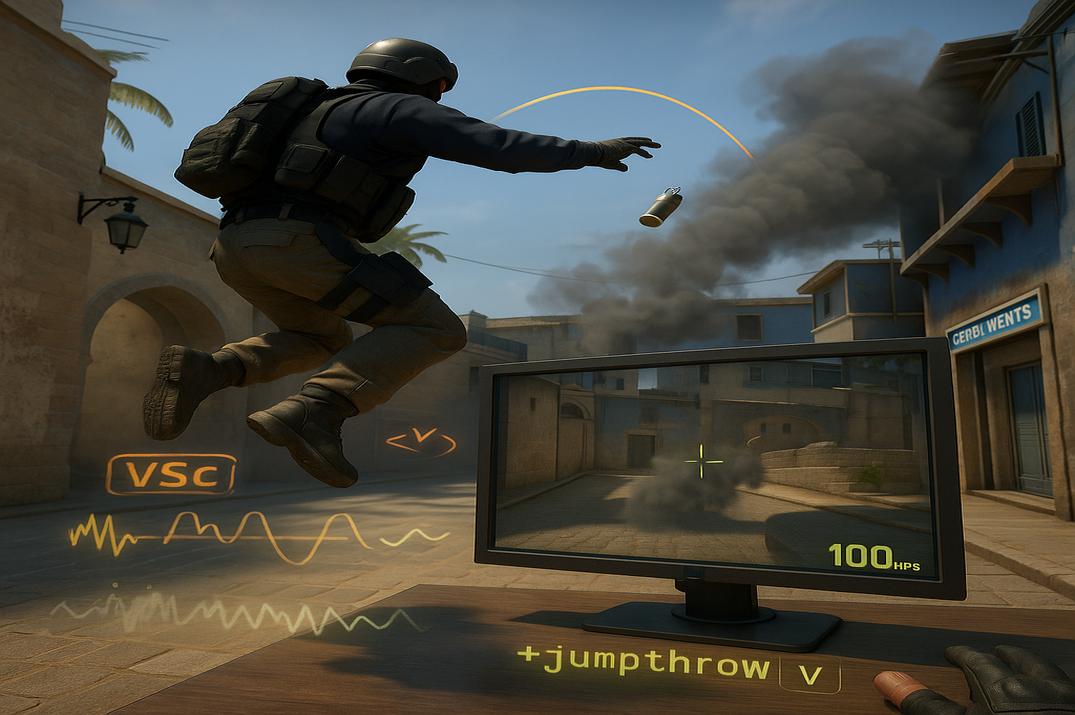
The classic jump throw bind stopped working with the August 19, 2024 update. Binds with several actions on one key are now ignored, you can only turn them back on with cl_allow_multi_input_binds 1, and that command is cheat-protected. My jump throw script guide has an alias version that gets around this, but a macro is even more precise. You aim, press one button and the macro does the jump and the release. With a run-up it throws long-distance utility to the same spot every time.
| # | Action | Delay after |
|---|---|---|
| 1 | LMB ↓ (pull the pin) | 55 ms |
| 2 | Space ↓ (jump) | 107 ms |
| 3 | LMB ↑ (throw) | 50 ms |
| 4 | Space ↑ |
Type: No Repeat.

CS2 AK-47 Burst Macro
Holds the left mouse button just long enough for a short burst instead of a full spray. For controlled bursts when you want a few shots without committing to a spray.
| # | Action | Delay after |
|---|---|---|
| 1 | LMB ↓ | 179 ms |
| 2 | LMB ↑ | 3 ms |
Type: No Repeat. The 3 ms at the end separates bursts when you press again and again.
A note on the bullet count. In the game files the AK-47 fires every 100 ms, so its third bullet comes at 200 ms. With 179 ms you're right on the edge, and if you get two bullets instead of three, raise the hold to about 210 ms. The M4A4, FAMAS and Galil fire every 90 ms, for them about 190 ms is enough.

CS2 AK-47 Single Shot Macro
Controlled single shots while you hold the button. Instead of clicking every shot, the macro makes a steady rhythm: a short press and a long pause so the AK recovers accuracy between shots.
| # | Action | Delay after |
|---|---|---|
| 1 | LMB ↓ | 17 ms |
| 2 | LMB ↑ | 175 ms |
| 3 | LMB ↓ | 17 ms |
| 4 | LMB ↑ | 190 ms |
Type: Repeat While Holding. About five shots per second.

CS2 Bunny Hop Macro
Repeats the Space key with a fixed delay. On your own server you could simply turn on sv_autobunnyhopping 1 (auto re-jump while you hold jump), it doesn't need sv_cheats. The macro does the jumping from the keyboard side, so it works on any server and you can tune the rhythm to your movement. Speed is still capped at 1.1x unless the server has sv_enablebunnyhopping 1. The legal way on official servers is to bind jump to the mouse wheel.
| # | Action | Delay after |
|---|---|---|
| 1 | Space ↓ | 54 ms |
| 2 | Space ↑ |
Type: Toggle, one press starts it, the next stops it.

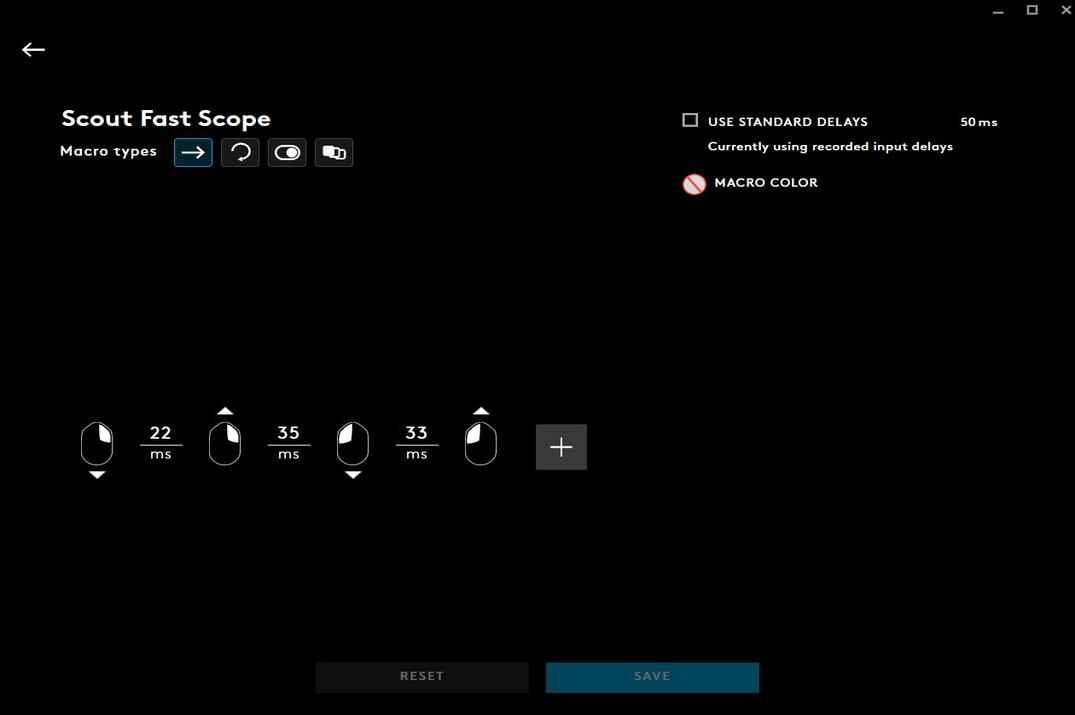
CS2 Scout Fast Scope Macro
A quick right click and left click. The first zoom level shows for only a moment, but the shot still goes out while scoped, so it's far more accurate than a real no-scope, even if you barely see the zoom.
| # | Action | Delay after |
|---|---|---|
| 1 | RMB ↓ | 22 ms |
| 2 | RMB ↑ | 35 ms |
| 3 | LMB ↓ | 33 ms |
| 4 | LMB ↑ |
Type: No Repeat.
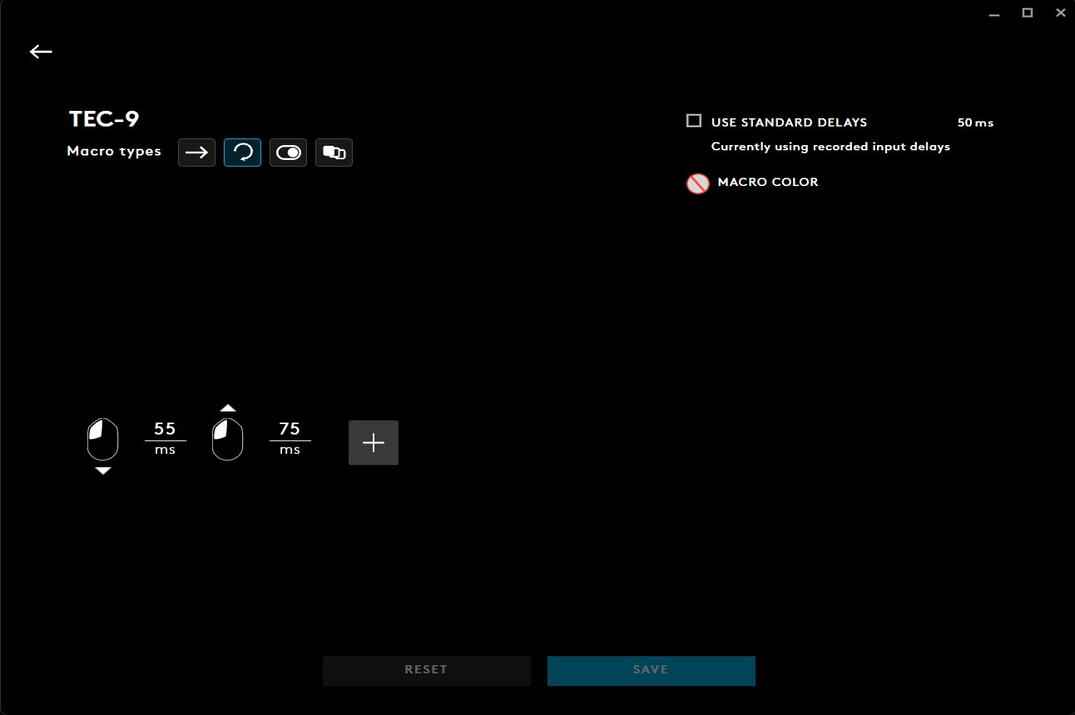
CS2 Tec-9 Macro
Repeated left clicks with set delays for the Tec-9. Instead of clicking as fast as you can, you get a steadier rhythm that's easier to control, and in short fights the pistol starts to feel almost automatic. Useful if you struggle to click fast and keep the crosshair on target. With the right rhythm the Tec-9 becomes a nasty eco weapon.
| # | Action | Delay after |
|---|---|---|
| 1 | LMB ↓ | 55 ms |
| 2 | LMB ↑ | 75 ms |
Type: Repeat While Holding. One click every 130 ms, just above the Tec-9's own limit of one shot per 120 ms, so no click is wasted.
Other CS2 Macro Ideas
- Desert Eagle: slow repeated shots down a little so the gun recovers accuracy between them instead of spam clicking.
- AUG and SG 553: a slightly slower rhythm can make short bursts tighter.
- Defuse + smoke: you start defusing with the Use key and the macro throws a smoke under you to cover the defuse.
Conclusion
Logitech G HUB manages the whole Logitech G setup: mice, keyboards, headsets, mousepads. Profiles, DPI, button assignments, LIGHTSYNC and Lua scripting are all there. The part I care about most is the macro system: clicks, keystrokes, delays, holds and releases with four playback modes, assigned to any mouse button or F key. Turn off standard delays, keep an eye on which profile is active, and keep gameplay macros for your own server.