How to Spot and Block Fake Servers in CS 1.6
What's really behind 64/64 players
You open the server browser, hit refresh, and see hundreds of servers with 30/32 players and 5 ms ping. You pick one, connect, and end up on some random server you never clicked. Or the server looks packed, but inside there are 3 people and a pile of bots.
If you came back to 1.6 recently, you've probably seen this and thought the game is broken. It's not the game. The server list is full of fakes, and has been for years. This guide explains what these servers are, how to recognize them quickly, how to block them, and where to find servers with real people.
How the CS 1.6 Server List Works
When you open the Find Servers window, CS 1.6 does not scan the internet for servers. The Server Browser first contacts one or more master servers and receives a list of server IP addresses and ports. It then queries those servers individually to display their hostname, map, player count and ping.
In a standard Steam installation, the relevant Server Browser files are normally located under:
\Half-Life folder where hl.exe is\platform\config\MasterServers.vdf
MasterServers.vdf contains the master server addresses used to obtain the server list.
\Half-Life folder where hl.exe is\platform\config\ServerBrowser.vdf
ServerBrowser.vdf stores Server Browser data, including saved state and server history.
What Fake Servers Actually Are
"Fake server" is a loose term, and it covers a few different things.
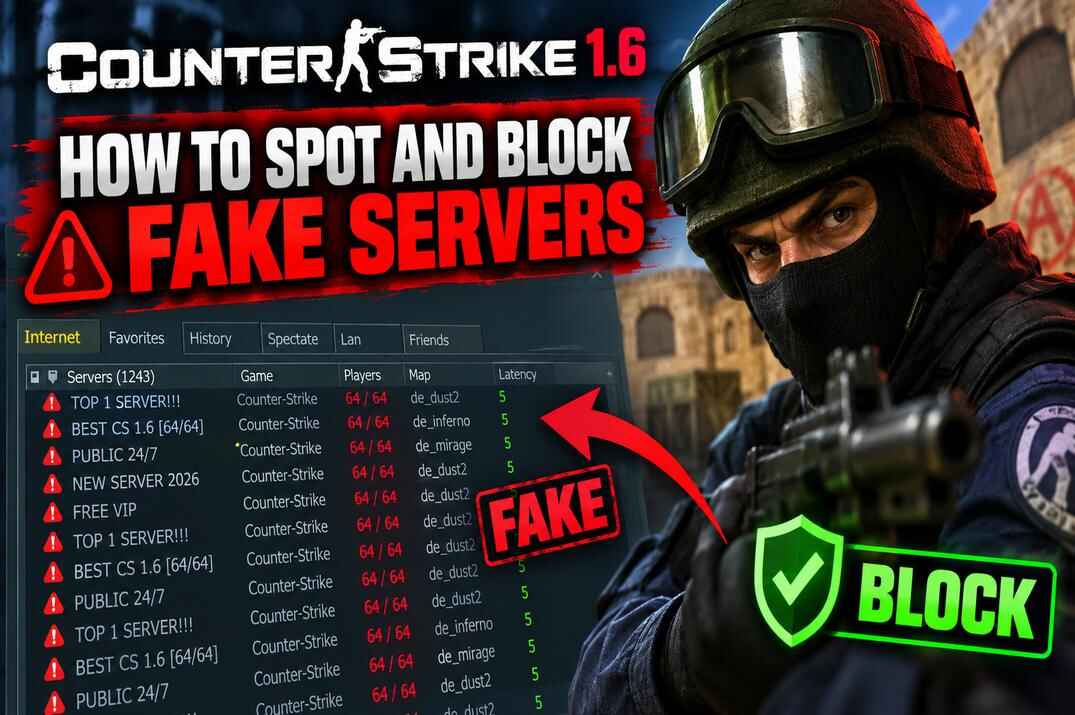
Redirect servers. The most common kind. One IP shows up in the list dozens of times on different ports, each with its own name, map and player count. These entries are not separate playable servers. When you connect, they send players to one central server that the owner wants to fill. More entries in the list means more chances you click one of them by accident.
Fake player counts. The server exists, but the number in the browser does not necessarily represent real players. It may be filled with bots or fake clients to make the server look populated. Older and modified clients may also be vulnerable to other methods of spoofing server information.
Spam entries. Names that have nothing to do with CS: ads, phone numbers, random junk. They clog the list and push real servers down.
Config-breaking servers. This mostly affects older, non-Steam and modified clients. A malicious server may try to change binds, client settings or config files, or force the client to connect somewhere else. Current Steam builds block many dangerous server-issued commands, but modified clients may not have the same protection.
Boosted CS 1.6 Builds and Custom Server Lists
Some non-Steam CS 1.6 builds come with custom master server settings, launchers, and sometimes modified DLLs. Instead of Valve's standard server list, they may use a third-party master server controlled by the build distributor or a boost service. Modified DLLs, launchers, or other client components may also restore their own master server settings when the game starts, so simply editing MasterServers.vdf may not permanently change the server list.
Server owners can pay for placement in these lists. Depending on the service, a paid server may appear near the top of the Internet list, be added to Favorites, or even appear in the Game Menu. The more people use that particular CS 1.6 build, the more players the boost service can send to paid servers.
How to Check Your Build
Open the MasterServers.vdf or rev_MasterServers.vdf used by your installation and check the master server addresses. If you see unfamiliar addresses, or the file keeps returning to its previous state after you edit it, another component in the build may be controlling the list.
Compare your Internet server list with a standard Steam installation. If the two lists are completely different, your build is probably using another master server.
Check your Favorites as well. Servers you never added yourself may have been included by the build or added through a boost system.
If MasterServers.vdf keeps getting restored, look for a modified launcher, DLL, or emulator component. Replacing the modified component with the original version may restore normal behavior, but the exact fix depends on the build.
How to Tell a Fake Server in 30 Seconds
You don't need tools for this. A few quick checks catch most of them.
More than 32 slots. GoldSrc supports a maximum of 32 players on a single server. If the browser shows something like 45/64 or 255/255, the entry is fake.
Too-perfect ping. If dozens of servers claiming to be in different countries all show nearly identical low ping, that's suspicious. Fake entries can be generated from the same host or infrastructure.
Crazy stats in the player list. Right-click the server, open server info, and look at the players. If someone has 100 frags and the map started 5 minutes ago, that's a strong warning sign. Hit refresh a few times: fake entries may suddenly show completely different players.
Name, map or count jumps around. Refresh the same suspicious server several times. If its hostname, map or player count changes dramatically every few seconds, you're probably looking at a fake entry.
Same IP, many ports, unrelated names. Multiple servers on one IP are normal. But if one IP appears on many ports with completely unrelated names, maps and player counts, especially alongside the other signs above, it may be a redirect farm.
Check the server from inside the game. If you're already connected to a server, you can verify where you actually ended up. Open the console and type status. The command shows the server's IP address, hostname, current players and their ping. Compare the IP with the address you selected in the Server Browser. If they don't match, you were redirected to another server.
You can also check CS 1.6 Steam Server Stats to see how widespread the problem is. The tool scans thousands of servers, identifies fake server farms and tracks real player activity across the Steam server list.
How to Block Fake Servers in CS 1.6
Here is the annoying part. In CS:Source you can drop a blacklist file into the game folder and the browser hides those servers. In CS 1.6 there is no such thing: the GoldSrc browser has no blacklist at all. So one practical way to hide fakes is to block their IPs outside the game, in Windows Firewall.
Option 1: Use a Ready-Made Blocklist Script
A community developer, Ch0wW, hosts a public list of fake GoldSrc server IPs on GitHub, plus a PowerShell script that creates a Windows Firewall rule for all of them. Repository goldsrc-fake-servers-firewall
The README has a one-line command you run in PowerShell as administrator. It downloads the IP list and creates (or updates) one outbound firewall rule. Run it again later to pick up new IPs.
One rule, and the author says it himself: read the script before you run it. It's short and easy to check. Never run a random PowerShell command from the internet without looking at what it does, that goes for this guide too.
Side effect: the list may take longer to fill in, because the browser still waits for answers from the blocked servers. That's normal.
Option 2: Block an IP Manually
If you know the IP of a fake or redirect server, block it yourself:
- Open Windows Defender Firewall with Advanced Security (search "firewall" in Start).
- Go to Outbound Rules -> New Rule.
- Choose Custom -> All programs -> Next until you reach Scope.
- Under "remote IP addresses" add the IP (you can add several).
- Block the connection, apply to all profiles, name it something like "CS 1.6 fake servers".
Next time you need to add an IP, open the same rule and add it to the Scope list, no need for a new rule every time.
Protect Your CS 1.6 Config
Blocking fakes is half of it. The other half is making sure no server can mess with your game. Add this to your userconfig.cfg:
cl_filterstuffcmd 1
Modern Steam builds already block some dangerous server-issued commands. cl_filterstuffcmd 1 adds filtering for additional commands and client settings that a server may try to change. It's already in my Counter-Strike 1.6 Config Guide - Commands and Optimization.
Also set config.cfg to read-only (right-click -> Properties -> Read-only). This prevents the game - and anything a server tries to change - from writing changes back to your config file.
Some guides advise against making config.cfg read-only, because then CS 1.6 can't save even legitimate changes to it. But if your game is already set up the way you like, that's exactly what you want: nothing gets written into it anymore, neither by you by accident nor by a server. The developers themselves point you in this direction, right in the config file: "Add custom configurations to the file userconfig.cfg". In other words, config.cfg is not the place for your settings, leave it alone.
Keep in mind that read-only protects the file, not the running game. A server can still change some settings during the session, but after a restart everything comes back to your saved config. If you need to change or add something later, put it in userconfig.cfg. The main config runs it automatically with the exec command at the end.
The game may keep connecting you to a specific server on launch. Open config.cfg, userconfig.cfg, and autoexec.cfg in Notepad and search for connect. Delete any matching line and save the files. Also check your Steam launch options for a +connect command you didn't add.
How to Find CS 1.6 Servers with Real Players
There are still plenty of real 1.6 servers, you just need to look a little differently.
Use the browser filters. Set a latency limit (under 100 ms is fine for most people), set a map, tick "Has users playing", and pick your region. This alone hides a lot of junk.
Use Favorites and History. When you find a good server, add it to Favorites straight away. The History tab also remembers servers you played on. These tabs let you avoid the flooded Internet server list.
Check monitoring sites. GameTracker, VARQ (formerly Tsarvar) and similar sites show player count history over time. A real active server usually shows natural changes in player count throughout the day. A server sitting at almost exactly the same number of players around the clock is suspicious, although this alone doesn't prove it's fake.
Look for servers with a community behind them. A website, a forum, public stats, a Discord. It takes a lot of effort to fake all of that, and redirect farms don't bother.
Connect by IP. If you know the address, skip the browser completely. Open the console and type connect IP:port.
CSbePRO CS 1.6 Servers
Full disclosure: I run two classic servers myself. No redirects, no fake players, no forced downloads, no pay-to-win:
- forum.CSbePRO.com | Classic CS 1.6
connect 149.28.237.198:27015 - forum.CSbePRO.com | Dust2 CS 1.6
connect 66.135.29.126:27015
Type status when you join - you'll see the same IP you connected to.
Conclusion
Fake and redirect servers have been part of the CS 1.6 server browser for years, and they are unlikely to disappear completely. The important part is knowing how to recognize them and how to avoid them.
Use the server browser carefully, block known fake IPs when needed, keep your config protected, and save trusted servers to Favorites. If something looks suspicious, check the server information before joining or verify the connection with status once you're already inside.
CS 1.6 still has plenty of real servers and active communities - you just need to separate them from the junk.
CS 1.6 Fake Servers FAQ
Can fake servers steal my Steam account?
Just connecting to one won't give anyone your password. The real risks are having your config messed with and being sent to servers you didn't choose. Never type your Steam login anywhere a server links you to.
Why do fake servers show such low ping?
Often the ping you see is to the fake entry, not to the server you end up on. After a redirect the real ping can be much worse.
Can I use the CS:Source blacklist file in 1.6?
No. The file only works in Source games. CS 1.6 ignores it.
Are servers with bots always fake?
No. Many honest servers add a couple of bots when it's empty so the first players have someone to shoot, and remove them as people join. That's different from pretending bots are real players. The Server Browser can show bots separately.
I blocked a server by mistake. How do I undo it?
Open the firewall rule, go to Scope, remove the IP. If you used the script, just disable the rule to see everything again.
Why does my friend see different servers than me?
One common reason is that one of you is using a non-Steam or modified build with a different master server. The browser shows the list provided by that master server, and some boosted builds may include paid server placements.