CS 1.6 Launch Options: Full List and What They Actually Do
Launch options in CS 1.6 are command-line parameters you pass to the game before it starts, setting things like resolution, screen mode, monitor refresh rate, mouse behavior, and other engine settings.
People often treat launch options as some game-specific feature, but there's nothing special about them. They're ordinary parameters that Windows passes to a process at startup, and they work the same way for any program. Run chrome.exe and you get a browser. Run chrome.exe -kiosk and you get the same browser, just fullscreen with no interface. Same file, different behavior.
CS 1.6 works exactly the same way. hl.exe and steam.exe are processes, and -full, -freq, -console are options the engine reads and applies when the game starts. Since the program itself handles them, the engine only responds to the ones it knows. Everything else it silently ignores - which is roughly why parameters that do absolutely nothing keep living in other people's configs for years.
Below I'll go through every CS 1.6 launch option, grouped by what they do: how to set them, what they change, when they help, and when to leave them alone. All based on the official Valve documentation.
Where to Set Launch Options in CS 1.6
In the Steam version, you can add launch options in two places: in the Steam client itself, or in a shortcut to the steam.exe process. Non-Steam clients launch CS through a shortcut to hl.exe, and the keys go into that shortcut's properties.
CS 1.6 went through two major updates - SteamPipe in 2013 and the Anniversary Update in 2023 - and some keys changed or were removed from the engine along the way. On Steam you always have the current build. With non-Steam clients it's trickier: they're built on different engine versions, and something from the list below may simply not work.
How to Set CS 1.6 Launch Options in Steam
The first method is through Steam. To add launch options:
- Open Steam and go to your Library.
- Find Counter-Strike 1.6, right-click the game and select Properties.
- On the General tab, find the Launch Options field.
- Enter the parameters you need.
Every parameter starts with a hyphen "-", and parameters are separated by a space. To remove launch options, just clear the field. For example: -w 1920 -freq 144
This starts the game at 1920x1080 with the monitor running at 144 Hz.
The second method is a Steam shortcut. To create one for CS 1.6, first find your steam.exe file. In most cases Steam sits at C:\Program Files (x86)\Steam\steam.exe, but if you installed it somewhere else, use that path instead (for example, D:\Games\Steam\steam.exe). Then create a shortcut to the steam.exe file:
- Right-click the file, choose Send to -> Desktop (create shortcut), then open the shortcut's Properties.
- In the Target field, add
-applaunch 10after the Steam path.
A target field in a basic CS 1.6 shortcut looks like this:
D:\Games\Steam\steam.exe -applaunch 10
This shortcut launches CS 1.6.
A target field with launch options looks like this:
D:\Games\Steam\steam.exe -applaunch 10 -w 1920 -freq 144
This launches CS 1.6 at 1920x1080 with the monitor at 144 Hz.
How to Set CS 1.6 Launch Options in Non-Steam
Since CS 1.6 is a Half-Life mod, it runs through the hl.exe process. The shortcut is built like this: Path to hl.exe -> the mod -> launch options.
So if the game is installed on drive D in the \Games\CS 1.6\ folder, the Target field in the shortcut properties looks like this:
"D:\Games\CS 1.6\hl.exe" -game cstrike -w 1920 -freq 144
The -game cstrike part is the key that tells the engine which mod to load, and everything after it is your launch options. Same rules here: every parameter starts with a hyphen "-", separated by a space. To remove a parameter, just delete it.
All CS 1.6 Launch Options
Everything below is current for 2026 according to the official GoldSrc Command-Line Options documentation, grouped by what each key handles. Most of them you'll never need - they exist for debugging, for unusual situations, or they're just left over from a time when the game had completely different problems to solve. There are maybe five genuinely useful parameters in CS 1.6, and they all deal with input.
For each one I'll give a description, a comment, and an everyday status from three categories: FLUFF - mythical effect at this point, IF CASE - for problems, testing, non-standard situations, and USEFUL - most players, every day.
Display & Video Launch Options in CS 1.6
This is where you sort out the game starting at the wrong or non-standard resolution, forcing a specific monitor refresh rate, removing or adding the black bars on the sides, and so on.
Almost everything here can also be set in the game's own menu - but a launch option fires earlier and takes priority. That's what makes it useful when the game stubbornly ignores what you picked in the menu.
| Parameter | What it does | Comment | Status |
|---|---|---|---|
-full / -fullscreen |
Forces fullscreen mode | Useful if the game keeps starting in a window or remembered the wrong mode. Otherwise, the menu setting is enough. | IF CASE |
-window / -windowed-sw / -startwindowed |
Forces windowed mode | Only if you need windowed mode and it won't stick from the game menu. | IF CASE |
-noborder |
Borderless window | Looks like fullscreen, but it's actually a window. Alt+Tab is instant, with no video mode rebuild. It can help on systems with two, three, or more monitors when switching between them causes trouble. | IF CASE |
-w <x> / -width <x>-h <y> / -height <y>
|
Forces width and height in pixels | Useful if the game starts at the wrong resolution for some reason or jumps to another monitor on startup. Also handy for custom resolutions, such as 1080x1080. A non-standard resolution first has to be created in your GPU software - Nvidia Control Panel or AMD Adrenalin - and then it should appear in the game menu automatically, although sometimes that doesn't happen right away. In that case, -w 1080 -h 1080 guarantees that the game starts at that resolution. If you enter a resolution that doesn't exist - for example, 1080x1080 that was never created in Nvidia or AMD software - the game ignores the parameters and starts normally. For a standard resolution, width alone is enough, for example -w 1024. |
IF CASE |
-freq <Hz> |
Refresh rate in fullscreen | CS 1.6 normally starts at the refresh rate selected in Windows under System -> Display -> Advanced display -> Choose a refresh rate. If Windows is set to 144 Hz on a 240 Hz monitor, CS 1.6 starts at 144 Hz. The -freq parameter forces another refresh rate supported by the monitor, regardless of the Windows setting. On a 144 Hz monitor, for example, values such as 60, 75, 100, 120, and 144 may work. Unsupported, non-standard, or higher values are ignored - on the same monitor, -freq 77, -freq 95, or -freq 240 will not work. Most players do not need this parameter. |
IF CASE |
-32bpp |
32-bit color | Enabled by default in the Steam version. This parameter is left over from the time when players could choose between 16-bit and 32-bit color. There is no reason to use it today because it changes nothing. The -16bpp parameter is already deprecated. |
FLUFF |
-gl |
OpenGL renderer | OpenGL is the default renderer. You only need to specify it explicitly if the game somehow switched to software rendering. | IF CASE |
-soft |
The old software renderer | Produces very poor graphics because the game runs without GPU acceleration and renders everything through the CPU. By the early 2000s, almost all graphics cards supported OpenGL, but drivers were often the problem. Internet access was limited, and players in LAN clubs commonly exchanged drivers and software on floppy disks or CDs. Because of bad or missing drivers, early versions of Counter-Strike sometimes would not launch in OpenGL, so software rendering was a normal fallback. Some players also used it deliberately because smoke could appear transparent. There is no practical reason to use this parameter today unless OpenGL completely fails and nothing else works. | FLUFF / IF CASE |
-stretchaspect |
Stretches the image to fill the screen | By default, 4:3 resolutions such as 640x480, 800x600, and 1024x768 can leave black bars on the sides of a widescreen monitor. This parameter removes the bars and stretches the image horizontally, making player models appear slightly wider. Many players find aiming more comfortable this way, while others prefer the original aspect ratio with black bars. Non-Steam clients can usually control this through GPU scaling settings. In Nvidia Control Panel, open Display -> Adjust desktop size and position, then select Aspect ratio for black bars or Full-screen for a stretched image. | IF CASE |
-nofbo |
Disables the newer rendering method | Produces a stretched image similar to -stretchaspect, but also disables built-in MSAA. As a result, the graphics look noticeably rougher and more jagged. It is only worth trying when you need a stretched image and -stretchaspect does not work. |
IF CASE |
-nomsaa |
Disables MSAA anti-aliasing | This parameter is often recommended as an FPS boost. Technically, anti-aliasing does use GPU resources, but CS 1.6 is based on an old engine that modern integrated and dedicated graphics hardware can run at several hundred FPS with MSAA enabled. Disabling it may increase the FPS counter, but the additional frames are usually limited by fps_max or the monitor's refresh rate. The visible difference is more shimmering and jagged edges. |
IF CASE |
Mouse & Input Launch Options in CS 1.6
At startup, the GoldSrc engine reaches into your system mouse settings and swaps them for its own. The -noforce* keys stop it: The game follows your Windows configuration and does not modify your settings.
| Parameter | What it does | Comment | Status |
|---|---|---|---|
-noforcemparms |
Stops the engine from overriding Windows mouse parameters | The game uses the mouse settings configured in Windows instead of replacing them with its own values. | USEFUL |
-noforcemaccel |
Stops the engine from overriding the acceleration setting | This parameter does not disable mouse acceleration. It keeps the Windows setting. If Enhanced pointer precision is disabled in Windows, there is no acceleration in the game. If it is enabled, the game uses it as well. | USEFUL |
-noforcemspd |
Stops the engine from overriding pointer speed | The game uses the mouse pointer speed configured in Windows instead of normalizing it. | USEFUL |
-mousethread |
Reads the mouse on a separate thread | An old method of separating mouse polling from the main game loop. It appeared before the engine had proper raw input support. Today, it is only worth trying if you have unusual mouse input problems and other fixes have not helped. | FLUFF / IF CASE |
-nomouse |
Disables the mouse in-game | A debugging parameter with no practical use during normal gameplay. | IF CASE |
-nojoy |
Disables joystick support | This parameter regularly appears in optimization lists based on the claim that disabling joystick polling frees system resources. Polling a joystick that is not connected has no meaningful performance cost. It will not increase FPS or noticeably reduce memory usage. | FLUFF |
Sound Launch Options in CS 1.6
Three old parameters, two of which could theoretically help with diagnostics.
| Parameter | What it does | Comment | Status |
|---|---|---|---|
-nosound |
Disables sound completely | The console command nosound 0/1 provides the same function. This parameter can be useful if the game crashes while initializing sound and you only need to launch it for troubleshooting. |
FLUFF / IF CASE |
-wavonly |
Disables DirectSound and plays audio through PCM | If the game audio crackles, stutters, or cuts out, this parameter bypasses DirectSound and makes the engine use PCM audio playback instead. | FLUFF / IF CASE |
-nocdaudio |
Disables CD Audio and MP3 support | A legacy parameter from the time when an audio CD could start playing together with the game, provided the disc was inserted in the drive. | FLUFF |
Performance & Memory Launch Options in CS 1.6
Another popular "booster". In plenty of "optimization" guides you'll find -heapsize with some intimidating number attached - usually far above the maximum the engine even accepts - and a promise of more FPS.
| Parameter | What it does | Comment | Status |
|---|---|---|---|
-heapsize <KB> |
Sets the size of the memory area used for dynamic allocation | The minimum value is 14 MB, the maximum is 128 MB, and the default is 40 MB. The engine selects an appropriate value automatically based on the system. Manually increasing it does not improve FPS or general performance. | FLUFF / IF CASE |
-zone <bytes> |
Sets the memory size for the console system | This controls a separate small memory area used by the engine for internal console operations. It has nothing to do with gameplay performance or FPS, so there is no reason to change it. | FLUFF |
CS 1.6 -heapsize: Why It Doesn't Work
The option is real, it's in the Valve documentation, and it genuinely controls engine memory. The problem isn't the key - it's the advice around it.
The parameter caps out at 128 MB. That doesn't stop the boosters: forums are full of advice to set 256, 512, 1024 and even 8 GB. The nonsense spreads from thread to thread, and then the placebo kicks in - someone types in a number, restarts the game, and is convinced it feels better.
Not only does the engine pick the value on its own, the default 40 MB is already plenty for de_dust2 with all its geometry and textures. The game doesn't have memory problems and never did, not even on school PCs back in 2003. The CPU is the one component that actually matters for CS 1.6.
Situations that called for stepping in did exist - mostly on heavy mods and maps loaded with models, skins and extra entities. Back then the advice was to set the maximum right at launch: -heapsize 131072
You rarely run into that today. And even in that case, the key solves a memory shortage - it doesn't add performance.
Does -high Work in CS 1.6?
The all-time champion of performance advice, recommended pretty much everywhere. The -high parameter starts the process with high priority - on the Source engine. In GoldSrc it doesn't exist and never did. Write hl.exe -high and the engine receives the argument, doesn't recognize it, and silently skips it.
The idea behind it isn't stupid, though. High priority is worth something not for FPS but for stability: if YouTube, music or an antivirus scan is running in the background while you play, the system can get distracted for a fraction of a second and you get a brief freeze. A video auto-switching to the next one in your browser produces exactly that kind of spike.
Since the key doesn't exist in GoldSrc, priority gets set at the Windows level - through the registry, so the process starts with high priority right away instead of switching to it after launch. The method works for any .exe file, including hl.exe. There's a separate guide with step-by-step screenshots: Is the "-high" Launch Option Worth It in Counter-Strike 2? - it covers CS2, but the procedure is identical, you just create a key named hl.exe instead of cs2.exe.
Network Launch Options in CS 1.6
Two keys, and you'll definitely run into one of them in "optimization" lists. The booster logic goes: turn off unnecessary network protocols, free up resources.
| Parameter | What it does | Comment | Status |
|---|---|---|---|
-noip |
Disables network support | This parameter disables the game's entire network stack, leaving no access to servers or multiplayer. Its only practical use is launching the game locally when it freezes during network initialization. This is not the same as Steam Offline Mode. | IF CASE |
-noipx |
Disables IPX support | The parameter works, but modern systems and networks no longer use IPX. There are no meaningful resources to free and no performance benefit. | FLUFF |
What Is IPX and Does -noipx Help?
IPX is a network protocol from Novell, invented in the 80s and alive and well in local networks through the 90s and early 2000s. Back then TCP/IP wasn't the only option, and games honestly supported both: you played over the internet through IP, and over the LAN at a computer club quite possibly through IPX.
That was thirty years ago. Microsoft dropped IPX support from Windows starting with Vista - meaning the protocol simply isn't on your system. No driver, no stack, nothing.
When the engine starts, it checks if IPX is present, doesn't find it, and moves on - same as with -nojoy. That's one check at startup, costing fractions of a millisecond, happening once per gaming session. The key is harmless, it won't break anything. But its usefulness is exactly zero. And it's still in the documentation not because it's useful - there's just no reason to remove it: a line of code costs nothing and bothers nobody, while ripping it out means spending effort and risking breaking something in old builds.
Console & Developer Launch Options in CS 1.6
These keys control the game itself rather than the picture or the hardware: which mod to load, what to run at startup, where to write logs. Most of them you won't need, but a couple are genuinely useful for specific tasks.
| Parameter | What it does | Comment | Status |
|---|---|---|---|
-console |
Opens the console at startup | This parameter is often listed as essential or even described as a performance boost, but it only opens the console when the game starts. You can immediately close it with the tilde key, which normally opens the console whenever needed. If the console does not open when you press tilde, the bind "~" "toggleconsole" line was probably changed or removed from the config. Use -console only as a fallback when the config is seriously broken. A normal setup does not need it. |
FLUFF / IF CASE |
-game <mod> |
Tells the engine which game or mod to load | Use -game cstrike for Counter-Strike. It is required when launching the game through a shortcut to hl.exe; without it, the engine opens Half-Life instead. |
USEFUL (non-Steam) |
-applaunch <AppID> |
Launches a Steam game by its AppID | Only needed when launching a game by running steam.exe directly instead of using the Steam Library. The AppID for Counter-Strike 1.6 is 10. |
USEFUL (Steam) |
+<command> <value> |
Runs a console command at startup | Almost any command that can be entered in the console can also be passed through a launch option using +. For example, +sv_lan 1 +map de_dust2 immediately starts a local server on de_dust2. |
USEFUL |
-exec <file> |
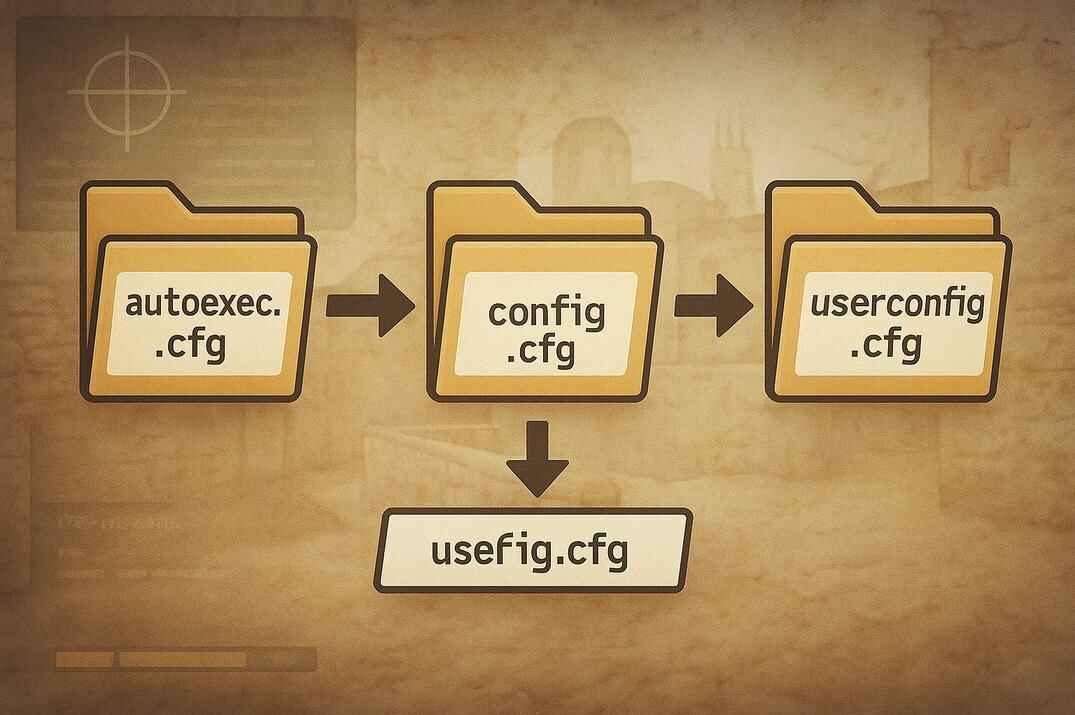
Executes a config after the engine loads | Useful mainly for debugging and testing. Launch options and config files load in a specific order, so values from the selected config may later be overwritten by config.cfg. For example, a custom config may set net_graph 3, but if config.cfg loads afterward with net_graph 0, the graph disappears. More information is available in the Counter-Strike 1.6 Config Guide - Commands and Optimization. |
IF CASE |
-dev |
Enables developer mode | Enables more detailed console output. On some non-Steam clients, it also removes the normal fps_max 100 limit. |
IF CASE |
-condebug |
Writes console output to a file | Everything displayed in the console is also written to qconsole.log in the game folder. This is useful for diagnosing crashes because the log remains available after the game and console have closed. | IF CASE |
-glext |
Prints the list of OpenGL extensions | Works together with -dev. It is a diagnostic option for investigating OpenGL and graphics driver problems. |
IF CASE |
-nobots |
Disables bots | Prevents bots from being loaded or used. | IF CASE |
CS 1.6 Launch Options Presets
Below are ready-made sets for specific situations. Before you copy anything, one honest disclaimer that'll save you from disappointment.
Launch options won't make the game faster. The one exception is -nomsaa: it drops anti-aliasing, and you really do get more frames. The catch is that you'll only see them on a weak machine, where the game can't reach your target FPS on its own. If it's already hitting fps_max, those extra frames have nowhere to go - while the shimmering jagged edges show up immediately. Everything else people go looking for in launch options actually lives in the game settings and the config.
What launch options genuinely do is fix specific things: make the game take the refresh rate you want, get rid of the black bars, keep the mouse behaving the way you're used to.
You'll also spot keys like -noipx and -nojoy in the sets below, marked FLUFF. Straight up: they won't do anything noticeable. But they don't break anything either, they work exactly as the Valve documentation describes, and if having them in your launch line makes you feel better - go ahead, nothing gets worse. That's precisely why people have been writing them for twenty years.
The Best CS 1.6 Launch Options for Every Player
-noforcemparms -noforcemaccel -noforcemspd
These three keys are the best CS 1.6 launch options. The most important thing in a shooter is a predictable crosshair, which means the mouse has to behave the same way every single time.
By default GoldSrc reaches into your system mouse settings at startup and swaps them for its own. These keys stop it - and the mouse arrives in the game exactly as you know it from outside the game. Same pointer speed, same behavior, the same hand movement always producing the same turn.
But it only works under one condition. Enhanced pointer precision in Windows has to be off. That's mouse acceleration: the system watches how fast you're moving your hand and adjusts the turn accordingly. Move the mouse 10 cm slowly and you get one angle. Flick the same 10 cm and you get a bigger one. Same movement, different result.
In office work that's often convenient - the cursor crosses the screen faster. In CS 1.6 it gets in the way of your aim, and more importantly, muscle memory simply can't build on top of acceleration. This feature is enabled by default. To disable it:
- Open the Control Panel and choose the Mouse widget.
- Go to the Pointer Options tab and uncheck the Enhance pointer precision box.
- Hit OK.
Now the mouse isn't doing anything on its own - only your hand is.
CS 1.6 Stretched Launch Options: Remove Black Bars
-full -stretchaspect -w 1024 -noforcemparms -noforcemaccel -noforcemspd
Classic 4:3 stretched across a widescreen monitor. Swap in the resolution you use.
CS 1.6 Stretched Launch Options for 144 Hz
-full -stretchaspect -w 1024 -freq 144 -noforcemparms -noforcemaccel -noforcemspd
The ratio 4:3 stretched across a widescreen monitor, with the refresh rate locked in. Swap in your own resolution.
CS 1.6 Launch Options for Low-End PC and Old Laptops
-full -w 640 -nomsaa -noforcemparms -noforcemaccel -noforcemspd
The one set where turning off anti-aliasing actually means something. On modern hardware -nomsaa gives you frames you'll never see, but on an old machine the difference can be noticeable.
CS 1.6 Launch Options for FPS Boost
-full -w 640 -nomsaa -noipx -nojoy -noforcemparms -noforcemaccel -noforcemspd
For anyone who wants to squeeze out everything.
CS 1.6 Launch Options for Crashes and Startup Problems
-dev -condebug -nosound
Everything that appears in the console gets written to qconsole.log. The game crashed, the console vanished - the log is still there.
CS 1.6 Non-Steam Launch Options: Best Setup
Slightly trickier here, since it depends on the build. But these will definitely get you what you need for a comfortable game.
-game cstrike -full -w 800 -gl -freq 144 -noforcemparms -noforcemaccel -noforcemspd
For launching through a shortcut to hl.exe. The -game cstrike key is mandatory - without it you get Half-Life.
CS 1.6 Shortcuts: Use Launch Options Without Steam Settings
Launch options in Steam have one quirk: whatever you put in there is active every single time. You need to run the game with logging because it keeps crashing - so you go into Properties, add -condebug, play, then go back in and remove it. Every time.
A shortcut solves this once and for all. You can clear the launch options field in Steam entirely and make several shortcuts to steam.exe instead - one per task. Regular play, diagnostics, practice on a map. Nothing to edit, nothing to forget.
It works through -applaunch and the game's AppID. For CS 1.6 that's 10.
Main CS 1.6 Shortcut for Normal Play
The set worth keeping for everyone. Right-click steam.exe -> Send to -> Desktop (create shortcut), then open the shortcut's Properties and add the parameters after the path in the Target field.
In most cases Steam sits at C:\Program Files (x86)\Steam\steam.exe, so the line looks like this:
"C:\Program Files (x86)\Steam\steam.exe" -applaunch 10 -noforcemparms -noforcemaccel -noforcemspd
If Steam is somewhere else, use your own path. For example, on drive D in the \Games\ folder:
"D:\Games\Steam\steam.exe" -applaunch 10 -noforcemparms -noforcemaccel -noforcemspd
Rename the shortcut to something clear - "CS1.6 Steam", say - and launch the game only through it.
CS 1.6 Diagnostic Shortcut for Crashes and Logs
This is the second shortcut, sitting right next to the first one and waiting for its moment. The game crashes, hangs on map load, or behaves strangely - you launch it from here. -dev turns on verbose output, -condebug writes everything into qconsole.log, -nosound cuts the sound in case that's where the problem is.
"C:\Program Files (x86)\Steam\steam.exe" -applaunch 10 -dev -condebug -nosound
Or with your own path:
"D:\Games\Steam\steam.exe" -applaunch 10 -dev -condebug -nosound
Name it something like "CS1.6_debug". Your normal launch stays clean - nothing to touch, nothing to remember to put back.
Create Custom CS 1.6 Launch Shortcuts
You've got the sense: path to steam.exe, -applaunch 10, then whatever parameters you want. From there you can build shortcuts for anything.
Need a local server on a specific map - add +sv_lan 1 +map de_dust2. Keep a separate config for practice - +exec training.cfg. Sometimes play on a weak laptop - make a shortcut with a low resolution and -nomsaa, and keep launching normally on your main machine.
You can have as many shortcuts as you like, they weigh nothing and don't interfere with each other. Meanwhile Steam sits there with an empty launch options field.
The same approach works for CS2, where there are even more scenarios: CS2 Shortcuts vs. Launch Options: When a Steam Shortcut Is Better.
Conclusion
Launch options in CS 1.6 are ordinary process keys, and that's how you should treat them. They don't speed the game up and they don't give you an edge. They solve specific problems: making the game take the refresh rate you want, getting rid of the black bars, keeping the mouse the way you're used to.
If you take one thing away from this guide, take -noforcemparms -noforcemaccel -noforcemspd and an unchecked Enhanced pointer precision box. That's the one combination that genuinely affects your game, and it affects the thing that matters most: how your crosshair behaves.
Everything else is situational. Game starts at the wrong resolution - add -w and -h. Monitor is 144 Hz but the game takes 60 - add -freq. Crashing with no explanation - turn on -condebug and read the log. Every key should be solving a problem of yours, not just sitting in the launch line.
As for what you've been seeing in other people's configs for years - -heapsize 512000, -high, -noipx - you can leave all of it behind. The first one the engine trims down, the second never existed in GoldSrc, the third disables a protocol that isn't on your Windows anyway. Nothing terrible about them, but nothing useful either.
For real FPS, don't go to launch options. Go to the game settings and your config - there's plenty to work with there.
CS 1.6 Launch Options FAQ
What are the best launch options for CS 1.6?
-noforcemparms -noforcemaccel -noforcemspd
They stop the engine from overriding your system mouse settings, so the mouse behaves in-game exactly like it does in Windows. This works on the condition that Enhanced pointer precision is turned off in the system.
Do launch options give more FPS?
Technically yes, there's one key that does. The -nomsaa option disables anti-aliasing and takes load off the GPU, so you get more frames.
Does -high work in CS 1.6?
No. -high came with the Source engine, GoldSrc never had it. Write it in and the engine simply won't recognize the argument and will skip it. If you do want high priority, it gets set at the Windows level, through the registry.
What value should I put in -heapsize?
None. The engine picks the value itself, and the default is 40 MB - plenty for any map. The parameter caps at 128 MB, so advice like -heapsize 512000 just gets trimmed down by the engine. More memory doesn't mean more frames.
How do I remove the black bars on the sides?
Add -stretchaspect to a 4:3 resolution and the image stretches to fill the screen. Models get wider - many players find that easier to aim with, it's down to habit. If you don't want the stretch, play at your monitor's native resolution. For non-Steam, use your GPU settings.
Why won't the game run at 144 Hz?
Add -freq 144. The key doesn't overclock anything - it asks the system for the mode you want, and it only works if your monitor actually supports that refresh rate.
How do I set launch options in non-Steam CS 1.6?
Through the shortcut. Right-click the game shortcut -> Properties -> the Target field, and add your keys after the closing quotation mark.