What Is an Invisible Nick in CS 1.6

An invisible nick in Counter-Strike 1.6 is simply a nickname that appears empty in the in-game scoreboard (TAB by default). Instead of showing a normal name in the scoreboard, chat, or above your player model, CS 1.6 displays… nothing. No symbols, no placeholders - just a blank space where your nickname should be.
It’s just a side effect of how the old GoldSrc engine handles certain characters. CS 1.6 was never designed to fully support Unicode, so when you insert a character that the engine can’t render, it treats it like an empty space - but without renaming you to "unnamed", as it would with a regular blank name.
It’s a harmless visual trick that CS 1.6 players have used for years - partly for fun, partly for anonymity, and partly because it just looks cool on a game that’s more than two decades old.
Why Players Use an Invisible Nick in CS 1.6
Players use invisible nicknames in CS 1.6 mostly for style and curiosity. The nickname is visible in many places during a game, so changing how it appears can make your presence on the server look different from everyone else.
Some players like the clean, minimal look. An empty nickname makes your row in the scoreboard look unusual, removes the name above your model, and creates a strange effect in the killfeed. Others simply use it as a small visual trick that stands out on the server.
How to Change Your Nickname in CS 1.6
Before you can make your name invisible, you need to know the basic ways CS 1.6 handles nicknames. The game allows you to change your nick through the menu, through the developer console, or by editing configuration files. All three methods work, but each has its own purpose depending on how often you switch names and whether you want the change to stay permanent.
Change Nick in-Game Settings

The easiest way to change your nickname is directly through the game menu:
Go to Options -> Multiplayer -> Player Name
Replace the current name with whatever you want and hit OK. The change applies instantly, and other players will see your new nickname as soon as you join or refresh the scoreboard.
Change Nick in the Game Console

If you prefer more control, or you need to test different characters quickly, the console is the best tool. Open the console (~ by default) and type:
name YourNickThe game updates your nickname immediately, even in the middle of a game.
Change Nick in the Config File
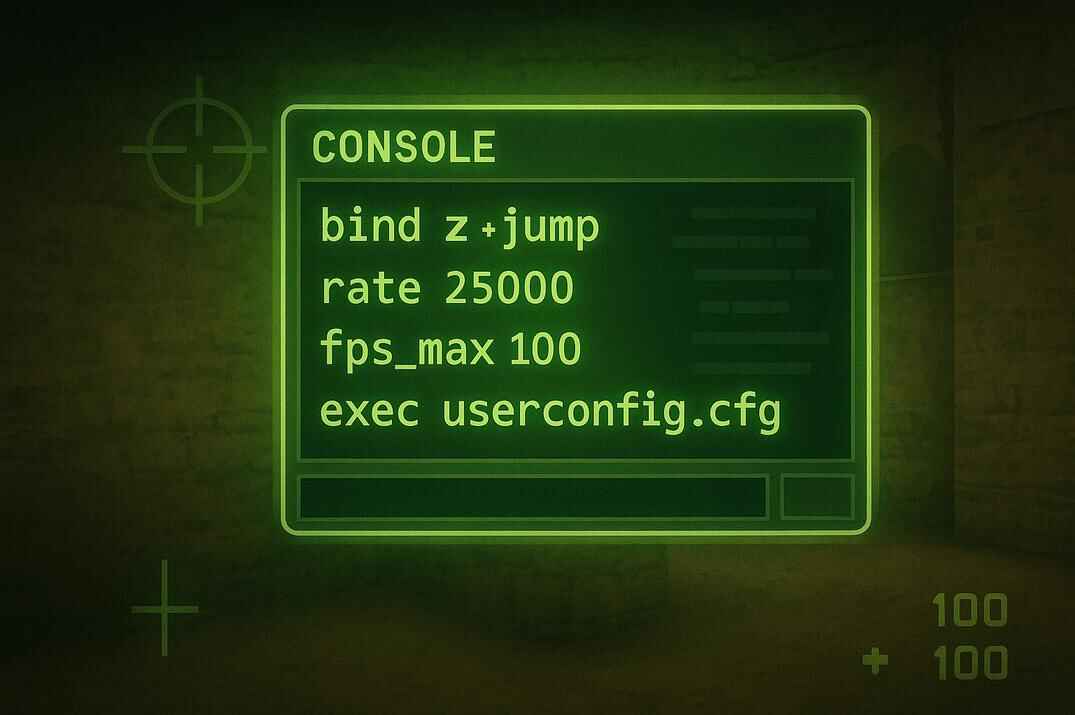
If you want your nickname to stay the same every time you launch CS 1.6 - whether it’s a normal name or an invisible one - the most reliable method is to edit your configuration files. In CS 1.6, permanent settings are stored in the userconfig.cfg file, which is located inside the \cstrike\ folder within the root directory.

The root directory is the directory where hl.exe is located. Inside it, open the \cstrike\ folder and find userconfig.cfg.
Path examplesSteam: ...\steamapps\common\Half-Life\cstrike\userconfig.cfg
Non-Steam: ...\Counter-Strike 1.6\cstrike\userconfig.cfgOpen the file with any text editor and add a line such as:
name "YourNick"Save the file and close the editor. From now on, this nickname will load automatically every time you start the game, without needing to re-enter it in the menu or console.
CS 1.6 uses a simple configuration system:
- config.cfg loads first
- then it executes userconfig.cfg if the line
exec userconfig.cfgis present (which it is by default)
For security and consistency, most players avoid editing the config.cfg file directly and set its read-only attribute. This is because the file can be overwritten by the game, servers, or third-party launchers. All personal settings - including your nickname, binds, scripts, sensitivity, and rates - should be placed in userconfig.cfg or in a separate custom .cfg file executed manually.
For a deeper explanation of how CS 1.6 config files work, see my guide: Counter-Strike 1.6 Config Guide - Commands and Optimization.
Editing userconfig.cfg is the safest and most stable way to store special characters, including invisible Unicode symbols. Unlike the game menu, config files don’t filter or sanitize hidden characters, meaning your invisible nick won’t be replaced or stripped the next time you launch CS 1.6.
How to Make an Invisible Nick in CS 1.6
To create an invisible nick, you need to insert a character that looks empty to the human eye but isn’t an actual space. These characters can be typed manually, pasted into the console, or saved in your config files. Once applied, your nickname appears blank in the scoreboard, above your model, and often in chat unless the server overrides it.
Not all methods work the same way.
- Some tricks only work on Non-Steam builds.
- Others work perfectly on both Steam and Non-Steam.
- Certain servers run plugins that block empty or hidden names altogether.
There are two main groups of reliable methods: the classic ALT+255 trick for Non-Steam, and modern Unicode characters like U+2800 and U+3164 that work on both Steam and Non-Steam. Everything else - zero-width characters, empty spaces, or trick characters - is inconsistent, blocked by servers, or simply replaced with "unnamed".
Method 1: Using the space key code (Non-Steam CS 1.6)
On Windows systems, every keyboard character has a numeric Alt-code. By holding ALT and typing a number on the numeric keypad, you can insert characters that don’t exist on the physical keyboard. One of these characters is ALT+255, a blank-looking symbol that CS 1.6 accepts as a valid nickname character.
This is the oldest invisible-nick trick in the game. The GoldSrc engine treats ALT+255 as a real printable character, but since it has no visible shape, your nickname appears empty in the scoreboard and above your player model.

How to type the ALT+255 character
- Hold ALT on your keyboard
- Type 255 on the numeric keypad
- Release ALT - an "invisible" character is inserted
- Apply it in CS 1.6:
name " "(The blank space inside the quotes is the actual ALT+255 character)
By the way, here’s a small bonus trick: the ALT+255 character isn’t just useful in CS 1.6 - you can also use it in Windows and MS-DOS to create an invisible folder name. Make a new folder, remove its default title, hold ALT, type 255, and press Enter. The folder becomes "nameless" in exactly the same way your CS nickname does.

For comparison, try renaming another folder using a regular space - Windows won’t accept it, which makes the ALT+255 trick much more interesting.
Important notes
- Works perfectly on Non-Steam CS 1.6
- Does NOT work on Steam - Steam filters this character immediately
- Some servers (especially those running AMX Mod X nickname filters) may still rename you to "unnamed"
- Some server plugins (like Restrict Names) can rename you to "unnamed" or something else.
ALT+255 is a classic trick, but because Steam blocks it and many modern servers sanitize nicknames, this method is mostly useful on older clients, LAN setups, or unmodified servers.
Method 2: Invisible Characters Unicode U+2800 and U+3164
This is the most reliable method for creating an invisible nickname in CS 1.6. Both characters - U+2800 and U+3164 - behave the same way in the game: they look completely empty, but they are valid Unicode symbols, which makes them perfect for an invisible nick.
U+2800 is a Braille blank. It has no visible glyph, yet it isn’t a standard space character, so CS 1.6 doesn’t replace it with "unnamed".
U+3164 is a Hangul Filler used in Korean text as a placeholder. It also renders as an empty space in CS 1.6.
As a result, your nickname becomes fully invisible on both Steam and Non-Steam builds. Since the GoldSrc engine doesn’t understand Unicode, it simply stores the character and fails to draw it - exactly what we need.
How to Enter the Unicode Symbol Manually
If you prefer typing the characters instead of copying them, Windows can generate them through ALT hex input - but only after enabling Unicode hex mode.
Step 1 - Enable Unicode Hex Input
- Open "regedit" and go to: HKEY_CURRENT_USER\Control Panel\Input Method
- Create a new String Value (REG_SZ) named: EnableHexNumpad and set its value to 1
- Sign out or restart Windows
This unlocks ALT + hex Unicode input.

- Hold ALT
- Type +2800 or +3164 (including the "+" sign)
- Release ALT - an invisible character is inserted
- Use it in CS 1.6 like this:
name "⠀"   // U+2800
name "ㅤ"   // U+3164
Both characters look empty in the game and work on every CS 1.6 build, including Steam. By the way, in regular Windows Notepad (but not Notepad++), you can see a slight difference in width and height when selecting these characters.

Some servers run nickname-sanitizing plugins (AMX Mod X 1.9+, Restrictnames, etc.). These plugins detect "blank" nicknames and may automatically rename you to unnamed or another default name. This limitation comes from the server, not your CS 1.6 client.
How to Fake Any Nickname in CS 1.6 (Invisible, Custom, Impossible Names)
If your goal is to record a video or take screenshots with an empty nickname (or with any custom nickname that a server normally would not allow), the easiest and most reliable method is to edit the demo file directly. This trick works outside the game and bypasses all nickname restrictions, AMX filters, and server rules.
Step-by-step method for Invisible nick.
- Start CS 1.6 with any nickname - for example: iddqd
-
Join a game and start recording a demo (
record demo_name). Press TAB whenever you want your name to appear. - Stop the recording and exit the game.
- Open the demo file (.dem) in a hex editor such as HxD.
-
Search for the ASCII bytes of your nickname.
For iddqd, the HEX representation is:
69 64 64 71 64 -
Replace those bytes with pure spaces:
20 20 20 20 20 - Save the file.
- Play the edited demo in CS 1.6.

Now, every moment where your nickname is visible in the demo - TAB scoreboard, killfeed, or camera focus - will show the modified nickname. If you replaced it with spaces, it appears completely invisible.


This method works for:
- Invisible nicknames
- Custom Unicode nicknames that CS 1.6 normally blocks
- Impossible or restricted names
It’s a powerful trick for content creators, editors, and anyone who wants full control over how their name appears in recordings.
FAQ.

Does an invisible nickname give any gameplay advantage?
No. It’s purely cosmetic. You don’t become harder to hit, harder to spot, or harder to track - only your name becomes invisible.
Is using an invisible nick allowed on all servers?
Most servers allow it, but some run plugins that block empty-looking names. In this case, the server will automatically rename you to unnamed or a preset default.
Can VAC ban me for using an invisible nickname?
No. This is not a cheat or exploit - it’s just a character the engine cannot render. VAC completely ignores nickname formatting.
Why does the scoreboard show "unnamed" after I join a server?
That means the server has a nickname filter. It doesn’t accept invisible characters and forces a replacement name. Try a different character (U+2800 or ㅤ) or a combination of them.
Can I use more than one invisible character?
Yes. Sometimes combining two characters (like U+2800 + Hangul Filler) helps bypass nickname filters on stricter servers.
Will my invisible nickname stay after restarting CS 1.6?
Only if you save it in userconfig.cfg. If you set it through the console or menu, it can be reset when the game closes.
Why can’t I paste the invisible character into the Player Name field?
Steam’s UI often blocks invisible symbols. Instead, paste it into the console or place it inside userconfig.cfg.
How do I return to a normal nickname?
Simply set any visible name through the console:
name "YourNick"
Or edit the name inside userconfig.cfg.