What is Ping and Why is It Important?

Technically, Ping is the name of a network tool (ping.exe) that sends test packets to another host and measures the reply. What the tool actually measures is Latency - the round-trip time it takes for data to travel to the server and back, expressed in milliseconds. When people in CS 1.6 say "my ping is too high", they’re really talking about latency.

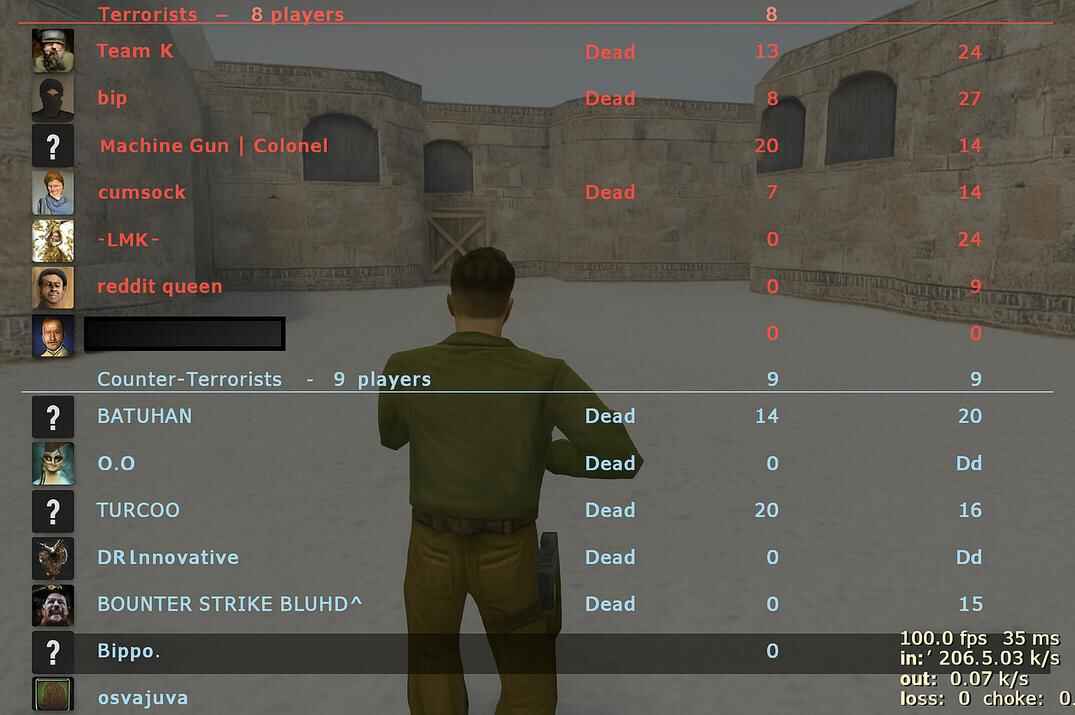
ping.exe shows latency with the google.com hostIn Counter-Strike 1.6, the scoreboard shows a column called Ping. Even though the label comes from the tool, what you’re seeing there is your latency to the game server, measured with the game’s own packets.
Why does it matter? Because latency shapes how every action feels in the game:
- Shooting: low ping makes bullets register instantly; high ping causes delays and lost trades.
- Movement: your character reacts slower and looks "rubbery" to others.
- Grenades and actions: throws, defuses, and bomb plants happen later than you expect.
- Enemy info: positions update late, so you may see an opponent a fraction of a second after he already saw you.
In game:
- 20–50 ms - smooth, crisp gameplay.
- 50–90 ms - still playable, but responses feel slightly delayed.
- 90+ ms - hit registration suffers, enemies stutter, and game feel inconsistent.
That’s why players always talk about ping: it directly decides whether the game reacts in real time or lags behind your inputs.
Causes of High Ping

When the ping climbs in Counter-Strike 1.6, it’s never random - there’s always a reason hiding in the background. The most common culprit is server distance: when connecting from Europe to a U.S. server, the packets travel halfway across the world, and every move feels delayed. Another frequent issue is a busy internet line at home. Torrents, Netflix, or even someone scrolling TikTok on the same Wi-Fi can choke the connection and push latency up.
Sometimes the blame lies with the provider itself. Bad routing or overloaded nodes along the path add extra milliseconds before the data even reaches the server. Playing on Wi-Fi makes it worse - wireless links are prone to jitter and random spikes, while a simple Ethernet cable keeps things steady. Finally, there are wrong in-game settings. If rate, cl_updaterate, or cl_cmdrate are too low, the client and server exchange fewer updates, and the game feels sluggish no matter how good the raw connection is.
High ping doesn’t appear out of thin air. It’s usually a mix of distance, network load, ISP quality, and settings inside CS 1.6. Knowing the cause is the first step to fixing it and getting back to smooth, responsive gameplay.
Common Reasons and Fixes
| Reason | Description | Solution |
|---|---|---|
| Server distance | The farther the server is from the player's location, the longer packets take to travel. | Pick a closer server; if not possible, try a stable VPN route. |
| Busy connection | Torrents, streaming, or other devices on the same network eat up bandwidth. | Close heavy apps and pause downloads before playing. |
| Weak provider routing | Bad ISP routes or overloaded nodes add extra delay. | Contact the provider, switch ISP, or experiment with VPN. |
| Wi-Fi | Wireless links cause instability and random spikes. | Use a wired Ethernet cable for a stable connection. |
| Wrong game settings | Low rate, cl_updaterate, or cl_cmdrate throttle how smoothly data flows. |
Configure rates to match server limits for better sync. |
How to Improve Your Server Connection

Lowering ping in Counter-Strike 1.6 depends on how the connection is set up. Even with a decent provider, small adjustments can cut precious milliseconds and make the game feel smoother. The key steps include choosing the right server, stabilizing the home network, optimizing DNS, checking provider routing, keeping the PC in order, and configuring the correct in-game rates.
Each factor can add or remove delay. By addressing them one by one, unnecessary spikes are minimized and ping stays consistent during play.
Choose Nearest Servers
The most effective way to lower ping is to play on servers that are geographically closer. Connecting from Europe to a U.S. server means packets travel across the ocean, creating unavoidable delay. Local servers keep latency low and the game responsive.
Configure Your Internet Connection
Wi-Fi often introduces random spikes. A wired Ethernet cable provides a stable connection. Heavy applications such as torrents or video streaming should be closed, and if the router supports QoS, Counter-Strike traffic should be prioritized.
Optimize DNS Settings for Lower Ping

Latency can be influenced by DNS resolution. Switching from an ISP’s default DNS to public options like Google (8.8.8.8, 8.8.4.4) or Cloudflare (1.1.1.1) may reduce delay and provide more reliable server connections.
How Your Internet Provider Affects Ping
Poor ISP routing or overloaded nodes add delay that cannot be fixed locally. Persistent issues identified through tracert or pathping may require contacting support, switching provider, or testing a VPN with a better route to the server.

A VPN works by creating an encrypted tunnel and letting traffic exit through another network, often with faster or cleaner routes than the default ISP path. In some cases this can cut latency dramatically. For example, while playing from North Carolina on a Canadian server, the ping averaged 50-60 ms (dropping to about 45 ms at night). By connecting through a VPN server in New York or New Jersey, the latency dropped to 25-35 ms, making the game noticeably smoother.
Fixing Ping Issues Caused by Your PC
Outdated network drivers, malware, or heavy background software can increase latency. Keeping drivers updated, disabling unnecessary programs, and maintaining a clean operating system ensures the PC itself is not adding to the ping.
Check Your Game Settings
Even with a good connection, Counter-Strike 1.6 can feel laggy if the rates are wrong. The game relies on how many packets are sent and received per second, and if those numbers are too low, it adds artificial delay. If they’re too high, but the server doesn’t allow them, the extra packets are just wasted.
Table of Rates on the Server and Client
| Setting (client) | What it does | Limited by (server) |
|---|---|---|
rate |
How many bytes per second I can receive | sv_maxrate |
cl_updaterate |
How many updates per second I want to get | sv_maxupdaterate |
cl_cmdrate |
How many updates per second I send | sv_maxcmdrate |
These limits mean the settings can’t exceed what the server allows. If the server caps updates at 60, setting 101 on the client side won’t change anything.
Configure the Rates
Client settings should be pushed to the maximum safe values:
rate 25000/100000 (Steam)
cl_updaterate 100
cl_cmdrate 100
On servers that support these caps, the game feels the most responsive. When ping is higher - 60 ms, 90 ms or more - lowering cl_updaterate and cl_cmdrate to values like 60 or 30 can help stabilize gameplay. This reduces stutter when distance makes the connection inconsistent.
Adaptive Rate Settings for Different Ping
The following values are not strict rules but practical examples. Each connection is unique, so the best approach is to test and adjust until the gameplay feels stable.
| Ping | Example settings | Reasoning |
|---|---|---|
| ≤ 30 ms | rate 25000(100000) / cl_updaterate 100 / cl_cmdrate 100 |
With low latency, the server can handle frequent updates and higher data flow, giving the most responsive feel. |
| ≈ 60 ms | rate 15000 / cl_updaterate 60 / cl_cmdrate 60 |
Fewer updates reduce the chance of desync when latency is moderate, helping maintain smoother movement and hit registration. |
| 90+ ms | rate 9999 / cl_updaterate 30 / cl_cmdrate 30 |
At high latency, the connection cannot reliably deliver 100 updates per second; lowering the rate prevents wasted packets and sudden spikes. |
These examples show how adjusting rates can sometimes make play feel smoother at different ping levels, but the real improvement comes from experimenting and finding the balance that works best on a specific server and connection.
Other Network Commands and Myths
There is another group of commands that may look like they affect ping, but in reality they don’t reduce latency. Instead, they control how the client processes and smooths out network data - how the game "fills in the gaps" and compensates for delay.
cl_interp/cl_interp_ratio/ex_interp- interpolation: smooths player movement between updates so it doesn’t look jerky. Adjusting these can change how movement feels, but it doesn’t lower real latency.cl_predict- client-side prediction; shows movement immediately without waiting for server confirmation.cl_lagcompensation- lag compensation: helps the server register hits based on where the enemy was when you fired.cl_cmdbackup- tells the client how many past commands to resend if packets were lost. It protects against packet loss, but doesn’t reduce delay.
These commands matter for gameplay feel and hit registration, but they don’t actually lower ping.
Lower Ping in CS 1.6 FAQ

Does lowering FPS affect ping in Counter-Strike 1.6?
No. FPS (frames per second) is about graphics performance, while ping is network latency. They are independent.
Why is my ping different in Windows ping.exe and in CS 1.6?
Because Windows uses ICMP packets, while the game measures latency with UDP packets. They follow different routes and priorities.
Can I really lower ping with commands like cl_interp or cl_predict?
No. These commands change how the client smooths or predicts gameplay, but they do not reduce actual latency.
Is using a VPN always good for lowering ping?
Not always. A VPN can improve routing if the ISP path is poor, but it can also add delay if the VPN path is worse. Testing is required.
Why is my ping stable during the day but lower at night?
This usually happens when the ISP’s network is congested during peak hours. At night the routes are less loaded.
What is a good ping for CS 1.6?
Anything under 50 ms is excellent. 50-90 ms is still playable, while 90+ ms can cause noticeable lag and poor hit registration.
Can Wi-Fi ever be as good as a cable?
Rarely. Even strong Wi-Fi introduces random spikes. A wired Ethernet cable is always more stable for CS 1.6.
Do server settings affect my clping?
Yes. If the server caps rates (sv_maxrate, sv_maxupdaterate, sv_maxcmdrate), your client can’t exceed those limits, no matter what values you set.