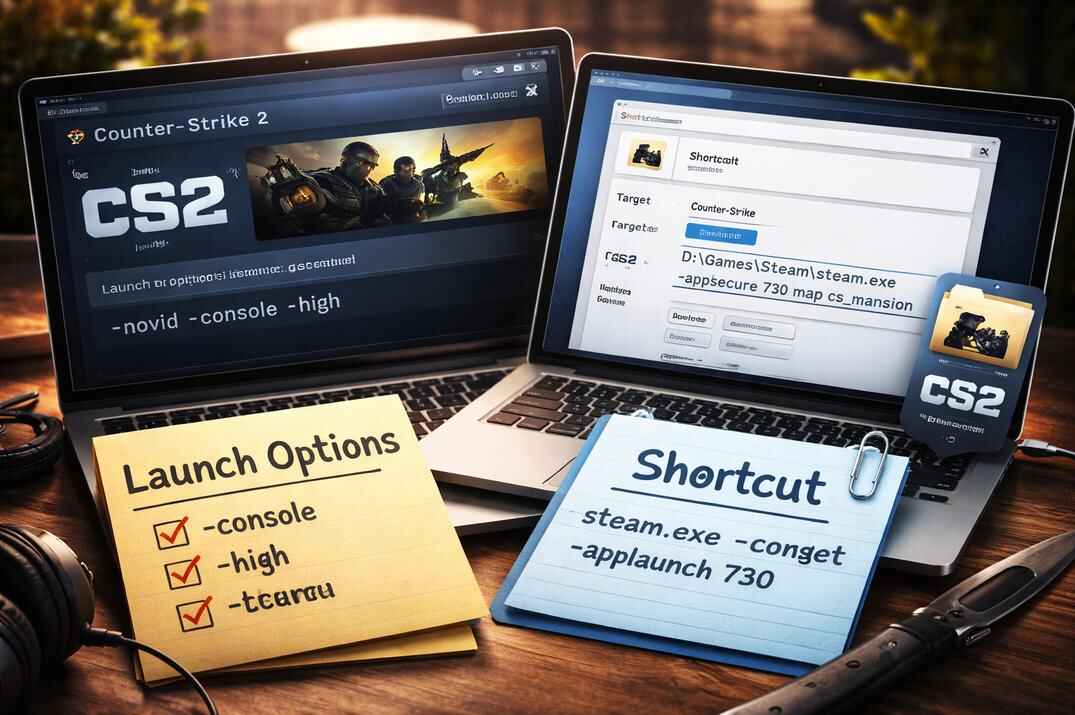
Folder with the Counter-Strike 2 server configuration files

CS2 Server Config Files: gamemode cfg, Default Values and LAN Setup

Where CS2 keeps its server configs, which gamemode file loads for each mode, default values from the game files, how to change rules safely and how to host a LAN game

Counter-Strike 2 still lets you control offline games, bot matches and local servers through cfg files. Round time, money, bots, warmup, respawns: all of it is set by mp_*, bot_* and sv_* commands in the game's gamemode files.

In this guide I show where these files are, which one CS2 loads for each mode, what's in them by default, how to change the rules without breaking anything on the next update, and how to play on a local network.

Where CS2 Server Config Files Are Stored

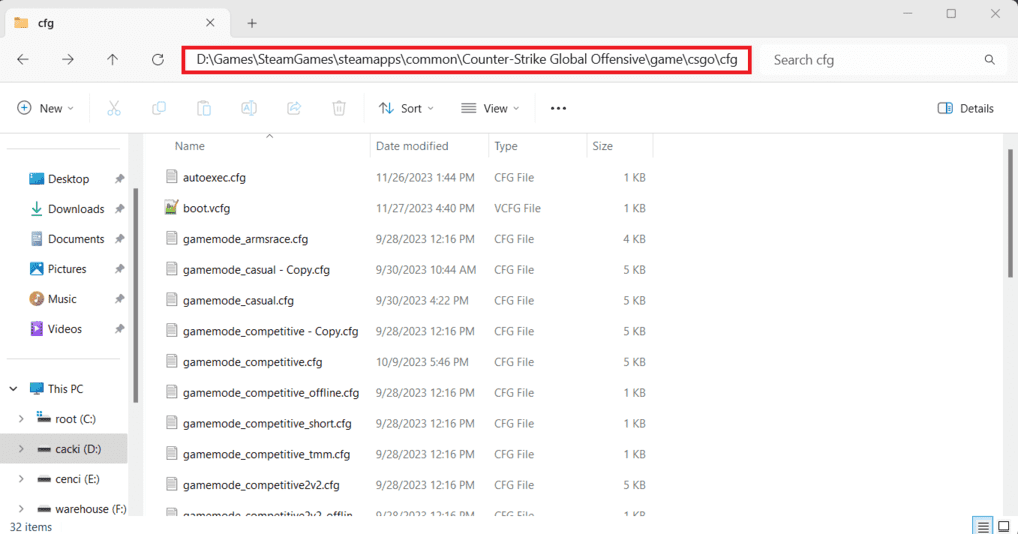
The server configs live in the game folder, not in Steam userdata like your personal settings:

...\Steam\steamapps\common\Counter-Strike Global Offensive\game\csgo\cfg\

The main files there:

File What it is
gamemode_casual.cfg, gamemode_competitive.cfg, gamemode_deathmatch.cfg and others Rules of each game mode
gamemode_competitive_offline.cfg, gamemode_competitive2v2_offline.cfg Extra lines for offline games with bots
gamemode_*_short.cfg, gamemode_*_tmm.cfg Variants for short matches and team matchmaking
server.cfg Empty by default, for your own server settings
server_default.cfg Valve's defaults, the file itself says not to put anything in it

Your own player settings (binds, crosshair, video) are somewhere else, see the config location guide.

Which Gamemode CFG CS2 Loads for Each Mode

When a map starts, CS2 runs the gamemode file of the current mode. These files set the default server rules before you change anything.

Mode File
Casual gamemode_casual.cfg
Competitive gamemode_competitive.cfg
Competitive offline with bots gamemode_competitive.cfg + gamemode_competitive_offline.cfg
Wingman gamemode_competitive2v2.cfg (+ _offline with bots)
Deathmatch gamemode_deathmatch.cfg
Arms Race gamemode_armsrace.cfg
Retakes gamemode_retakecasual.cfg
Custom / Workshop gamemode_custom.cfg, gamemode_workshop.cfg

The offline file is short: it just turns bots on, bot_quota 10 and bot_quota_mode fill, with a comment from Valve: "If you're in offline mode, you want bots."

The mode itself is set with game_type and game_mode before the map loads, for example game_type 0; game_mode 0; map de_dust2 for Casual. All values in the CS2 shortcuts guide.

CS2 also looks for a per-map config, cfg\maps\<mapname>.cfg, for example cfg\maps\de_dust2.cfg. Handy if you want special rules only on one map.

Default Server Values in CS2 Gamemode Files

Some key values straight from the current files:

Command Competitive Casual Deathmatch
mp_maxrounds 24 15 0
mp_roundtime_defuse 1.92 2.25 0
mp_freezetime 15 5 0
mp_buytime 20 45 0
mp_startmoney 800 1000 0
mp_maxmoney 16000 10000 0
mp_warmuptime 120 90 20
mp_buy_anywhere 0 0 1
sv_infinite_ammo 0 0 2
bot_difficulty 2 1 2
bot_quota 1 10 10
bot_quota_mode competitive fill fill_with_minimum
sv_deadtalk 1 0 1
sv_talk_enemy_dead 0 1 1

So if you wonder why Casual gives you 000 and 15 rounds, or why Competitive has 15 seconds of freeze time, the answer is in these files.

bot_, mp_ and sv_ Commands in CS2 Server Configs

bot_*
How many bots join, how strong they are and how they behave: bot_difficulty , bot_quota , bot_quota_mode , bot_chatter , the auto difficulty thresholds. More in the CS2 bots guide and hardest bots guide .
mp_*
The game rules, the biggest group: economy, round and buy time, freeze time, warmup, respawns, friendly fire, max rounds, team balance.
sv_*
Server behavior: voting, voice and dead talk, infinite ammo, grenade radio, LAN mode.
cash_*
Money for each action: kills by weapon, plant, defuse, hostages, team round wins.

Every command with explanations: CS2 console commands.

How to Customize CS2 Gamemode Config Files

Back up the original file before editing. Game updates and file verification can replace the gamemode files with Valve's versions.

Method 1: Edit the Default File

Open, for example, gamemode_competitive.cfg in Notepad and change the values. Quick and easy for testing. The downside: an update can overwrite it, and later it's hard to remember what you changed.

Method 2: Your Own CFG Loaded With exec
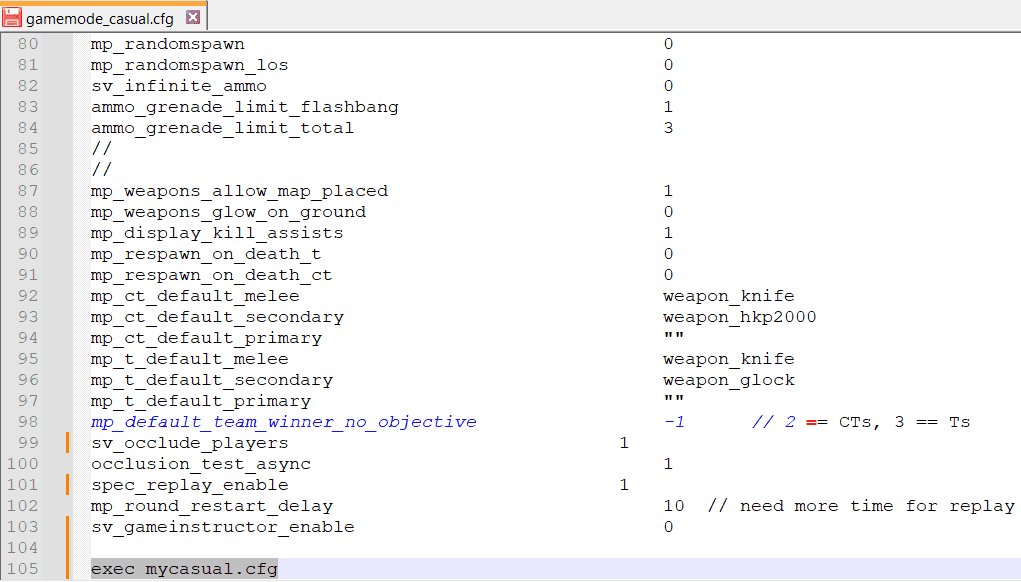
gamemode_casual.cfg loading an extra config mycasual.cfg with exec
gamemode_casual.cfg loads mycasual.cfg with exec

Cleaner: keep your changes in a separate file and add one line at the end of the gamemode file:

exec mycasual

The game loads the normal rules first and then yours on top. If an update overwrites the gamemode file, you only add the one exec line again, your settings are safe in mycasual.cfg. An example:

// my Casual rules
mp_roundtime_defuse 3        // longer rounds
mp_startmoney 16000          // full buy from round one
mp_maxmoney 16000
mp_buytime 60
mp_friendlyfire 0            // no team damage
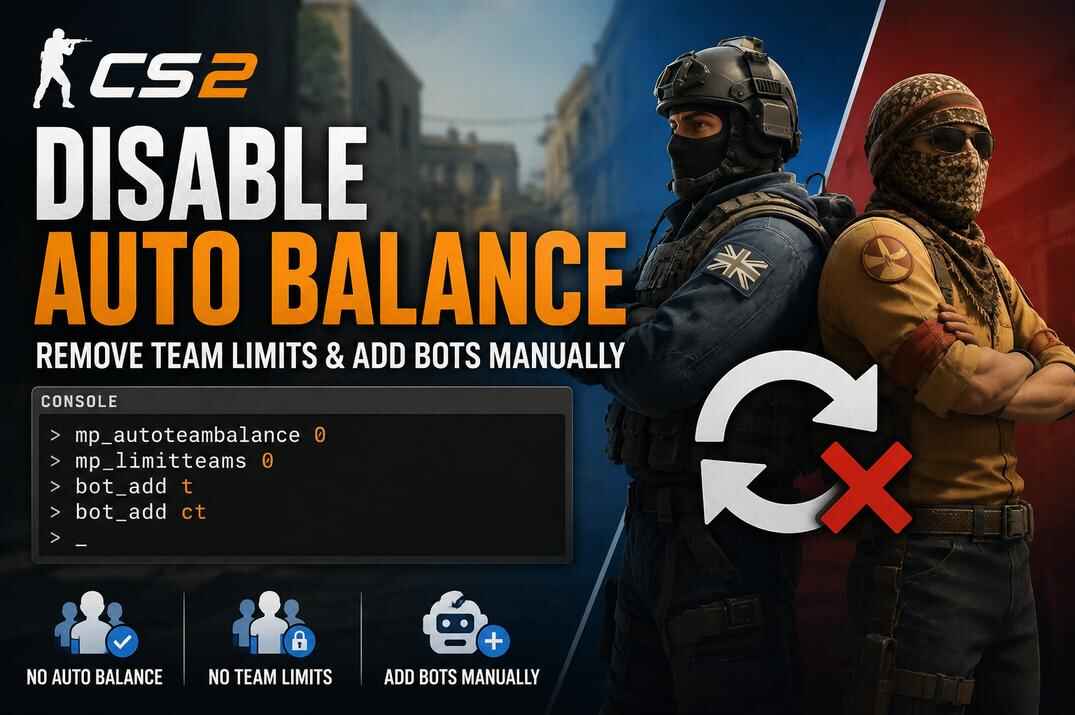
mp_autoteambalance 0         // uneven teams allowed
mp_limitteams 0
bot_difficulty 3             // Expert bots
sv_auto_adjust_bot_difficulty 0
echo "mycasual.cfg loaded"

The echo line shows in the console, so you see the file really ran.

Method 3: Run It Yourself

Don't touch the game files at all: start the map, then type exec mycasual in the console, or put it in a shortcut with +exec mycasual. Some settings only apply from the next round, so add mp_restartgame 1 at the end of the file.

How cfg files work in general: CS2 config guide. Or build one without typing in the CS2 Config Generator.

How to Host a CS2 LAN Game

To play on a local network, the host starts a map in LAN mode:

sv_lan 1
game_type 0; game_mode 1
map de_dust2

Valve describes sv_lan as a LAN server with no heartbeat and no authentication. The others join with the host's local IP and the default port 27015:

connect 192.168.1.15:27015

How to Find the Host IP

On the host PC open Command Prompt and type ipconfig. You need the IPv4 Address of the active adapter, usually something like 192.168.x.x. That's the local address, not your public internet IP. The status command in the CS2 console can show it too, but not always correctly.

If nobody can connect, allow CS2 in Windows Firewall on the host. And if you just want to play with friends over the internet, it's easier to start a private game and invite them through Steam.

Conclusion

Every CS2 mode starts from its gamemode cfg in game\csgo\cfg\, offline Competitive also adds its _offline file with bots. To change the rules, keep your settings in your own cfg and load it with exec: the defaults stay intact, and an update can't wipe your work. For a LAN game sv_lan 1, a map and connect with the host's local IP are enough.
CS2 Server Config FAQ

Where are CS2 server config files?

In ...\steamapps\common\Counter-Strike Global Offensive\game\csgo\cfg\.

What is a gamemode cfg file?

A config CS2 runs automatically for a mode, like gamemode_competitive.cfg. It sets the default bot_*, mp_* and sv_* rules.

Which file does an offline Competitive match with bots use?

gamemode_competitive.cfg plus gamemode_competitive_offline.cfg, which adds 10 bots.

Will updates overwrite my changes?

Changes in the gamemode files can be replaced by updates or file verification. Keep your settings in your own cfg and load it with exec.

How many rounds is CS2 Competitive by default?

24 (mp_maxrounds 24), with 1.92 minute rounds and 15 seconds freeze time.

How do I play CS2 on LAN?

The host runs sv_lan 1 and a map, the others type connect <host IP>:27015. Find the host IP with ipconfig.

More CS2 Guides

Leave a Reply

Your email address will not be published. Required fields are marked *