CS2 Viewmodel Generator with an AK-47 on Dust 2 and sliders for FOV and offsets

CS2 Viewmodel Generator

Move the weapon on a real game scene, compare with the pros, copy the commands

Four numbers decide where the weapon sits on your screen in Counter-Strike 2. Typing them into the console one by one and squinting at the result gets old fast, so I made a place to play with them: the weapon moves as you drag a slider, and the tool says how much of the screen it hides.

The setups of pro players are in there too, one click each. When the weapon sits where you like it, the commands are ready to copy.

Viewmodel generator
The weapon hides 0%
Drag the weapon

The four numbers

Commands for the console


Open the console with ~, paste the line, press Enter. The weapon moves at once. cl_prefer_lefthanded sets the hand you prefer, it is not a switch for the middle of a round. switchhands, switchhandsleft and switchhandsright move the weapon right away. My guide about the weapon hand has the binds.

The game keeps these numbers inside limits: FOV from 60 to 68, X from -2 to 2.5, Y and Z from -2 to 2. I typed X -2.5 and the game placed the weapon as for -2.

How to Use the CS2 Viewmodel Generator

Move, look, copy
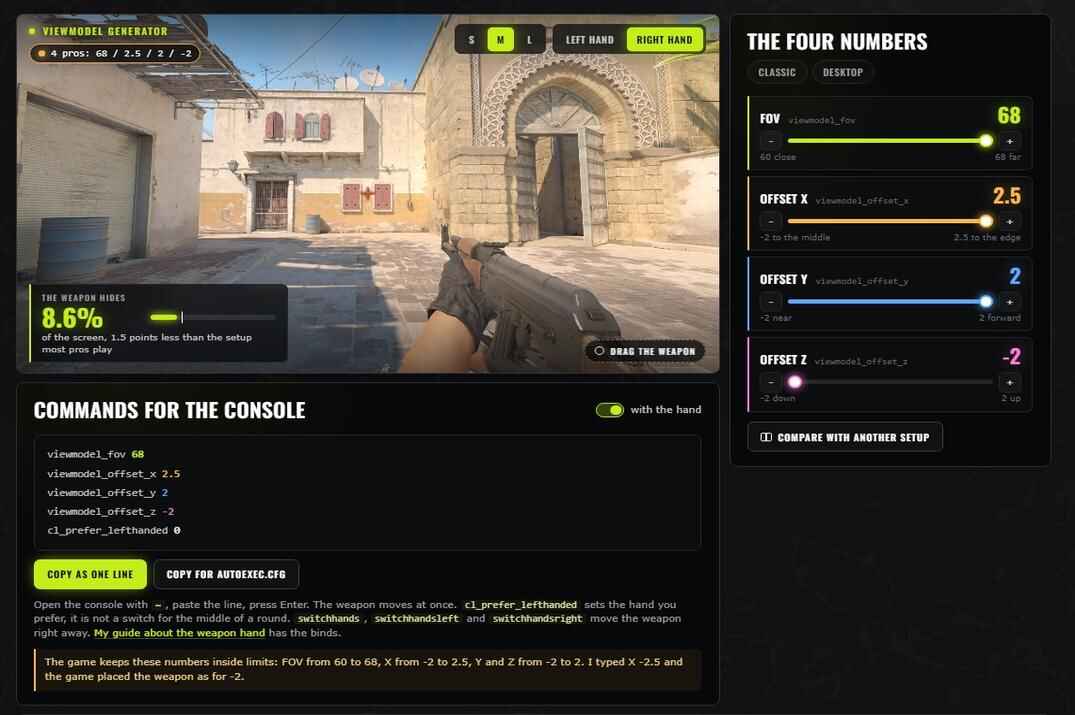
CS2 Viewmodel Generator showing an AK-47 on Dust2, adjustable FOV and weapon offsets, screen coverage percentage, and console commands
Customize your CS2 viewmodel with adjustable FOV, X/Y/Z offsets, and a realistic in-game preview
  1. Move the four sliders under the scene, or grab the weapon with the mouse and drag it. Dragging sideways changes X, dragging up and down changes Z.
  2. Watch The weapon hides in the corner of the scene. It is the share of the screen behind the weapon and your hands.
  3. Press Copy as one line.
  4. In the game open the console with ~, paste the line and press Enter. The weapon moves at once, no restart.

The page starts by itself: until you touch something, the scene walks through the most common pro setups. The first click stops the show and the weapon is yours.

Classic, Desktop
The two presets of the game. A good place to start from before fine tuning.
Compare with another setup
Puts a second setup over yours as a blue see-through ghost, so the difference is visible without switching back and forth.
Copy for autoexec.cfg
The same commands as a block for a config file, one per line.
Copy link
A link that opens this page with your setup. Handy for sending to a teammate.

CS2 Viewmodel Commands

What each of the four numbers does, and how far the game lets it go

Command From To What it does
viewmodel_fov 60 68 A zoom of the weapon. 60 brings it close and big, 68 pushes it away and makes it smaller.
viewmodel_offset_x -2 2.5 Sideways. A higher number moves the weapon away from the middle of the screen.
viewmodel_offset_y -2 2 Forward and back. A higher number pushes the weapon away from you.
viewmodel_offset_z -2 2 Up and down. A lower number drops the weapon to the bottom of the screen.

A number past the limit does not break anything, the game just stops at the edge. I typed viewmodel_offset_x -2.5 and the weapon stood exactly where it stands at -2. he FOV used to go down to 54. Since 7 May 2026 the lowest value is 60, and the old Couch preset with its 54 is gone.

Two things are worth knowing before you start moving sliders:

  • The far end barely moves. The offsets shift the stock and your hands a lot and the front sight almost not at all. That is plain perspective: what is close to the eye travels further on the screen.
  • None of this touches the game itself. Recoil, spread and the place the bullets go stay the same. Bullets fly from the middle of the screen, not from the barrel you see. The viewmodel changes only what is in your way.

So the whole job comes down to one trade. A weapon low and to the side leaves more of the screen free. A weapon close and high looks better and gets in the way. In my scene with an AK-47 the Classic preset hides 10.1% of the screen and Desktop 9.9%. The numbers change a little with the weapon.

CS2 Pro Viewmodel Settings

Most of them agree
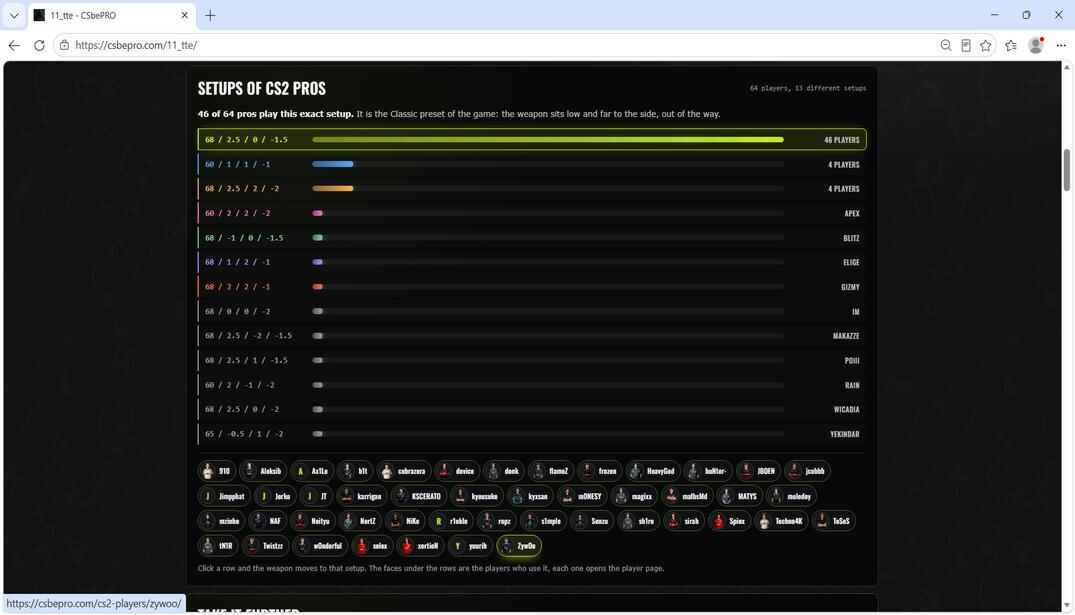
CS2 pro viewmodel settings comparison showing 64 professional players, 13 configurations, and popular FOV and weapon offset values
Every row is a setup, the bar is how many pros play it

There is no zoo of settings here: about seven out of ten players in my CS2 pro settings list play the same four numbers.

FOV / X / Y / Z Players Notes
68 / 2.5 / 0 / -1.5 Most The Classic preset. donk, ZywOo, NiKo, m0NESY, s1mple, ropz and most of the rest.
60 / 1 / 1 / -1 A few The Desktop preset. FalleN, Magisk, woxic, XANTARES.
68 / 2.5 / 2 / -2 A few Classic pushed forward and down as far as the game allows. It hides 8.6% of the screen, the least of the three.
Other setups One each apEX, bLitz, EliGE, rain, YEKINDAR and five more play numbers nobody else in the list uses.

Click a row in the tool and the weapon glides to that setup. Under the rows are the faces of the players who use it, and each face opens the player's page with the rest of the settings.

The line above the rows tells you where you stand: how many pros play your exact numbers, or, if nobody does, which setup is the closest.

A popular setup is a safe start, nothing more. If Classic still feels wrong after a week of playing, it is wrong for you, whatever the table says.

Left Hand or Right Hand

One switch on the scene, one extra line in the commands

Left hand and Right hand in the corner of the scene move the weapon to the other side. The game does the same thing: I compared screenshots, and the left hand is the right one mirrored. The four numbers keep their meaning, X still moves the weapon towards its own edge of the screen.

cl_prefer_lefthanded
The hand you prefer. 1 is left, 0 is right. It is a setting, not a switch for the middle of a round. The tool adds this line to the commands, and the with the hand switch takes it out.
switchhands, switchhandsleft, switchhandsright
Move the weapon right now: the first swaps hands, the other two put it in the named hand.
The H key
Swaps hands in the middle of a round.

The hand matters more than it seems. The weapon covers one bottom corner of the screen, and what stands behind it you do not see. That is why some players swap hands depending on the angle they hold. The binds for that, one key per hand and a hand per weapon slot, are in my guide on how to switch the weapon hand in CS2.

How Accurate Is the Viewmodel Preview?

Measured on screenshots from the game, not drawn by eye

The weapon in the scene is cut from my own screenshots: an AK-47 on Dust 2, 1920 by 1080. I took 29 of them at different settings and measured how every part of the weapon moves when one number changes. The tool repeats that movement.

Then I checked it the honest way. Two screenshots were kept out of the measuring, the tool was asked to predict them, and the weapon landed within 2 pixels of where the game put it.

Where it is less exact:

  • Z above zero. A raised weapon shows the stock and the right glove, and those I could only shoot at a hard angle. The place is right, the fine detail is softer than in the game.
  • The left hand. The position is exact, the light on the weapon in the game is a little different.
  • Other weapons. The scene has the AK-47 only. Every weapon follows the same four numbers, but a pistol or an AWP covers a different share of the screen.
  • Other screens. The scene is 16:9. On a 4:3 stretched picture the weapon looks wider.

The share of the screen under The weapon hides is counted from the picture you see: every pixel of the weapon and the hands against the whole frame. The white mark on its bar is the setup most pros play, so one glance tells whether you are above or below it.

The viewmodel is one piece of how the game feels in the hand. The other one is the mouse: my CS2 Sensitivity Converter shows your sensitivity among the same players.

Viewmodel Generator FAQ

Short answers to the questions people ask most

Is the viewmodel generator free?

Yes. No sign-up, no account, nothing to install.

What is the best viewmodel for CS2?

The one most pros play is viewmodel_fov 68, viewmodel_offset_x 2.5, viewmodel_offset_y 0, viewmodel_offset_z -1.5. About seven out of ten players in my list use it. It keeps the weapon low and to the side.

What are the viewmodel limits in CS2?

viewmodel_fov goes from 54 to 68, viewmodel_offset_x from -2 to 2.5, viewmodel_offset_y and viewmodel_offset_z from -2 to 2. A number past the limit is cut to the limit.

Does the viewmodel change recoil or accuracy?

No. Bullets fly from the middle of the screen whatever the weapon looks like. The viewmodel changes only how much of the screen the weapon covers.

How do I move the weapon to the left hand in CS2?

Press H in the game, or type switchhandsleft in the console. cl_prefer_lefthanded 1 sets the left hand as the preferred one.

How do I use the commands?

Press Copy as one line, open the console in the game with the ~ key, paste and press Enter. The weapon moves at once.

Why does viewmodel_offset_x -2.5 not work?

The game stops at -2. I typed -2.5 and the weapon stood exactly where it stands at -2. To the other side the limit is 2.5.

Is the viewmodel the same for every weapon?

The four numbers apply to every weapon at once. Each weapon has its own shape, so the same numbers cover a different share of the screen with a pistol, a rifle or an AWP.

More CS2 Tools

Other CS2 tools on this site first, then the ones for CS 1.6 and Steam.

All CS2 tools โ†’

Leave a Reply

Your email address will not be published. Required fields are marked *