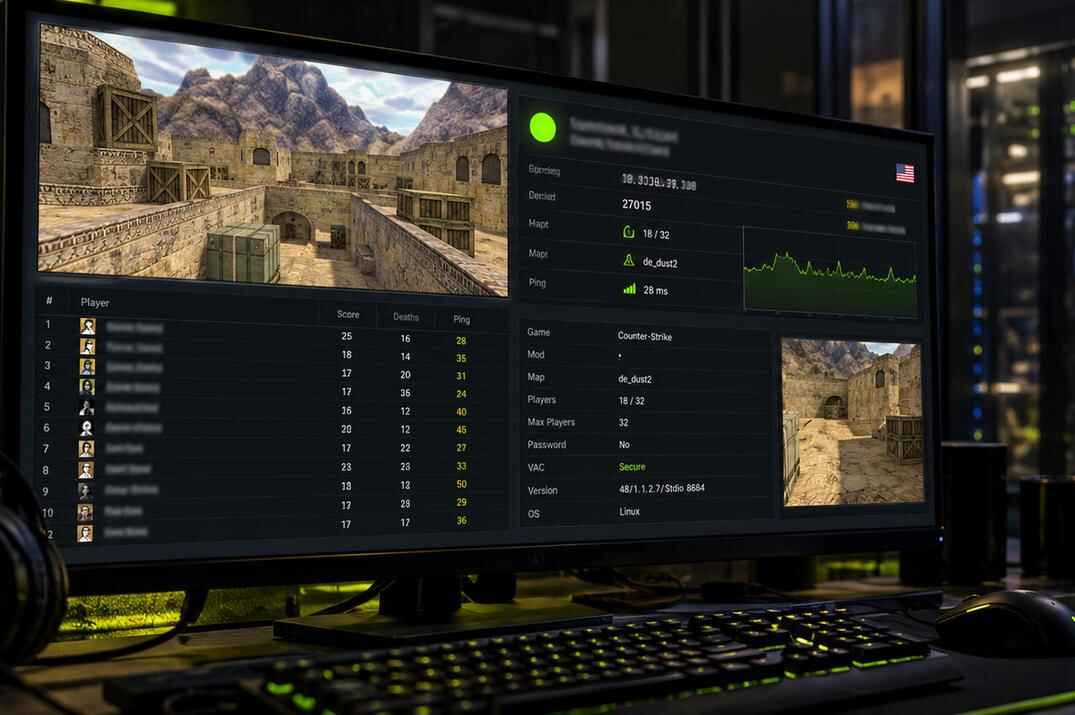
CS 1.6 server information dashboard showing Dust2 map, online players, ping, and server status

CS 1.6 Server Info

Check any Counter-Strike 1.6 server by IP: players, map, cvars and Steam listing

Enter a CS 1.6 server's IP and port to see what's happening on it. Check the current map, who's playing and how long they've been connected, public cvars, and server software such as ReHLDS, ReGameDLL, Metamod, and AMX Mod X. You can also see if the server is listed on Steam.

Any port from 27000 to 27030 works, so the second and third server on the same machine - 27016, 27017 and so on - can be checked too.

IP:port or a host name. No port - 27015 is used. A pasted connect 1.2.3.4:27015 works too.

Try my servers

What the Server Checker Shows

Every block of the result, top to bottom

Everything comes from the server itself when you press Check. If someone checked the same server a moment ago, you get that answer, but it is never older than 20 seconds. There is no stored list behind it, so a map change or a half-empty server shows up straight away. Only two things come from outside: the country (DB-IP) and the Steam listing (Steam's own API).
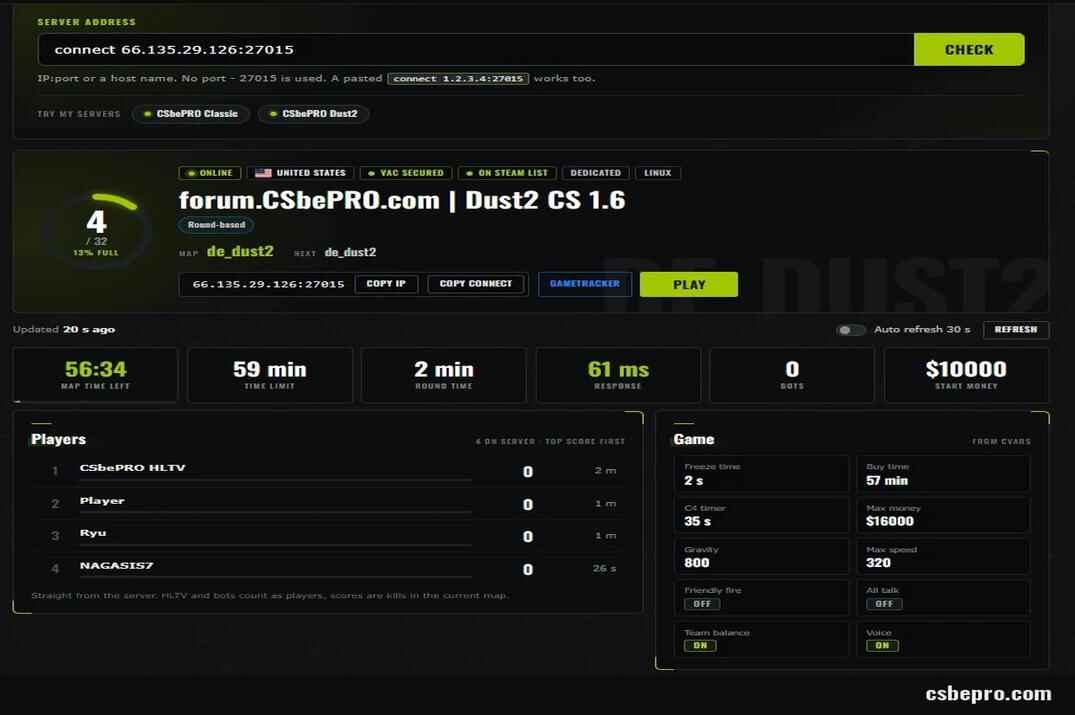
CS 1.6 Server Checker showing live server status, player list, map, ping, game settings, and connection details
My Dust2 server checked with the tool: card, tiles, players and game settings
Server card
Status, country, VAC, whether Steam lists the server, server type and OS. Under them - the name, mode tags like All talk or Respawn after 3 s, the current and next map. Copy IP copies the address, Copy connect copies a ready console line, Play starts CS 1.6 through Steam and joins. GameTracker opens the same server there.
Tiles
Map time left, time limit, round time, bots and start money. Response is how long the server took to answer my server in New York, so it is not your ping. A server next door to you can still show a high number here.
Players
Name, score and time on the server, top score first. HLTV and bots count as players, and the score is frags on the current map, exactly as the server reports it.
Game
Freeze time, buy time, C4 timer, money cap, gravity, friendly fire, all talk and so on. Hover over a tile and you see the cvar behind it and what it does.
Network
The server's rate caps (sv_maxrate, sv_minrate), whether it takes custom sprays and how big they can be. These caps decide how far your own rate can actually go - more on that in Cvars Worth Knowing.
Software
Engine build plus the add-ons the server reports through *_version cvars: ReGameDLL, Metamod, AMX Mod X, Reunion, ReVoice, ReSemiclip. Anything else with a version cvar goes into the plugins list.
Details
Game folder, version, protocol, password, country and the server's entry in the Steam master list. If the same IP also runs an HLTV relay or other game servers, they are listed here with their ports. If you have an HLTV recording from that server, the CS 1.6 Demo Analyzer can turn the .dem file into match statistics, player IDs, a kill feed and a 2D replay.
All cvars
Every cvar the server makes public, with a short description. Values changed from the default are marked and show the default next to them. A switch hides the rest, and a filter searches names, values and descriptions.
Banner
A PNG with the server's live status for a site or a forum signature, in two sizes, with HTML and BBCode ready to copy. See Banners for Your Server.

After a check the address bar changes to ?server=IP:port. Copy the page link and send it to a friend or drop it in Discord - it opens straight on that server. Auto refresh repeats the check every 30 seconds while the tab is open.

Finding a Server's IP

Where to find the address and how to connect with it

The tool needs an IP and a port. Most owners post them on their site, forum or Discord. If they don't, the game itself will tell you, as long as you have played there once.

How to Find the IP of a CS 1.6 Server

  • While you are on the server. Open the console and type status. The tcp/ip line has the address and the port, for example 66.135.29.126:27015.
  • Steam server browser. In Steam go to View โ†’ Game Servers, open the History or Favorites tab, right-click the server and choose View server info. The address is at the top of the window.
  • In-game browser. Find Servers in the CS 1.6 menu has the same tabs and the same View server info on right-click.
  • A host name instead of an IP. If the owner gives you something like cs.example.com, paste it as it is - the tool looks up the IP itself. No port means 27015.

Most servers sit on port 27015. When one machine runs several servers, each gets its own port - usually 27016, 27017 and up. The tool checks any port from 27000 to 27030.

How to Connect to a CS 1.6 Server by IP

  • Console. Type connect 66.135.29.126:27015 and press Enter. Copy connect in the result gives you this line ready to paste.
  • Password. If Details says the server has a password, type password "yourpass" first, then connect.
  • Favorites. In the Favorites tab press Add a Server and type IP:port. The server stays there and you can see its map and players without joining.
  • Steam link. steam://connect/66.135.29.126:27015 starts the game and joins in one go. The Play button in the result does exactly this.

If the game keeps throwing you onto the same server at launch, look for a +connect in Steam launch options or a connect line in config.cfg - here is how to clean that up.

Why a Server Shows Offline

No answer doesn't always mean the server is down

"Offline" here means one thing: the server didn't answer within 2 seconds. The tool doesn't know why, it only knows the reply never came. An offline result is kept for 10 seconds, so pressing Check again straight away shows the same thing - give it a moment.

Down or restarting
The server crashed, is being restarted or is in the middle of a map change. Wait a minute and press Refresh.
Wrong port
The server may be running on a different port, and nothing answers on the one you entered. The tool checks ports 27000 to 27030 - for a port outside that range it tells you the port isn't supported.
Site name, not server
A community's domain often points to their web hosting or Cloudflare, not to the machine the game runs on. Such a name gives "offline" every time. Take the real IP from status in the game console - see Finding a Server's IP.
Query limit
ReHLDS answers only so many queries from one IP: max_queries_sec, 3 per second by default, averaged over max_queries_window (60 seconds). All checks come from my own two servers, so a server with a tight limit may skip some of them.
Filtered traffic
Some hosting companies filter UDP as DDoS protection, and query packets can get caught in it. The server then answers one network and stays silent for another.
Local address
Addresses like 192.168.x.x, 10.x.x.x or 127.0.0.1 belong to a home or office network. Nobody outside can reach them, so the tool doesn't even try.

If It's Your Server

  • Check that the server is running on the correct address and port. Use +port 27015. If the machine has multiple IPs, use +ip with an address assigned to it.
  • Open UDP 27015 for incoming traffic. With ufw that is sudo ufw allow 27015/udp.
  • On ReHLDS, don't set max_queries_sec too low - server browsers and monitoring sites query you all the time.
  • Try to connect from another network, a phone hotspot is enough. If you get in there and the tool still says offline, the problem is between the server and the outside world, not in the game.

Setting up a server from scratch is in my guide to installing a CS 1.6 dedicated server on Linux.

Not in the Steam List

How a server gets into the in-game browser and why it sometimes doesn't

On start the server logs into Steam and keeps telling the master server it is alive. The browser gets the list of addresses from the master server and then asks each server itself for its name, map and players. So two things have to work: Steam has to know the server, and the server has to answer players' queries.

What the Steam Badge Means

On Steam list
Steam has this IP:port in its list. Details also says VAC secure if Steam marks the server that way.
Not on Steam list
Steam has nothing on this port at this IP. Players can still join by IP or through Favorites, but nobody finds the server by browsing.
Steam: reason
Steam knows the server but rejects it. The reason is shown the way Steam gives it.
No badge
Steam didn't answer my request this time. Check again in a minute.

Steam's answer for an IP is kept for 10 minutes. If you just fixed something on your server, the badge catches up after that.

Why a Server Is Not Listed

  • sv_lan 1. In LAN mode the server starts in Steam's "no authentication" mode, and the Steam SDK's own comment on it reads "don't list on the server list". On a dedicated server the default is 0. A server started from the game menu (New Game) defaults to 1.
  • -nomaster in the launch line. The console then says Master server communication disabled. and the server never reports to Steam. setmaster disable can also stop master server updates. Check your server config for this command. Remove it and restart the server.
  • No connection to Steam. After start the console should print Connection to Steam servers successful. If it doesn't (and sv_lan is 0), the server can't reach Steam - check its outgoing traffic.
  • One slot. With +maxplayers 1 the server doesn't send heartbeats at all.

-insecure turns VAC off but doesn't hide the server - it stays listed, and the tool shows a No VAC badge.

Listed, but Players Still Don't See It

If the tool says On Steam list and the server is still missing from someone's browser, the problem is on the second half of the chain:

Spotting Fake Servers

What the result can tell you before you connect

Redirect servers, made-up player counts, spam names - the CS 1.6 browser is full of them. The tool won't call a server fake, but a few lines of the result give most of them away.

Sign Where to look
More than 32 slots, like 45/64 or 255/255. CS 1.6 can't hold more than 32 players. The ring in the server card
The ring says 28 players, the list shows 3 or none at all. Ring vs Players header ("N on server")
Name says Germany, the IP is on another continent. Country badge and Location in Details
Dozens of servers at one IP with names that have nothing to do with each other. Other game servers at this IP in Details
Name, map or player count jump every time you look. Refresh a few times, or turn on Auto refresh
You found it in a non-Steam build's browser and Steam has never heard of it. Not on Steam list badge

For a larger picture, check CS 1.6 Steam Server Stats. It scans the entire Steam server list every 10 minutes, filters suspicious servers and shows estimated real player counts, server rankings and activity history.

Bots on their own are fine - plenty of honest servers fill empty slots with them, and the Bots tile shows how many. The trouble is fake clients that pass themselves off as players.

What the tool can't see: where the server sends you after you connect. A redirect happens inside the game, and the server's reply can lie about its players too. Once you're in, type status and compare the tcp/ip line with the address you checked.

Blocking fakes with the Windows firewall, protecting your config from server commands and finding servers with real players are all in my guide How to Spot and Block Fake Servers in CS 1.6.

Cvars Worth Knowing

The settings people ask about most, with defaults from the source code

A server doesn't send all its settings, only the cvars marked public. That's why the list in All cvars differs from server to server, and why some well-known settings never show up there. The defaults below come straight from the ReHLDS and ReGameDLL source code, the same ones the tool uses to mark a value as changed. Most servers override a good part of them in server.cfg.

Rates: What the Server Decides for You

Your rate doesn't work on its own. If it's above the server's sv_maxrate, the server cuts it down to that value. If it's below sv_minrate, it gets raised. A value of 0 disables the corresponding server limit. Both cvars are public, so you see them in the Network block.

sv_maxupdaterate caps your cl_updaterate the same way, but the server doesn't make it public, so no outside tool can see it. The default in the ReHLDS source is 30, and most owners raise it. If net_graph shows fewer updates than you asked for, this cap is one of the first suspects.

Curious what rates other players really use? Open any CS 1.6 demo in a text editor and search for cl_updaterate. On servers that share these settings, you'll find lines like \cl_lw\1\cl_updaterate\100\rate\100000\name\... - the server passes them to everyone on it, and the demo keeps them. In one of my demos, players on the same server had rate from 25000 to 100000 and cl_updaterate from 10 to 101.
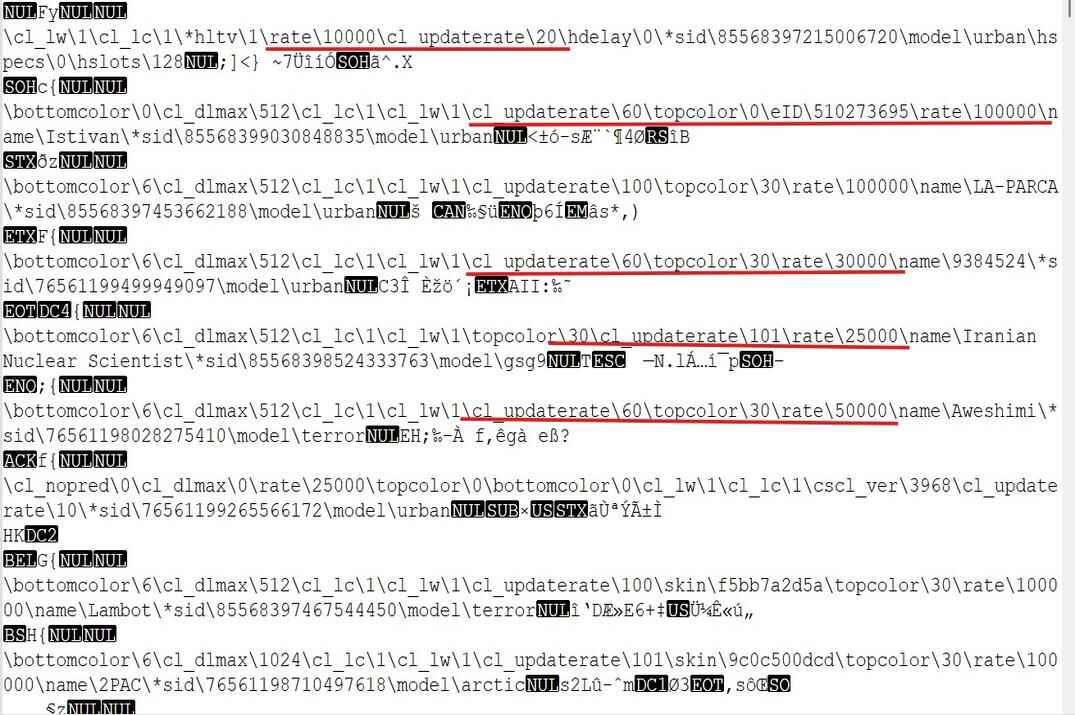
CS 1.6 demo file showing player names and network settings, including rate, cl_updaterate, and other client configuration values
Player names and client network settings extracted from a Counter-Strike 1.6 .dem file

Two catches. These are the values the player typed, before the server's caps - rate 100000 on a server with sv_maxrate 25000 still works as 25000. And cl_cmdrate and ex_interp aren't in these lines at all. On ReHLDS the owner can also trim the list with sv_rehlds_userinfo_transmitted_fields, and then the demo shows only what is allowed.

What to do with your own rates is covered in ex_interp settings, net_graph explained and how to lower ping.

Server Cvars and Their Defaults

Cvar What it does Default Source
sv_maxrate Most data the server sends to one player, in bytes per second. 0 - no cap. 0 ReHLDS
sv_minrate Lowest data rate a player is allowed to use, in bytes per second. 0 - no floor. 0 ReHLDS
sv_allowupload Whether players can upload their own sprays and logos to the server. 0 - no, 1 - yes. 1 ReHLDS
sv_uploadmax Biggest file a player can upload, in megabytes. 0.5 ReHLDS
mp_timelimit Minutes before the map changes. 0 - no time limit. 0 ReGameDLL
mp_roundtime Length of one round, in minutes. 5 ReGameDLL
mp_freezetime Seconds at the start of a round when players can't move. 6 ReGameDLL
mp_buytime How long buying is allowed after the round starts, in minutes. -1 - no limit, 0 - buying is off. 1.5 ReGameDLL
mp_c4timer Seconds from planting the bomb until it explodes. 45 ReGameDLL
mp_startmoney Money each player gets when joining a team. 800 ReGameDLL
mp_maxmoney Most money a player can hold. 16000 ReGameDLL
mp_friendlyfire Whether bullets and grenades hurt teammates. 0 - off, 1 - on. 0 ReGameDLL
sv_alltalk Who hears whom on voice chat. 0 - dead players hear living teammates, but not the other way around. 1 - everyone hears everyone. 2 to 5 - other team and spectator modes. 0 ReGameDLL
mp_autoteambalance Moves players between teams to keep them even. 0 - off, 1 - after the next round, 2 - on the next round. 1 ReGameDLL
sv_gravity World gravity. 800 is normal, lower means higher jumps. 800 ReHLDS

The tool has descriptions for 141 cvars - open All cvars in any result and they are right next to each value. The descriptions and defaults are free to reuse under CC BY 4.0 with a link back to this page.

Banners for Your Server

A live picture of your server for a site, a forum post or a signature

If you run a server, the tool will draw a banner for it. It's a plain PNG with the live player count, map and status, so it works anywhere a picture works - a clan site, a forum thread, a signature. The picture is redrawn at most once every 150 seconds, so it stays fresh without hammering your server.

Live banner of the CSbePRO Dust2 CS 1.6 server
My Dust2 server's banner. Not a screenshot - it's drawn live, same as yours will be.

Two Sizes

560 x 95
For a site or a forum post. Player ring, server name, status, country, map, address, VAC and the time of the last check in UTC.
350 x 20
A one-line strip for a forum signature: name, players and address.

How to Get the Code

  1. Check your server with the tool at the top of this page.
  2. Scroll down to Banner for your site or forum and pick the size.
  3. Copy HTML for a website or BBCode for a forum and paste it where you want the banner. Direct link to the picture is there for anything else.

The banner links back to this page with your server already filled in, so a click opens its full info. When the server is down, the banner says so instead of showing old numbers.

Some forums only accept picture links that end in .png. If yours refuses the BBCode, tell me on the forum and I'll look into it.

Limits

What the tool can't do yet and why

Ports 27000-27030
That's where CS 1.6 game servers and HLTV almost always sit. Other ports are not queried, the tool shows a short note instead.
IPv4 only
CS 1.6 doesn't speak IPv6 anyway. A host name has to point to an IPv4 address.
20 checks a minute
Per visitor, and 300 a minute for the whole site. Answers that come from the 20-second cache don't count. If you hit the limit, the tool tells you how many seconds to wait.
Not quite live
A server's answer is reused for up to 20 seconds, "offline" for 10, Steam's listing for 10 minutes. The country database is refreshed once a month.
No local servers
Home and office addresses (192.168.x.x, 10.x.x.x and the like) and ports below 1024 are refused.

The tool keeps no history of who checked what. The Recent row - your last 5 servers - lives in your own browser, and clear wipes it.

CS 1.6 Server Info FAQ

Short answers to the questions people ask most

A glowing FAQ sign on a futuristic holographic panel surrounded by floating question marks
Is CS 1.6 Server Info free?

Yes. No sign-up, no account, no limit on how many servers you look at - apart from 20 checks a minute.

What port does CS 1.6 use?

27015 by default for the game server, set with +port in the launch line. HLTV uses 27020 by default. Both numbers come from the ReHLDS source code.

Which ports can I check?

Any port from 27000 to 27030 - game servers and HLTV. A server on another port gets a short note instead of a result. More in Limits.

Why isn't my server in the Steam server list?

The usual causes are sv_lan 1, -nomaster in the launch line or no connection to Steam. The full list is in Not in the Steam List.

Why is the response time different from my ping?

It's measured from my server in New York, not from your PC. Your own ping depends on where you are - see how to lower ping in CS 1.6.

Can I see a server's sv_maxupdaterate?

No. The server doesn't make it public, so no outside tool can read it. sv_maxrate and sv_minrate are public and show up in the Network block.

What is the HLTV relay in Details?

An HLTV proxy on the same IP. It relays the game to spectators and records demos. Copy its address and connect to it from the console to watch.

Can I use the cvar descriptions on my own site?

Yes, under CC BY 4.0 with a link back to this page. Country data is by DB-IP, also CC BY 4.0.

Leave a Reply

Your email address will not be published. Required fields are marked *