Reset CS2 Settings In Game
This is the easiest way to reset basic CS2 settings without touching config files. It works well if you only want to restore options such as key binds, mouse sensitivity, crosshair settings, video options, and other in-game preferences. It does not affect deeper configuration files, so it is a safe method for a quick reset.
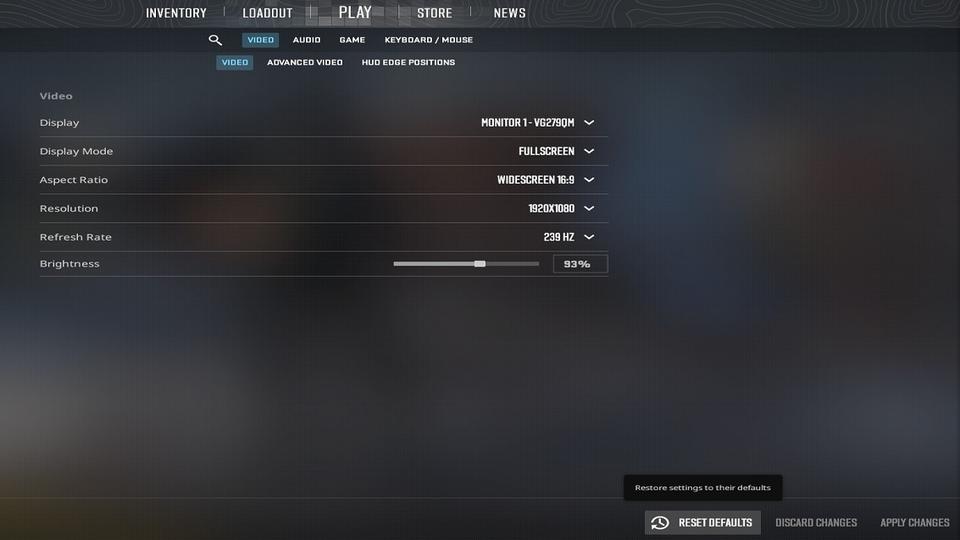
- Launch CS2
- Open the Settings menu (gear icon in the top left)
- Go through each tab, such as Video, Audio, and Keyboard/Mouse
- Click the Reset to Default button in each tab (bottom-right corner)
Reset CS2 Config via Console Commands
This method is similar to the in-game reset, but it uses the developer console instead of the settings menu. Unlike older Counter-Strike versions such as CS 1.6 or CS:GO, Counter-Strike 2 does not provide a simple built-in default config file that you can restore directly. In CS2, many default settings are stored inside the game files (.vpk), while active config files are generated automatically when the game is launched.
If you want to restore default settings through the console, you can create your own .cfg file with default commands and run it manually. You can write the commands yourself or use a pre-made file.
Create a Default CS2 Config File
Locate your CS2 config folder:
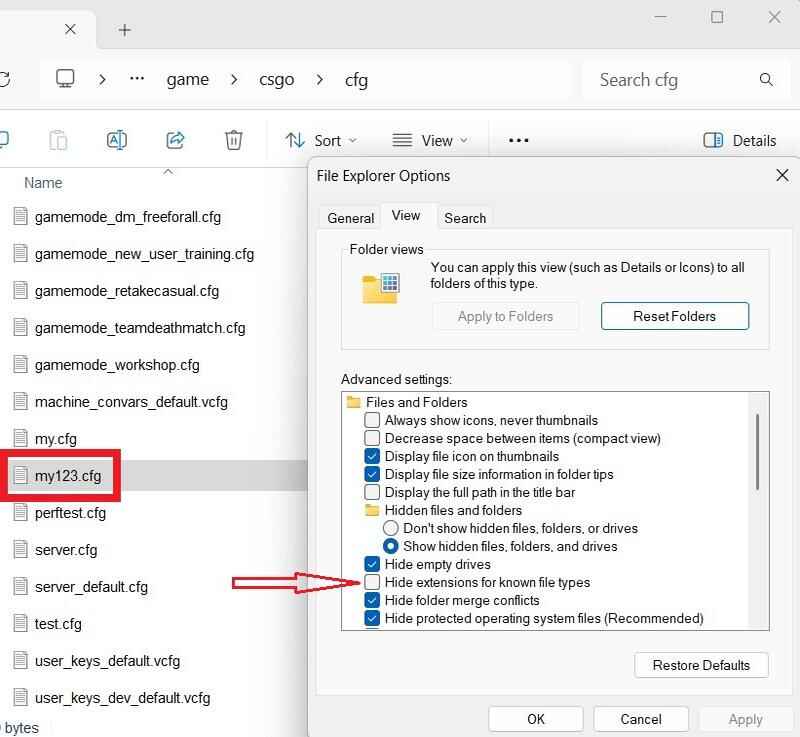
..\steamapps\common\Counter-Strike Global Offensive\game\csgo\cfg\Create a new text file in that folder. You can use letters, numbers, dashes, or underscores in the file name, example: my123.txt. Change the file extension from .txt to .cfg.
To show file extensions in Windows: Open Control Panel -> File Explorer Options -> View tab, then uncheck Hide extensions for known file types box.
Your final file should look like this: my123.cfg. Open the file in any text editor, such as Notepad, and add the default commands from the Google Drive link.
- Launch CS2
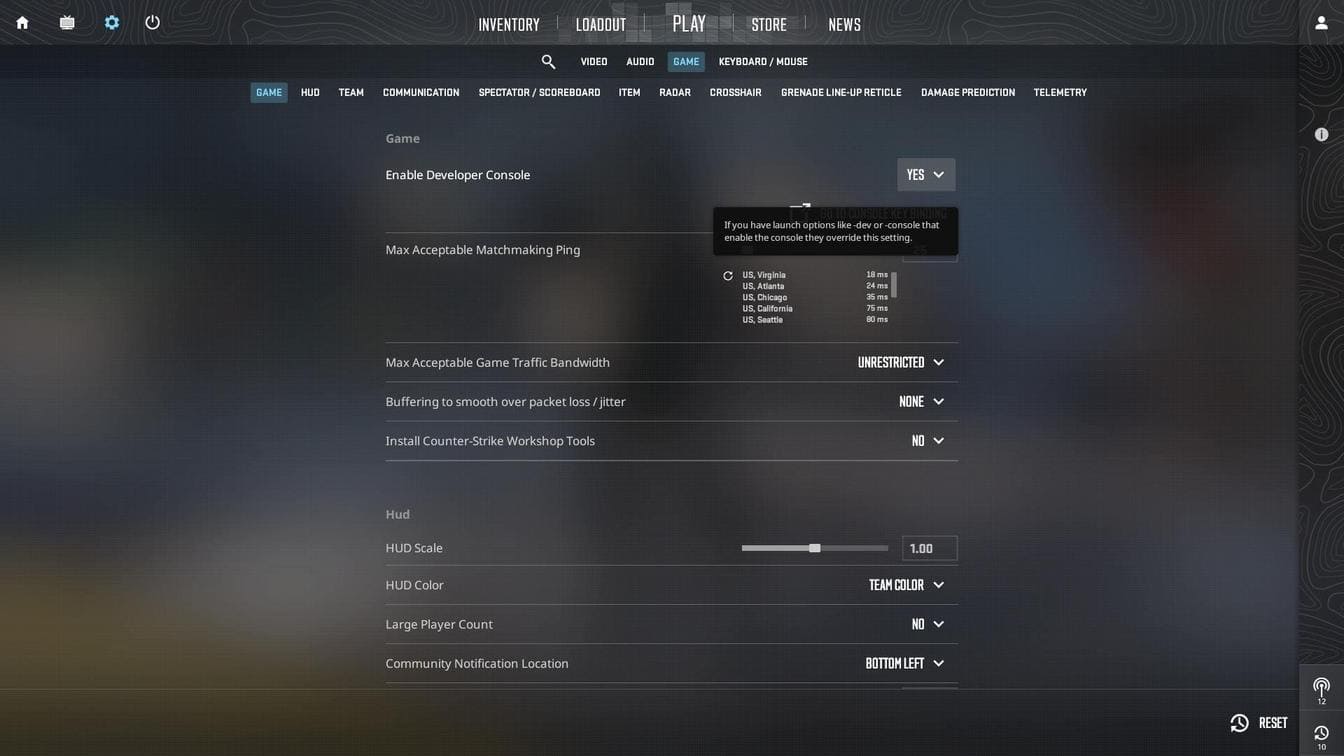
- Go to Settings -> Game and set Enable Developer Console to Yes.
- Press the ~ key to open the console and run the following commands:
exec my123
host_writeconfig
This will load the default settings from your file and save them as your new active configuration.
Delete Active CS2 Config Files
For a full reset of key binds, crosshair settings, video options, and other stored preferences, this is usually the most effective method. Unlike some games, CS2 keeps active user configuration files in the Steam userdata folder rather than only in the main game directory.
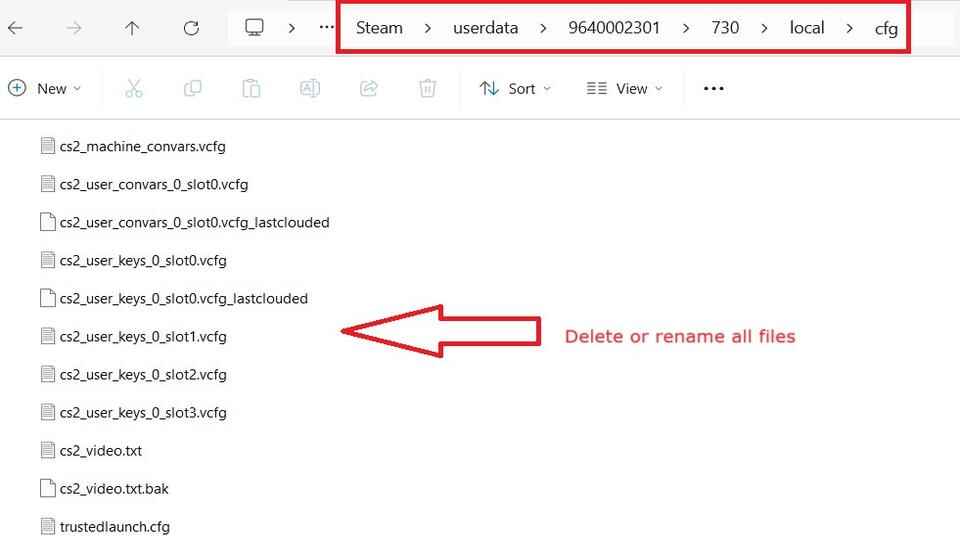
- Go to the CS2 user config folder:
..\Steam\userdata\YourSteamID3\730\local\cfg\ - Open that folder and delete or rename these files: cs2_machine_convars.vcfg, cs2_user_convars_0_slot0.vcfg, and cs2_user_keys_0_slot0.vcfg.
- Launch CS2 and check the result.
If that does not fully reset everything, go one step further and delete or, preferably, rename the entire folder, example:
..\Steam\userdata\9640002301\to
..\Steam\userdata\1_9640002301\This acts as a full wipe of local CS2 user data. When you launch the game again, CS2 will create a fresh user data profile (9640002301) and generate new configuration files.
Your CS2 settings should now be back to default. If problems still remain, continue with the next steps: verify the game files, check Steam, and rule out system-level issues.
Steam Cloud Can Restore Old CS2 Settings
You can delete local config files, launch Counter-Strike 2, and still see your old settings come back because Steam syncs them again from the cloud. Steam supports per-game Steam Cloud storage, and community reset guides for CS2 specifically recommend disabling it before deleting the ..\userdata\account\730\ files, then launching the game once and choosing the local version if a cloud conflict appears.

To get a cleaner reset:
- Close CS2 and open Steam.
- Right-click Counter-Strike 2 and open the Properties tab.
- Click the Manage Cloud Settings button and disable the Enable Steam Cloud switch.
After that, delete the active CS2 user config files, launch the game once so it creates fresh local files, then close it. When you turn Steam Cloud back on, Steam may show a file conflict. In that case, choose the new local files if your goal is to keep the reset instead of restoring the older cloud version.
Verify Counter-Strike 2 Game Files
For major problems such as launch failures, crashes to desktop, texture issues, or unusual FPS drops and spikes, verifying the Counter-Strike 2 game files is one of the most reliable fixes.
This process allows Steam to scan the game files and compare them with the current official version. If any files are missing, damaged, or outdated, Steam will automatically download clean replacements.
Important! Back up any custom files in your game folder, such as configs, custom maps, or other personal files, before running the verification. During this process, Steam may remove files that are not part of the official installation.

- Open Steam and go to your Library.
- Right-click Counter-Strike 2 and select Properties.
- Open the Installed Files tab.
- Click Verify integrity of game files button.
Steam will scan the installation and re-download any missing or corrupted files.
Reinstall Steam or Use System-Level Fixes
If the problem still remains after all reset methods, the cause may be outside CS2 itself. In that case, reinstalling Steam is worth trying, especially if the issue is related to damaged Steam files, broken sync data, or account-level problems. Restarting your PC can also help, since Steam depends on Windows services and background components to work correctly.
System Maintenance Tips for Persistent CS2 Settings Issues
Keep Windows and your GPU drivers up to date. Make sure your operating system is fully updated, and download the latest graphics drivers directly from official sources such as NVIDIA, AMD, or Intel.

dism /online /cleanup-image /restorehealth
sfc /scannow
Run both commands in Command Prompt (CMD) or PowerShell as Administrator.
Tip:SFCuses the Windows component store to replace corrupted system files. Because of that, it is better to runDISMfirst to repair the component store, and then runSFCto complete the file check and repair process.
CS2 Reset FAQ

Can I reset CS2 settings without deleting config files?
Yes. The easiest way is to use the in-game reset buttons in the Settings menu.
Will resetting CS2 settings delete my binds and crosshair?
It can, depending on the method. An in-game reset usually restores settings inside each menu tab, while deleting active config files can remove binds, crosshair settings, and other saved preferences completely.
Where are CS2 config files stored?
The active user config files are usually stored in your Steam userdata folder, not in the main game directory. A path is: ..\Steam\userdata\YourSteamID3\730\local\cfg\
Why do my CS2 settings keep coming back after I delete them?
In some cases, Steam Cloud may restore older settings after launch. If deleted binds or config changes return, check whether Steam Cloud sync is bringing the old files back.
Do I need to reinstall CS2 or Steam to reset everything?
Not usually. Most problems can be fixed through the in-game reset, console commands, config deletion, or file verification. Reinstalling Steam or using system-level fixes is only worth trying when the normal reset methods do not solve the problem.