CS2 Crosshair Guide 2026: Best Settings, Codes, Commands & Pro Crosshairs

Table of Contents

Inroduction

A good CS2 crosshair does more than change the way your screen looks. It affects how clearly you see head level, how comfortable spray control feels, and how quickly your eyes lock onto targets during gameplay. A lot of players start by searching for the best CS2 crosshair settings, but the right setup usually comes from understanding how size, gap, thickness, color, and behavior work together.

In this guide, I explain how Counter-Strike 2 crosshair settings actually work in practice and how to use crosshair codes and crosshair commands. The article also includes ready-to-use presets, examples of pro player crosshair codes, and a custom setup script that makes it easier to test and fine-tune your crosshair.

If you're interested in how crosshair settings worked in the classic version of the game, you can also check my CS 1.6 Crosshair Guide - Best Settings & Colors.

Why Crosshair Settings Matter in CS2

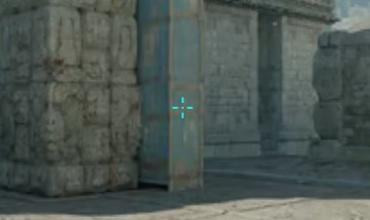
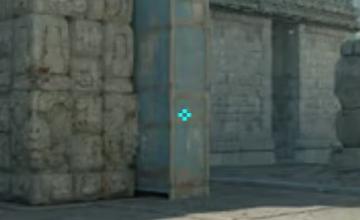
First-person view in Counter-Strike 2 with a focused cyan crosshair centered in a corridor on a Mirage-style map

Think of your crosshair as your anchor, it’s what your eyes rely on to stay locked onto targets. A crosshair that’s too large, too small, or poorly colored can make it harder to line up headshots or track moving opponents. A well-tuned crosshair helps you aim faster, shoot more accurately, and stay consistent no matter the map or lighting.

Customizing your crosshair can help you:

  • Track targets more easily
  • Cut down on visual distractions
  • Improve accuracy and spray control

How CS2 Crosshair Settings Work

Every movement of the crosshair is tied to player motion, weapon behavior, and your personal perception of space on the screen. Even with the same sensitivity, two players can end up with a completely different feel because of their crosshair settings.

How to Change Crosshair Settings in CS2

The easiest way to adjust your crosshair is through the in-game settings menu. It allows you to instantly see how changes affect the crosshair without typing commands or restarting the game.

To change it:

  • Launch CS2 and open Settings (gear icon)
  • Go to the Game tab and select Crosshair tab
CS2 crosshair settings menu showing sliders for size, gap, thickness, and color
Full crosshair customization menu in CS2 with sliders for length, thickness, gap, outline, and color

The preview window updates in real time, which makes it perfect for adjusting size, gap, color, and outline while visually checking readability and balance. This method works fine for quick adjustments and suits players who prefer a visual style.

Crosshair Settings Menu vs Console Commands

The settings menu is designed for convenience, but the console is built for precision. While the menu covers most common options, console commands allow exact numeric values, negative gaps, and easy sharing or restoring of configurations.

Using console commands is especially useful if:

  • You want pixel-precise control
  • You switch between multiple crosshairs
  • You share settings between accounts or teammates
  • You need full consistency after updates or resets

In practice, the best approach is combining both: use the menu to find a comfortable look, then fine-tune and lock it in using console commands. That way your crosshair stays exactly the same every time you play.

CS2 Crosshair Settings Explained

CS2 crosshair settings control how your aim reference behaves while you move, shoot, and track targets. Small changes here do not just affect how the crosshair looks - they also change how quickly your eyes read spacing, alignment, and overall clarity in a fight. What matters here is not how the crosshair looks, but how predictable and readable it remains under pressure.

Crosshair Style

The crosshair style defines how your crosshair reacts to movement and shooting or stays completely static. In CS2, there are three main styles available. Two of them are dynamic and expand or contract based on movement and firing, while the static style remains unchanged at all times.

Dynamic crosshairs can help players understand movement penalties and timing, especially during early practice. However, in real matches they often create visual clutter during burst fire and quick peeks from cover. That constant movement can distract your eyes from the target itself.

The static style removes this distraction entirely. As a result, most experienced and professional players prefer the classic static crosshair because it provides a more stable and predictable visual reference, especially when taking the first shot.

Available styles:

  • Classic - expands and contracts with movement or shooting
  • Classic Static - remains fixed at all times
  • Legacy - expands and contracts when shooting

Console command:

cl_crosshairstyle [2/4/5]
2 - Classic
4 - Classic Static
5 - Legacy

Friendly Fire Reticle Warning

Displays a visual indicator when aiming at teammates to avoid accidental friendly fire.

cl_crosshair_friendly_warning 1/0

Follow Recoil

Follow Recoil makes the crosshair move according to the weapon’s recoil pattern. Instead of showing where you should aim, it shows where the gun is currently pulling.

This setting can be useful for learning spray patterns in training, but in real matches it often becomes distracting. During intense fights, your focus should stay on the target, not on chasing a moving reticle. For most competitive players, Follow Recoil is better left disabled once recoil basics are learned.

cl_crosshair_recoil 1/0

Center Dot

The center dot adds a single pixel point in the middle of the crosshair. Its main purpose is to provide a precise reference for tapping and long-range shots.

CS2 crosshair with enabled dot using cl_crosshairdot 1
Example of a CS2 crosshair with the center dot enabled using the cl_crosshairdot 1 command
CS2 crosshair without center dot using cl_crosshairdot 0
Crosshair appearance in CS2 with the center dot disabled using cl_crosshairdot 0 command

Some players like the added clarity for head-level alignment, while others find it unnecessary or visually cluttered. Using a center dot comes down to personal preference, but it’s most effective with small, tight crosshairs rather than large or wide setups.

cl_crosshairdot 1/0

Crosshair Length (size) and Thickness

Size controls how long the crosshair lines are, while thickness determines how bold they appear on screen. These two settings work together to define readability.

A smaller crosshair improves precision for tapping and long-range fight, but can become hard to see during fast movement. Increasing thickness slightly can improve visibility without sacrificing accuracy. The key is finding a balance where the crosshair is always visible but never blocks the target.

cl_crosshairsize [0.1 to 10]
cl_crosshairthickness [0.1 to 6]

Gap

The gap controls the space between the crosshair lines and the center point. This setting directly affects how easily you can judge head-level alignment and recoil spread.

A small or slightly negative gap creates a tight crosshair that feels precise, especially for rifles. Larger gaps can make tracking movement easier but reduce accuracy for fine aim. Alignment should always feel natural - if you’re constantly adjusting your aim micro-movements, the gap is probably off.

cl_crosshairgap [-5 to 5]

Outline and Visibility

Outlines add a border around the crosshair lines, improving contrast against bright or complex backgrounds. This is especially useful on maps with mixed lighting or detailed textures.

Too much outline thickness can make the crosshair feel bulky, while too little may not solve visibility issues. A subtle outline usually provides the best result: enough contrast to stay visible, without overpowering the center of the screen.

cl_crosshair_drawoutline 1/0
cl_crosshair_outlinethickness [0.1 to 3]

Crosshair Color Customization and Alpha (transparency)

Color choice affects how quickly your eyes can lock onto the crosshair in different environments. High-contrast colors tend to work best, especially on maps with varied lighting.

Choose a color that contrasts well with the game’s environment. For example, black crosshairs are created by setting all values to 0, while white is achieved with 255 in all three RGB components.

Alpha controls transparency. A fully opaque crosshair is easier to track during sprays, while a slightly transparent one can feel cleaner during precise aim. The best choice is one that remains visible in all situations without drawing unnecessary attention.

Red crosshair in CS2 using cl_crosshaircolor 0
Example of a red crosshair in CS2 set with cl_crosshaircolor 0
cl_crosshaircolor [0-5]
  • 0 - Red
  • 1 - Green (default)
  • 2 - Yellow
  • 3 - Dark Blue
  • 4 - Light Blue
  • 5 - Your Custom Color (RGB)

For custom colors, fine-tune the RGB values using commands below, for example, black crosshairs are created by setting all values to 0, while white is achieved with 255 in all three RGB components:

cl_crosshaircolor_r [0-255]
cl_crosshaircolor_g [0-255]
cl_crosshaircolor_b [0-255]
cl_crosshairusealpha 1/0
cl_crosshairalpha [0 to 255]

T-Style Crosshair

T-Style removes the top line of the crosshair, leaving an open view above the center point. This can help keep the target unobstructed, especially when aiming at head level.

CS2 crosshair color changes when targeting enemy using cl_crosshair_t 1
Crosshair behavior when cl_crosshair_t 1 is enabled, changing color on enemy targets

Some players find T-Style improves clarity during peeks and sprays, while others prefer the symmetry of a full crosshair. It doesn’t offer a direct accuracy advantage - it simply changes how much visual space the crosshair occupies.

cl_crosshair_t 1/0

Deployed Weapon Gap

When enabled, this option dynamically adjusts the crosshair gap behavior based on the currently equipped weapon. Instead of using a fixed gap value, the game applies internal weapon-specific spacing, which can help maintain visual consistency when switching between pistols, rifles, and SMGs.

cl_crosshairgap_useweaponvalue 1/0

Use Crosshair Color for Scope Dot

CS2 scope dot using default color with cl_ironsight_usecrosshaircolor 0
Scope dot color in CS2 when cl_ironsight_usecrosshaircolor is set to 0, using the default green dot
CS2 scope dot matching crosshair color using cl_ironsight_usecrosshaircolor 1
With cl_ironsight_usecrosshaircolor 1 enabled, the scope dot color matches the main crosshair color in CS2

This setting allows the scope dot color for AUG and SG 553 to match your regular crosshair color. By default, the scope dot is green, regardless of your main crosshair color.

cl_ironsight_usecrosshaircolor 1/0

Show Player Crosshairs

Controls if other players’ crosshairs are visible while spectating.

cl_show_observer_crosshair [0/1/2]
0 - No
1 - Frends and Party
2 - Everyone

Show my crosshair when spectating bots

Determines which crosshair is shown when spectating bots. This setting mainly affects practice games with bots.

cl_observed_bot_crosshair [0/1/2]
0 - Always
1 - When I can take over bot
2 - Never

Delay Sniper Rifle Un-Scope after Shot

Adds a short delay before automatically un-scoping after firing a sniper rifle.

A small delay allows you to briefly see the result of the shot and can help with follow-up awareness after a miss. Disabling the delay returns control faster, making repositioning smoother and removing unnecessary animation. This setting provides no direct shooting advantage and is purely a matter of preference.

cl_sniper_delay_unscope 1/0

Show Scoped Sniper Rifle Inaccuracy

Displays a dynamic inaccuracy indicator inside the sniper scope. The visual element reacts to movement and weapon spread.

Classic old AWP scope view in Counter-Strike 2 with clean static crosshair and inaccuracy indicator disabled
Old-style CS2 AWP scope with the inaccuracy indicator disabled - cl_sniper_show_inaccuracy 0
New CS2 AWP scope with the sniper inaccuracy indicator enabled, showing visible movement-based scope wobble
New-style CS2 AWP scope with the inaccuracy indicator enabled - cl_sniper_show_inaccuracy 1

In theory, this can help newer players understand scoped accuracy timing. In practice, most experienced players disable it, as it adds visual noise to weapons that rely on precision and clean sightlines.

cl_sniper_show_inaccuracy 1/0

For a detailed breakdown of this feature, see: Restore the Classic AWP Scope in CS2 (2025 October CS2 Update)

Auto Re-Zoom Sniper Rifle after Shot

Automatically returns to Zoom1 or Zoom2 after firing sniper rifles such as the AWP or SSG 08.

This setting is often enabled by players who prefer staying scoped between shots, while others disable it for faster repositioning and better situational awareness.

cl_sniper_auto_rezoom 1/0

Sniper crosshair thickness

This command controls the thickness of the sniper scope crosshair lines when scoped in with weapons like the AWP or SSG 08. Lower values produce a thin, precise scope crosshair, while higher values increase visibility on bright maps or at lower resolutions.

cl_crosshair_sniper_width [1–6]

The in-game settings menu limits this value to a maximum of 6. However, the console itself does not enforce a strict upper limit. When using extreme values through the console, the crosshair lines continue to scale far beyond the menu range.

CS2 sniper scope crosshair with cl_crosshair_sniper_width 100
Sniper scope crosshair thickness set to 100 using cl_crosshair_sniper_width
CS2 sniper scope crosshair with cl_crosshair_sniper_width 300
Very high sniper crosshair width value applied using cl_crosshair_sniper_width 300

At very high values (around cl_crosshair_sniper_width 650 and above or -1), the scope lines will expand enough to completely block the scoped view, effectively resulting in a near-black screen.

Scope dot scale

Controls the size of the scope dot used by AUG and SG 553 when scoped in.

cl_ironsight_dot_scale [0.10-2.00]

By carefully adjusting these settings, you can create a crosshair that perfectly matches your playstyle. Experiment with different configurations to determine what improves your accuracy and comfort the most.

Best Crosshair Settings for CS2 (Competitive & Premier)

In Competitive and Premier modes, consistency matters more than comfort. Your crosshair should behave the same way in every fight, every round, and every situation. You should not be reacting to the crosshair itself - it should already feel stable enough to trust while you focus on positioning, timing, and aim mechanics.

Recommended Base Settings

A strong base crosshair in CS2 is small, static, and easy to read at a glance. It should never distract you during movement or sprays, and it should always sit exactly where your bullets are going.

A lot of players aim for a tight crosshair with minimal movement, clear contrast, and just enough thickness to stay visible on all maps. This kind of setup works well across rifles, pistols, and SMGs without requiring constant adjustments between weapons.

Static vs Dynamic Crosshair

Static crosshairs stay fixed no matter how you move or shoot. This makes them predictable and reliable, especially during fast peeks, counter-strafes, and flick shots. Because nothing changes visually, your eyes can focus entirely on target placement.

Dynamic crosshairs expand while moving or firing, which can help newer players understand movement inaccuracy. However, in competitive play, that movement often becomes visual noise. Most experienced players switch to static crosshairs because they reward controlled mechanics and reduce distractions in high-pressure situations.

Crosshair Settings for Spray Control

When spraying, the crosshair should act as a stable reference point, not something you chase across the screen. A static crosshair with a tight gap makes it easier to track recoil mentally while keeping your focus on the enemy model.

Slightly increasing thickness or using a subtle outline can help maintain visibility during sustained fire. The key is clarity - if the crosshair starts blending into muzzle flash or backgrounds, spray control becomes less consistent.

Crosshair Settings for Tapping and Burst Fire

For tapping and short bursts, precision is everything. Smaller crosshairs with minimal gap make head-level alignment feel natural and reduce over-adjustment.

Many experienced players prefer a center dot or a very tight crosshair for this playstyle, as it provides a clear reference for single-shot accuracy. The crosshair should feel "quiet" - no movement, no distractions - so each tap lands exactly where you expect.

Ready-to-Use CS2 Crosshair Presets

These presets are designed to work immediately without long tweaking sessions. Each one focuses on a specific playstyle or scenario and can be used as a reliable starting point. You can copy the settings as-is or fine-tune them later to match your personal preference.

Best Static Crosshair for Rifles

This preset is built for consistency with rifles like AK-47, M4A4 or M4A1-S. It keeps the crosshair tight and stable, making head-level alignment feel natural during peeks and counter-strafes.

  • Crosshair Style: Classic Static (4)
  • Follow Recoil: Disabled
  • Center Dot: Disabled
  • Length: 2
  • Thickness: 0.5
  • Gap: -1
  • Outline: Enabled (1)
  • Alpha: 255

This setup favors first-bullet accuracy and controlled sprays without visual distraction.

Best Crosshair for Low Resolution (4:3 Stretched)

On 4:3 stretched resolutions, crosshairs appear wider and thicker. This preset compensates for that by keeping values tighter and cleaner.

  • Crosshair Style: Classic Static (4)
  • Follow Recoil: Disabled
  • Center Dot: Disabled
  • Length: 1.5
  • Thickness: 0.5
  • Gap: -2
  • Outline: Enabled (1)
  • Alpha: 255

This setup prevents the crosshair from feeling oversized while maintaining good visibility on stretched displays.

Best Crosshair for Beginners

Beginners often benefit from a slightly more visible crosshair that’s easy to track during movement and basic gunfights.

  • Crosshair Style: Classic Static (4)
  • Follow Recoil: Disabled
  • Center Dot: Enabled
  • Length: 3
  • Thickness: 1
  • Gap: 0
  • Outline: Enabled (1)
  • Alpha: 255

This preset is forgiving and readable, helping new players focus on fundamentals without constantly losing track of the crosshair.

Minimal Crosshair for Maximum Precision

This preset removes everything unnecessary. It’s designed for players who rely on muscle memory and clean visuals above all else.

  • Crosshair Style: Classic Static (4)
  • Follow Recoil: Disabled
  • Center Dot: Disabled
  • Length: 1
  • Thickness: 0.5
  • Gap: -3
  • Outline: Disabled
  • Alpha: 255

Extremely clean and precise, but it requires good map knowledge and confident aim to use effectively.

CS2 Crosshair Settings by Resolution and Aspect Ratio

Your resolution and aspect ratio directly affect how a crosshair looks and feels in CS2. The same settings can appear clean and precise on one setup, but oversized or blurry on another. Because of this, crosshair tuning should always take resolution into account, especially if you switch between native and stretched formats.

Best Crosshair for 16:9 (1080p / 1440p)

On native 16:9 resolutions, the crosshair appears closest to its true proportions. Lines stay sharp, spacing feels natural, and small adjustments are easier to read visually.

For 1080p and 1440p, a compact static crosshair with a moderate gap works best. You don’t need to compensate for stretching, so focus on clarity and precision rather than size. Thin lines and a tight gap help with head-level alignment, while a subtle outline ensures visibility across all maps.

This setup is ideal for players who value accuracy, clean visuals, and predictable aim behavior.

CS2 crosshair appearance at 16:9 resolution 1920x1080
Standard CS2 crosshair appearance on a 16:9 aspect ratio at 1920x1080 resolution
CS2 crosshair appearance at 4:3 resolution 1280x960
Crosshair scaling and spacing on a 4:3 aspect ratio at 1280x960 resolution in CS2

Best Crosshair for 4:3 Stretched

In 4:3 stretched mode, the crosshair becomes wider and visually thicker due to horizontal stretching. If you use the same values as 16:9, the crosshair can feel oversized and imprecise.

To compensate, reduce size and gap values. Slightly thinner lines help restore balance, while a smaller overall crosshair keeps aiming tight and controlled. Many players prefer this setup because it emphasizes targets and simplifies visual tracking, but it requires careful tuning to avoid clutter.

A tight, minimal crosshair works best here, especially for rifles and fast-paced engagements.

CS2 Crosshair Binds, Scripts & Live Adjustment

This section introduces an advanced way to fine-tune your CS2 crosshair directly in-game without reopening the settings menu. By temporarily remapping keys, you can adjust crosshair behavior, size, color, and visibility in real time while practicing or testing different setups.

All examples below are intentionally built around a single temporary adjustment mode. When enabled, common keys are reassigned to crosshair-related commands. When disabled, all keys return to their default game behavior. This approach is designed for experimentation and training, not permanent gameplay.

For simplicity and clarity, many examples reference a limited set of keys. You are free to replace any of them with keys that better fit your own layout or muscle memory.

If you want a deeper explanation of how binds work, how to structure them safely, or how to adapt this logic for other scenarios, see How to Bind Keys in CS2: Full Guide. For more ready-made and practical bind examples, check Counter-Strike 2 Useful Binds - Full Guide 2026.

Manual Crosshair Adjustment Binds

This subsection shows individual bind examples that allow direct crosshair manipulation. These binds are useful if you want to test specific parameters without enabling the full automation script.

All examples below are intentionally bound to the C and V keys for simplicity. This makes the binds easy to understand and use as a reference. You can freely replace C or V with any other key that feels more comfortable for your setup.

Crosshair Style

bind "c" "toggle cl_crosshairstyle 2 4 5"

Friendly Fire Warning

bind "c" "toggle cl_crosshair_friendly_warning 0 1"

Follow Recoil

bind "c" "toggle cl_crosshair_recoil 0 1"

Dot

bind "c" "toggle cl_crosshairdot 0 1"

Length

bind "c" "incrementvar cl_crosshairsize 0 10 1"
bind "v" "incrementvar cl_crosshairsize 0 10 -1"

Thickness

bind "c" "incrementvar cl_crosshairthickness 0 6 0.5"
bind "v" "incrementvar cl_crosshairthickness 0 6 -0.5"

Thickness the outline

bind "c" "incrementvar cl_crosshair_outlinethickness 0 3 0.5"
bind "v" "incrementvar cl_crosshair_outlinethickness 0 3 -0.5"

Outline

bind "c" "toggle cl_crosshair_drawoutline 0 1"

Gap

bind "c" "incrementvar cl_crosshairgap -5 5 1"
bind "v" "incrementvar cl_crosshairgap -5 5 -1"

Color

bind "c" "toggle cl_crosshaircolor 0 1 2 3 4 5"

Color Red

bind "c" "incrementvar cl_crosshaircolor_r 0 255 25"
bind "v" "incrementvar cl_crosshaircolor_r 0 255 -25"

Color Green

bind "c" "incrementvar cl_crosshaircolor_g 0 255 25"
bind "v" "incrementvar cl_crosshaircolor_g 0 255 -25"

Color Blue

bind "c" "incrementvar cl_crosshaircolor_b 0 255 25"
bind "v" "incrementvar cl_crosshaircolor_b 0 255 -25"

Transparency

bind "c" "toggle cl_crosshairusealpha 0 1"

Transparency control

bind "c" "incrementvar cl_crosshairalpha 0 255 25"
bind "v" "incrementvar cl_crosshairalpha 0 255 -25"

T-Style

bind "c" "toggle cl_crosshair_t 0 1"
⚠ Important: Only ONE command can be bound to a single key. Do NOT copy all C or V binds at once - use them one by one.

Crosshair Setup Mode Script

This script introduces a toggleable Crosshair Setup Mode. When enabled, multiple keys are temporarily reassigned for live crosshair tuning. When disabled, all keys return to their default CS2 bindings.

A single trigger F key switches between setup and default modes.

alias "cr1" "bind e toggle cl_crosshair_friendly_warning 0 1; bind r toggle cl_crosshair_recoil 0 1; bind t toggle cl_crosshair_t 0 1; bind y toggle cl_crosshairdot 0 1; bind u toggle cl_crosshair_drawoutline 0 1; bind i toggle cl_crosshairstyle 2 4 5; bind o toggle cl_crosshaircolor 0 1 2 3 4 5; bind p toggle cl_crosshairusealpha 0 1"
    
alias "cr2" "bind 1 incrementvar cl_crosshairsize 0 10 1; bind 2 incrementvar cl_crosshairsize 0 10 -1; bind 3 incrementvar cl_crosshairthickness 0 6 0.5; bind 4 incrementvar cl_crosshairthickness 0 6 -0.5; bind 5 incrementvar cl_crosshair_outlinethickness 0 3 0.5; bind 6 incrementvar cl_crosshair_outlinethickness 0 3 -0.5"
    
alias "cr3" "bind 7 incrementvar cl_crosshairgap -5 5 1; bind 8 incrementvar cl_crosshairgap -5 5 -1; bind 9 incrementvar cl_crosshairalpha 0 255 25; bind 0 incrementvar cl_crosshairalpha 0 255 -25"
    
alias "cr4" "bind z incrementvar cl_crosshaircolor_r 0 255 25; bind x incrementvar cl_crosshaircolor_r 0 255 -25; bind c incrementvar cl_crosshaircolor_g 0 255 25; bind v incrementvar cl_crosshaircolor_g 0 255 -25; bind b incrementvar cl_crosshaircolor_b 0 255 25; bind n incrementvar cl_crosshaircolor_b 0 255 -25"
    
alias "cr1_def" "bind e +use; bind r +reload; bind t +spray_menu; bind y messagemode; bind u messagemode2; bind i show_loadout_toggle; unbind o; unbind p"
    
alias "cr2_def" "bind 1 slot1; bind 2 slot2; bind 3 slot3; bind 4 slot4; bind 5 slot5; bind 6 slot6"
    
alias "cr3_def" "bind 7 slot7; bind 8 slot8; bind 9 slot9; bind 0 slot10"
    
alias "cr4_def" "bind z radio; bind x slot12; bind c +radialradio; bind v +radialradio2; bind b buymenu; unbind n"
    
alias "trigger" "ON"
alias "ON" "cr1; cr2; cr3; alias trigger OFF; echo Crossair Setup On"
alias "OFF" "cr1_def; cr2_def; cr3_def; alias trigger ON; echo Crossair Setup Off"
bind "f" "trigger"

Important Technical Limitations

Pay attention to how the script is structured. Splitting commands into multiple blocks (cr1, cr2, cr3, cr4) is not a stylistic choice, but a technical requirement.

In theory, the entire script body could be written using only two aliases (for example, cr and cr_def). However, this approach will not work in Counter-Strike 2 due to engine-side console limitations.

CS2 has:

  • a maximum config file size limit of 1 MB
  • a limit on the length of a single command or alias, which is roughly 400 characters.

If an alias or command exceeds this limit, the game console will silently refuse to execute it and will display the following error:

Command too long. Ignoring.

Because of this, complex scripts must be split into blocks. This ensures that every alias stays within the allowed character limit and that the script executes reliably.

If you decide to modify the script - for example, by adding extra commands or extending existing logic - you must keep these limitations in mind. Exceeding them will cause the script to fail partially or completely without obvious visual feedback.

Key Mapping Overview (Setup Mode vs Default Mode)

The table below shows which keys are reassigned during Crosshair Setup Mode and what their default behavior is when the mode is turned off. This overview is provided for clarity and transparency, so you always know exactly what is being changed.

Key Setup Mode Action Parameter / Command Default Behavior
F Toggle Crosshair Setup Mode trigger (ON / OFF) +lookatweapon
E Toggle Friendly Fire Warning cl_crosshair_friendly_warning +use
R Toggle Follow Recoil cl_crosshair_recoil +reload
T Toggle T-Style cl_crosshair_t +spray_menu
Y Toggle Center Dot cl_crosshairdot messagemode
U Toggle Outline cl_crosshair_drawoutline messagemode2
I Cycle Crosshair Style cl_crosshairstyle (2 / 4 / 5) show_loadout_toggle
O Cycle Preset Colors cl_crosshaircolor Unbound
P Toggle Alpha Usage cl_crosshairusealpha Unbound
1 / 2 Size + / − cl_crosshairsize slot1 / slot2
3 / 4 Thickness + / − cl_crosshairthickness slot3 / slot4
5 / 6 Outline Thickness + / − cl_crosshair_outlinethickness slot5 / slot6
7 / 8 Gap + / − cl_crosshairgap slot7 / slot8
9 / 0 Alpha + / − cl_crosshairalpha slot9 / slot10
Z / X Red + / − cl_crosshaircolor_r radio / slot12
C / V Green + / − cl_crosshaircolor_g +radialradio / +radialradio2
B / N Blue + / − cl_crosshaircolor_b buymenu / Unbound

Experimental Training Crosshair (Reddit Community Example)

This experimental crosshair was created by a community member on Reddit and is designed primarily as a training and learning tool, not as a competitive match crosshair. Instead of staying static, it dynamically changes its shape and appearance based on your movement speed and weapon recoil.

The crosshair has five different states, visually showing how accurate you are at any given moment - from extremely accurate when standing still, to clearly inaccurate while moving or jumping. This makes it especially useful for practicing counter-strafing, understanding movement penalties, and building better shooting discipline.

Crosshair code:

CSGO-is6dR-RScBH-2fj4w-KP8b2-ke5BO

Pro Player Crosshair Codes (Updated 2026)

Pro player crosshairs are often treated as the "correct" choice, but in reality, they are just examples - not a universal solution. Even at the highest level, players regularly tweak their crosshair depending on form, comfort, or tournament conditions.

Using a pro player’s crosshair can be helpful as a reference point, but it shouldn’t be copied blindly. What matters most is how the crosshair feels to you - how clearly you see it, how confident your aim feels, and how consistent you perform with it over time. Trends don’t win rounds. Comfort and confidence do.

CS2 Pro Player Crosshair Codes

Use these examples to explore different styles and ideas, not to chase trends. The best crosshair is always the one that feels natural to you and helps you stay consistent in game.

🇫🇷 Dan apEX Madesclaire

A close-up in-game screenshot of professional CS2 player Dan 'apEX' Madesclaire' crosshair
A screenshot showcasing the crosshair used by Dan 'apEX' Madesclaire, a professional Counter-Strike 2 player

✨ Team Vitality
📅 February 9, 2025, Intel Extreme Masters Katowice 2025
🎯 Crosshair Code:

CSGO-8fcjw-trwPY-98uXV-7nWbf-ZbJaA

🇺🇦 Valerij b1t Vakhovsjkyj

A close-up in-game screenshot of professional CS2 player Valerij 'b1t' Vakhovsjkyj' crosshair
A screenshot showcasing the crosshair used by Valerij 'b1t' Vakhovsjkyj, a professional Counter-Strike 2 player

✨ Natus Vincere (NAVI)
📅 February 8, 2025, Intel Extreme Masters Katowice 2025
🎯 Crosshair Code:

CSGO-yxoDC-oHKmT-QwK3s-SQ9rE-HzQRO

🇷🇺 Danil donk Kryshkovets

A close-up in-game screenshot of professional CS2 player Danil 'donk' Kryshkovets' crosshair, a small cyan-colored design centered on the screen against a stone-walled background
A screenshot showcasing the crosshair used by Danil 'donk' Kryshkovets, a professional Counter-Strike 2 player

✨ Team Spirit
📅 February 9, 2025, Intel Extreme Masters (IEM) Katowice 2025
🎯 Crosshair Code:

CSGO-Jhfkc-4UpR6-DJftC-VfGek-pL3ED

🇮🇱 Shahar flameZ Shushan

A close-up in-game screenshot of professional CS2 player Shahar 'flameZ' Shushan' crosshair
A screenshot showcasing the crosshair used by Shahar 'flameZ' Shushan, a professional Counter-Strike 2 player

✨ Team Vitality
📅 January 15, 2025, BLAST Bounty Spring 2025
🎯 Crosshair Code:

CSGO-iVyCV-6tmzL-SKMdk-5PvRr-YMbEC

🇸🇰 David frozen Čerňanský

A close-up in-game screenshot of professional CS2 player David 'frozen' Čerňanský' crosshair
A screenshot showcasing the crosshair used by David 'frozen' Čerňanský, a professional Counter-Strike 2 player

✨ FaZe Clan
📅 February 4, 2025, Intel Extreme Masters Katowice 2025
🎯 Crosshair Code:

CSGO-qahCY-jRsVr-inX9t-zmTKn-LLUnB

🇷🇺 Dzhami Jame Ali

A close-up in-game screenshot of professional CS2 player Dzhami 'Jame' Ali' crosshair
A screenshot showcasing the crosshair used by Dzhami 'Jame' Ali, a professional Counter-Strike 2 player

✨ PARIVISION
📅 February 9, 2025, Intel Extreme Masters Katowice 2025
🎯 Crosshair Code:

CSGO-v7J4e-759Lf-9RKeL-RLDHB-bN3ED

🇱🇹 Justinas jL Lekavičius

A close-up in-game screenshot of professional CS2 player Justinas 'jL' Lekavičius' crosshair
A screenshot showcasing the crosshair used by Justinas 'jL' Lekavičius, a professional Counter-Strike 2 player

✨ Natus Vincere (NAVI)
📅 February 8, 2025, Intel Extreme Masters Katowice 2025
🎯 Crosshair Code:

CSGO-Mxeyh-vRNcz-xxyBf-WOMbM-DqmHB

🇷🇺 Ilya m0NESY Osipov

A close-up in-game screenshot of professional CS2 player Ilya 'm0NESY' Osipov' crosshair
A screenshot showcasing the crosshair used by Ilya 'm0NESY' Osipov, a professional Counter-Strike 2 player

✨ G2 Esports
📅 February 3, 2025, Intel Extreme Masters Katowice 2025
🎯 Crosshair Code:

CSGO-EvvTA-D6U88-mXTHk-acm3G-bkMHA

🇧🇦 Nikola NiKo Kovač

A close-up in-game screenshot of professional CS2 player Nikola 'NiKo' Kovač' crosshair
A screenshot showcasing the crosshair used by Nikola 'NiKo' Kovač, a professional Counter-Strike 2 player

✨ Team Falcons
📅 February 14, 2025, PGL Cluj-Napoca 2025
🎯 Crosshair Code:

CSGO-n3bzO-A97wQ-TYH9j-EBzrc-SLLTK

🇪🇪 Robin ropz Kool

A close-up in-game screenshot of professional CS2 player Robin 'ropz' Kool' crosshair
A screenshot showcasing the crosshair used by Robin 'ropz' Kool, a professional Counter-Strike 2 player

✨ Team Vitality
📅 February 9, 2025, Intel Extreme Masters Katowice 2025
🎯 Crosshair Code:

CSGO-MMQuh-Hs3Sj-Qv9zd-VaCmc-3QqNO

🇷🇺 Dmitriy sh1ro Sokolov

A close-up in-game screenshot of professional CS2 player Dmitriy 'sh1ro' Sokolov' crosshair
A screenshot showcasing the crosshair used by Dmitriy 'sh1ro' Sokolov, a professional Counter-Strike 2 player

✨ Team Spirit
📅 February 9, 2025, Intel Extreme Masters Katowice 2025
🎯 Crosshair Code:

CSGO-Ldro4-hDUZL-YBjBr-HRVSe-sqUWJ

🇹🇷 İsmailсan XANTARES Dörtkardeş

A close-up in-game screenshot of professional CS2 player İsmailсan 'XANTARES' Dörtkardeş' crosshair
A screenshot showcasing the crosshair used by İsmailсan 'XANTARES' Dörtkardeş, a professional Counter-Strike 2 player

✨ Eternal Fire
📅 February 14, 2025, PGL Cluj-Napoca 2025
🎯 Crosshair Code:

CSGO-xbpe2-E24RJ-YXNuO-pQvt8-ppNAK

🇫🇷 Mathieu ZywOo Herbaut

A close-up in-game screenshot of professional CS2 player Mathieu 'ZywOo' Herbaut' crosshair
A screenshot showcasing the crosshair used by Mathieu 'ZywOo' Herbaut, a professional Counter-Strike 2 player

✨ Team Vitality
📅 February 9, 2025, Intel Extreme Masters Katowice 2025
🎯 Crosshair Code:

CSGO-WnQHE-BTaKA-wHs7v-KR8QX-o2OtQ

How to Import and Share Crosshair Codes in CS2

CS2 allows you to quickly import and share crosshair settings using built-in crosshair codes. This makes it easy to test different setups, save your own presets, or share a crosshair with friends without manually adjusting each value.

How to Import a Crosshair Code in CS2

Importing a crosshair code is the fastest way to apply a complete setup, while sharing your crosshair allows others to use the exact same settings without manual adjustments.

To do it:

  • Launch CS2 and open Settings
  • Go to the Game tab and select Crosshair
  • Click Share or Import in the preview window
  • Paste the crosshair code and press Import, or press Copy Your Code to share it
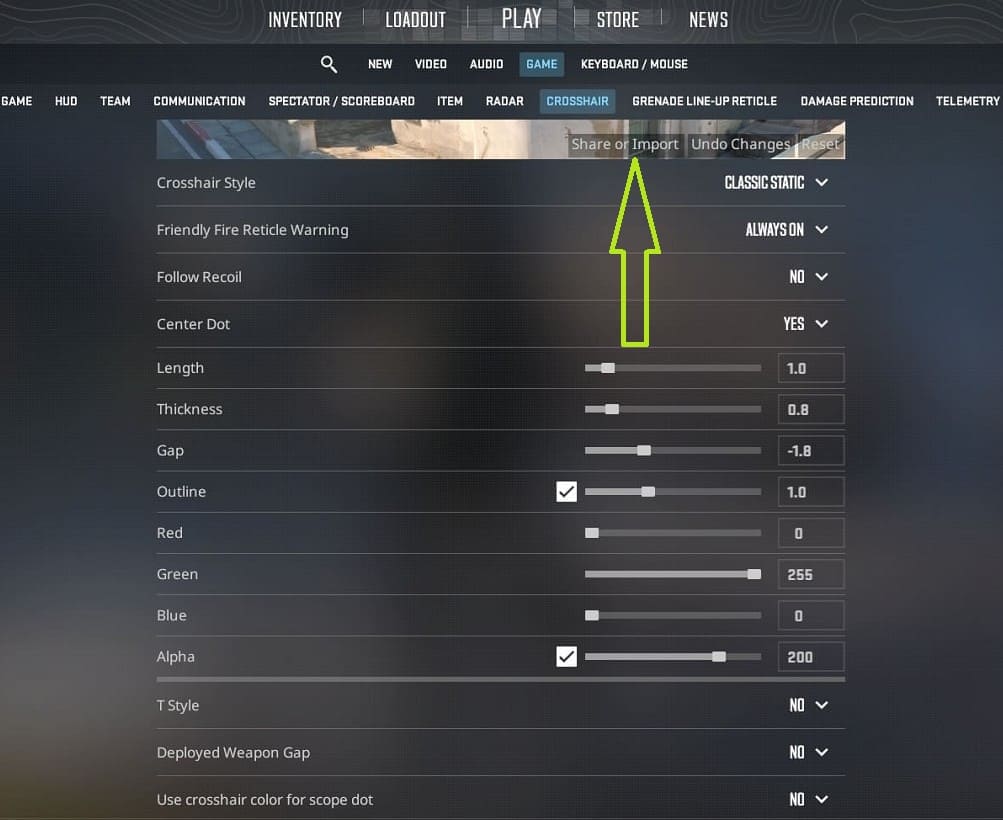
CS2 crosshair settings menu with import and share crosshair code option
The CS2 crosshair settings menu allows players to import or share crosshair codes

Once imported, the crosshair is applied immediately. You can then fine-tune individual settings if needed or keep it exactly as it is.

How to Copy Another Player’s Crosshair In-Game

You can copy another player’s crosshair directly during a game in just a few clicks. This is the fastest way to test a crosshair you like.

CS2 scoreboard menu showing option to copy another player’s crosshair
The scoreboard context menu in CS2 allows you to copy another player’s crosshair during a match
CS2 confirmation window asking to replace current crosshair
CS2 prompts a confirmation window before replacing your current crosshair with a copied one

To do it:

  • Press and hold TAB (+showscores) to open the scoreboard
  • Hover your cursor over the player whose crosshair you want to copy
  • Open the context menu with the right mouse button
  • Click Copy Crosshair and release the TAB key
  • Confirm the replacement

The selected crosshair is applied instantly and fully replaces your current settings. You can further tweak it afterward or export the code to save it as a backup.

Reset to Default, Backup, and Autoexec Setup

When experimenting with crosshair settings, it’s important to know how to safely reset changes, back up your configuration, and lock in your preferred setup so it doesn’t get overwritten by updates or accidental edits.

Reset Crosshair to Default

If your crosshair becomes unreadable or behaves unexpectedly, the fastest way to reset everything is to restore the default crosshair settings. This completely clears all custom values and returns the crosshair to Valve’s default configuration.

A full step-by-step reset guide is available here: How to Reset All Settings in Counter-Strike 2

Back Up Your Crosshair Settings

Once you find a crosshair that works well for you, it’s a good idea to save it as a backup. You can do this by exporting your crosshair code or by storing your console commands, binds, or scripts in a separate configuration file. This allows you to quickly restore your setup after reinstalling the game, switching accounts, or experimenting with different configurations.

Create a .cfg file (for example, cross.cfg), add your crosshair commands, binds, or scripts, and place it in the CS2 configuration directory:

..\steamapps\common\Counter-Strike Global Offensive\game\csgo\cfg\

To load the config manually, open the developer console and run: exec cross

If you prefer automation, there are two options. You can add +exec cross to your Steam Launch Options, or include exec cross directly inside your autoexec.cfg. This ensures the crosshair setup is applied automatically every time the game starts.

For a more detailed explanation of config management, see:

Conclusion

A good crosshair in CS2 isn’t about copying what’s popular or chasing pro settings. It’s about clarity, consistency, and comfort. The crosshair should fade into the background during gameplay, not demand attention or force you to adjust your aim around it.

Use guides, presets, and pro examples as reference points - not rules. Test different setups, make small adjustments, and stick with what feels natural over time. When your crosshair feels predictable and effortless, your focus shifts where it should be: positioning, timing, and winning rounds.

CS2 Crosshair FAQ

A glowing 'FAQ' displayed on a futuristic holographic panel, surrounded by floating question marks and digital circuitry within a cosmic, sci-fi environment
Does the crosshair affect spray control in CS2?

Indirectly, yes. The crosshair doesn’t change recoil mechanics, but a stable and readable crosshair makes it easier to track spray patterns and keep your focus on the enemy model instead of visual noise.

Is Follow Recoil worth using in competitive matches?

For most players - no. Follow Recoil can help during training to understand spray patterns, but in real matches it often becomes distracting.

Do professional players always use the same crosshair?

No. Many pro players adjust or change their crosshair more often than people think, sometimes even between tournaments. Pro crosshairs should be seen as references, not permanent standards.

What crosshair color works best in CS2?

High-contrast colors like green, cyan, or light blue tend to work best across most maps. The key is visibility in different lighting conditions.

Can a crosshair improve FPS or performance?

No. Crosshair settings have no impact on FPS or system performance. They only affect visual clarity and aiming comfort.

Is there a "perfect" crosshair for everyone?

No. The best crosshair is the one that feels natural to you and stays consistent over time. Comfort and confidence matter far more than trends or copied settings.

Continue Reading

Leave a Reply

Your email address will not be published. Required fields are marked *