Why CS2 Stuttering, FPS Drops, and Input Lag Happen
When CS2 feels choppy even with high FPS, the problem usually isn’t one single setting - it’s how your system, monitor, and drivers talk to each other. A small mismatch between your refresh rate, GPU timing, or Windows display mode can throw the whole rhythm off. Visually the game moves quickly, but it feels inconsistent and slow in action.
When Your Monitor Isn’t Running at Full Refresh Rate
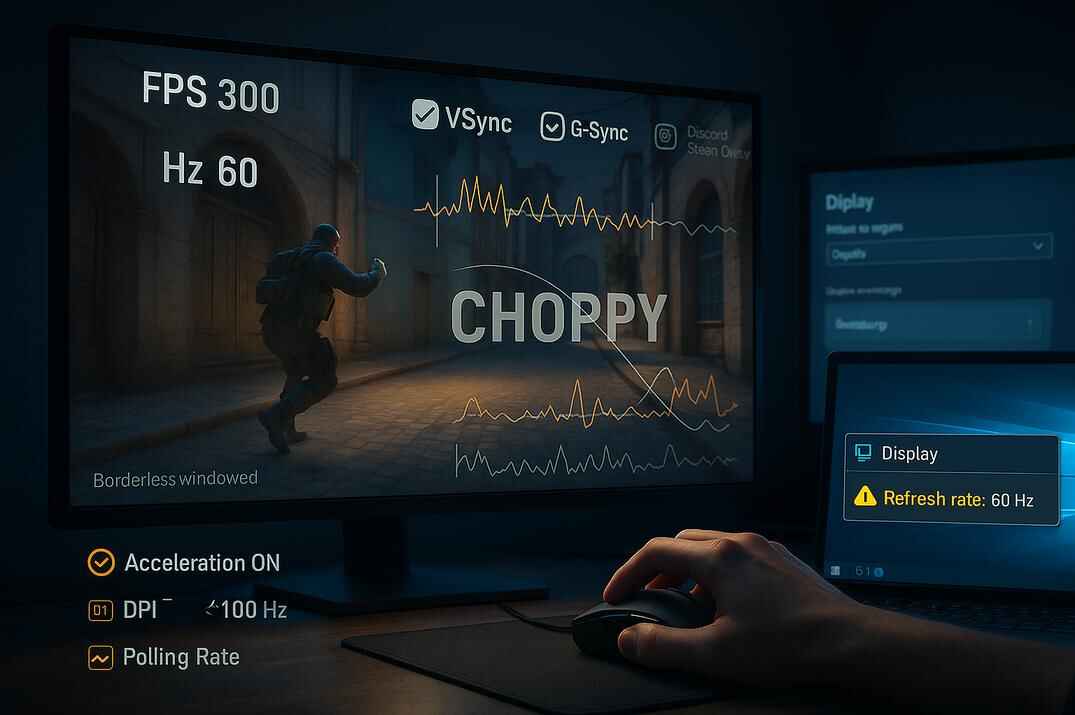
Your monitor might not actually be running at its full refresh rate. Windows sometimes resets it after updates or switches back to 60 Hz without telling you. Even worse, if CS2 runs in borderless or windowed mode, the game hands control over to the desktop compositor - and that can cap your real output at 60 Hz, no matter what the FPS counter says.
Always check your display settings and make sure you’re in exclusive fullscreen with the correct refresh rate selected. That’s what allows CS2 to send frames directly to your screen, frame-by-frame, without delay.
Driver or Windows Settings Reset After Updates
Driver or Windows updates can silently change how your GPU communicates with your monitor. New versions sometimes reset color depth, refresh rate, or power management settings back to default. This creates frame drops or sudden micro-lags even on high-end systems. Rolling back to a stable driver or re-applying your preferred settings in the GPU control panel often brings back that clean, consistent feel.
How Overlays and Background Apps Kill Performance
Steam, Discord, and similar overlays constantly hook into your game. They capture frames, add layers, and poll system resources in real time. It doesn’t sound like much, but those tiny interruptions can add milliseconds of delay - enough to make aiming feel heavier or inconsistent. Disabling overlays and trimming background software frees up GPU time and helps your input feel instant again.
Stable FPS Doesn’t Mean Smooth Gameplay
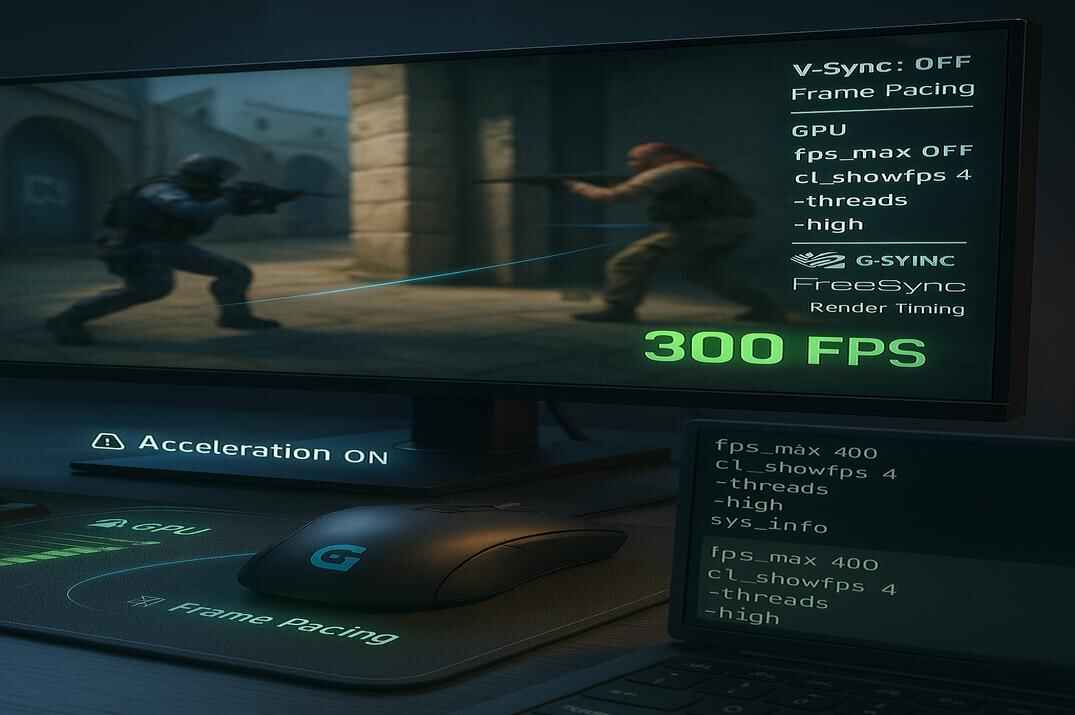
Even if your FPS counter shows 300+, the timing between frames may be uneven. That inconsistency is what players describe as "micro-stutter" or "jitter". You move the mouse, but each frame arrives slightly out of sync, breaking the sense of smooth motion. This usually happens when the game engine, GPU driver, or sync options (V-Sync, G-Sync, etc.) don’t line up perfectly.
The fix is to stabilize frame pacing - not just push for more FPS, but make sure every frame arrives at the same rhythm.
How to Fix CS2 Stuttering, FPS Drops, and Input Lag
Fixing the problem isn’t about chasing higher numbers - it’s about restoring consistency. You want every frame to arrive in perfect rhythm with your monitor. Here’s how to bring that smooth, responsive feel back Fix by Fix.
Use True Fullscreen to Reduce CS2 Stuttering
CS2 offers several display modes, but only exclusive fullscreen gives the game direct access to your GPU and monitor. When you play in "Fullscreen Windowed" or "Windowed" mode, Windows steps in as a middleman - its desktop compositor handles frame delivery instead of the game itself. That extra layer introduces subtle input delay, inconsistent frame pacing, and even an invisible 60 Hz cap on some setups, no matter what your FPS counter shows.

To fix this:
- In CS2, Open Settings -> Video -> Display Mode.
- Select "Fullscreen" instead of "Fullscreen Windowed Windowed".
- Apply and restart the game.
This allows CS2 to bypass the Windows compositor entirely and send each rendered frame straight to your display. The result is immediate - tighter mouse control, lower input latency, and perfectly timed frame delivery that makes every movement feel more responsive.
Fullscreen Windowed mode might look convenient for multitasking, but for competitive play it’s simply notm worth the hidden delay. Exclusive fullscreen = pure, direct connection between CS2 and your monitor.
Adjust In-Game Settings to Fix FPS Drops
Visual settings in CS2 don’t just affect frame rate - they directly influence how consistent your frame delivery feels. Some options add post-processing, extra lighting passes, or dynamic effects that cause uneven frame pacing even when FPS looks high.
The goal here is to keep the render pipeline light and consistent, avoiding sudden frame-time spikes that feel like micro-stutters.

- Boost Player Contrast: Disabled
- Multisampling Anti-Aliasing Mode: None
- Global Shadow Quality: Low
- Dynamic Shadows: Sun Only
- Model/Texture Detail: Low
- Texture Filtering Mode: Bilinear
- Shader Detail: Low
- Particle Detail: Low
- Ambient Occlusion: Disabled
- High Dynamic Range (HDR): Performance
- FidelityFX Super Resolution (FSR): Performance
Optimize FPS Limits for Smoother Gameplay
CS2 is extremely well-optimized, and in most cases it handles frame rendering better on its own. That’s why the best starting point is to simply let the game run freely:
fps_max 0This removes any limit and allows Source 2 to manage frame delivery dynamically - which often results in smoother motion and less input delay on modern systems.
Still, CS2 doesn’t rely on an FPS cap, but setting one close to your monitor’s refresh rate can sometimes make the frame rhythm feel steadier. With consistent frame timing, input latency becomes more predictable and movement looks more natural. Try something like:
fps_max 120fps_max 144fps_max 240fps_max 360
depending on your display.
A stable frame rate that matches your monitor always feels cleaner than constant jumps between 300 and 400 FPS. If after trying this you still experience inconsistent frame times, remove the cap and test again - different hardware configs react differently.
Remove Useless Launch Options
Many players still use old launch options copied from CS:GO guides, but in Counter-Strike 2 most of them either do nothing - or actually break frame pacing and sync stability. The Source 2 engine manages threads, priorities, and memory differently, so forcing manual overrides can easily cause micro-stutters, audio delay, or inconsistent frame delivery.

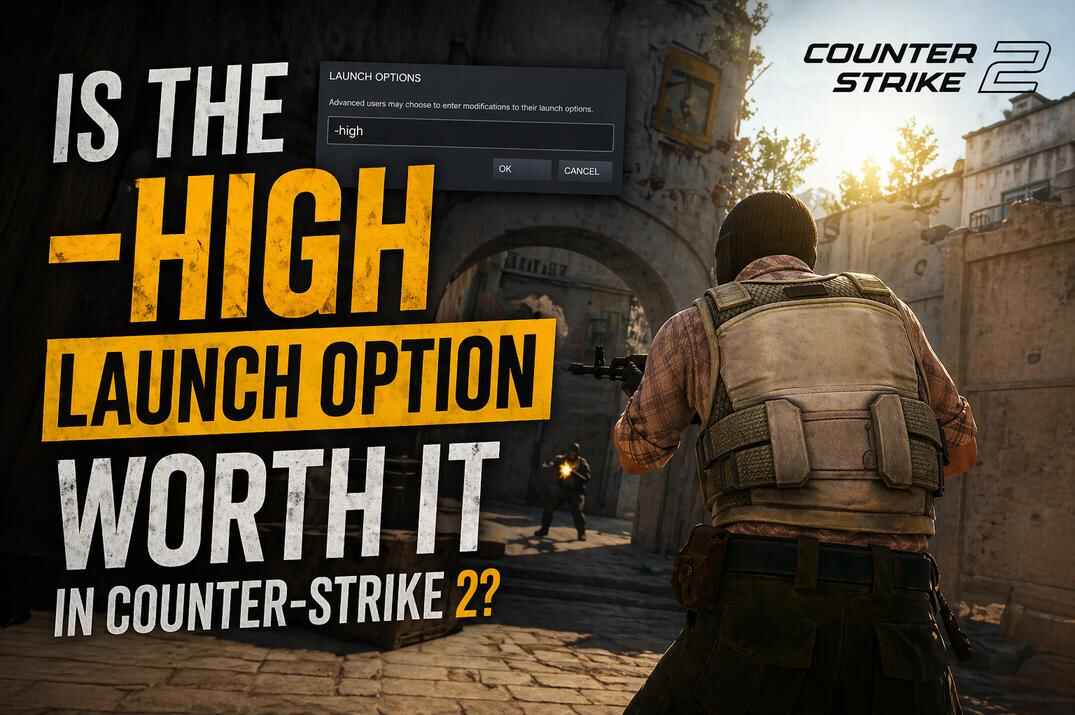
Launch options -high
Adding -high tells Windows to give CS2’s process top priority. In theory, that sounds good - more CPU time for the game, less for background apps. In practice, it often disturbs Windows’ normal scheduling balance, creating inconsistent thread timing between the GPU driver and the game engine. The result: occasional frame skips, delayed input, or short "hitch" moments when something else requests system resources (audio, overlay, network stack, etc.).
If you really need CS2 to run in "High Priority", set it manually through the system registry, not with a launch option. That way, the priority is applied cleanly after startup without interrupting driver initialization. More details in my guide: Is the -high Launch Option Worth It in Counter-Strike 2?
Launch options -threads
This command used to control CPU thread allocation in the old Source engine. In CS2, Source 2 automatically detects your hardware and dynamically manages the thread pool. Forcing your own thread count can desynchronize the render and simulation threads, leading to irregular frame-time spikes and unstable pacing - especially on CPUs with hyper-threading.

The -threads option is meant only for developers or debugging. For normal gameplay, leave it out entirely and let Source 2 handle multithreading automatically. It will always balance load between cores better than any fixed number you enter.
Check Refresh Rate and Display Sync
A perfectly smooth game means nothing if your monitor isn’t actually refreshing at its full potential. Even when your FPS counter proudly shows 300+, a small refresh rate mismatch can create invisible input lag, uneven motion, or subtle micro-stutters - the kind of problem you feel but can’t always measure.
After Windows or driver updates, the system may quietly revert your display to 60 Hz, especially if you use multiple monitors or switch between HDMI and DisplayPort. In that case, CS2 keeps rendering frames at full speed, but your monitor displays them at a slower rhythm - breaking frame pacing and introducing tiny sync delays.

To check and fix this:
- Go to Windows Settings -> System -> Display -> Advanced Display.
- Confirm your monitor is running at its maximum refresh rate -
144 Hz,165 Hz,240 Hz,360 Hz, or other your panel supports. - Then open your GPU platform (NVIDIA or AMD) and make sure the same refresh rate is applied globally, not only for CS2.
- Apply and restart your PC if necessary.
This simple step restores perfect timing between your GPU and your monitor, removing that "slightly delayed" or "not quite smooth" feel even when FPS seems high.
Clear GPU Shader Cache
After major driver or system updates, your GPU’s shader cache can become partially corrupted or outdated, leading to small stutters during gameplay or long freezes during map loading. Each time you launch CS2, the GPU loads precompiled shaders from this cache - but if they no longer match the current driver or engine build, the game is forced to recompile them in real time. That’s why you sometimes feel brief frame hitches or pauses during "Shader Compilation".
Cleaning this cache forces the GPU to rebuild shaders from scratch, ensuring fresh, stable, and fully compatible frame data.

Here’s how to do it:
- Close CS2, the NVIDIA Control Panel, and any other games.
- Open the following folder paths and delete everything inside:
- C:\Users\Your_Account\AppData\Local\NVIDIA\DXCache\*
- C:\Users\Your_Account\AppData\Local\NVIDIA\GLCache\*
The next time you launch CS2, the game will recompile shaders once - map loading may take slightly longer on the first run, but afterward performance becomes smoother and more consistent. This simple maintenance step can completely remove micro-stutters, hitching during map load, and sudden frame spikes caused by old shader data.
Adjust GPU Settings to Reduce Input Lag
Your GPU driver determines how each frame leaves your graphics card and reaches your monitor. Even if your FPS counter shows huge numbers, one wrong driver parameter can throw off timing - making movement feel slightly uneven or delayed. The goal here isn’t to chase raw FPS, but to make frame delivery perfectly consistent - smooth, predictable, and in sync with your display.

Open NVIDIA Control Panel -> Manage 3D Settings -> Program Settings -> Counter-Strike 2 (cs2.exe) (If it’s not listed, click Add and select cs2.exe manually). Then apply these clean, timing-focused tweaks:
Rendering and Image Options
- Image Scaling: Off - always play at your monitor’s native resolution; scaling adds unnecessary interpolation lag.
- Anisotropic Filtering: Off - CS2’s textures are sharp enough; no need for extra filtering passes.
- Antialiasing - FXAA: Off - prevents the soft blur that makes visibility inconsistent.
- Antialiasing - Gamma Correction: On - keeps lighting and contrast accurate for aiming clarity.
- Antialiasing - Mode: Off - CS2 handles AA internally; forcing it here only doubles workload.
- Antialiasing - Transparency: Off - disables an extra post-processing layer that can stutter during smoke or grenade effects.
Performance and Timing Controls
- Background Application Max Frame Rate: Off (optional: set 20 FPS if you multitask) - avoids resource contention when alt-tabbing.
- CUDA - GPUs: All - ensures full hardware utilization.
- DSR - Factors: Off - disables downsampling; prevents unnecessary GPU load.
- Low Latency Mode: Ultra - queues the fewest possible frames, minimizing input delay; if gameplay feels unstable, try "On".
- Max Frame Rate: Off - let CS2’s internal limiter handle frame rhythm.
- MFAA: Off - unnecessary for Source 2 and may cause inconsistent shading.
- OpenGL GDI Compatibility: Performance - ensures stable overlay and UI rendering.
- OpenGL Rendering GPU: Your NVIDIA GPU - explicitly selects your primary card to avoid hybrid-GPU sync issues.
- Power Management Mode: Prefer Maximum Performance - locks the GPU at consistent clocks; no downclock spikes mid-match.
- Preferred Refresh Rate: Highest Available - forces maximum monitor Hz for smoother motion.
Texture and Filtering
- Texture Filtering - Anisotropic Sample Optimization: On - reduces redundant texture sampling.
- Texture Filtering - Negative LOD Bias: Allow - keeps sharp textures without shimmer.
- Texture Filtering - Quality: Performance - prioritizes consistent frame delivery over small visual gains.
- Texture Filtering - Trilinear Optimization: On - lightens filtering load with no visible loss.
Threading and Sync
- Threaded Optimization: On - allows Source 2 to balance CPU threads dynamically.
- Triple Buffering: Off - only useful with V-Sync, which we’ll disable.
- Vertical Sync (V-Sync): Off - eliminates the built-in frame delay; rely on manual frame caps instead.
- Virtual Reality Pre-Rendered Frames: 1 - default and safest for non-VR setups.
- Vulkan/OpenGL Rendering Method: Auto - lets the driver choose the most stable mode.
After applying these, click Apply and restart your PC - this reloads driver scheduling and ensures every setting is fully applied across sessions.
You’ll usually see a small FPS gain (around +10 on average), but more importantly, frame pacing becomes dramatically cleaner. Mouse input feels snappier, movement more fluid, and the game finally "connects" with your display the way it’s supposed to - smooth, steady, and perfectly synchronized.
Disable Steam Shader Pre-Caching
Steam sometimes compiles shaders in the background even when the game runs, causing random hitches. Go to Steam -> Settings -> Downloads -> Enable Shader Pre-Caching -> Toggle Off.

Then manually delete (if present): ..\Steam\steamapps\shadercache\730
After restarting CS2, the game will recompile shaders once and usually run smoother afterward.
Disable Fullscreen Optimizations in Windows
Windows 10 and 11 include a feature called Fullscreen Optimizations - designed to blend fullscreen and windowed modes for faster app switching. Sounds good in theory, but for competitive games like CS2 it often introduces micro-stutters, inconsistent frame pacing, and subtle input delay, because Windows forces an extra compositor layer between the game and your monitor.

Here’s how to fully disable it and restore true, exclusive fullscreen rendering:
- Navigate to your CS2 installation folder (..\steamapps\common\Counter-Strike Global Offensive\game\bin\win64\cs2.exe).
- Right-click cs2.exe -> Properties -> Compatibility tab.
- Check "Disable fullscreen optimizations."
- Click "Change high DPI settings" -> Enable "Override high DPI scaling behavior."
- Apply the changes.
These steps force CS2 to communicate directly with your GPU and display - bypassing Windows’ compositor entirely. The result: cleaner frame delivery, no random hitches when alt-tabbing, and a noticeably tighter mouse response.
This simple tweak doesn’t increase your FPS, but it removes a hidden layer of interference - giving you the true low-latency fullscreen mode that Counter-Strike was meant to run in.
Turn Off Overlays and Background Apps
Overlays might look harmless - FPS counters, Discord pop-ups, NVIDIA shortcuts - but every single one of them hooks directly into your frame pipeline. That means each overlay captures and re-renders your frames before they reach the monitor, adding a few milliseconds of delay and occasionally causing small frame-time spikes that feel like "micro-lags" or input desync.
Even if your FPS doesn’t drop, the rhythm between your mouse movement and what you see on screen gets broken. That’s why one of the simplest ways to clean up CS2’s feel is to disable every overlay layer completely:
- Steam: Steam -> Settings -> In-Game -> Toggle off "Enable the Steam Overlay while in-game"
- Discord: Go to User Settings -> Game Overlay
- Under Enable Overlay, expand the section and toggle off Counter-Strike 2
- Under Enable Legacy Overlay, expand the section and toggle off Counter-Strike 2

Turning off both modern and legacy overlays in Discord - NVIDIA GeForce Experience: Settings (alt + z) -> Statistics -> and toggle off "Show statistics in heads up display"
Screenshot of the NVIDIA GeForce Experience performance overlay settings - Xbox Game Bar: System -> Gaming -> Game Bar -> and toggle off "Allow your controller to open Game Bar
Turning off the Windows Game Bar


After disabling all overlays, restart Steam or your PC - some services silently re-enable themselves after updates.
This small change alone can make mouse input feel instantly cleaner and more responsive. No overlays = no frame interception = pure, direct rendering path from CS2 -> GPU -> monitor - exactly how competitive games should run.
Adjust Windows Graphics Settings and Game Mode
Windows loves to "help" modern games by managing GPU load automatically - but in fast, latency-sensitive shooters like CS2, that automation often does more harm than good. There’s no single "right" setting here, so it’s worth testing both options and finding what feels smoother on your system.
Features such as Hardware-accelerated GPU scheduling and Game Mode are designed to improve performance, but in some setups they can actually cause uneven frame pacing, input lag, or random micro-stutters, as Windows and your GPU driver end up fighting for control over frame delivery.
By default, I recommend keeping both enabled. However, if you notice small frame skips, inconsistent mouse feel, or strange timing issues, try disabling them and see if CS2 feels cleaner.


- System -> Gaming -> Game Mode -> On / Off
- System -> Gaming -> Graphics -> Advanced graphics settings -> Hardware-accelerated GPU scheduling -> On / Off
These two are worth experimenting with. But the next step - forcing CS2 to always use your dedicated GPU - is essential and should never be skipped.
This ensures that:
- CS2 (cs2.exe) always runs on your discrete GPU (e.g. RTX 3070 Ti), even if Windows tries to "save power".
- The game never accidentally launches on the integrated GPU - common on laptops or multi-monitor setups.
- You avoid background GPU switching that can cause small freezes or frame-time spikes.
- Frame delivery stays stable and predictable, especially under heavy load.

To set this up:
- System -> Gaming -> Game Mode -> Graphics -> scroll down or click Add desktop app, then locate cs2.exe.
- Under GPU Preference, select High Performance (Your GPU).
After applying, restart your PC to reload the graphics driver with these priorities.
These settings won’t raise your FPS, but they help your system maintain a clean, uninterrupted frame pipeline, eliminating minor timing inconsistencies that make CS2 feel "off" even at FPS 300+. Once configured, your GPU will handle rendering directly - without Windows trying to "optimize" what it already does best - keeping every frame in perfect sync with your display and input.
Update or Reinstall GPU Drivers
Sometimes stutter or micro-freezes in CS2 don’t come from your settings at all - they come from driver conflicts. After certain Windows or NVIDIA updates, small inconsistencies can appear in the way the GPU queues and delivers frames. The result is that subtle "micro-hitch" feeling - even when your FPS looks fine.
If this started after a driver update, the fix might be as simple as reinstalling your GPU driver cleanly.

- Uninstall your current driver using the standard Windows method (Control Panel -> Programs and Features).
- Run Disk Cleanup to remove leftover shader and cache data:
- Press Win + R -> type
cmd-> entercleanmgr. - Select your system drive and confirm cleanup.
- Press Win + R -> type
- Restart your PC.
- Download and install the latest driver for your GPU (NVIDIA, AMD, or Intel).
If the problem persists or started right after a specific driver version, it’s best to perform a complete clean install using a tool like DDU (Display Driver Uninstaller).
DDU completely removes all traces of previous GPU drivers - folders, registry entries, cached shader data, and hidden driver store records - allowing you to start fresh. It’s especially useful if you’ve switched GPUs, upgraded from Windows 10 to 11, or notice stutters that don’t respond to normal fixes.
After uninstalling with DDU, install a known stable driver version (not necessarily the newest one). In many cases, going back one or two releases restores perfect frame pacing and removes those invisible "micro-pauses" that newer drivers sometimes introduce. Official download: Download Display Driver Uninstaller (DDU) Official Latest Version
Use DisplayPort for More Stable Refresh Rate
Sometimes the issue isn’t in the software at all - it’s the cable or how your monitor is connected. If you’re still getting stutter or strange frame timing after trying all the fixes, double-check your display connection.
HDMI can technically run high refresh rates, but on many monitors it introduces extra latency and limited bandwidth for 240 Hz or higher signals. DisplayPort is designed for high-speed, low-latency data transfer between the GPU and monitor. It keeps frame delivery cleaner and more consistent.
On average, DisplayPort adds only around 1 ms of latency, while HDMI can be closer to 4-5 ms, depending on the monitor and cable quality. It’s a small number on paper, but in fast shooters like CS2 that difference can be felt as smoother motion and snappier input response.
Also, make sure your DisplayPort cable supports your monitor’s full refresh rate - some cheap DP 1.1/1.2 cables can drop signal or cause flickering at 240 Hz and above. Always use a certified DP 1.4 or higher cable for high-refresh monitors.
Reduce Network Lag and Lag Spikes
Even a perfectly smooth game can feel "laggy" if your connection isn’t stable. In Counter-Strike 2, where every millisecond matters, network inconsistency often shows up as rubber-banding, delayed shots, or subtle desync between what you see and what the server registers. That’s why tuning your network setup is just as important as tuning your graphics.
Always prefer a wired connection
Wi-Fi is convenient, but it’s inherently unstable for competitive games. Signal interference from walls, phones, or neighboring routers can cause unpredictable ping jumps and packet loss - even if your speed test looks fine. A simple Ethernet cable gives you a direct, interference-free path to the router, ensuring steady latency and zero random spikes.
Use a faster and more reliable DNS
Your DNS server affects how quickly your system communicates with game servers, Steam, and matchmaking services. Switching from your ISP’s default DNS to a public one often improves responsiveness and reduces connection delay during map loads or lobby joins.

Try to use public DNS servers:
- Google DNS:
8.8.8.8/8.8.4.4 - Cloudflare DNS:
1.1.1.1/1.0.0.1 - OpenDNS:
208.67.222.222/208.67.220.220
To change DNS on Windows:
- Open Network Settings -> Adapter Properties.
- Select your active network adapter -> IPv4 -> Properties.
- Choose Use the following DNS server addresses.
- Enter your preferred DNS values and save.
- (Optional) Restart your router to apply clean routing tables.
This doesn’t make your ping magically lower, but it removes random micro-lags and connection desyncs that make gameplay feel unpredictable, giving you that steady, responsive "LAN-like" experience CS2 deserves.
For a deeper breakdown of ping settings and latency tweaks, check out my full guide: How to Adjust Ping in Counter-Strike 2
Switch to Ultimate Performance Power Plan
Windows default "Balanced" plan can throttle CPU frequency between frames.

Enable the hidden "Ultimate Performance" mode via Command Prompt:
powercfg -duplicatescheme e9a42b02-d5df-448d-aa00-03f14749eb61Then open Power Options in Control Panel and select "Ultimate Performance".
This ensures consistent CPU frequency and smoother frame delivery.
Disable Audio Enhancements
Some CS2 "micro-stutters" come not from graphics, but from Windows audio drivers. Sound enhancements like Loudness Equalization or Spatial Sound constantly process audio in real time, sometimes interrupting CPU timing and causing tiny frame hitches.

To fix it:
- Right-click the speaker icon -> Sound Settings.
- Select your playback device -> Device Properties -> Advanced.
- Turn off Audio Enhancements and Spatial Sound.
If you’re using Realtek drivers or a motherboard utility like Realtek Audio Console, open it and disable any "Effects," "Environment," or "Virtual Surround" features as well.
This removes background DSP processing and stops small latency spikes tied to the audio subsystem - making CS2 feel smoother and more consistent during gameplay.
F.A.Q.

My FPS is high, but CS2 still feels laggy. Why?
Because smoothness isn’t just about the number of frames - it’s about timing. If your refresh rate, GPU, or sync settings are off by even a little, the motion will look uneven even at 400 FPS. Your game FPS should be >greater or equal to your monitor’s refresh rate (Hz).
Does V-Sync help or make it worse?
In CS2, V-Sync usually adds input lag. It can remove tearing but slows down input response. For competitive play, keep it Off and use an >FPS cap close to your monitor’s refresh rate instead.
What about G-Sync or FreeSync?
They can help smooth out frame delivery - but sometimes cause inconsistent input delay in Source 2. Try disabling them temporarily; some players get a cleaner, faster feel without adaptive sync.
Do overlays really affect performance that much?
Yes, Steam, Discord, Xbox Bar, MSI Afterburner, Fraps or GeForce Experience (ShadowPlay) all hook into the render pipeline. They may only add a few milliseconds, but that’s enough to ruin the connected feel of mouse input.
How do I know if my frame pacing is fixed?
Watch the frame-time graph in tools like MSI Afterburner or PresentMon. If it’s flat and even - you’re good. If it looks spiky, you’re still getting micro-stutters somewhere in the chain.
Should I turn on Hardware-accelerated GPU Scheduling?
Not always. In some systems it helps a bit, but in CS2 it often causes inconsistent frame pacing and input delay. Try turning it Off - most players report smoother gameplay that way.
Can clearing the NVIDIA Shader Cache really fix stutters?
Yes, if the cache is corrupted or outdated. After big driver or game updates, clear it through NVIDIA Control Panel -> 3D Settings -> Delete Shader Cache, and manually delete the folders:
- C:\Users\YOUR_ACCOUNT\AppData\Local\NVIDIA\DXCache
- C:\Users\YOUR_ACCOUNT\AppData\Local\NVIDIA\GLCache
The next time you launch CS2, shaders will rebuild cleanly - loading may take longer once, but gameplay becomes smoother afterward.