What Is a Script in CS?
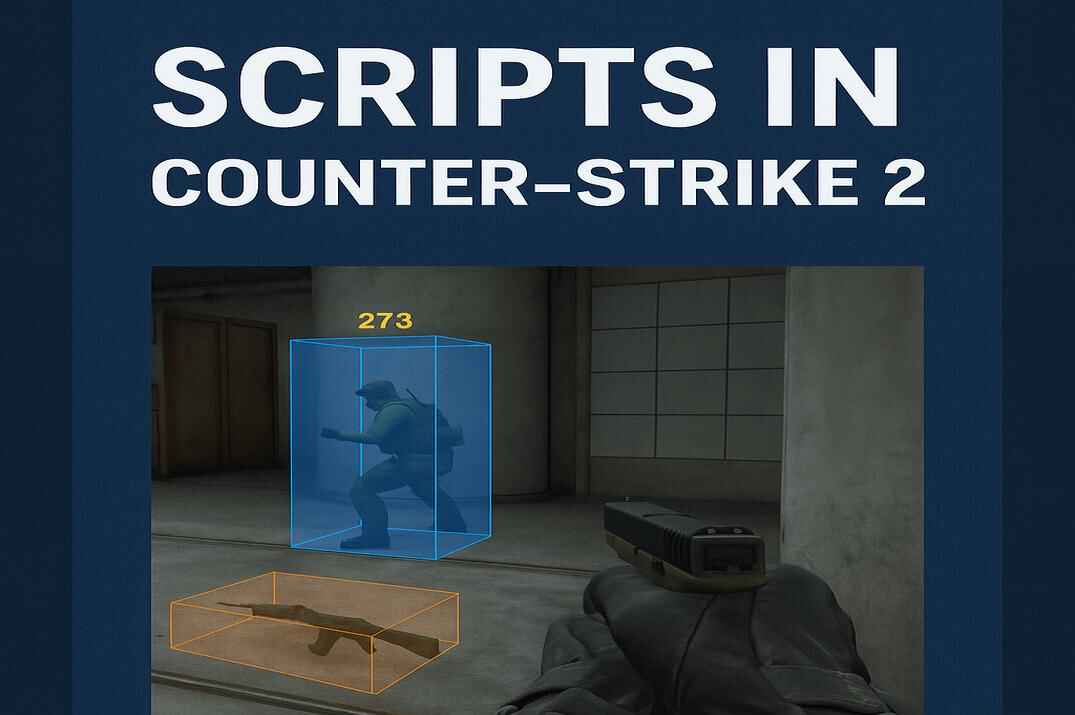
In CS2, a script is a sequence of console commands grouped together and bound to a key or event written using the Source Engine’s built-in console language. Unlike a simple bind, which executes just one command or a short chain, a script can include toggles, conditions, or even state changes. The primary tool for creating scripts in game is the alias command, which lets you build custom mini-commands and link them together.
Bind vs. Alias vs. Script
A bind is the simplest form of customization in Counter-Strike. It directly connects a key to one or more console commands. All binds are straightforward and predictable.
An alias takes things further. With it, you can name a sequence of commands and reuse it as if it were a new command. Aliases allow logic-like behavior, such as toggling between two states. For instance, you could create an alias that changes your crosshair size every time you press a key.
A script is the larger system that often combines both binds and aliases. It can chain dozens of commands, define toggles, and add layers of automation. A buy script, for example, may include multiple aliases and binds to set up your full loadout instantly.
| Automation | Description |
|---|---|
| Bind | A direct shortcut for one command or a group of commands |
| Alias | A custom command name that can trigger one command or a sequence of commands. |
| Script | A structured combination of binds, aliases, and commands used to simplify or organize actions |
Core Commands & Syntax
At the core of CS2 scripting are a few console commands that define how binds, aliases, and larger scripts work. Understanding their syntax is essential for writing clean, reliable commands that behave exactly as intended.
Bind command in CS2
In Counter-Strike 2, a bind assigns a command or a group of commands to a specific key. It is the simplest way to customize inputs and speed up common actions.
Basic syntax:
bind "key" "command"A bind can also execute multiple commands in sequence:
bind "key" "command1; command2; commandN"Example:
bind "c" "cl_showfps 1"This Bind makes the C key show your FPS counter. Or you could extend it with an echo message:
bind "c" "cl_showfps 1; echo FPS counter is activated"Now, pressing C both enables the FPS display and prints a confirmation in the console.
Common Key Names
The key value defines which button activates the command. Common examples include:
mouse1,mouse2,mouse3-> left, right, and middle mouse buttonsmwheelup,mwheeldown-> mouse wheel scroll up or downspace,ctrl,shift,a–z,0–9-> standard keyboard keys
Alias command in CS2
The alias command lets you assign a custom name to one command or a sequence of commands. This is what turns simple binds into more flexible scripts.
Basic syntax:
alias "newcommand" "command1; command2; commandN"newcommand- the custom name you create.command1; command2;..- the sequence of valid CS2 commands, separated by semicolons.
Example:
alias "com1" "cl_showfps 1"
alias "com2" "echo FPS counter is activated"
bind "c" "com1; com2"
Here, pressing C runs cl_showfps 1 through com1 and then prints a message through com2. Aliases are useful for keeping configs cleaner and making command chains easier to reuse.
Toggle Command in CS2
The toggle command switches a variable between two or more predefined values each time you press a key. It is useful when you want one bind to cycle through several states instead of setting only one fixed value.
Syntax:
bind "key" "toggle command value1 value2 value3 value4"Example:
bind "c" "toggle cl_showfps 0 1 2 3"
Each C key press cycles cl_showfps values through the defined values 0, 1, 2 and 3.
Incrementvar Command in CS2
The incrementvar command changes a variable step by step within a defined range. Unlike toggle, which jumps between fixed values, incrementvar increases or decreases a value gradually.
Syntax:
bind "key" "incrementvar command min max step"Example:
bind "c" "incrementvar volume 0 1 0.1"With this bind, each press of C changes the volume value by 0.1 within the range from 0 to 1. Once the maximum value is reached, the command cycles through the allowed range according to its logic.
Types of CS2 Scripts
Not all CS2 scripts work the same way. Some are simple command chains, while others are built to switch states, cycle values, or control a temporary action. Understanding the main script types makes it easier to choose the right structure for each task.
CS2 Alias Scripts
Alias scripts are built around the alias command. They let you assign a custom name to one command or a sequence of commands, which makes larger scripts easier to organize and reuse. Instead of placing every command directly inside a bind, you can split them into smaller parts and call them when needed.
Example:
alias "com1" "cl_showfps 1; sensitivity 2; fps_max 499"
alias "com2" "echo FPS counter is activated; bind x fps_max 0"
alias "com3" "com1; com2"
bind "c" "com3"
In this example, pressing C runs com3, which then calls com1 and com2. As a result, the script enables the FPS counter, changes sensitivity, sets a higher FPS limit, prints a console message, and rebinds X to fps_max 0. This shows how alias scripts can group multiple actions into one structured command chain.
Press & Release Scripts in CS2
Press and release scripts are based on paired aliases such as +command. and -command. One action runs when the key is pressed, and another runs when the key is released. This format is useful for temporary changes that should only stay active while the key is held.
Example:
alias "+r_scale" "cl_radar_scale 1"
alias "-r_scale" "cl_radar_scale 0.5"
bind "c" "+r_scale"
When you hold C, the radar scale changes to 1. When you release the key, it returns to 0.5.
Cycle Scripts in CS2
Cycle scripts rotate through several values or states with repeated key presses. They are commonly built with aliases that rebind the same key to the next step in the sequence. This makes them useful for settings that you want to adjust in stages instead of switching only once.
Example:
alias "r02" "cl_radar_scale 0.2; bind v r06"
alias "r06" "cl_radar_scale 0.6; bind v r10"
alias "r10" "cl_radar_scale 1; bind v r02"
bind "v" "r02"
Each time you press the v key, the radar scale changes to the next value in the cycle: 0.2 -> 0.6 -> 1 -> 0.2, and so on.
Advanced Alias Scripts in CS2
Advanced alias scripts scripts combine multiple aliases, binds, and state changes into a larger structure. They are usually used when one key needs to control several behaviors or switch another key between different functions. These scripts are more flexible, but they also require cleaner logic and more careful testing.
Example:
alias "next" "r02"
alias "r02" "cl_radar_scale 0.2; alias next r06"
alias "r06" "cl_radar_scale 0.6; alias next r10"
alias "r10" "cl_radar_scale 1; alias next r02"
alias "trigger_on" "bind mouse2 next; echo Binded; alias trigger trigger_off"
alias "trigger_off" "bind mouse2 +attack2; echo Unbinded; alias trigger trigger_on"
bind "c" "trigger_on"
In this example, the script changes the function of mouse2. One state makes mouse2 cycle radar scale values, while the other restores its normal zoom function. This is a more advanced example because it combines state switching, rebinding, and alias-based logic in one system.
How to Run Your Scripts in Counter-Strike2
Scripts can be written and executed manually via the in-game developer console, but this method isn’t always convenient. A better approach is to store your scripts in a configuration file (.cfg) which can be run manually - or automatically every time the game starts.
Let’s walk through the different ways you can create and load configuration files that include your scripts, keybindings, and other commands.
Create the Сonfig File
First, you need to make your own config file.
- Navigate to your CS2 config folder:
..\steamapps\common\Counter-Strike Global Offensive\game\csgo\cfg\ - Create a new text file. Name it using letters, numbers, dashes, or underscores (e.g,
myconfig.txt) - Change the file extension from
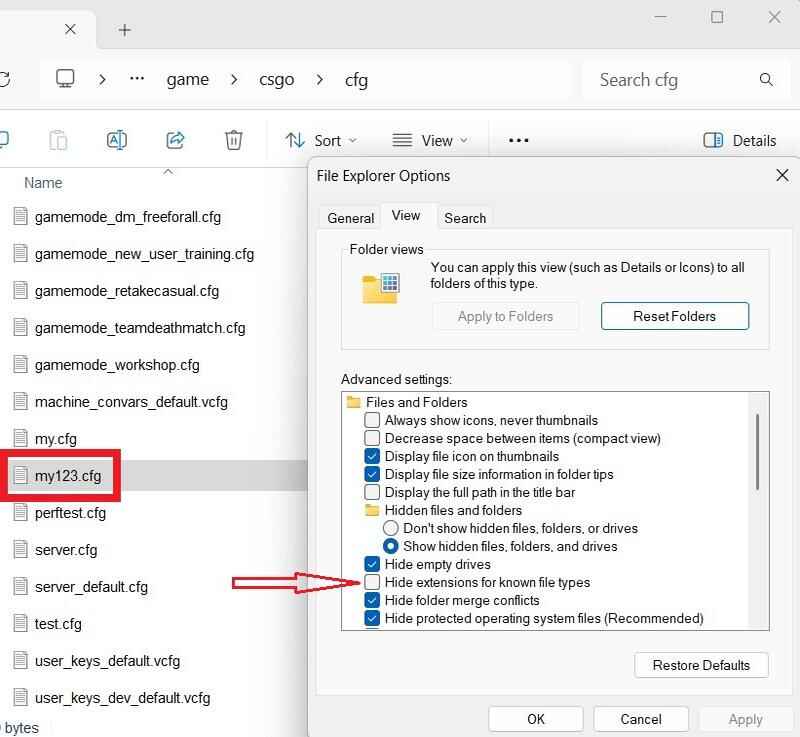
.txtto.cfg. If you don’t see extensions in Windows OS, go to: Control Panel -> File Explorer Options -> View tab, and uncheck "Hide extensions for known file types" option.
How to Show File Extensions in Windows Explorer - Open
myconfig.cfgfile with a text editor (Notepad), paste your script(s), and save it.
Run a Scripts via the Console
- Launch CS2
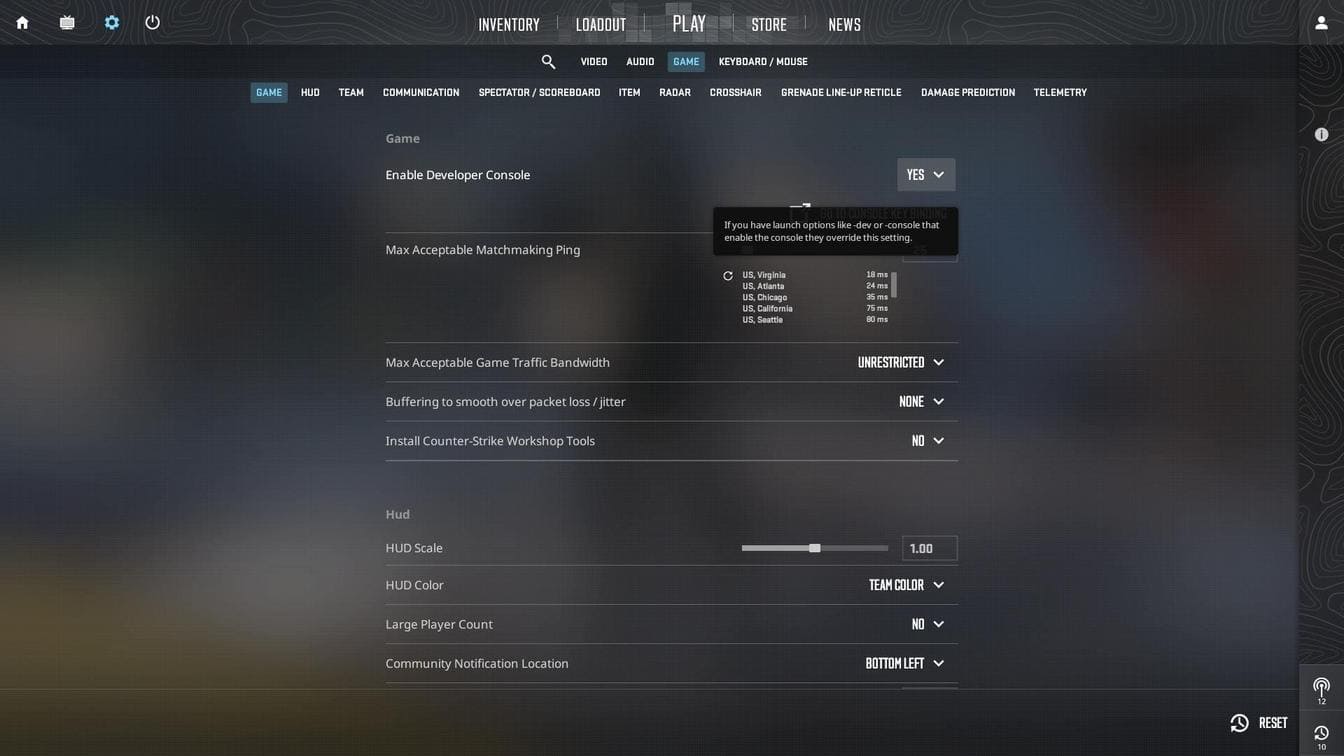
- Go to Settings -> Game and make sure the Developer Console is enabled.

CS2 In-Game Settings - Developer Console - Press the
~key to open the console, type:exec myconfigand hit Enter. - Run a map (e.g,
map de_dust2) and test your script.
Run a Scripts via Launch Options

If you want your script to load every time you start the game:
- Right-click on Counter-Strike 2 in your Steam Library -> Properties.
- Under General, find Launch Options.
- Add:
+exec myconfig
Now your config will execute automatically at launch, no extra steps needed.
Use the autoexec.cfg File

In the same \cfg\ folder, create a new file called autoexec.cfg, which is a special configuration file that CS2 runs automatically on launch.
Paste your scripts directly into autoexec.cfg or reference your other config file, like this: exec myconfig.
That's all. Run a game and test your scripts.
For advanced setup, see:
F.A.Q.

Will I get VAC banned for using binds or aliases?
No, VAC doesn’t ban for built-in console commands. Bans target external cheats (memory injection, drivers, macro software).
Why did some of my old scripts stop working in 2024/2025?
Valve blocked multi-input automation that mimics skill (e.g., movement +jump; +attack in one action) and started detecting some hardware-assisted inputs.
What’s the safest way to load scripts: console, launch options, or autoexec.cfg?
All three are valid. For day-to-day play, autoexec.cfg is the most convenient; for quick testing, use the console (exec myconfig); launch options (+exec myconfig) help guarantee your config runs on every start.
My autoexec.cfg doesn’t run - what did I miss?
Ensure the file is placed in the correct \cfg\ folder, the extension is .cfg (not .txt), and there are no typos in exec lines. Optionally add echo autoexec loaded as a sanity check.
How do I revert or fix a broken bind mid-game?
Use unbind key (single key) or unbindall (reset everything - use with caution). Keep a small "reset" config (e.g., exec reset.cfg) with your defaults for quick recovery.
Are training scripts (noclip, grenade trajectory, bots) safe?
They’re meant for local/custom servers. They won’t run on official MM servers unless the server permits them. Totally safe.