How to Bind Jump to Mouse Wheel in CS2
Introduction
Jumping on the mouse wheel is a common CS2 tweak for a reason: it makes timing jumps easier and more consistent than hammering the spacebar. That extra consistency helps with bunny hops, strafe jumps, and quick movement in hectic fights.
This isn’t a cheat - it’s a simple keybind that’s fully allowed in Competitive and Premier. To use it, enable the developer console and bind the wheel, or add the bind to your config/autoexec so it loads every time you launch the game.
In this short guide, I’ll show the exact commands, the easiest ways to load them, and a few quick tips so you can switch over in minutes.
What is a Bind?
A bind in CS2 is simply a command that ties an action to a key or mouse button. Instead of sticking with the default layout, you can decide which keys feel best for you. Want jump on the wheel, crouch on a thumb button, or buy grenades with F1? That’s all done through binds.
The advantage is speed and comfort. With the right setup, you can react instantly in fights, throw utility without fumbling, or access custom actions that the standard menu doesn’t cover. Binds are a small tweak, but they make the game feel smoother and more personal.
Syntax for Bind Commands
The basic format for binds in CS2 looks like this:
bind "[key/button]" "[action]"
[key/button] – the key or mouse input you want to use.
[action] – the command (or multiple commands separated by semicolons) that will run when you press that key.
Examples:
bind "space" "+jump" // jump on spacebar
bind "mouse1" "+attack" // fire weapon on left mouse button
Common Keyboard and Mouse Inputs
Before setting up your binds, it helps to know how CS2 names keys and buttons:
- mouse1 - left mouse button
- mouse2 - right mouse button
- mouse3 - middle mouse button (usually pressing the wheel)
- mwheelup - scroll wheel up
- mwheeldown - scroll wheel down
- space - spacebar
Most keyboard keys are written directly: a, b, c, ctrl, shift, etc.
Why Jump Bind Can Be Useful
Binding jump to the mouse wheel is one of the most common tweaks in CS2 because it makes movement feel smoother and more reliable. Instead of relying on a single spacebar press, you get multiple jump inputs by simply scrolling, which improves timing and consistency for advanced movement.
Improved Movement Control
With jump on the wheel, you only need to focus on strafing left and right while letting the wheel handle your jumps. This makes bunny hopping and strafe jumping much easier, since both rely on precise timing. Better control means you can move around the map faster and with more confidence.
Faster and More Consistent Jumps
Scrolling is naturally quicker than spamming a key. Each notch of the wheel is another jump input, so you’re far less likely to miss the timing window. This helps maintain speed, dodge shots, or chain together smooth hops in places where spacebar jumping usually fails.
Comfort and Flexibility
For many players, flicking the wheel feels more natural than hammering the spacebar. It reduces finger strain in long sessions and frees up the spacebar for other useful actions like crouch or walk. A small change like this often makes gameplay more comfortable without sacrificing performance.
Jump Bind Commands in CS2
Binding jump to the scroll wheel is one of the simplest but most effective tweaks you can make in CS2. It makes jumping faster, more consistent, and more comfortable – which is why it’s used by casuals and pros alike.
Bind Mouse Wheel Down:
bind "mwheeldown" "+jump"
Bind Mouse Wheel Up:
bind "mwheelup" "+jump"
With these commands, you can use either direction of the scroll wheel for jumping. Many players bind both up and down so they never miss a timing window.
Adjust the Sensitivity of Your Scroll Wheel
For smooth bunny hops and consistent strafes, make sure your wheel sensitivity is comfortable. You can tweak it in Windows Control Panel -> Mouse -> Wheel or in your mouse’s software (Logitech G HUB, Razer Synapse, Bloody, etc.). The right setting makes your jump inputs predictable and easier to control.
Default Mouse Binds
Your spacebar jump should still work by default, but if you need to restore it, use:
bind "space" "+jump"
Keep in mind: when you bind the wheel to jump, you lose its original function for weapon switching. To bring that back, enter:
bind "mwheeldown" "invnext"
bind "mwheelup" "invprev"
Or assign other keys for it. This way you can easily switch between using the wheel for jumps or restoring it for scrolling weapons, depending on what feels best.
How to Bind Mouse Wheel to Jump in CS2
The fastest way is through the console, but before using it make sure the console is enabled.
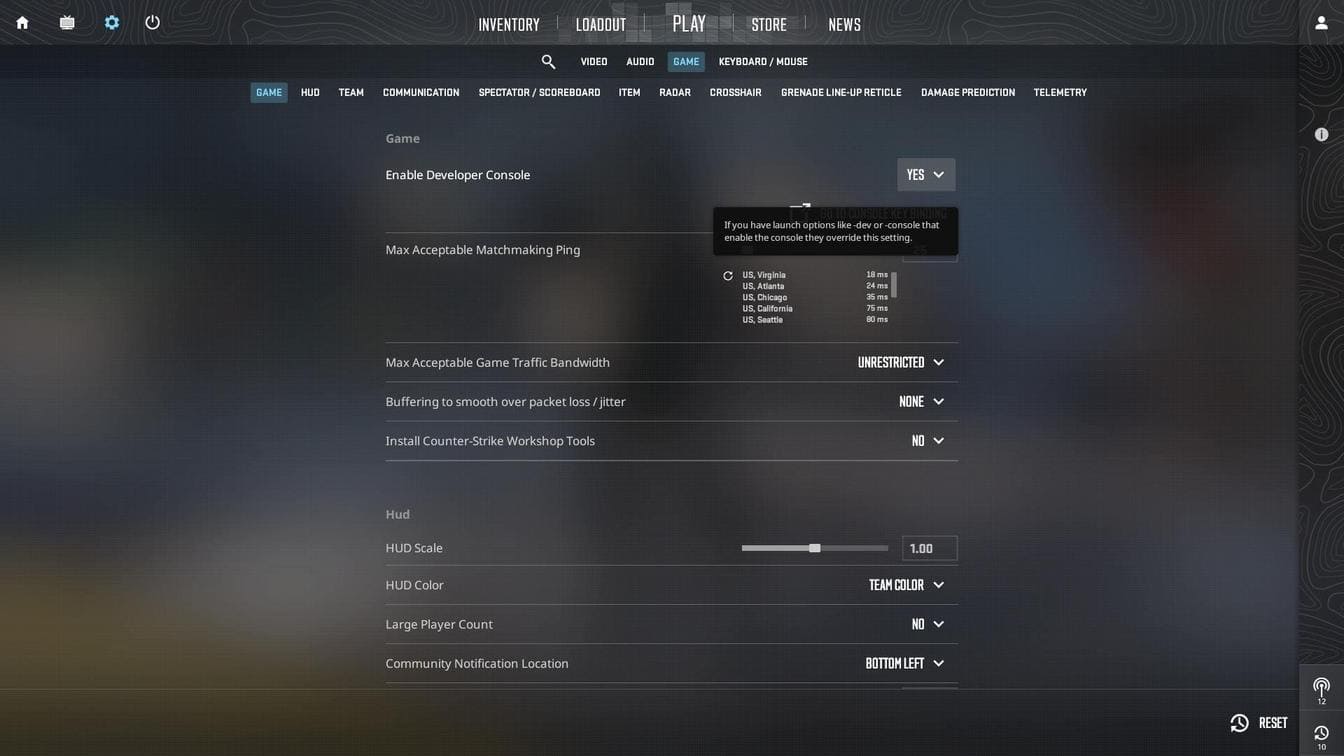
Step 1: Launch Counter-Strike 2 -> go to Settings -> Game.
Step 2: Set Enable Developer Console to Yes.
Step 3: Open the console with the ~ key (default).
Now enter:
bind "mwheeldown" "+jump"
bind "mwheelup" "+jump"
This bind works instantly once entered. If you want it to stay active after restarting CS2, add the same command to your config or autoexec file.
👉 For a full breakdown of all methods – console, config files, launch options, and autoexec – check my detailed guide: Bind Commands in CS2: Full Guide
Unbinding Keys
If you ever want to remove a jump bind, you can do it with the unbind command:
unbind mwheelup
unbind mwheeldown
Another option is to edit your config file directly (cs2_user_keys_0_slot0.vcfg) and delete the line with the bind.
👉 For a full explanation of all configuration files and how to manage them, check my detailed guide: Optimizing Counter-Strike 2 Player Configuration Files
Tips
- Test both mwheelup and mwheeldown to see which feels more natural for you. Some players even bind both for maximum consistency.
- Keep the spacebar as a backup jump key – this way you won’t get stuck if your mouse wheel fails during a match.
- Practice on jump maps. Workshop maps like bhop_ or training_ are perfect to get used to the wheel bind.
- Adjust wheel feel. Some mice scroll too fast or feel too "loose". Check your mouse software to make sure the wheel steps are comfortable.
Conclusion
Binding jump to the mouse wheel in CS2 is one of the easiest ways to improve movement control. Whether you’re learning bunny hops, strafing, or just looking for a more comfortable key setup, this bind can make your gameplay smoother. With multiple methods to set it up – console, config, or autoexec – you can choose the one that fits your needs best. Once added, it becomes a simple change that can have a big impact on your in-game performance.
F.A.Q.
Do I need to enable the developer console for this bind?
Yes. Go to Settings → Game → Enable Developer Console.
Does this bind work in Competitive or Premier?
Yes. It’s 100% safe and legal – it only uses standard CS2 commands.
Can I still use the spacebar to jump?
Yes, if you don’t unbind it. By default, the spacebar remains
assigned to +jump.
What if I want to restore my mouse wheel to weapon switching?
Use:
bind "mwheelup" "invprev"
bind "mwheeldown" "invnext"
Can I bind both mwheelup and mwheeldown to jump?
Yes. Many players do this for consistency – it doubles your chances of hitting the timing.
Does scroll wheel jump help with bunny hopping?
Yes. It doesn’t guarantee perfect bhops, but it makes timing much easier than using the spacebar.
Is it safe to use in Premier or Competitive?
Absolutely. It’s a built-in CS2 command and fully allowed on official servers.