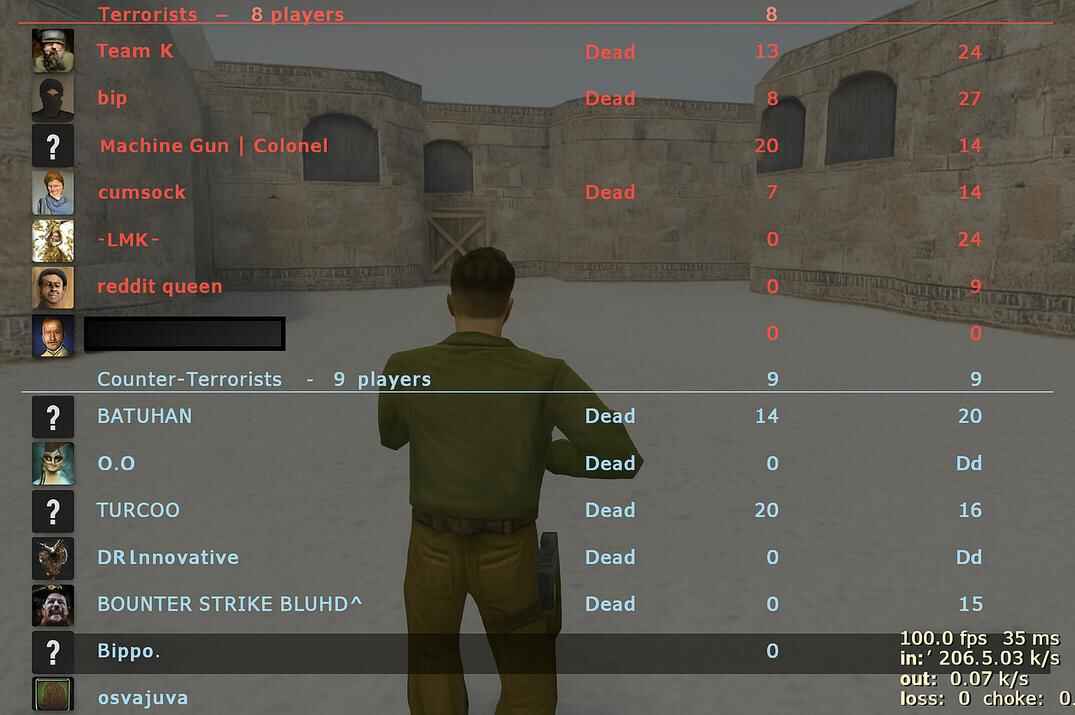
Understanding FPS in CS 1.6
In CS 1.6, frames per second - or simply FPS - define how smoothly the game reacts to your actions. Higher FPS means smoother aiming, more precise recoil control, and better movement feedback. Even though the GoldSrc engine was built for early-2000s hardware, the game is still actively played in 2026 - now on systems hundreds of times faster than the original minimum specs. That difference is exactly what creates most of today’s FPS and timing issues.
The GoldSrc Engine Limitation - 100 FPS
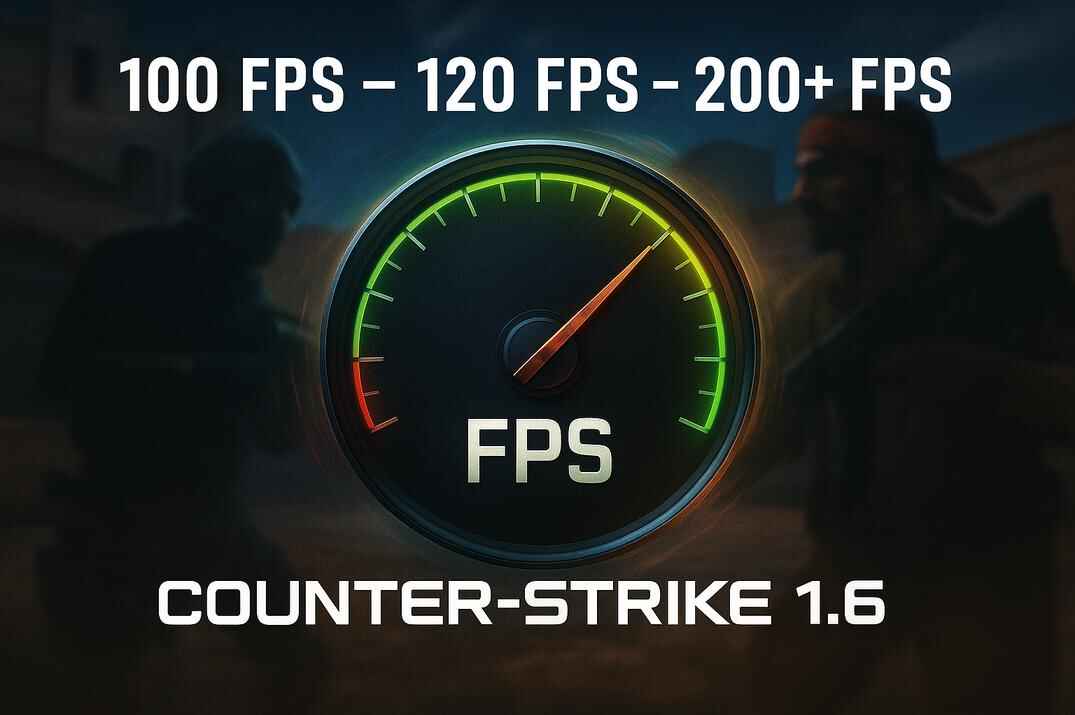
By default, the GoldSrc engine used by Counter-Strike 1.6 sets the fps_max value to 72 FPS. This limit originates from early Half-Life engine defaults rather than a direct link to monitor refresh rates. Most CRT displays of that era typically ran at 60–85 Hz, but the engine used 72 FPS as a conservative internal cap for stability on early-2000s hardware.
Players could manually increase this limit up to 100 FPS, which quickly became the standard setting in the Counter-Strike community. The engine’s movement and physics behave most consistently around this value, which is why competitive players traditionally run the game at a stable 100 FPS.
On modern builds, you can remove this cap with fps_override 1 (Steam) or developer 1 (Non-Steam), allowing the game to render at 120, 200, or even 999 FPS if your GPU allows it.
FPS and Gameplay Physics
The GoldSrc engine calculates every movement frame by frame. Each press of A, D, W, or S - every mouse turn and jump impulse - is processed once per frame. Your precision therefore depends directly on frame timing.
At low FPS (40-60), the frame time is too long; inputs register late, movement feels heavy, and jump timing drifts. Even aim correction becomes inconsistent.
At extremely high FPS (200-999), the opposite happens - the frame window is so short that human input can’t stay perfectly synchronized with the engine’s internal ticks. Advanced techniques like fast-run, long-jump, or bunny-hop depend on matching strafe keys and mouse turns within precise frame intervals, and that synchronization becomes harder as FPS rises. The physics don’t "break", but your rhythm and consistency do.
That’s why most skilled players and KZ communities lock their FPS around 99 - 99.5 - the sweet spot where movement stays smooth, predictable, and fully under control.
What’s a "Stable FPS" Today
On Windows 10 or Windows 11 with modern GPUs and high-refresh monitors, maintaining around 100-120 FPS is the perfect balance - smooth visuals, consistent timing, and precise input. Pushing far beyond that doesn’t improve gameplay; it only makes timing-based movement harder to control.
This isn’t CS2, where the biggest FPS number matters most. In CS 1.6, what really counts is a stable, steady frame rate - not how high it goes - because stability keeps your movement predictable and your aim perfectly in sync.
Best Video and Renderer Settings for CS 1.6 FPS
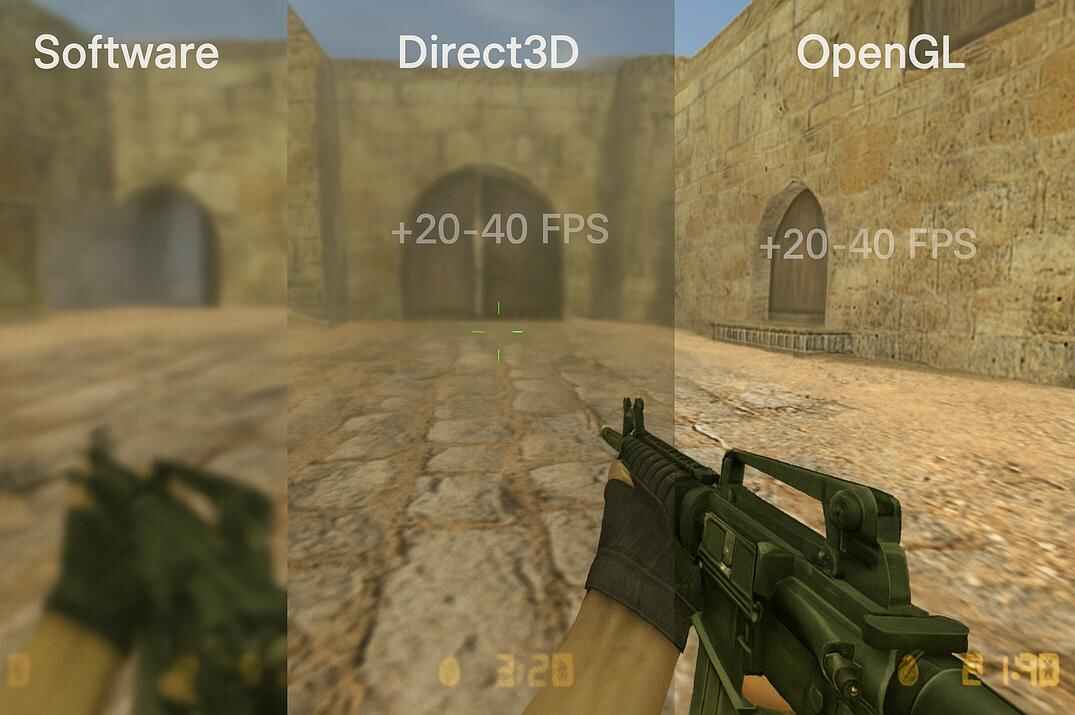
Before tweaking configs or commands, it’s worth understanding how video modes and renderers affect performance in Counter-Strike 1.6. The game still runs on the GoldSrc engine, which uses very old rendering APIs - OpenGL, Direct3D, and Software. Choosing the right one can easily add 20-40 FPS depending on your GPU and driver setup.
OpenGL vs Direct3D vs Software Mode

OpenGL - the most stable and preferred renderer. It gives the smoothest performance, lowest input lag, and the best visual clarity. Works perfectly on both NVIDIA and AMD drivers, and is still supported even on Windows 11. Use this mode whenever possible.
Direct3D - often produces lower FPS and random stuttering, especially on modern GPUs. Some players use it because it can look slightly brighter or sharper, but it’s less consistent. Not recommended for play.
Software - pure CPU rendering, no GPU acceleration. It disables lighting, shaders, and all advanced effects. FPS can be stable on very old hardware, but the image quality is poor and aiming feels delayed. Only useful for testing or troubleshooting.
If you’re unsure which mode is active, open Options -> Video -> Renderer and switch between them, then restart the game. On almost all systems, OpenGL will give the highest and most consistent FPS.
Recommended Video Options
Resolution: The classic and most effective choice is 640×480 (4:3 Black Bars). It gives the lowest input delay, largest player models, and the clean, focused feel that defined competitive CS 1.6. Higher resolutions like 800×600 or 1024×768 are usable, but 640×480 remains the standard for professional play.
Color Quality: 32-bit color depth (unless your GPU struggles - then
use 16-bit).
Vertical Sync: Always disable (V-Sync off) both in-game and in your GPU control panel to avoid input lag and FPS lock to monitor refresh rate.
Display Mode: Fullscreen gives the most stable performance and lowest latency. Windowed or borderless modes can add slight delay and frame inconsistency.
Brightness and Gamma: Adjust to personal preference; they don’t affect FPS.
NVIDIA / AMD Control Panel Settings


CS 1.6 doesn’t use modern graphics features like shaders or post-processing, so there’s no reason to keep the GPU tuned for visual quality. Open your NVIDIA Control Panel or AMD Radeon Settings and simply set the global performance mode:
In NVIDIA Control Panel -> Adjust image settings with preview -> choose "Use my preference emphasizing Performance".
In AMD Radeon Settings -> Graphics -> Profile Options -> set Performance Mode or Optimize for Speed.
That’s it - no advanced tuning is required. This isn’t CS2 - just set your GPU to Performance mode and leave it.
CS 1.6 FPS Commands and Config Tweaks
In Counter-Strike 1.6, almost everything that affects FPS can be changed directly through the console. These commands help stabilize performance, remove unnecessary effects, and make the game feel smoother on any system. You can enter them in-game or save them in userconfig.cfg (or your own config file) to keep the changes permanent.
The file userconfig.cfg is loaded automatically each time the game starts, so it’s the perfect place for your custom commands and scripts. If the file doesn’t exist, just create it inside your cstrike folder.
For a full explanation of how configs work, check out the guide: Counter-Strike 1.6 Config Guide - Commands and Optimization
It covers the config system in detail, how to link multiple .cfg files, and how to organize personal settings safely.
Core FPS Commands

fps_override "1"    // removes the 100 FPS cap (Steam)
developer "1"       // removes the cap on Non-Steam builds
fps_max "121"       // sets your FPS limit
cl_showfps "1"      // shows current FPS
net_graph "3"       // shows FPS + network info
The command developer 1 enables developer mode on both Steam and Non-Steam clients and displays full console logs (engine/system messages).
Graphics and Performance
These commands disable unnecessary visual effects and free up resources. They don’t change gameplay but make the picture cleaner and the frame time more consistent.
gl_vsync 0         // Disables vertical sync
gl_fog 0           // Removes fog effects
gl_wateramp 0      // Disables water distortions
r_dynamic 0        // Removes dynamic lighting (muzzle flashes, explosions)
gl_lightholes 0    // Disables light leaks
cl_weather 0       // Turns off rain/snow
cl_shadows 0       // Removes shadows
r_shadows 0        // Removes shadows
gl_clear 0         // Disables screen clearing (may cause artifacts)
gl_dither 0        // Turns off color dithering
gl_spriteblend 0   // Simplifies sprite blending
fastsprites 2      // Sets sprite quality (0 = best, 2 = fastest)
cl_himodels 0      // Disables high-poly player models
cl_minmodels 1     // Forces simple models for all players
gl_picmip 1        // Lowers texture detail (1–2 balanced, 3 max FPS)
gl_max_size 256    // Limits maximum texture size
max_shells 0       // Disables shell casings
max_smokepuffs 0   // Disables smoke/dust puffs
violence_* 0       // Removes blood and gibs
cl_corpsestay 0    // Corpses vanish instantly
r_decals 0         // Disables bullet holes and explosion marks
Some servers enforce restrictions - for example,r_decals 0ormax_smokepuffs 0may be overridden by server rules.
Best CS 1.6 Launch Options for Better Performance
CS 1.6 Launch options are startup parameters you can add before running a game. They’re often mentioned in FPS boost guides, but in reality, most of them have little or no effect on actual frame rate. Most of the old "boost" commands you see online (like -heapsize or -high) don’t actually do anything in CS 1.6 - they were made for newer Source-based games. Still, it’s worth understanding what they do - and which ones are pure myths.


To set them: Open Steam -> Library -> Counter-Strike 1.6 -> Properties -> General -> Launch Options. For Non-Steam client, right-click hl.exe icon, select Properties, and add them after the path.
Commonly Used but Irrelevant to FPS
These are the most popular parameters you’ll see in performance guides - yet none of them increase FPS.
-noforcemparms   // prevents CS from overriding Windows mouse settings (helps consistency, not FPS)
-noforcemaccel   // disables forced mouse acceleration (aim behavior only)
-noforcemspd     // disables forced mouse speed settings
-gl              // forces OpenGL renderer (already default)
-32bit           // Forces the selected color mode (already default)
-heapsize XXXXXX // old Half-Life memory flag, useless
-freq 144        // sets monitor refresh rate (not tied to FPS)
-novid           // skips intro video (CS 1.6 has none)
Minor, Conditional Tweaks
These can slightly reduce CPU overhead on very weak systems - around 1-2 FPS improvement at best.
-nojoy   // disables joystick support
-noipx   // disables obsolete IPX networking protocol
Most launch options suggested in various FPS boost articles for Counter-Strike 1.6 are purely cosmetic or outdated. They don’t provide any measurable increase in frame rate. I played CS 1.6 on Windows XP with Pentium and Athlon processors and just 256 MB of RAM, when launch parameters like -nojoy, -noipx, -dxlevel, and oher often made sense. But not today - not on modern Windows 11 systems and not on modern processors. However, unlike CS2, there’s still some value in using launch options in CS 1.6, especially those related to mouse behavior, which genuinely improve consistency and input feel.
If you’re looking for real performance gains, focus on your video renderer, config commands, and system optimization - not on command-line flags.
Launch options won’t make your game faster, but understanding them helps keep your setup clean, stable, and predictable.
Windows 10/11 System Optimization

Counter-Strike 1.6 can run on almost anything - even a school PC from 2000. Still, a few adjustments remove stutter and stabilize frame time.
GPU Drivers and Control Panel
Keep your graphics drivers updated and set your GPU to Performance mode in the NVIDIA or AMD control panel. That’s really all CS 1.6 needs.
Background Processes
Close browsers, overlays, or recording apps like Discord and OBS before launching the game. Less clutter - more stable frame time.
Power Plan
On laptops, use the High Performance or Ultimate Performance plan to avoid sudden FPS dips when the system throttles your CPU.
That’s it. You don’t need registry hacks or optimization tools - CS 1.6 runs perfectly fine on clean Windows without any of that.
CS 1.6 FPS FAQ

Why is my FPS stuck at 100 in CS 1.6?
Because the GoldSrc engine limits the frame rate by default. Use fps_override 1 (Steam) or developer 1 (Non-Steam) with fps_max 121 to unlock it.
Can I get more than 200 FPS?
Yes, but it’s pointless. The game physics were designed around 100 FPS. Anything higher only makes movement timing harder to control.
Does higher FPS improve aim accuracy?
Not directly. It just makes the game feel smoother and your mouse input more consistent, which helps you aim more confidently.
What renderer gives the highest FPS?
OpenGL - always. It’s the most efficient mode with the lowest input delay and best frame pacing on any GPU.
My FPS drops randomly - what causes it?
Usually background apps, overlays, or antivirus scans. Close them before launching the game.
Should I use V-Sync?
No. V-Sync locks FPS to your monitor’s refresh rate and adds input lag. Always keep it off for competitive play.
Do launch options increase FPS?
No. Most of them are cosmetic or outdated. The only ones that matter (-nojoy, -noipx) might add 1-2 FPS on weak systems at best.
Can my monitor’s Hz change FPS?
Only if V-Sync is enabled. Otherwise, your FPS is independent from refresh rate.
Does CS 1.6 use multiple CPU cores?
No. It’s a single-threaded engine. Faster single-core performance matters more than having many cores.
What’s the best FPS for smooth gameplay?
The best FPS value is 99.5 - smooth, stable, and perfectly matched to the game’s internal physics.