Counter-Strike 1.6 Config Guide - Commands and Optimization

Table of Contents

Introduction

A Counter-Strike 1.6 config is simply a plain-text file with CS 1.6 config commands and settings that the game reads and applies. Instead of clicking through menus every time, you write the exact values you want - key binds, mouse settings, network rates, FPS limits, crosshair tweaks, aliases - and the engine executes them in the same order every launch. That repeatability is the whole point: your CS 1.6 settings become portable, consistent, and easy to recover after a reinstall or when moving to another PC.

The in-game menus are just a friendly surface for a small subset of options. They change common things (video mode, audio sliders, and a few controls) and save those into a file, but they don’t expose many powerful CS 1.6 commands, and they can overwrite tweaks when you toggle something later. Config files, by contrast, give you full control of the command layer: you can script sequences (aliases), organize settings into separate files for different scenarios (e.g., LAN vs. internet), and apply them instantly with a single exec. Menus are useful for quick changes, but config files give you precise control, automation, and more reliable optimization.

How CS 1.6 Config Files Work
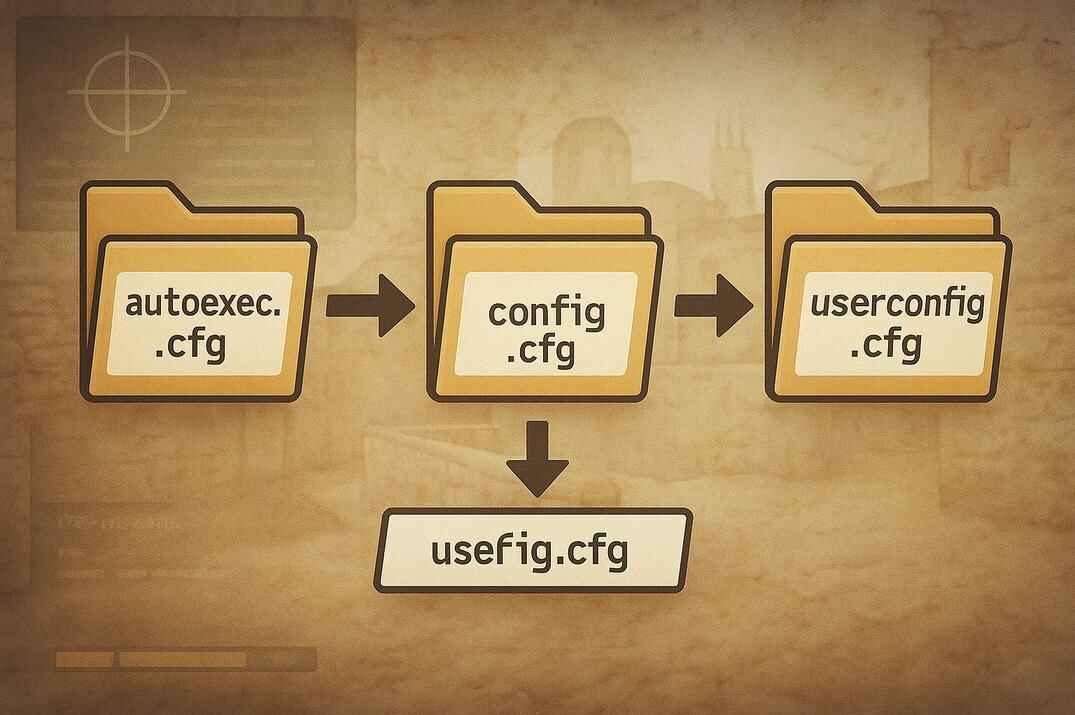
Counter-Strike 1.6 infographic showing config file load order with folders labeled autoexec.cfg, config.cfg, and userconfig.cfg, connected by arrows on a Dust2-style background

Config files in Counter-Strike 1.6 follow a simple but important hierarchy. Each file has its own purpose: some are controlled by the game, some are meant for the player, and together they decide what your game looks and feels like every time it starts. Understanding how these files load - and what gets saved or overwritten - is the key to building a stable setup that won’t randomly reset.

Default config.cfg

This is the main file the game creates by default. It stores all standard settings that can be changed through the in-game menus: key binds, video and sound options, sensitivity, crosshair style, and so on. Every time you close the game, it rewrites config.cfg with your current settings. If you change values of commands that already exist here (for example, volume "1" instead of the default 0.8), the new values will be saved. But if you add custom commands that don’t belong to the default set (like developer "1"), they will be erased the next time the file is written.

autoexec.cfg

If present, this file is always executed first. The game itself never overwrites it, which makes it perfect for important commands you don’t want lost - debug variables, test commands, or special startup tweaks. Think of it as the first layer that prepares the game before the regular config kicks in.

userconfig.cfg

By default, config.cfg ends with the line exec userconfig.cfg. That means if the file exists, it will always be executed after config.cfg is loaded. The game does not create it on its own - you need to make it manually. This became the community’s traditional place to keep custom binds, scripts, and permanent settings, because unlike config.cfg, the game never touches it.

Load order

CS 1.6 loads configuration files in the following order:

  1. autoexec.cfg (if it exists) - technical startup script, not recommended for storing main settings in CS 1.6
  2. Steam Launch Options or Shortcut (if +exec your_config.cfg is specified)
  3. config.cfg (always)
  4. userconfig.cfg (if it exists and is executed by config.cfg)

This order explains why some commands appear to reset or disappear after restarting the game. The game first loads its main config, then applies any extra files you created manually. By default, CS 1.6 only includes config.cfg - everything else exists only if you add it yourself.

In CS 1.6 config.cfg loads after autoexec.cfg, which may overwrite commands. For this reason, most stable setups store user settings in userconfig.cfg.

Creating and Managing Custom CS 1.6 Configs

Once you understand how the game handles its default files, the next step is building your own. Custom configs give you control beyond the menus: you decide which commands stay permanent, which scripts are active, and how to keep everything organized. Since the game overwrites config.cfg every session, your personal files are the safe way to store and maintain a stable setup.

Creating userconfig.cfg manually

Windows Explorer showing Counter-Strike 1.6 cstrike folder with config.cfg and userconfig.cfg files highlighted
CS 1.6 path to configuration files config.cfg and userconfig.cfg

This file does not exist by default - you have to make it yourself with any text editor and save it as userconfig.cfg in the \cstrike\ folder. Because config.cfg ends with exec userconfig.cfg, the game will load it automatically if it’s present. That’s why it became the community standard: you can keep binds, scripts, and special settings here without worrying they’ll be erased.

Path (Windows):

  • Steam: ..\common\half-life\strike\
  • Non-Steam: ..\<game folder next to hl.exe>\cstrike\

Both config.cfg and userconfig.cfg live here

Organizing multiple cfg files

userconfig.cfg can also serve as a hub to load other custom files. For example, you might keep one file for all your binds (mybinds.cfg) and another for scripts (myscripts.cfg). In userconfig.cfg you simply add lines like exec mybinds.cfg or exec myscripts.cfg. This way you can separate settings by purpose and quickly swap or update them without digging through a single giant config.

Keeping configs safe

Since custom files aren’t touched by the game, they’re easy to back up. Copy them to a USB drive, cloud folder, or even email them to yourself. If you reinstall CS 1.6 or move to another PC, just drop them back into the \cstrike\ folder and everything will work instantly. This is especially useful for players who switch between LAN cafés or tournaments, where you want your exact setup every time.

Config Tips

If you want to test a new config without restarting the game, just type exec filename.cfg in the console and the file will be applied immediately. You can also re-execute userconfig.cfg the same way if something got overridden. Another good habit is to keep comments in your files (using //) so you remember what each command or bind does when you revisit them later.

To protect your main settings, it’s usually better to set config.cfg to Read-only in Windows. This way any test binds or scripts won’t overwrite your core setup, and the game will still run normally. Just remember that new menu changes won’t be saved, so use this mainly as a safeguard. For everyday customization, keep your commands in userconfig.cfg or other exec-loaded files.

How to Use Autoexec.cfg in CS 1.6

Google AI search result showing incorrect advice to use autoexec.cfg in Counter-Strike 1.6 config guide, with net_graph command example highlighted

Googled "CS 1.6 config guide" lately? If yes - then you probably saw the same circus I did. AI and random sites all confidently recommend: "Put your settings into autoexec.cfg, that’s the right way!" Yeah, sure. And then pigs fly😂.

Look at the screenshot above - Google AI literally tells you autoexec is the recommended file for your config. But if you open your real config.cfg, what do you see written by Valve themselves?

// Add custom configurations to the file "userconfig.cfg"

Boom. End of story. Valve already gave you the answer twenty years ago.

Now let me show you why autoexec is a terrible "main config". It loads first. Cool, right? Except right after that, config.cfg comes in and overwrites half of your stuff. Example: you put net_graph "1" into autoexec. You load a map, and… nothing. Net_graph is still off. Did the command break? Nope. It worked perfectly - until config.cfg dropped net_graph "0" on top of it like a wet towel.

And this is why guides that scream "use autoexec.cfg" are nonsense. They’re written by people who clearly never spent serious time in CS 1.6. They just parrot CS:GO or CS2 habits. Different engine, different rules.

Some skeptics say: "Well, config.cfg rewrites anyway, so what’s the problem?" Here’s the problem: config.cfg is supposed to rewrite. That’s the working file. It updates every session, and that’s fine. The real issue is when clueless players start cramming their binds and scripts into autoexec, only to wonder later why everything breaks.

Ask any 1.6 veteran - almost everyone has felt this "pain" =) when at some point, due to a mistake or simple carelessness, they broked their config.cfg and suddenly found themselves helpless, not even knowing how to get everything back. That’s why the rule is simple: don’t edit config.cfg by hand, don’t treat autoexec as your config. If you want to be extra safe, make config.cfg read-only. That way if your binds explode, you just exec config.cfg and the game resets everything to defaults in seconds. First aid kit, built-in.

So what’s autoexec.cfg actually good for? Debugging. Developer logs. Launch option experiments. Throwaway tests. That’s it. It’s not your personal diary of settings.

Where do your real settings live? Exactly where Valve told you: userconfig.cfg. That’s the stable place. Want structure? Chain more files from it:

exec mybinds.cfg
exec myscripts.cfg

But remember, in CS 1.6 you must include the .cfg extension - unlike CS:GO, here the engine isn’t so forgiving.

Essential CS 1.6 Config Commands

CS 1.6 gives players a huge amount of control through console commands. While the menus only touch the basics, configs let you fine-tune performance, network behavior, sound, and controls in ways that directly affect gameplay. Below are the key areas - graphics, network, audio, and interface - with the most useful commands, their effects, and recommended values. Keep in mind that some servers may restrict certain variables, and the best settings can depend on your hardware and connection.

Graphics and Performance

These commands reduce unnecessary effects and free up frames. On old machines, they can make the game run much smoother; even on modern PCs, they help maintain consistent FPS.

Command Effect / Purpose Recommendation
fps_override 1Allows FPS to exceed the old 100 limit1 if you want more than 100 FPS
fps_max <value>Sets max FPS100 standard, 200–300 or more if your PC handles it
gl_vsync 0Disables vertical sync0 (off) for consistent FPS
gl_fog 0Removes fog effectsOff for clarity and FPS
gl_wateramp 0Disables water distortionsOff for smoother performance
r_dynamic 0Removes dynamic lighting (muzzle flashes, explosions)Off for stability
gl_lightholes 0Disables light leaksOff to reduce rendering load
cl_weather 0Turns off rain/snowOff on weather maps (e.g, de_aztec)
cl_shadows 0 / r_shadows 0Removes shadowsOff for performance
gl_clear 0Disables clearing screen every frameCan boost FPS, may cause artifacts
gl_dither 0Turns off color ditheringOff for slight boost
gl_spriteblend 0Simplifies sprite blendingOff for FPS over visuals
fastsprites 2determines the quality level of sprites2 for performance
cl_himodels 0Disables HD player modelsOff for better FPS
cl_minmodels 1Forces simple player modelsOn for performance
gl_texturemode "GL_LINEAR_MIPMAP_NEAREST"Lowers texture filteringFaster rendering
gl_picmip 1 (or higher)Makes textures blurrier1–2 for balance, 3 for max FPS
gl_max_size 256Limits max texture size256 recommended
max_shells 0Removes shell casingsOff for better FPS
max_smokepuffs 0Removes smoke/dust puffsOff unless server blocks it
violence_* 0Disables blood/gibsOff for higher performance
cl_corpsestay 0Corpses vanish instantlyOff for clean scenes
r_decals 0Disables bullet holes/explosion marksOff for FPS boost
Some servers enforce restrictions (e.g., not allowing max_smokepuffs 0 or r_decals 0). In those cases your config will be overridden by server rules.

Network Commands

These decide how your client communicates with the server. Getting them right is key for smooth hit registration and stable gameplay.

Command Effect / Purpose Recommendation
rate <value>Max data client can receive25000 (Maximum for GoldSrc engine)
cl_updaterate <value>Updates received from server per second101 (to round)
cl_cmdrate <value>Commands sent to server per second101 (to round)
ex_interp <value>Interpolation smoothing0.01 for lowest delay (depends form server, test it. The default is 0.1)
cl_cmdbackup <0-10>Backup commands buffer1–2 typical
cl_timeout <sec>Time before disconnect if no response60 default
cl_allowdownload 0Blocks auto-download of custom files0 to avoid laggy downloads
cl_dlmax <value>Max download speed from serverSet low if you want fewer downloads
cl_filterstuffcmd 1Blocks server-forced commands1 for safety
cl_nopred 0/1Turns off movement predictionUsually 0; try 1 on bad connections
net_graph 1Shows network stats/FPS0/1/2/3 Use for troubleshooting
Server configs can cap your rate, cl_updaterate, and cl_cmdrate. You can’t bypass server-side limits.

Controls and Interface

These affect how the game feels to control and how the HUD looks.

Command Effect / Purpose Recommendation
m_filter 0Disables mouse smoothing0 for raw aim
m_customaccel 0Disables mouse acceleration0 for consistent aim
cl_showfps 1Shows FPSOn if monitoring performance
hud_fastswitch 1Enables fast weapon switch1 for instant swaps
cl_dynamiccrosshair 0Static crosshair0 for consistency
cl_righthand 1/0Choose right/left handPreference
cl_bob*Reduces weapon bobbingLower = steadier view
developer 0/1Enables dev logging0 for normal play
viewsize <value>HUD size/FOV viewAdjust to taste
brightness, gammaBrightness and gamma2.5 - 3 typical
Outside the game, disable Windows mouse acceleration: Control Panel -> Mouse -> Pointer Options -> uncheck "Enhance pointer precision". This makes aim much more consistent.

Best Config for CS 1.6

This config is tuned for optimal performance and stability. It strips away unnecessary effects, sets proper network values, and keeps mouse control consistent. Before using it, always make a backup of your current config.cfg - many of these commands will overwrite existing settings. If you forget to back up, don’t worry: simply delete config.cfg and the game will create a fresh default one the next time you launch CS 1.6. This way you can safely experiment without the risk of breaking your setup.

// FPS
fps_override "0" // 1 if you need fps_max > 100 (Steam)
developer "0" // 1 if you need fps_max > 100 (non-Steam client) 
fps_max "99.5" // best value for movement; if you prefer the image quality, 120
gl_vsync "0"

// Disable visual effects
gl_fog "0"
gl_wateramp "0"
r_dynamic "0"
gl_lightholes "0"
cl_weather "0"
cl_shadows "0"
r_shadows "0"
gl_clear "0"
gl_dither "0"
gl_spriteblend "0"
gl_monolights "1"
cl_himodels "0"
cl_minmodels "1"
gl_texturemode "GL_LINEAR_MIPMAP_NEAREST"
gl_picmip "2"
gl_max_size "256"
max_shells "0"
max_smokepuffs "0"
violence_hblood "0"
violence_ablood "0"
violence_hgibs "0"
violence_agibs "0"
cl_corpsestay "0"
r_decals "0"

// Network
rate 25000  // 
cl_updaterate "101"
cl_cmdrate "101"
ex_interp "0.05"
cl_cmdbackup 2
cl_timeout 60
cl_allowdownload 1
cl_dlmax 1024
cl_filterstuffcmd 1

// Controls / Interface
m_filter 0
m_customaccel 0
cl_showfps 0
net_graph 3
hud_fastswitch 1
cl_dynamiccrosshair 0
cl_righthand 1
cl_bob 0
cl_bobcycle 0.0
cl_bobup 0
developer 0

// Brightness / Gamma
brightness 3
gamma 3
viewsize 120

// -=-Scripts-=-

// delay
alias "w" "wait"
alias "w2" "wait; wait"
alias "w4" "w2; w2"
alias "w5" "w4; w"
alias "w8" "w4; w4"
alias "w10" "w8; w2"

// simple
alias "qq" "quit"
alias "dd" "disconnect"
alias "rr" "record demo"

// info
bind "F1" "say /rankstats"
bind "F2" "say /top15"

// buy binds
bind "F5" "deagle;secammo;vesthelm;hegren;flash;flash;sgren;defuser"
bind "F6" "ak47; m4a1; deagle;primammo;vesthelm;secammo;hegren;flash;flash;sgren;defuser"
bind "F7" "awp;primammo;deagle;secammo;vesthelm;secammo;hegren;flash;flash;sgren;defuser"

// jump and croach
alias "+hj" "+jump; +duck"
alias "-hj" "-jump; -duck"
bind "SPACE" "+hj"

// fast awp
alias "w" "wait"
alias "w2" "wait; wait"
alias "w4" "w2; w2"
alias "w8" "w4; w4"
alias "+hs" "+attack2; w8; +attack; w"
alias "-hs" "-attack; w; -attack2; w2; slot3; lastinv; w8"
alias "trigger" "awpON"
alias "awpON" "bind mouse1 +hs; alias trigger awpOFF; echo On"
alias "awpOFF" "bind mouse1 +attack; alias trigger awpON; echo Off"
bind "c" "trigger"

// burst fire
alias "w2" "wait; wait"
alias "w5" "w2; w2; wait"
alias "w10" "w5; w5;"
alias "fire1" "+attack; wait; -attack"
alias "fire2" "fire1; w10; fire1"
alias "fire3" "fire2; w10; fire1"
alias "b_fire" "b_fire_on"
alias "b_fire_on" "bind mouse1 fire3; alias b_fire b_fire_off; echo Activated"
alias "b_fire_off" "bind mouse1 +attack; alias b_fire b_fire_on; echo Deactivated"
bind "f" "b_fire"

Run or Download the Config

Add the commands above, along with your own binds and scripts - into userconfig.cfg, and the game will load them automatically every time CS 1.6 starts.

If you prefer manual loading:

  1. Go to the \cstrike\ folder of your Counter-Strike 1.6 installation
  2. Create your own config file (for example, myconfig.cfg)
  3. Add the commands above - along with your own binds and scripts - into myconfig.cfg
  4. Launch the game, open the console, and run: exec myconfig.cfg

To make things easier, you can also download a ready-to-use userconfig.cfg file that already includes the commands and scripts shown in this guide. It provides a clean starting point, so you can simply place it in your cstrike folder and start the game.

You can still edit the file later to add your own binds, aliases, or tweaks.

Download userconfig.cfg Config file

Unlike CS2, CS 1.6 requires the .cfg extension when executing files. The exec command works both in the console and while you are in a game. Example:

exec myconfig // Wrong
exec myconfig.cfg // Correct

Advanced CS 1.6 Config Tips

Once you have your base config working smoothly, you can take it further with advanced tweaks. These aren’t mandatory, but they can streamline gameplay, speed up actions, or simply make the game feel more comfortable. The main tools here are scripts (aliases - custom commands), buy scripts, fast scope, triggers, and simple automation tricks.

Scripts and Simple Aliases

An alias console command lets you define your own command and chain together multiple actions. For example, you can create a toggle between two values or run a series of commands with one key. Aliases are the foundation of more complex scripting in CS 1.6.

Check out my full collection of 20+ ready-to-use scripts here: Counter-Strike 1.6 Useful Scripts

Fast Buy Binds

Buying gear through the menu costs time you could use to position yourself. With fast buy binds, one key press is enough to purchase your full loadout.

bind "F5" "deagle;secammo;vesthelm;hegren;flash;flash;sgren;defuser"
bind "F6" "ak47; m4a1; deagle;primammo;vesthelm;secammo;hegren;flash;flash;sgren;defuser"
bind "F7" "awp;primammo;deagle;secammo;vesthelm;secammo;hegren;flash;flash;sgren;defuser"

With these binds you can:

  • Press F5 for a quick eco+utility setup.
  • Press F6 for an AK/MK loadout.
  • Press F7 for an AWP + sidearm combo.

This saves valuable seconds at the start of the round and ensures consistency every time you spawn.

Bunnyhop / Movement Scripts

While servers may block certain commands, movement binds can make control smoother:

bind "MWHEELDOWN" "+jump"
bind "MWHEELUP" "+duck"

MWHEELDOWN makes bunnyhopping easier by binding jump to the scroll wheel. MWHEELUP lets you crouch with the scroll wheel, making you harder to hit while keeping your speed.

Custom Crosshair and Viewmodel

You can hardcode your favorite crosshair style or weapon position so it always loads the same way:

cl_crosshair_color "250 50 50"
cl_righthand 0

This ensures your crosshair and viewmodel are consistent every time, no matter what config.cfg tries to overwrite.

Reloading Configs Mid-Game

If something feels off, you don’t need to restart the game. Just type exec userconfig.cfg or any other file in the console, and your settings will reload instantly. This is especially useful for testing new tweaks or swapping between configs (e.g., LAN vs. online).

Use these tools to personalize the game for your style, not to abuse mechanics. CS 1.6 scripting is limited to built-in commands - it won’t give you unfair abilities, but it can make routine actions smoother and faster.

Conclusion

A config in Counter-Strike 1.6 is more than just a text file - it’s your personal toolkit for consistency, stability, and optimization. By moving beyond the in-game menus, you gain full control over how the game feels and performs every time you launch it.

The best way to start is simple: focus on the essentials first - mouse, crosshair, FPS, and network settings. Once those feel right, gradually expand your cfg with scripts, buy binds, and quality-of-life tweaks. Over time, your config becomes a reflection of your playstyle, helping you stay comfortable and ready in every game.

F.A.Q.

A glowing 'FAQ' displayed on a futuristic holographic panel, surrounded by floating question marks and digital circuitry within a cosmic, sci-fi environment
Does CS 1.6 create userconfig.cfg by default?

No. Only config.cfg is created automatically. userconfig.cfg has to be made manually, but once it exists, the game will always run it because config.cfg ends with exec userconfig.cfg.

Why do my custom commands disappear after I restart the game?

That happens because config.cfg rewrites itself on exit and only keeps "menu-level" settings (like volume or binds made through the UI). Commands like developer 1 or gl_fog 0 will vanish unless you put them in userconfig.cfg or another file executed at startup.

How can I restore the default config.cfg?

If your config is broken or you want to reset everything, just delete config.cfg from the cstrike folder. When you launch CS 1.6 again, the game will automatically generate a fresh default config with all standard values. This is the safest way to start clean.

Which file loads first - autoexec.cfg or config.cfg?

If present, autoexec.cfg always loads first, then the game applies config.cfg, and finally userconfig.cfg.

Can I lock config.cfg so it never changes?

Yes, you can set the file to "Read-only" in Windows. The game will still run, but new menu changes won’t be saved. It’s sometimes used for testing, but not recommended for everyday play - better to use userconfig.cfg for stability.

Do servers override my config settings?

They can. Many servers enforce values for commands like rate, cl_updaterate, cl_cmdrate, max_smokepuffs, or r_decals. If your values don’t match server limits, they’ll be forced to the allowed range.

Can I run multiple configs for different situations?

Yes. You can create any number of .cfg files (e.g., myscripts.cfg, mybinds.cfg) and load them using exec filename.cfg. Many players keep separate configs for LAN, internet, or practice.

Are scripts in CS 1.6 considered cheats?

No. Scripts are just combinations of built-in console commands. They automate inputs but don’t grant abilities outside the engine’s rules. Anti-cheat systems like VAC treat them as normal.

What’s the easiest way to test a new config without restarting?

Open the console and type exec filename.cfg. The file will load instantly without closing the game.

Can I use configs from other players?

Yes, but be careful - other configs may have values that feel wrong on your setup. It’s best to borrow selectively and adjust to your own sensitivity, crosshair, and preferences.

Why do some binds stop working on other PCs?

Because FPS, resolution, and even hardware can change how timing-sensitive scripts behave. Always check values like fps_max and test your scripts after moving configs to a new system.
Continue Reading

Counter-Strike 1.6 scoreboard with a player using an invisible nickname highlighted in the TAB menu
Invisible Nick in Counter-Strike 1.6 – Full Guide

Invisible Nick in Counter-Strike 1.6 – Full Guide Table of Contents Introduction Nicknames in Counter-Strike 1.6 appear everywhere during a game: in the scoreboard, in chat, in the killfeed, and above the player model. It’s the main way other players recognize you on a server. But CS 1.6 is an

Read More
Leave a Reply

Your email address will not be published. Required fields are marked *